Stock count

Count stock with your phone and see differences instantly

Count without buying a handheld terminal or using pen and paper. Scan products with your phone camera and enter the quantity you counted; when the count is finished, system stock is set to the actual quantity.

All features open for the first month. No credit card required.
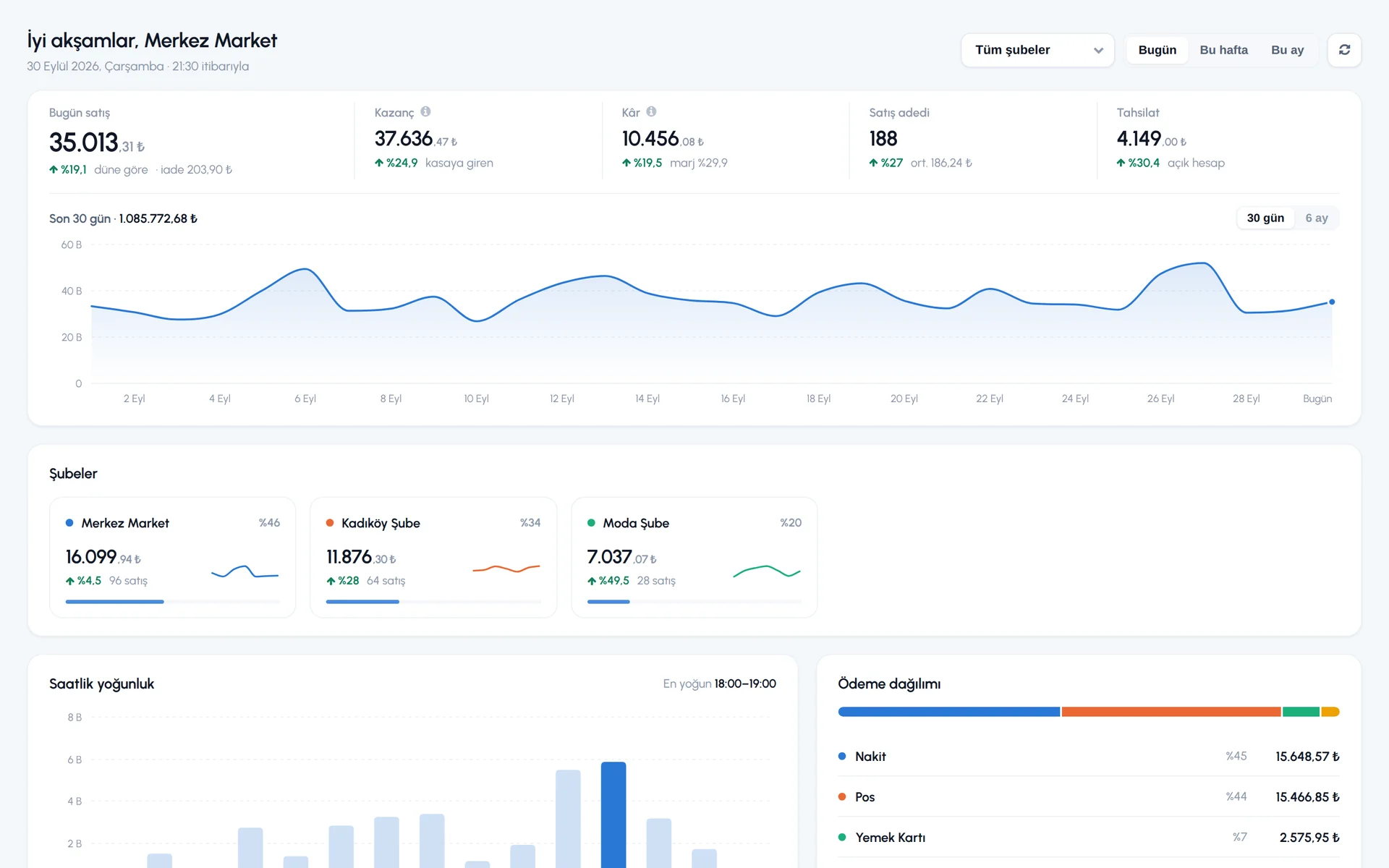
BenimPOS screenshot
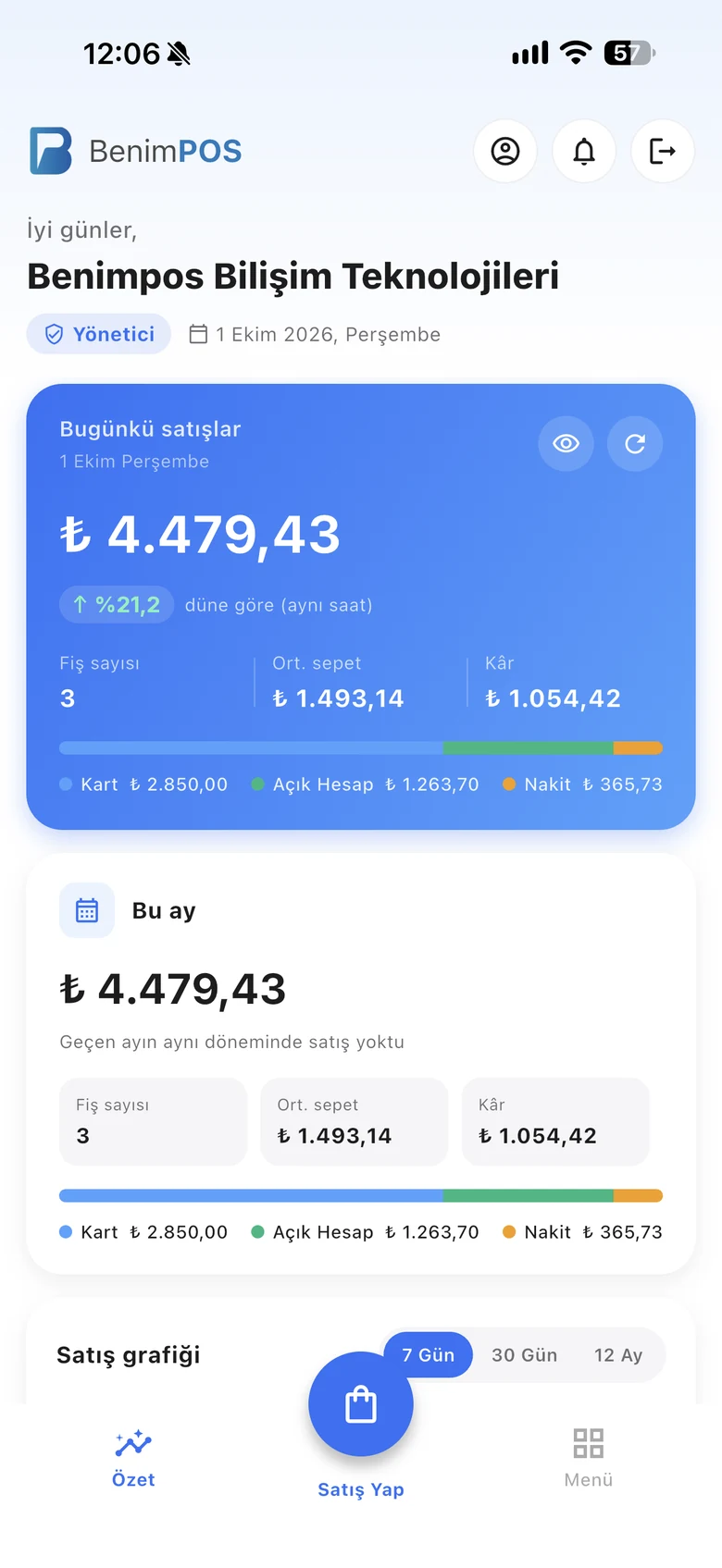
BenimPOS mobile app

What is on the shelf should match what is in the system.

Waste, loss, wrong scans. Over time, system stock drifts away from what is on the shelf. Regular counts close this gap; in BenimPOS a count has no time limit, it can take days, and you can start on the phone and continue on the web.

Count

Scan, enter the quantity, move on

Start a new count and scan products; the system stock is shown and you enter the quantity you counted. When you scan the same product again, quantities can be added up. If a case barcode is set as an additional barcode, the quantity is filled with the pack quantity.

  • Barcode scanning with the phone camera
  • Adding up quantities of the same product
  • Pack quantity from the case barcode
Step by step in the Help Center
BenimPOS mobile app: stock count
Difference

See shortages and surpluses with their value

In the count table you see each product's quantity difference and the purchase, sale and profit differences; the total shortage and surplus value is shown at the bottom. You can also enter a count with an Excel template and download the result as Excel.

  • Quantity, purchase, sale and profit differences
  • Total shortage and surplus value
  • Excel template entry and result download
Step by step in the Help Center
BenimPOS web: stock count
Finishing

You choose how shortages are deducted

When finishing the count, choose the price at which shortages are deducted and whether they are recorded in the register. Surpluses are saved as a purchase invoice. You can also record the count on a past date.

  • Deducting shortages as non-revenue or as sales
  • Surpluses as a purchase invoice
  • Option to zero out products not counted
Step by step in the Help Center
BenimPOS web panel

Counting on web and mobile.

Desktop

Counts are not done on the desktop; when a count is finished, stock syncs to the desktop.

Web

Starting a count, Excel entry, differences and finishing options.

Mobile

Count by scanning with the camera; continue the same count on the web.

Frequently asked questions

If you can't find the answer to your question, check the Help Center or message our WhatsApp support line: +90 312 911 22 33

Do I need a handheld terminal?
No. In the mobile app you count by scanning barcodes with the phone camera; you can also use a Bluetooth barcode scanner if you like.
Can I continue a count started on the phone from a computer?
Yes. A count started on mobile also opens in the web panel; Excel entry and finishing options are on the web.
Can I undo a finished count?
No. A finished count cannot be undone. You can cancel a count started by mistake before finishing it.
Can I also enter expiry dates during a count?
Yes. On the count screen you can also update the product's batches with expiry dates. Expiry date tracking

Do your first count with your phone

Signing up takes two minutes. All features are open for the first month; if you get stuck during setup, our WhatsApp support line will help.