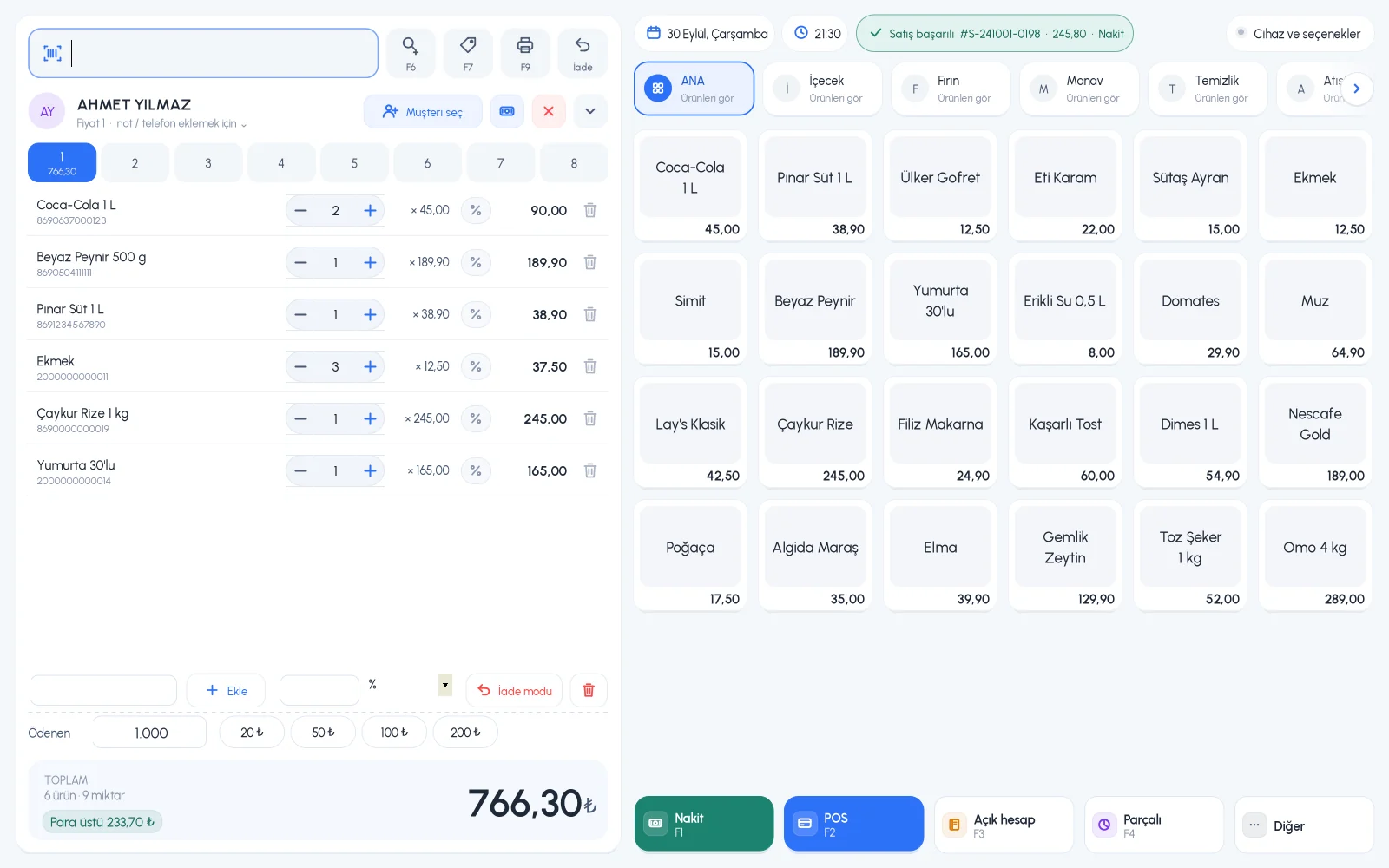
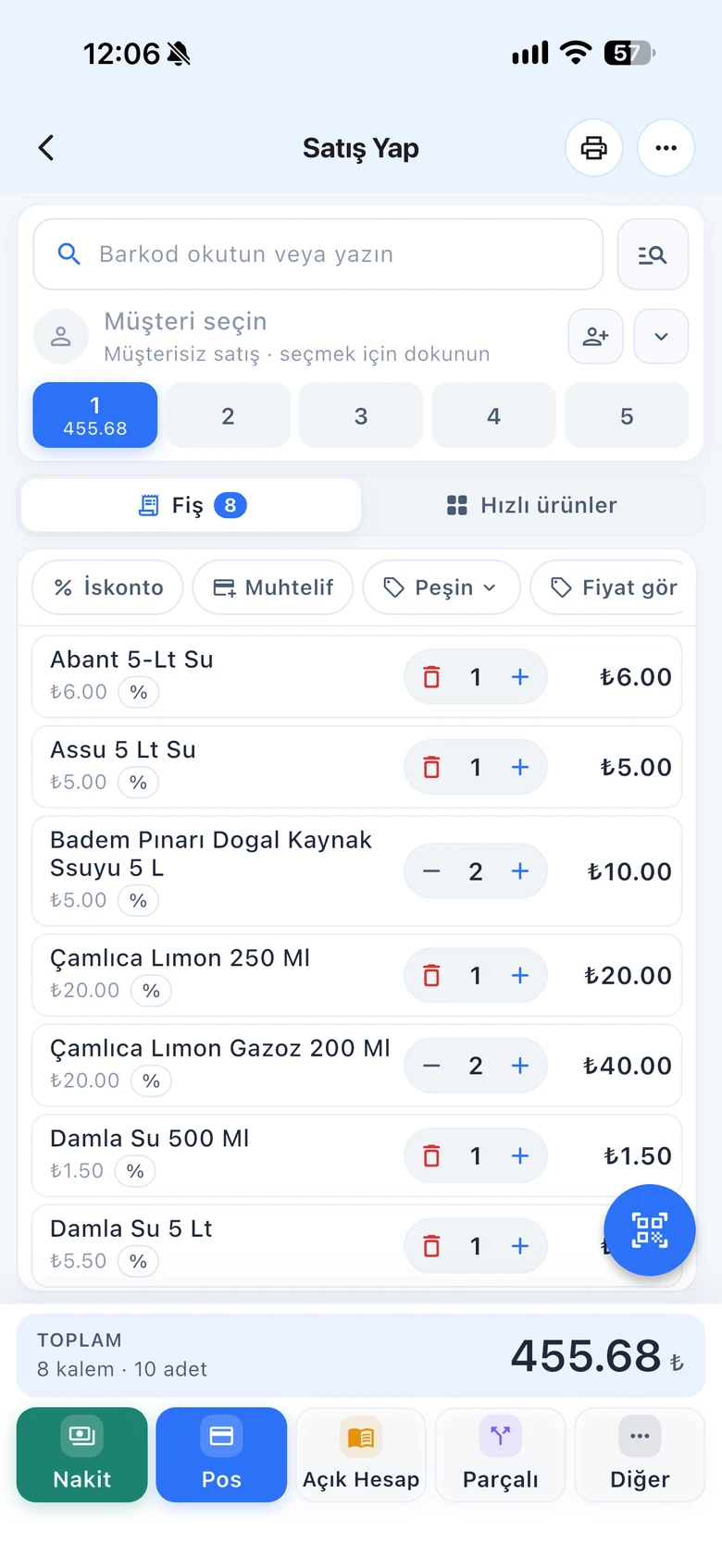
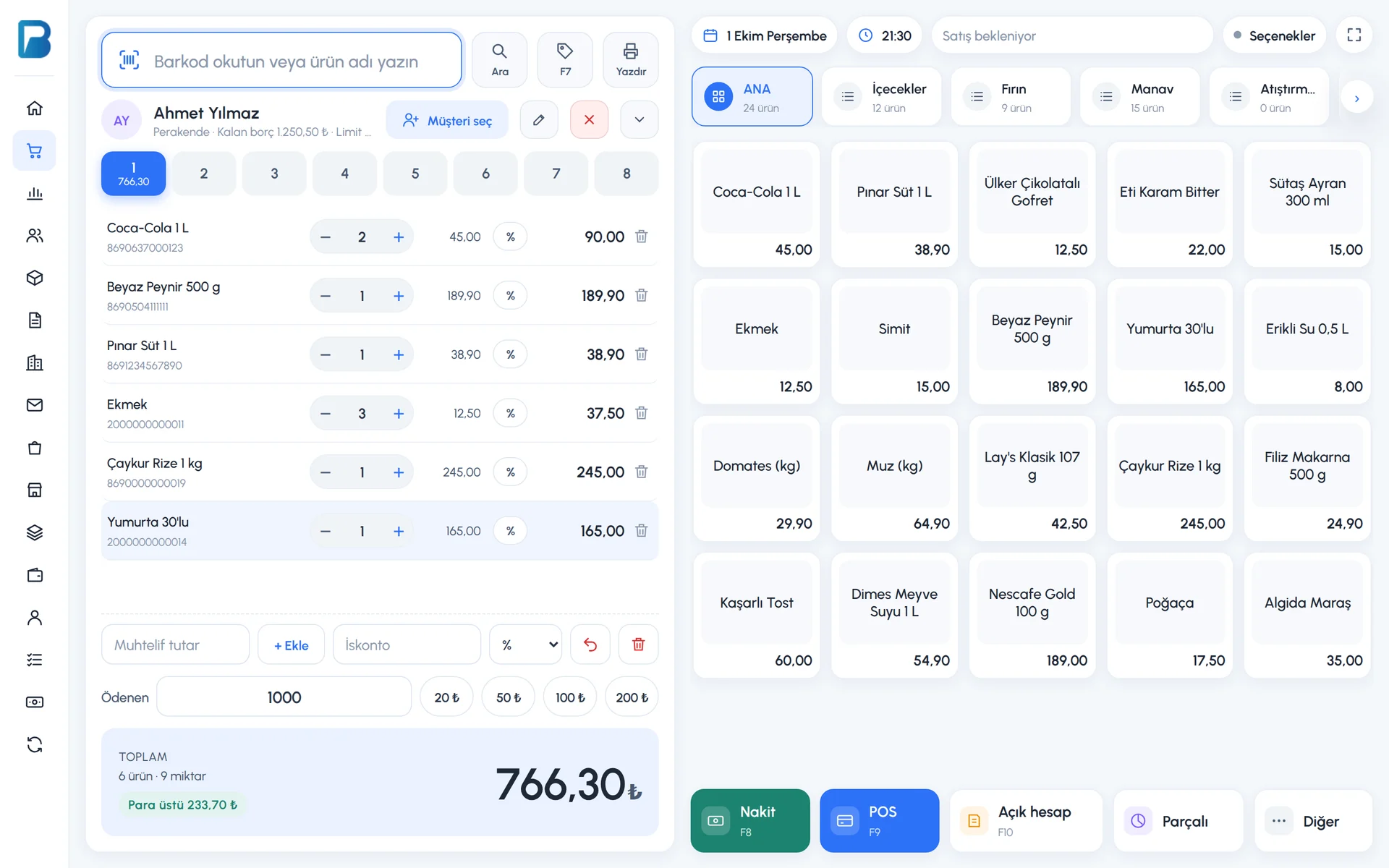
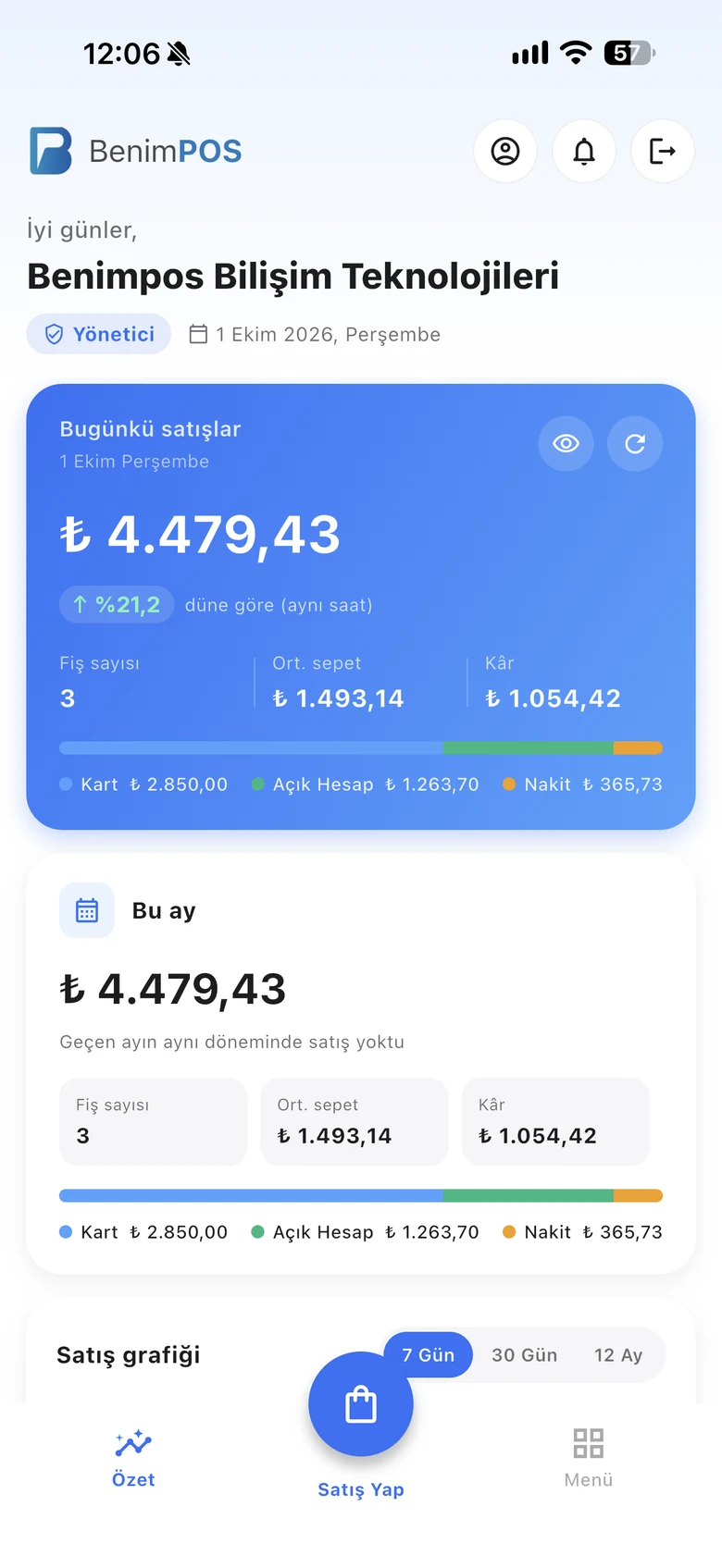
The BenimPOS sales screen is designed to cut every second spent at the checkout. Products with and without barcodes, cash, card, on-account and split payments, discounts, returns and receipts; all on one screen, on web, desktop and mobile.
All features open for the first month. No credit card required.

When the customer comes to the checkout, products are scanned, payment is taken and a receipt is given. Along the way a discount is requested, an item is returned, a product whose barcode will not scan is searched by name. In BenimPOS, each of these is done without leaving the sales screen; as soon as the sale is done, stock is deducted and the register and reports are updated.
Scan the product with a barcode scanner or the phone camera; the cart fills instantly. Open a new cart for the next customer in line and switch between carts with one click. On touchscreen POS computers, it works with a virtual keyboard.

Take the payment as one type or split it: part cash, part card, the rest on the customer's account. You can also define your own payment types, such as meal cards or bank transfers.

Enter three separate prices for products: retail, wholesale and special customers; choose the price level at checkout or sell automatically at the price set for the customer. Apply discounts to an item or the whole receipt, as a percentage or amount.

Add products without barcodes, like bread, vegetables and services, to quick item lists and sell them with one tap. Scan the label from a barcode scale and the product and weight go into the cart; you can also weigh and sell with a scale connected to the desktop.

Take an item back in return mode or return it from a specific receipt. Change the payment type, customer or date of a saved sale. Staff without return permission create a return request, and you approve it.

Print the receipt on a thermal printer or as A4, and turn on automatic printing. Adjust the receipt template, width and note to suit you. Send the receipt via WhatsApp or SMS to customers who want it.

In Turkey, sales are sent automatically to Ingenico, Beko, Hugin, Inpos, Paygo and Propay fiscal cash registers and to Ödeal and Pavo devices.
How toRecord a sale on a past date, or change the date of a saved sale later.
How toTurn on the order module, save the order from the sales screen and convert it to a sale on delivery.
How toOn a dual-screen POS computer, the second screen shows the customer the scanned items and the total.
The desktop app keeps selling when the internet is down; when the connection is back, it syncs with web and mobile.
How toChange the items, payment type, customer or date of a saved sale; cancel an item or the receipt.
How toInstalls on a Windows computer and works offline. A complete register with fiscal cash register, scale, cash drawer and customer display.
No installation needed. Sell from the browser and print thermal or A4 receipts and quotes.
Scan barcodes with the phone camera, add items one after another with continuous scan mode, and print receipts on a Bluetooth printer.
If you can't find the answer to your question, check the Help Center or message our WhatsApp support line: +90 312 911 22 33
Signing up takes two minutes. All features are open for the first month; if you get stuck during setup, our WhatsApp support line will help.