Inventory management

See, count and manage your stock from anywhere

Stock goes down automatically with every sale and up with every purchase invoice. Low stock, expiry dates, stock counts and shelf labels in the same program; the same stock on web, desktop and mobile.

All features open for the first month. No credit card required.
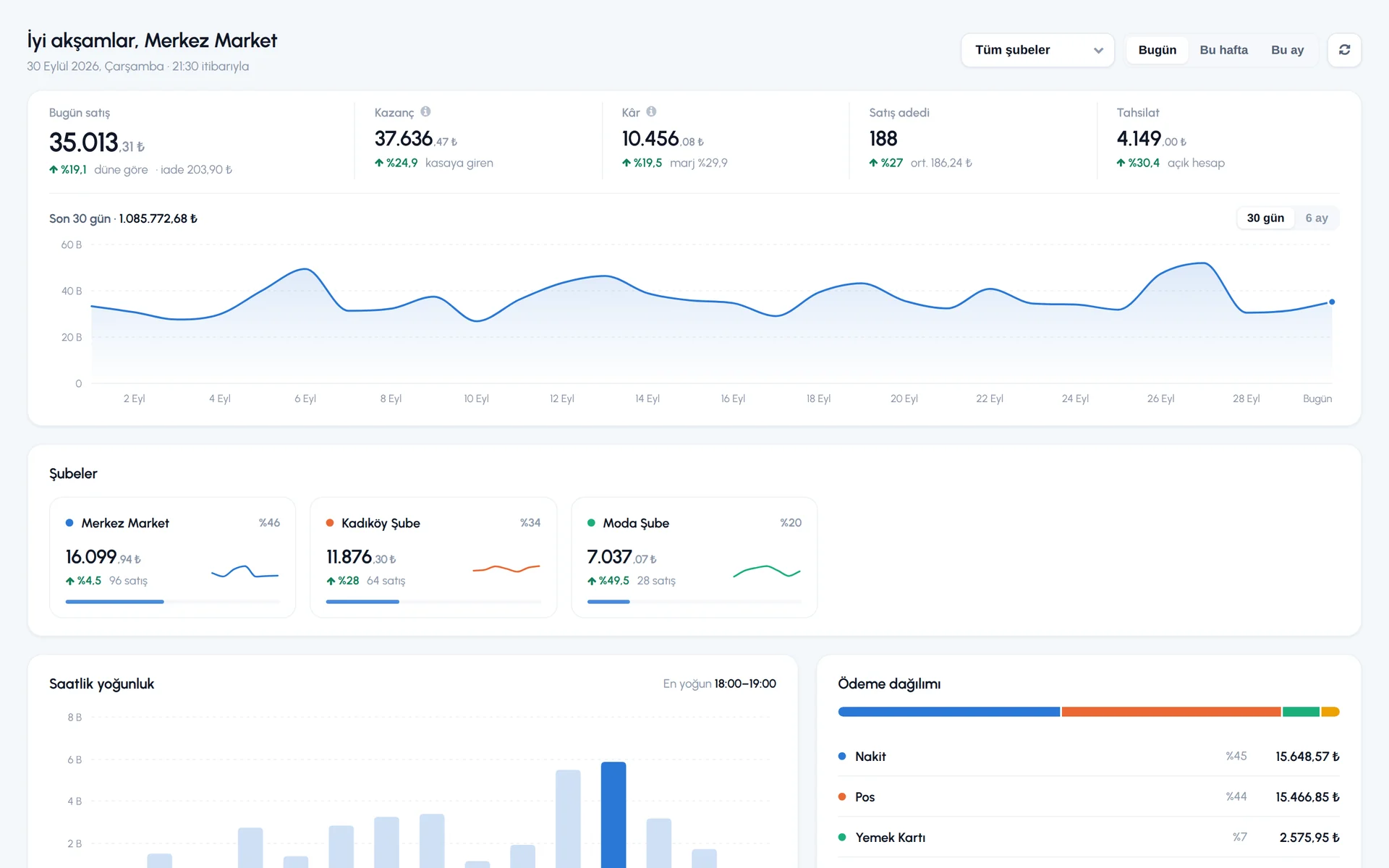
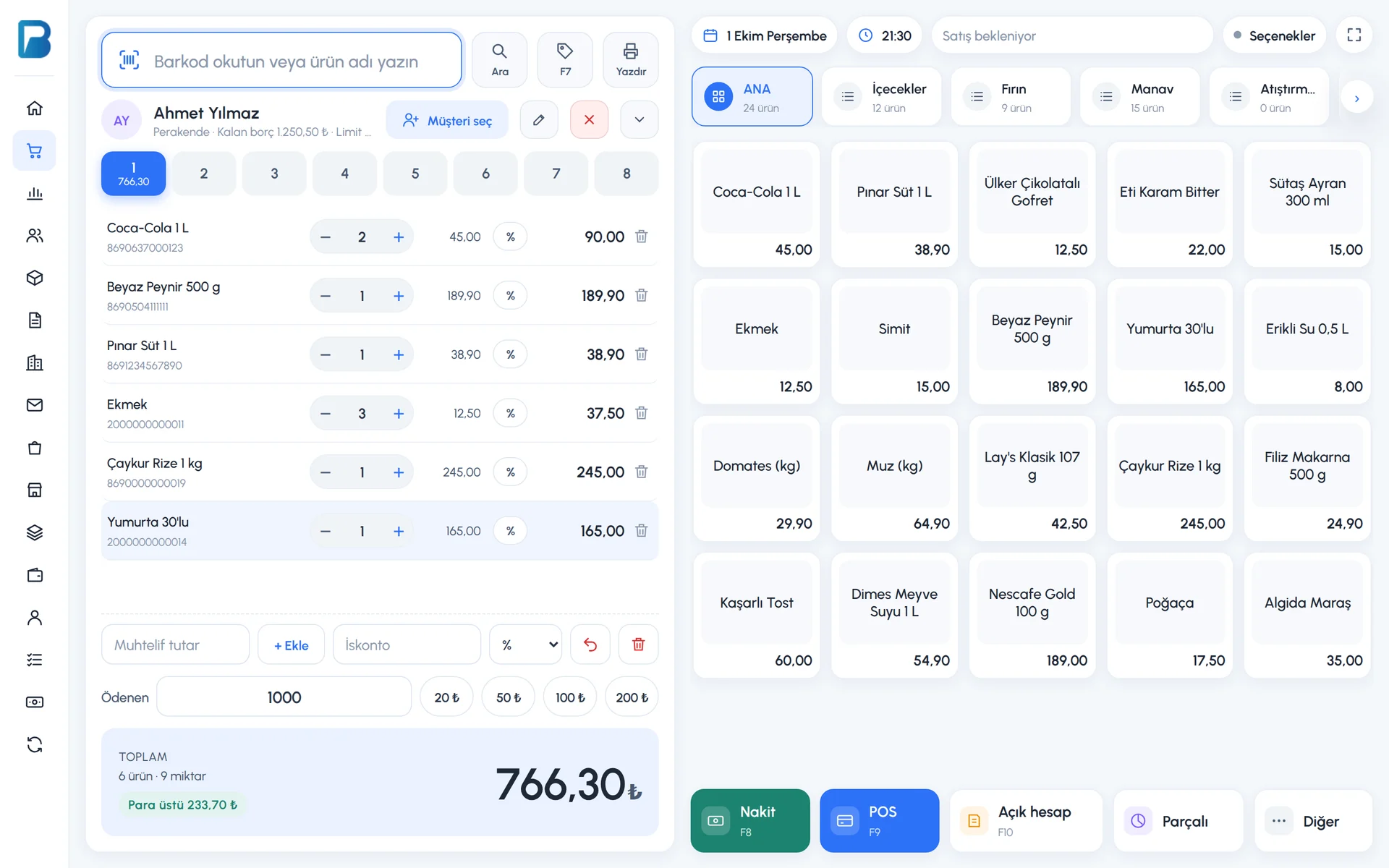
BenimPOS screenshot
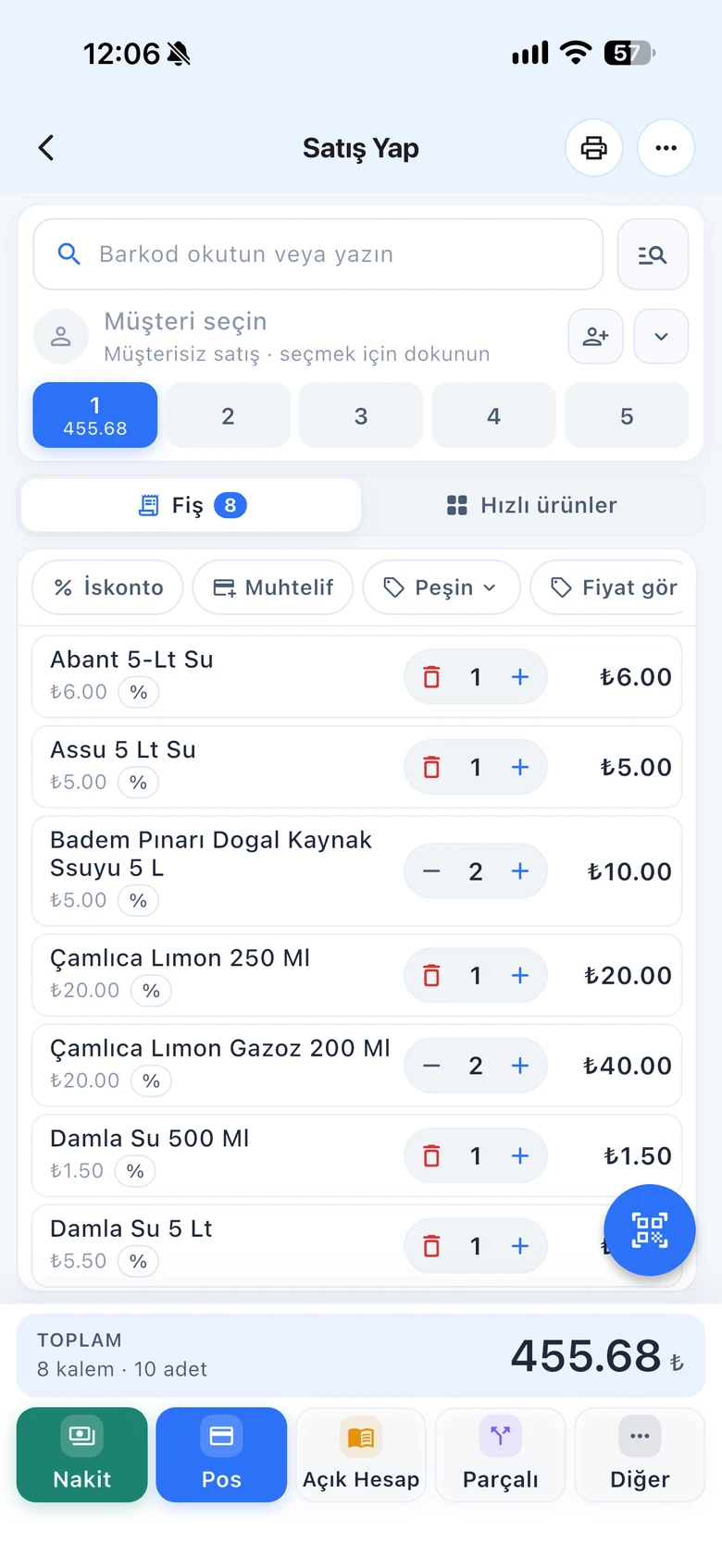
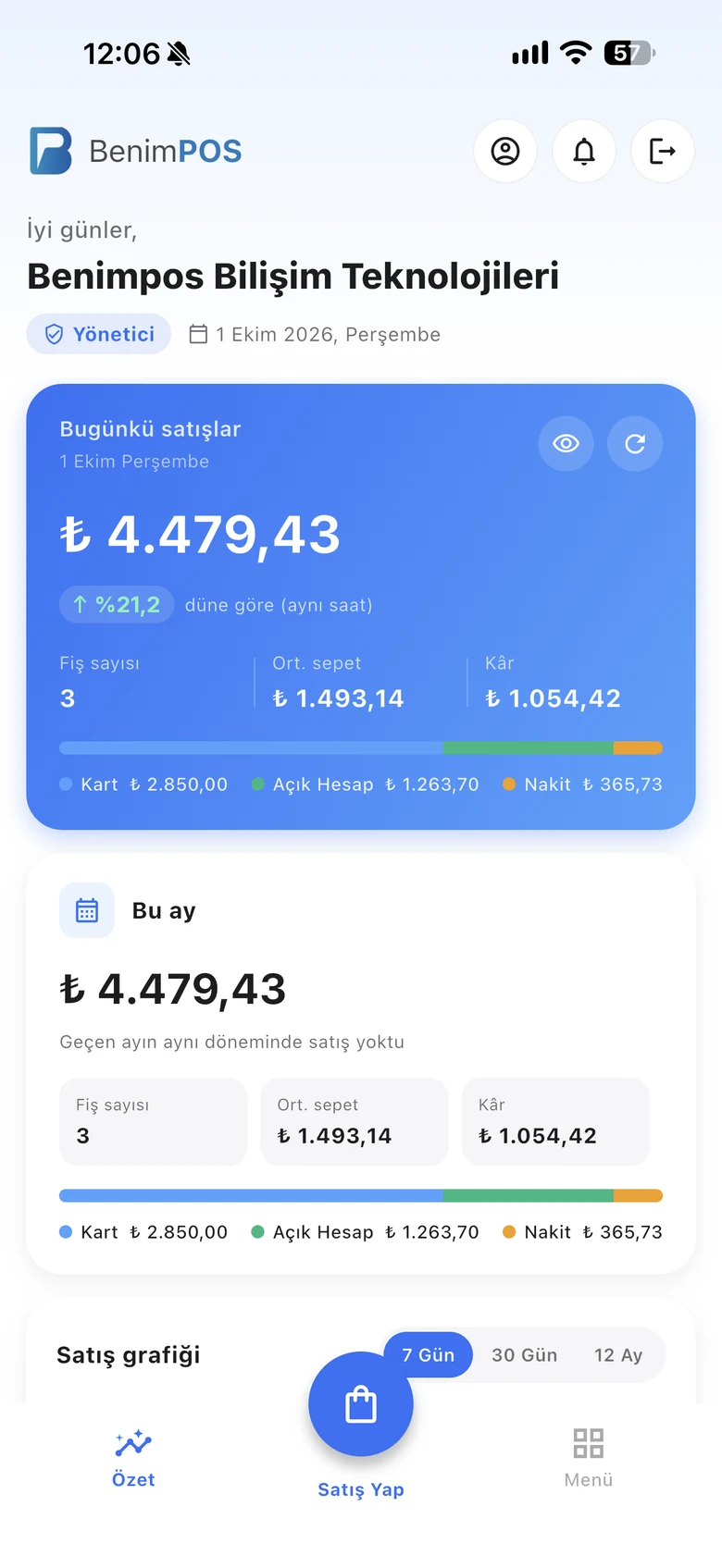
BenimPOS mobile app

Accurate stock starts with accurate orders.

A product that runs out on the shelf loses sales, overbuying ties up money, and expired products end up in the bin. BenimPOS records every stock movement, from sales to purchases and counts to transfers; it tells you what is left, what has run out and what is not selling.

Product card

Open the product by barcode and let the catalog fill in the rest

When adding a new product, scan its barcode; for products in the ready catalog of more than 3.2 million items, the name fills in automatically. Set the price, purchase price, VAT, stock and quick list settings on the same card.

  • Ready-made product catalog
  • Bulk product import and updates with Excel
  • Product groups, subgroups and bulk price increases by group
Step by step in the Help Center
BenimPOS mobile product card
Stock count

Count stock with your phone

Start the count and scan products with the phone camera or a barcode scanner. You can continue a count started on the phone from the web; at the end of the count you see the differences and update stock in one step. No need to buy a handheld terminal.

  • Counting by scanning barcodes with the phone camera
  • Entering counts with an Excel template too
  • Finishing a count by reviewing and confirming the differences
Step by step in the Help Center
BenimPOS mobile app: stock count
Low stock

Know before a product runs out

Set a low stock level for each product and see the products that drop below it in a list. If you like, block sales of out-of-stock products so nothing is sold into negative stock.

  • Low stock and out-of-stock product lists
  • Blocking sales when out of stock
  • Slow-moving products not sold for a long time
Step by step in the Help Center
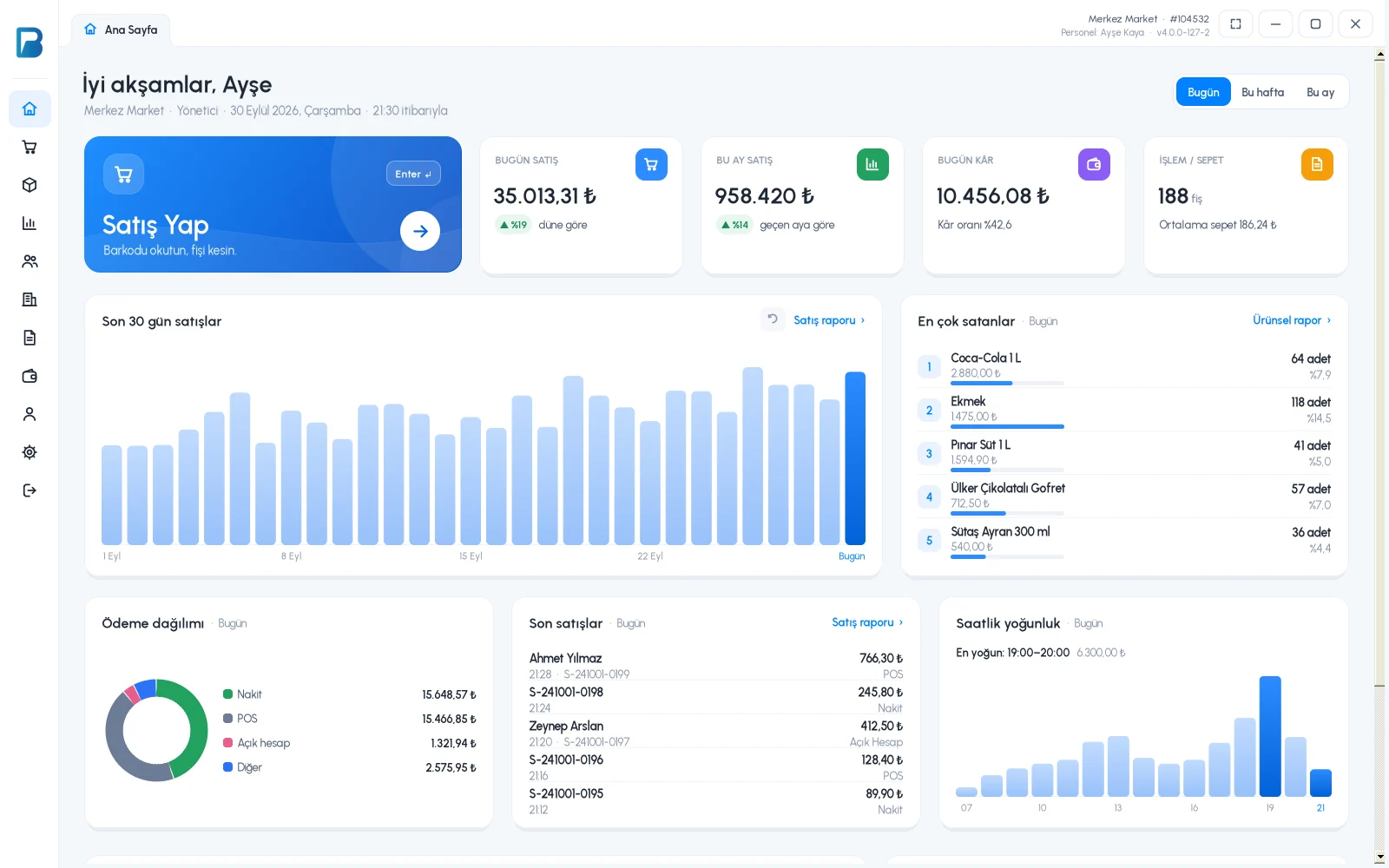
BenimPOS desktop home page
Expiry date

Track expiry dates batch by batch

Enter batches of products with expiry dates from the product card, the purchase invoice or the stock count. See products near or past expiry in one list in the Expiry Date Tracking report.

  • Expiry / Batches section on the product card
  • Expiry date entry on purchase invoices and counts
  • Expiry Date Tracking report
Step by step in the Help Center
BenimPOS web: expiry date tracking
Cases, packs and additional barcodes

Scan the case and the right quantity goes into stock

Link case and pack barcodes to the main product with a quantity; when you scan the case, the product is added with that quantity and stock stays on the main product. You set up a product's changed or second barcode the same way.

  • Linking cases and packs with additional barcodes
  • Additional barcodes also work on purchase invoices, counts and returns
  • Opening a pack and moving stock to single units with sub-products
Step by step in the Help Center
BenimPOS web: product card
Shelf labels

When the price changes, print the label too

Select products; print shelf labels one by one on a roll label printer or in bulk on A4 label sheets. Labels can show the price, unit price, origin and price change date.

  • Single label printers and A4 label sheets
  • Ready templates or your own label design
  • Variant labels
Step by step in the Help Center
BenimPOS web: label printing

Also on the stock side

Stock movement report

See all incoming and outgoing movements of a product with the remaining stock, and find out why the stock changed.

How to
Transfers between branches

Transfer products between branches, or between the warehouse and a store.

How to
Product list filters

Filter products without a price, out of stock, at low stock or slow-moving, and apply bulk actions.

How to
Products with variants

Keep separate stock by size, color and shoe size.

How to
Stock entry

Add stock with a purchase invoice or manually from the product card; record stock deductions as a sale or as non-revenue.

How to
Switching from another program

Import the products from your old program with ready Excel templates.

How to

Same stock information on every device.

Desktop

Stock goes down as you sell at the register; it keeps going down even when the internet is down, and syncs when the connection is back.

Web

Product cards, bulk actions with Excel, reports, labels and transfers.

Mobile

Stock counts, adding products and updating prices with the phone camera.

Frequently asked questions

If you can't find the answer to your question, check the Help Center or message our WhatsApp support line: +90 312 911 22 33

Do I need a handheld terminal for stock counts?
No. In the mobile app, you count by scanning barcodes with the phone camera.
Can I upload my products from Excel?
Yes. You can upload your products in bulk with an Excel file, and export prices and stock, edit them and update them in one go. How to
Can I block sales of out-of-stock products?
Yes. You can block sales of out-of-stock products in the stock settings.
How do I track expiry dates?
You enter batches from the product card, the purchase invoice or the stock count. Products near or past expiry are listed in the Expiry Date Tracking report.
Is low stock available in the free version?
Low stock and slow-moving product lists, product groups and purchase invoices are included in the licensed plan. The free desktop version includes product and stock tracking. Compare plans

Get your stock on record today

Signing up takes two minutes. All features are open for the first month; if you get stuck during setup, our WhatsApp support line will help.