Quick items

Items without a barcode on the receipt with one tap

Bread, bagels, vegetables, loose goods. Put the items without barcodes you sell most often in the quick item lists on the sales screen; when a customer asks, tap the card and the item goes on the receipt.

All features open for the first month. No credit card required.
BenimPOS screenshot
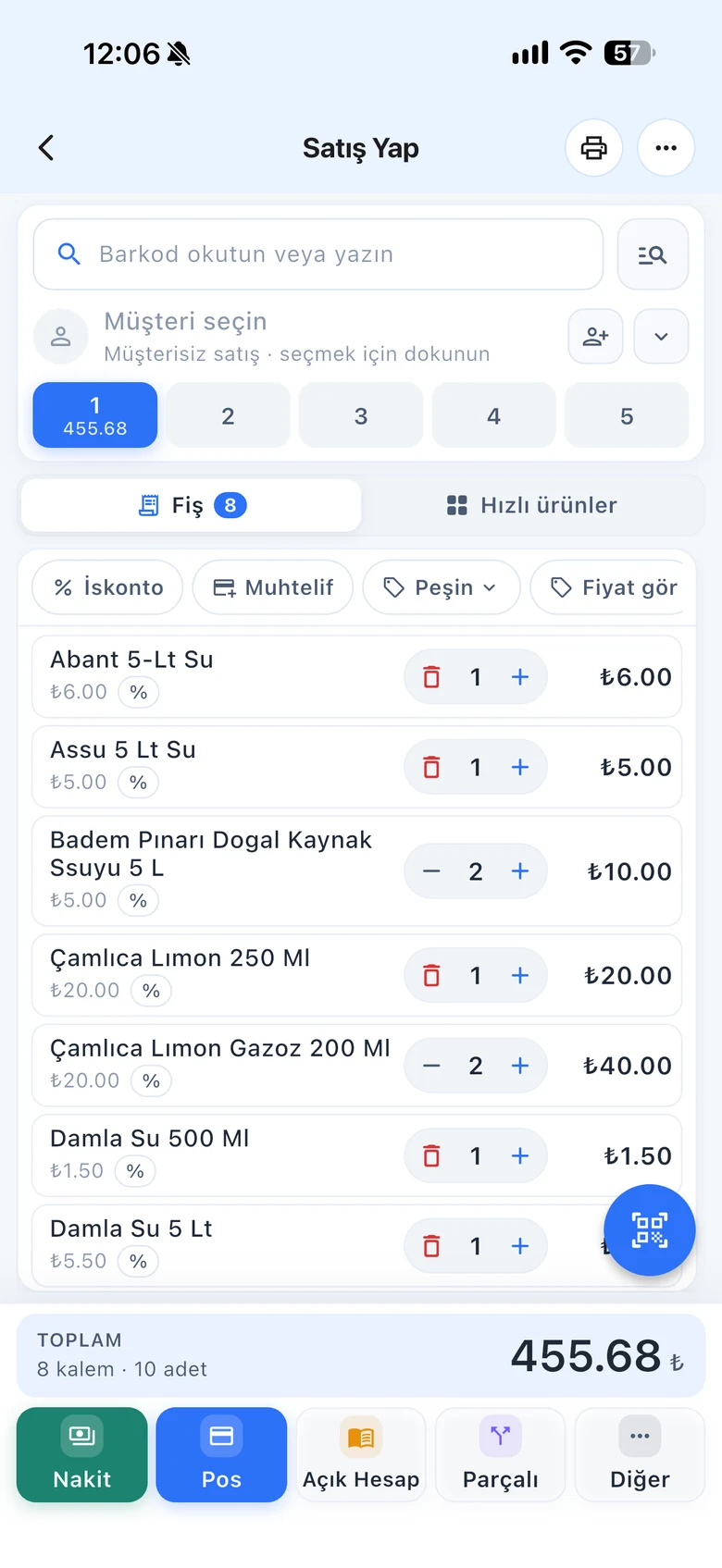
BenimPOS mobile app

Your best-selling item should be the easiest to find.

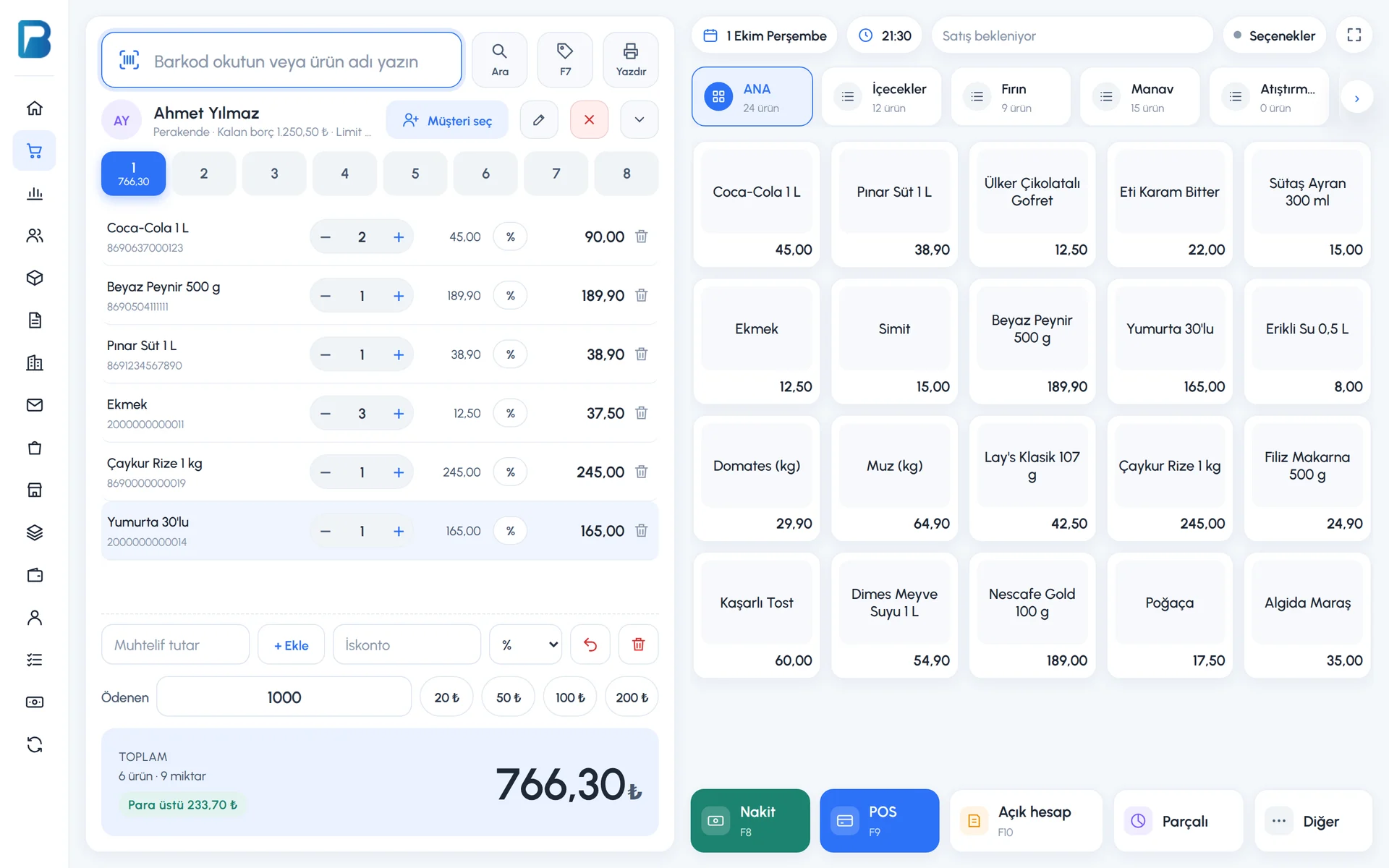
Searching for the product name every time makes the queue longer. Quick items sit as cards on the right of the sales screen; they are split into departments, arranged in the order you want and can show a picture if you like.

Lists

Main list and four department tabs

On the product card, choose which list the product appears in: Main products or List 1–4. Give the lists your own department names like Bakery, Produce or Drinks; you can also show product groups as tabs.

  • Main list and 4 department lists
  • Renaming departments
  • Product groups as tabs
Step by step in the Help Center
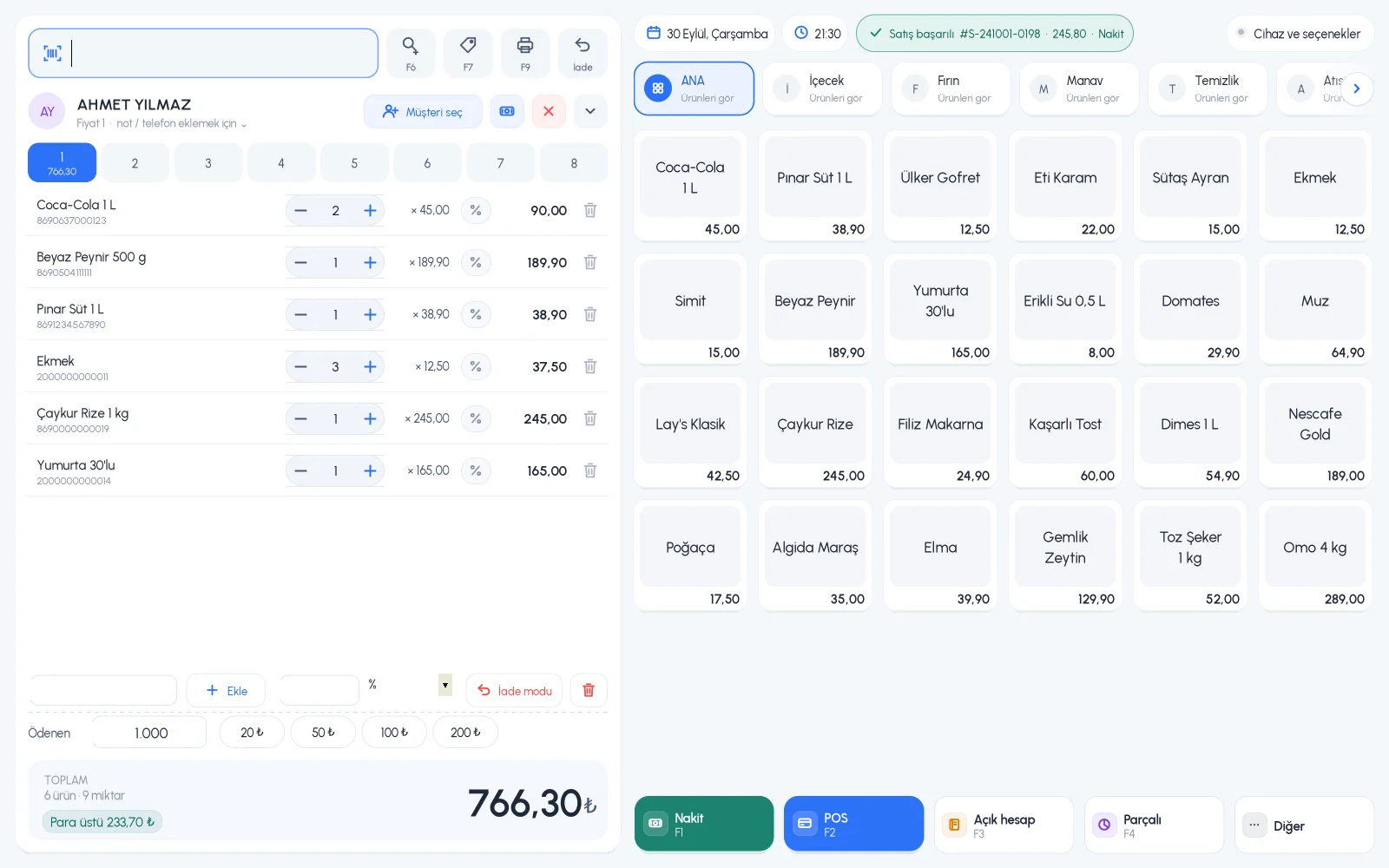
BenimPOS web sales screen: quick items
Layout

Order, picture and card size

Give each item a quick item order number; lower numbers come first. Cards can show the product picture instead of text; make cards smaller or larger from the sales screen.

  • Quick item order
  • Cards with product pictures
  • Auto, small, medium and large cards
Step by step in the Help Center
BenimPOS desktop sales screen
Misc.

Sell an unregistered item by its amount

If you need to sell an item that is not in the system, type the amount in the misc. amount box; a "Misc. Item" line is added to the receipt. If you sell an item without a barcode regularly, it is better to create a card for it with a barcode generated by the system.

  • Sales by misc. amount
  • Generating a barcode for items without one
  • Opening a product card when an unknown barcode is scanned
Step by step in the Help Center
BenimPOS mobile sales screen

Quick items at every register.

Desktop

Department tabs and product cards on the right of the sales screen; suitable for touchscreens.

Web

Quick item lists, department names and order settings.

Mobile

One-tap sales from the quick items tab, misc. amount chip.

Frequently asked questions

If you can't find the answer to your question, check the Help Center or message our WhatsApp support line: +90 312 911 22 33

Why is an item in the quick list not showing?
If the Do not sell when out of stock setting is on and the item is out of stock, it does not appear in the list. Also check on the product card which list it is shown in.
Do misc. sales reduce stock?
No. Misc. sales do not reduce stock and are not tracked per product. Create a card for products whose stock you want to track.
Can I give a barcode to an item that has none?
Yes. Use New Barcode on the product card and the system generates a unique barcode; you can also print a label for it.

Shorten the queue at your checkout

Signing up takes two minutes. All features are open for the first month; if you get stuck during setup, our WhatsApp support line will help.