




How to do a stock count
Start a count, add products by barcode or Excel, see the differences and finish the count to update stock levels.
A stock count compares the real quantity of products in the shop with the stock in the system. When you finish the count, the system stock is set to the quantities you counted; shortages are recorded as a sale (or a non-revenue deduction) and surpluses as a purchase invoice. There is no time limit on a count; it can take several days.
Starting a count
New count
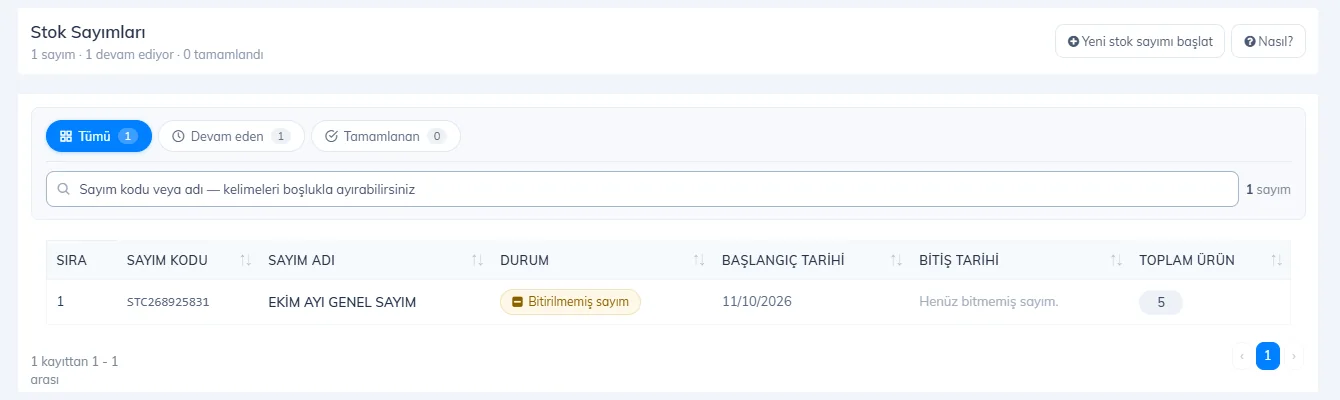
Open the Stock Count page from the left menu, press 1 Start new stock count, give the count a name (e.g. "End of October count") and click Start Count.
 1
1Count the products
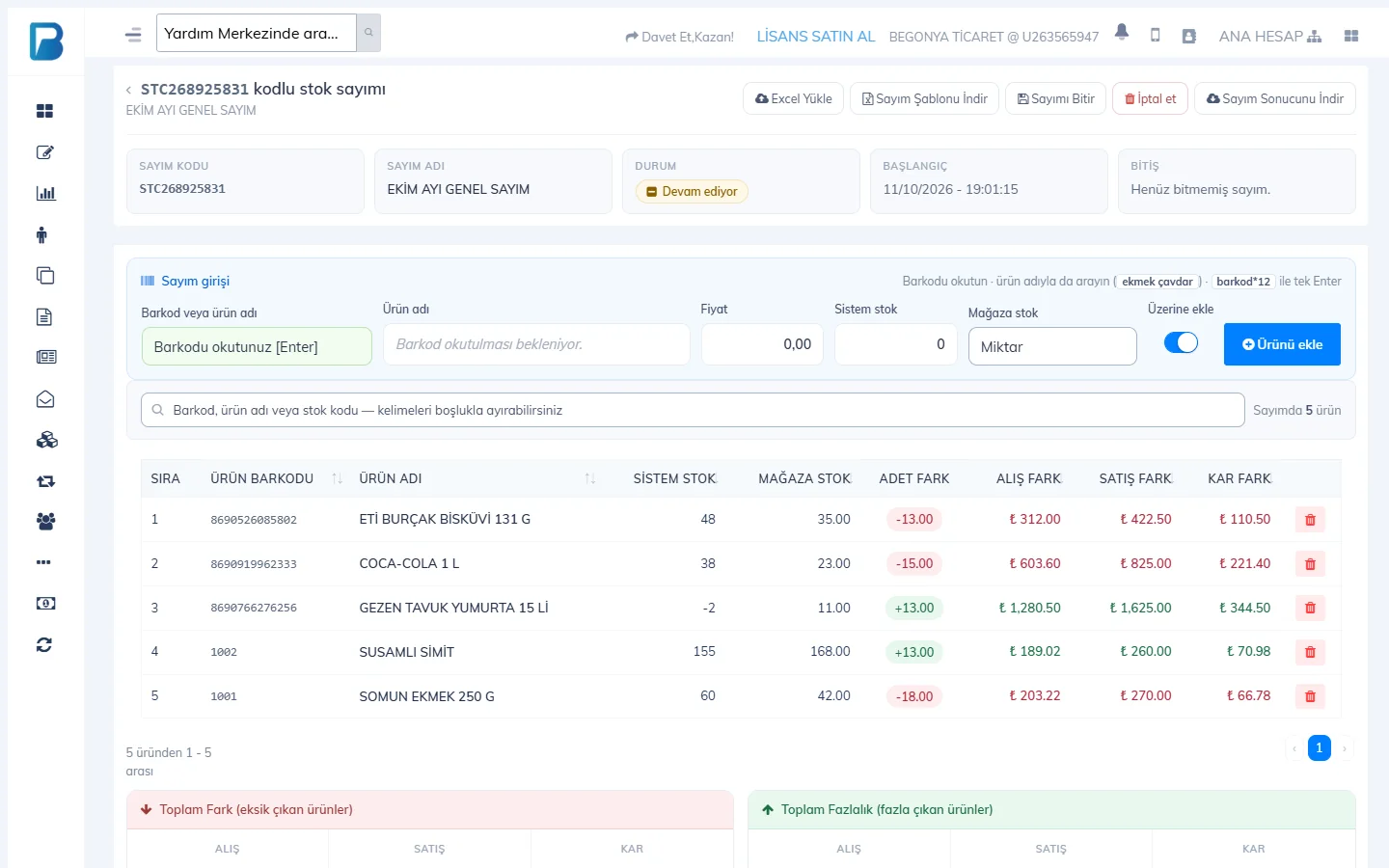
Scan the barcode in the Count entry section; the system stock appears. Type the quantity you counted in Counted stock and press Add product. For quick entry you can type the quantity after the barcode with an asterisk (e.g. 8690…*12). When you scan the same product again and Add to existing is on, the quantities are added together.
Check the differences
The table shows the QTY DIFFERENCE and the purchase, sale and profit difference for each product; the total shortage and surplus amounts are at the bottom.
You can also enter the count with Excel: get the template with Download Count Template, fill in the barcodes and quantities and upload it with Upload Excel. To count with your phone, use the Stock Count screen in the mobile app; you can carry on with the same count on the web.
Finishing the count
Press Finish Count. In the window that opens:
- Price to use for products deducted from stock: the price at which missing products are deducted (purchase price, sale price or show as a loss).
- Sale type: if you choose Non-revenue, shortages don't affect the till or earnings; Cash / Card show in reports.
- Set stock to zero for products in the selected group that I did not count: sets the stock of products you didn't add to the count to 0 (use with care).
- Transaction date: to record the count on a past date.
A finished count can't be undone or changed. Before finishing, you can delete a count you started by mistake with Cancel. You can get the result of a completed count as an Excel file with Download Count Result.
When you scan a case barcode (if it's set up as an extra barcode on the product), the main product is found and the quantity is filled with the pack quantity.
This can't be done in the desktop app. Do the stock count from the web panel or the mobile app; once the count is finished, the stock levels sync to the desktop app.
Counting with your phone
Start a count
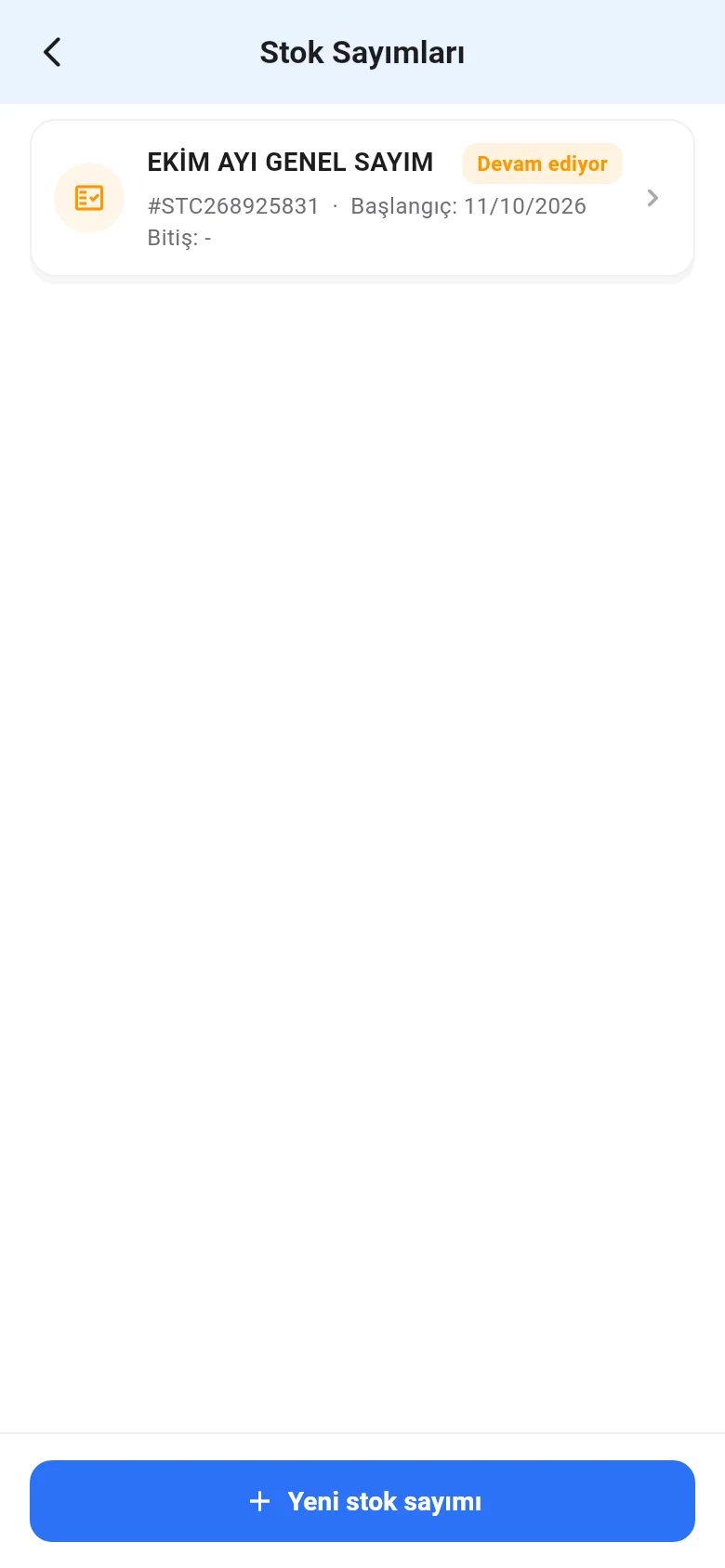
On the Menu › Stock Count page, tap New stock count, give it a name and tap Start count. To open a count in progress, choose it from the list.
Add the products
Open the camera with Scan barcode or find a product by name with Search products. Type the Quantity and tap Add product to count. If If already in the count, add to its quantity is on, quantities for the same product are added together.
 1
1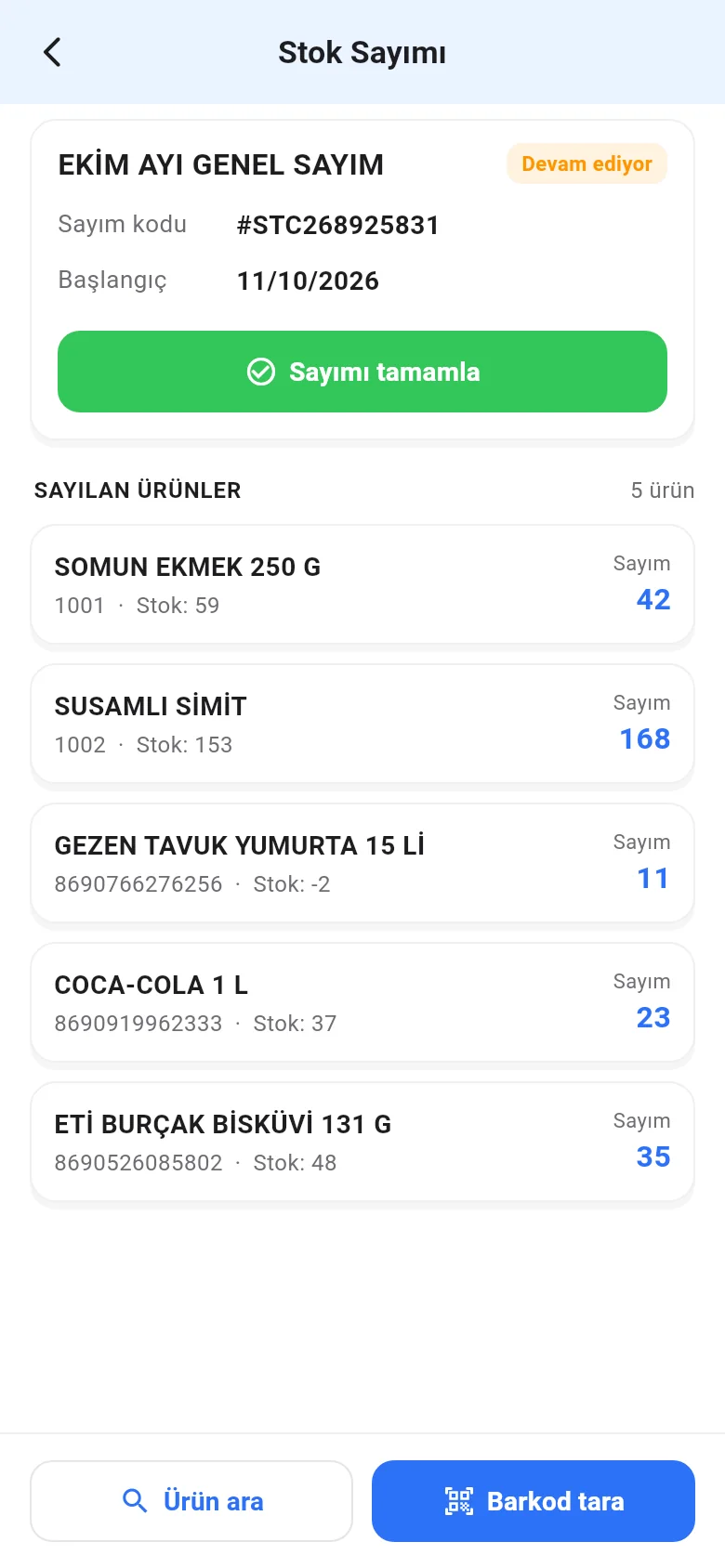 123
123Complete the count
Tap Complete count and confirm; stock levels are updated to the counted quantities.
To cancel a count or use the finishing options (sale type, setting uncounted products to zero), use the web panel.