Case and pack barcodes

Scan the case and get the right quantity

Link case and pack barcodes to the main product with a quantity. When the case is scanned, the product is added to the receipt or invoice with that quantity; stock stays on one card, the main product. Set up changed barcodes the same way.

All features open for the first month. No credit card required.
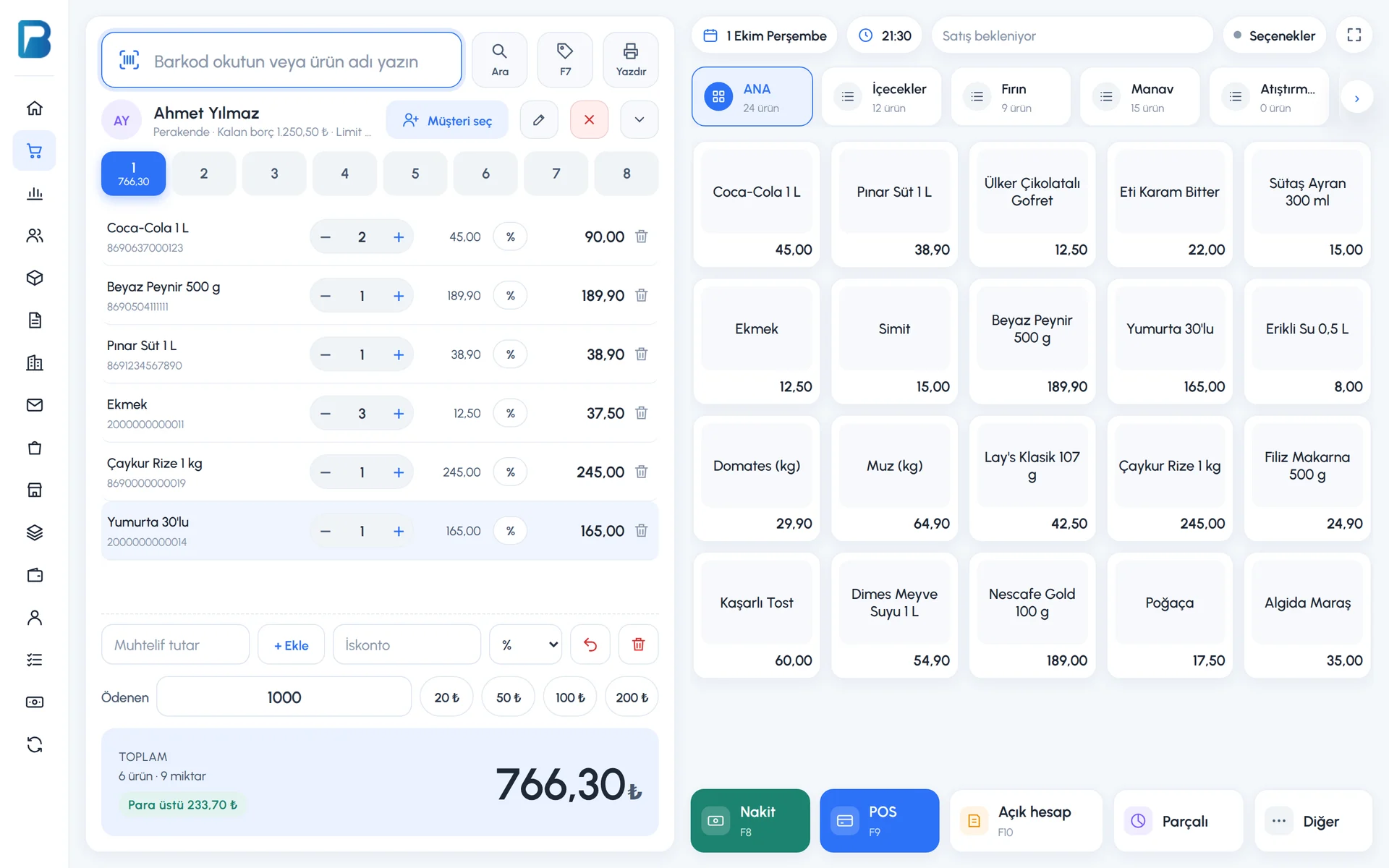
BenimPOS screenshot
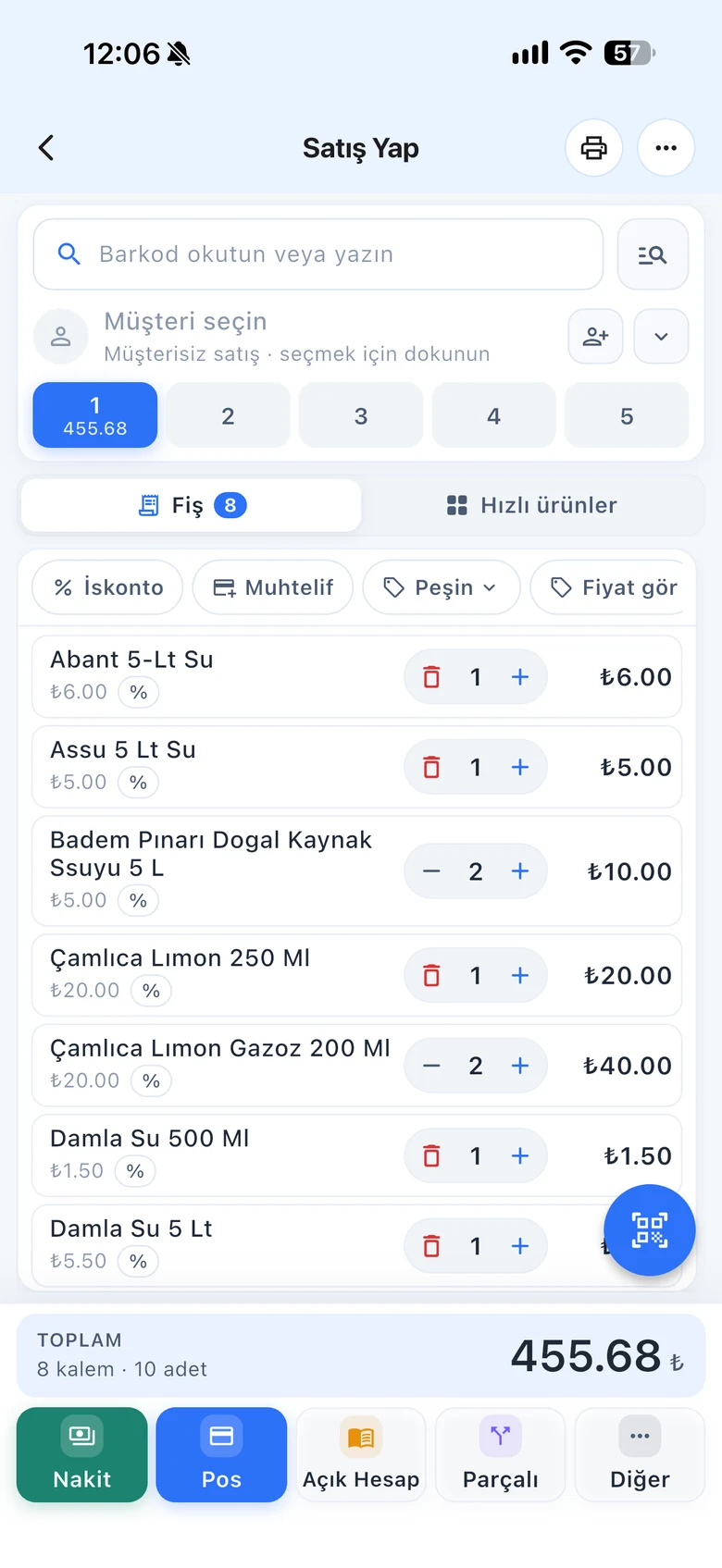
BenimPOS mobile app

A product can have more than one barcode.

Single box, six-pack, case of twenty-four; the manufacturer changed the barcode, imported and local packaging differ. Opening a separate product for each one splits your stock. Additional barcodes link them all to one product.

Additional barcodes

Case barcode, with its quantity

On the product card, enter the case or pack barcode and the quantity inside. When the barcode of a case of 24 is scanned, the product is added as 24 pcs. You do not open a separate product card for the case.

  • Case and pack barcodes
  • Stock, sales and reports stay on the main product
  • On the purchase invoice, the line is converted to the single product
Step by step in the Help Center
BenimPOS web: product card
Different barcode

Changed or second barcode

If the manufacturer switched to a new barcode or the same product has different packaging, add the other barcodes with quantity 1. Whichever one is scanned, the same product is sold.

  • Old and new barcode
  • Imported and local packaging
  • Works in sales, purchases, counts, returns and search
Step by step in the Help Center
BenimPOS mobile sales screen
Sub-product

Open the pack and move it to single units

If you track the case or pack with its own card, link it to the single product with a multiplier using a sub-product definition. At checkout you choose whether to sell the pack or single units, and when the pack is opened you move its stock to single units.

  • Case – pack – unit relationship
  • Stock transfer when a pack is opened
  • Bulk purchase discount
Step by step in the Help Center
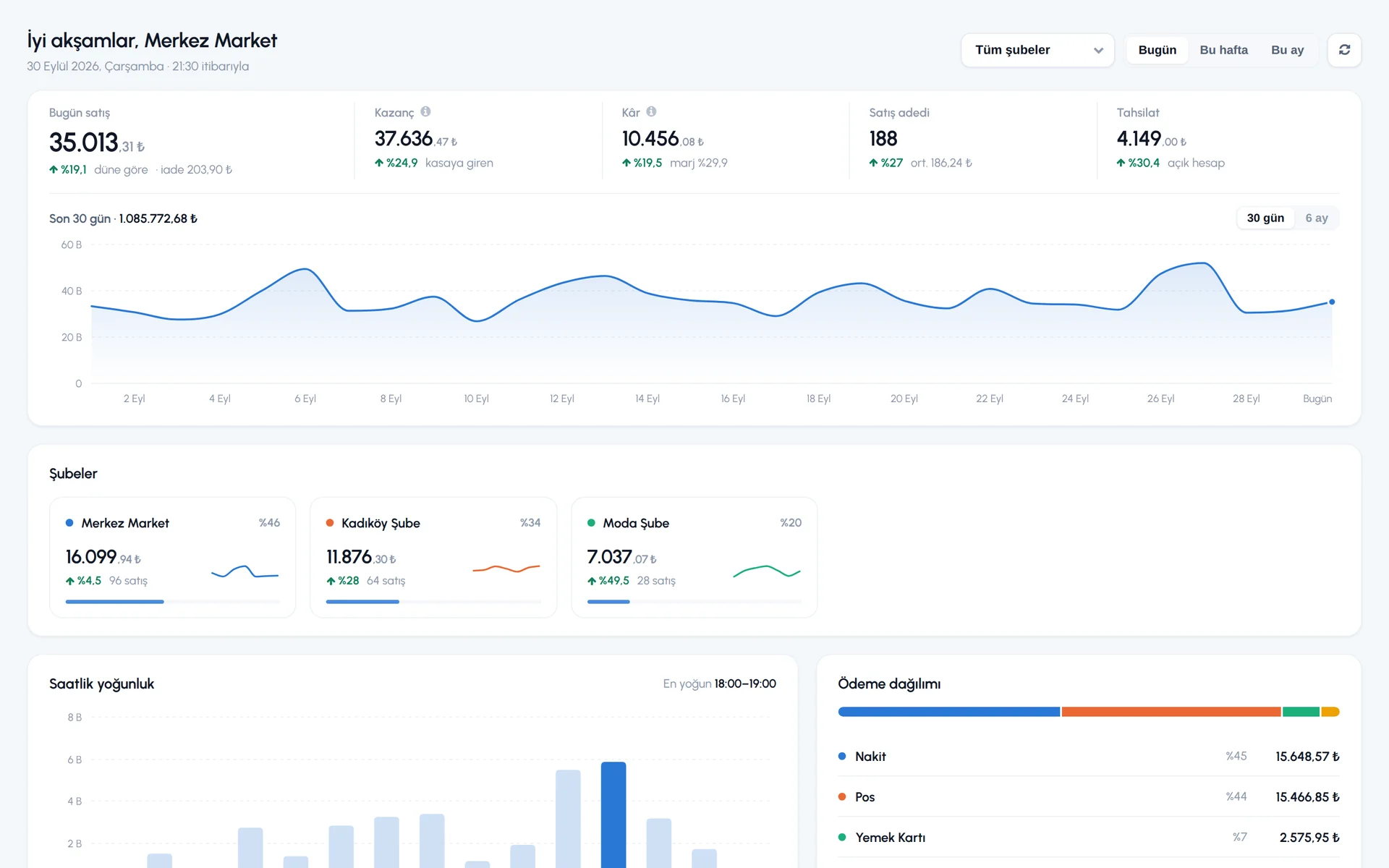
BenimPOS web panel

Additional barcodes work on every device.

Desktop

Setting up additional barcodes and scanning cases at checkout.

Web

Additional barcodes, sub-product definitions and cases on purchase invoices.

Mobile

Scan the case barcode with the camera and the product is added with its quantity.

Frequently asked questions

If you can't find the answer to your question, check the Help Center or message our WhatsApp support line: +90 312 911 22 33

Do I need to open the case as a separate product?
No. With an additional barcode, the case is linked to the main product and stock is kept on the main product. If you want to track case stock separately, use a sub-product definition.
What happens if I scan a case during a count?
If the case is set up as an additional barcode, the main product is found and the quantity is filled with the pack quantity.
Can I use another product's barcode as an additional barcode?
No. Another product's barcode, or an additional barcode linked to another product, cannot be reused.


Receive cases into stock with a single scan

Signing up takes two minutes. All features are open for the first month; if you get stuck during setup, our WhatsApp support line will help.