Task management

Opening, closing, shelf tidying: were the tasks done?

Assign recurring tasks to your staff: opening check, end-of-day register count, shelf tidying. Staff complete the task in the mobile app with a photo, location or note; you see who did what and when.

All features open for the first month. No credit card required.
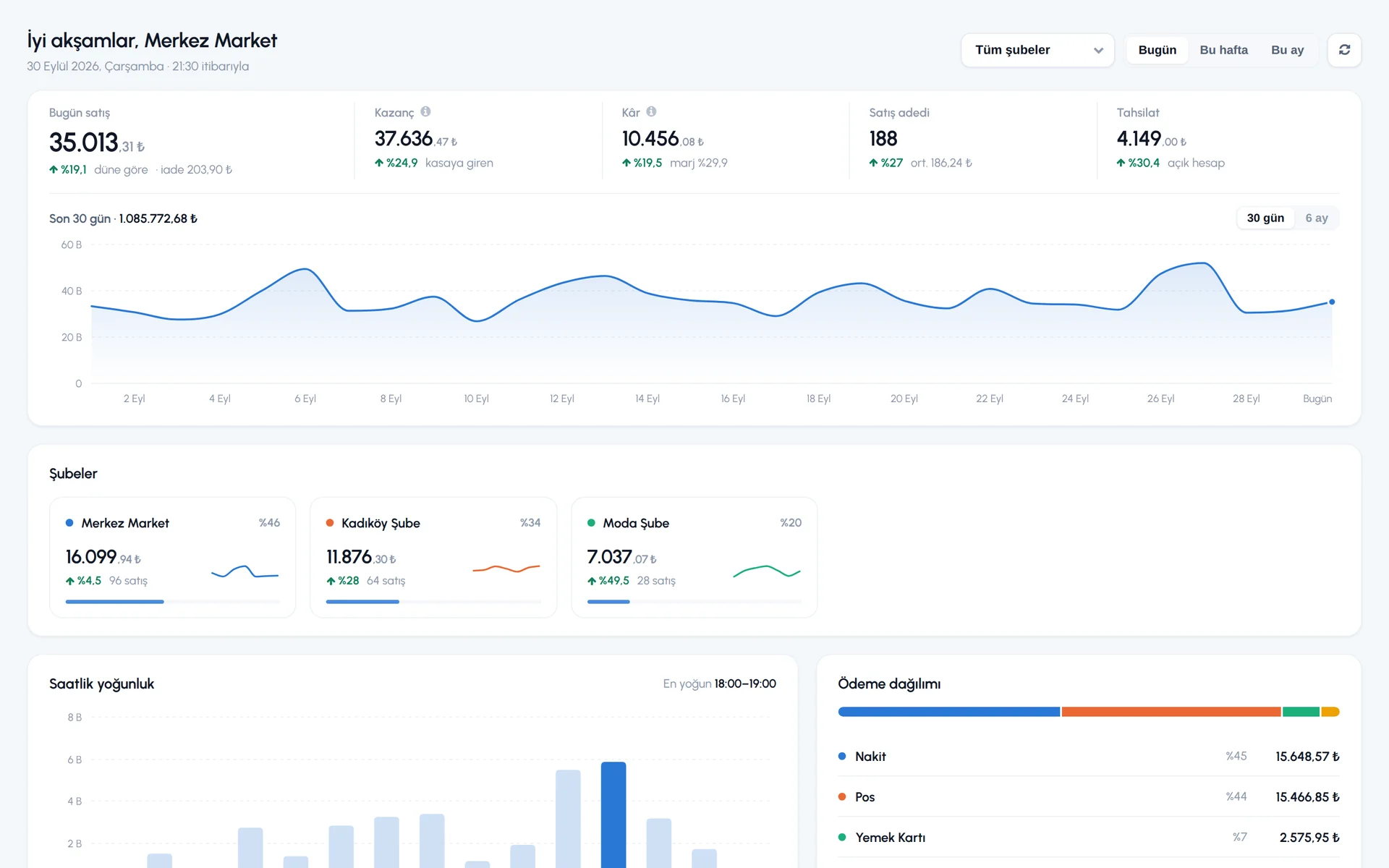
BenimPOS screenshot
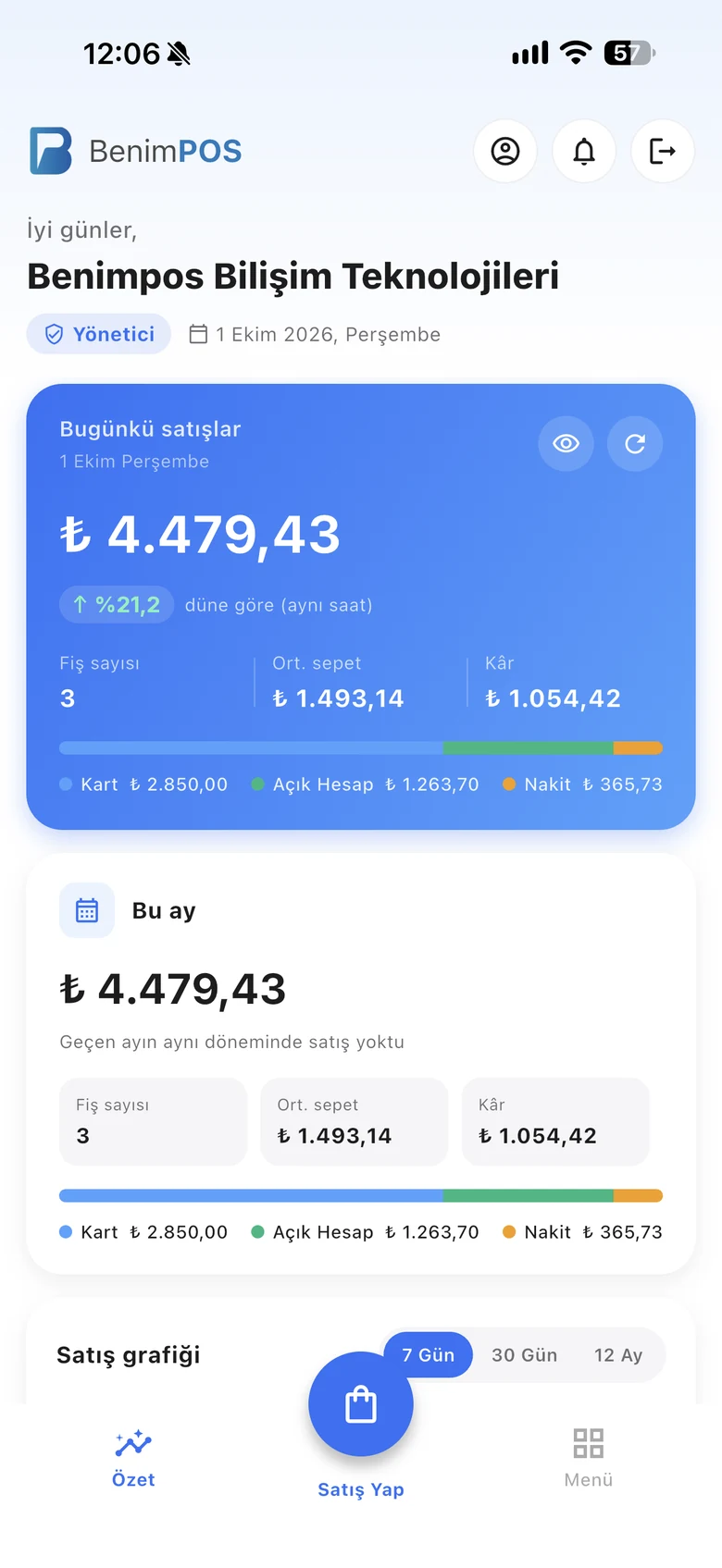
BenimPOS mobile app

A task that is only said gets forgotten; an assigned task gets tracked.

The same checks every morning, the same closing every evening. You define tasks once, and they appear in front of your staff every day automatically. When you require a photo, you also see that the shelf was really tidied.

Task

Time, repeat and tolerance

Enter the task name and time; set it for every day, certain days of the week, a certain day of the month or one time only. With the tolerance time, set how many minutes before the task time it can be done.

  • Daily, weekly, monthly, one-time
  • Start and end date
  • Tolerance time
Step by step in the Help Center
BenimPOS web: task management
Proof

Photo, location and note requirements

Require a photo, location or note to complete the task. Limit photos to camera shots only; if something is missing, the app warns.

  • Photo required (camera only option)
  • Location required
  • Note required
Step by step in the Help Center
BenimPOS mobile app: tasks
Tracking

Today's tasks and report

See today's, completed and total task counts and the status of each task. Look at another day, or open the task report for a summary by staff member.

  • Pending and done statuses
  • Past days
  • Task report by staff member
Step by step in the Help Center
BenimPOS web panel

Tasks are assigned on the web and done on mobile.

Desktop

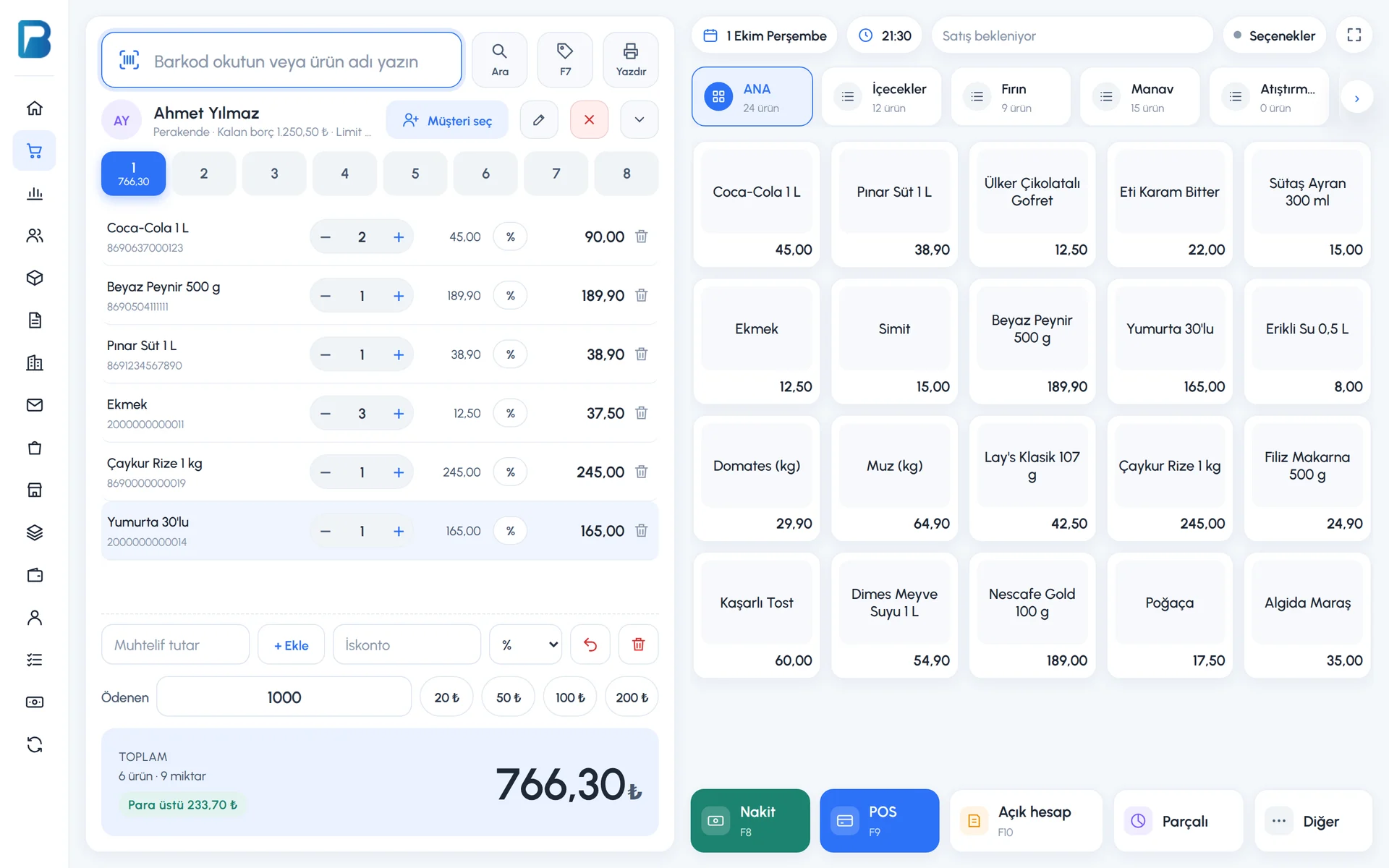
Tasks are not available on the desktop; they are assigned on the web and completed on mobile.

Web

Creating tasks, assigning staff, tracking and reports.

Mobile

Staff see the day's tasks and complete them with a photo and note.

Frequently asked questions

If you can't find the answer to your question, check the Help Center or message our WhatsApp support line: +90 312 911 22 33

Can staff do a task whenever they want?
No. A task can only be done on its planned day and within the tolerance time.
Who completes the task?
The staff member you assigned it to signs in to the mobile app with their own code and completes it.
Is there a charge per staff member?
No. You can add unlimited staff. Staff management

Keep your daily routine on track

Signing up takes two minutes. All features are open for the first month; if you get stuck during setup, our WhatsApp support line will help.