




Task management: assigning tasks to staff
Assign daily, weekly or monthly tasks to your staff, require a photo, location or note, and track completion.
With task management you can assign recurring jobs to your staff, such as opening checks, the end-of-day till count or tidying the shelves. Staff complete the task from the mobile app, adding a photo, location and note if required, and you can track who did which task and when.
Creating a task
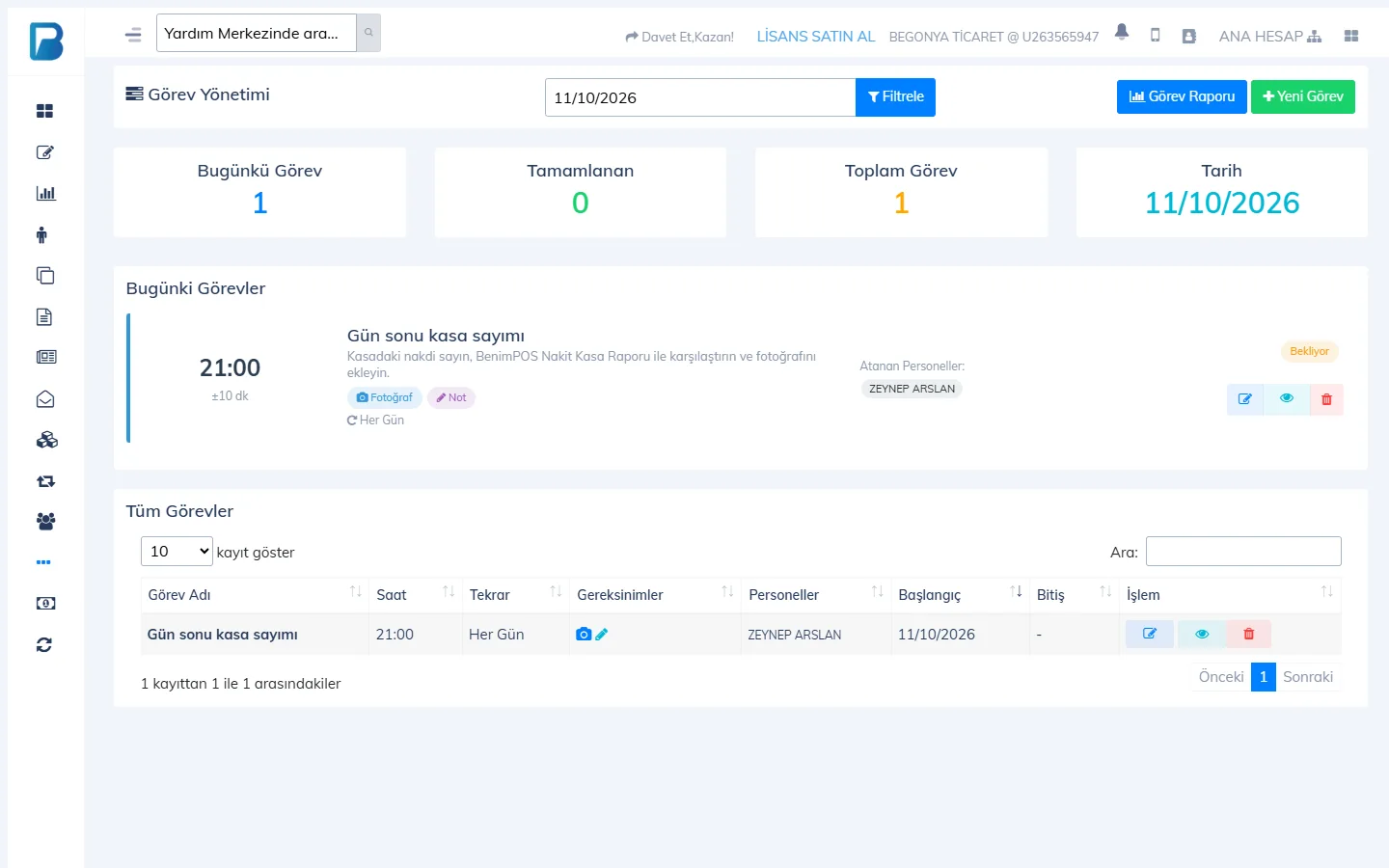
Open the Task Management page
Open Task Management from the left menu and press New Task.
Describe the task
Enter the Task Name, Time and a description. Tolerance (min) sets how many minutes before the task time it can be done.
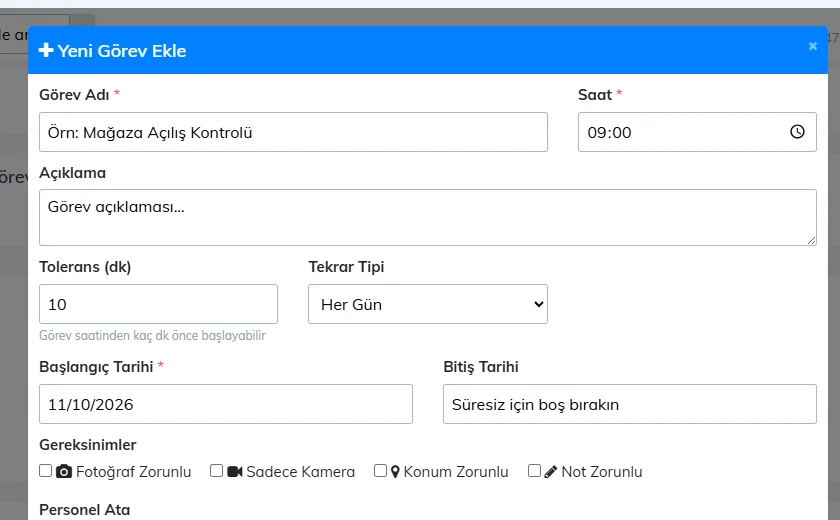
Choose the repeat
Repeat Type: Every Day, Weekly (choose the days), Monthly (day of the month) or One-time (date). Enter the Start Date and an optional End Date.
Requirements and staff
Requirements: Photo Required (optionally Camera Only), Location Required, Note Required. Choose who will do the task under Assign Staff and press Save.
Tracking
The top of the page shows today's, completed and total task counts; below are today's tasks and their status (Pending, Done…). To see another day, change the date and press Filter; for a summary per staff member, press Task Report.
This can't be done in the desktop app. Create tasks in the web panel; staff complete them from the mobile app.
Completing a task
The Menu › Tasks page lists the day's tasks and their status; change the day with the arrows. Tap a task; if needed, Add photo, enter the location and a note, then tap Complete task.
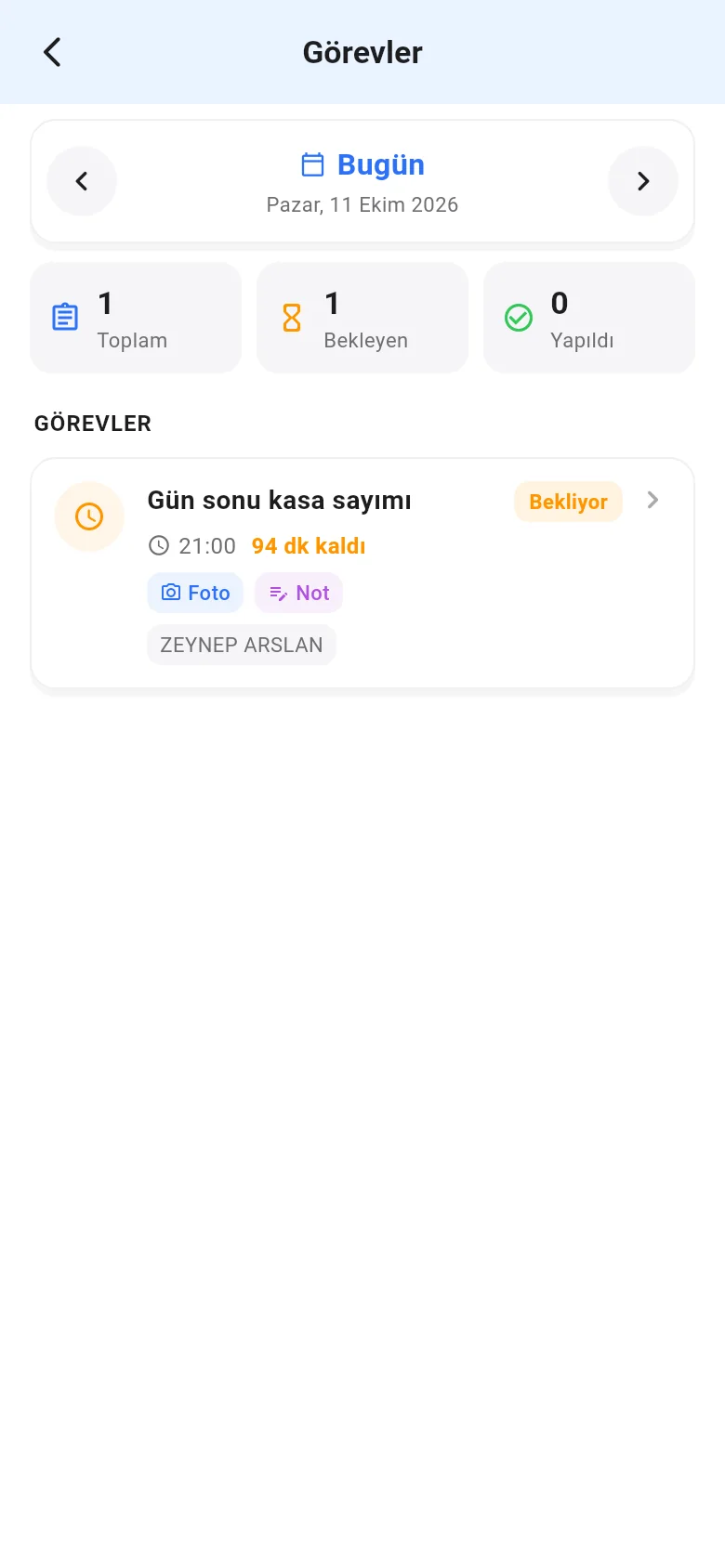
- A task can only be done on its planned day and within the tolerance time.
- If a photo, location or note is required and left out, a warning appears.
- Creating and assigning tasks isn't available on mobile; it's done in the web panel.