




Sub-product definitions: case, pack and unit relationships
Link a pack product to the single product with a multiplier; choose pack or units at the sale, and transfer stock when a pack is opened.
A sub-product definition sets up a case – pack – unit relationship between your products. For example, when you link a 6-pack of mineral water (main product) to a single mineral water (sub-product) with a multiplier of 6, you can choose at the sale whether the scanned pack is sold as a pack or as units, and transfer stock to units when a pack is opened. It is also used for bulk purchase discounts.
An easier way to link a case to a single product is the Case / Pack tab on the product card: you scan the case barcode and the case card is created automatically; you choose what happens at checkout and on purchase invoices, and transfer stock with Open case. Tracking case / pack stock separately. The definitions and bulk purchase discounts on this page keep working as before.
Creating a sub-product definition
Open the page
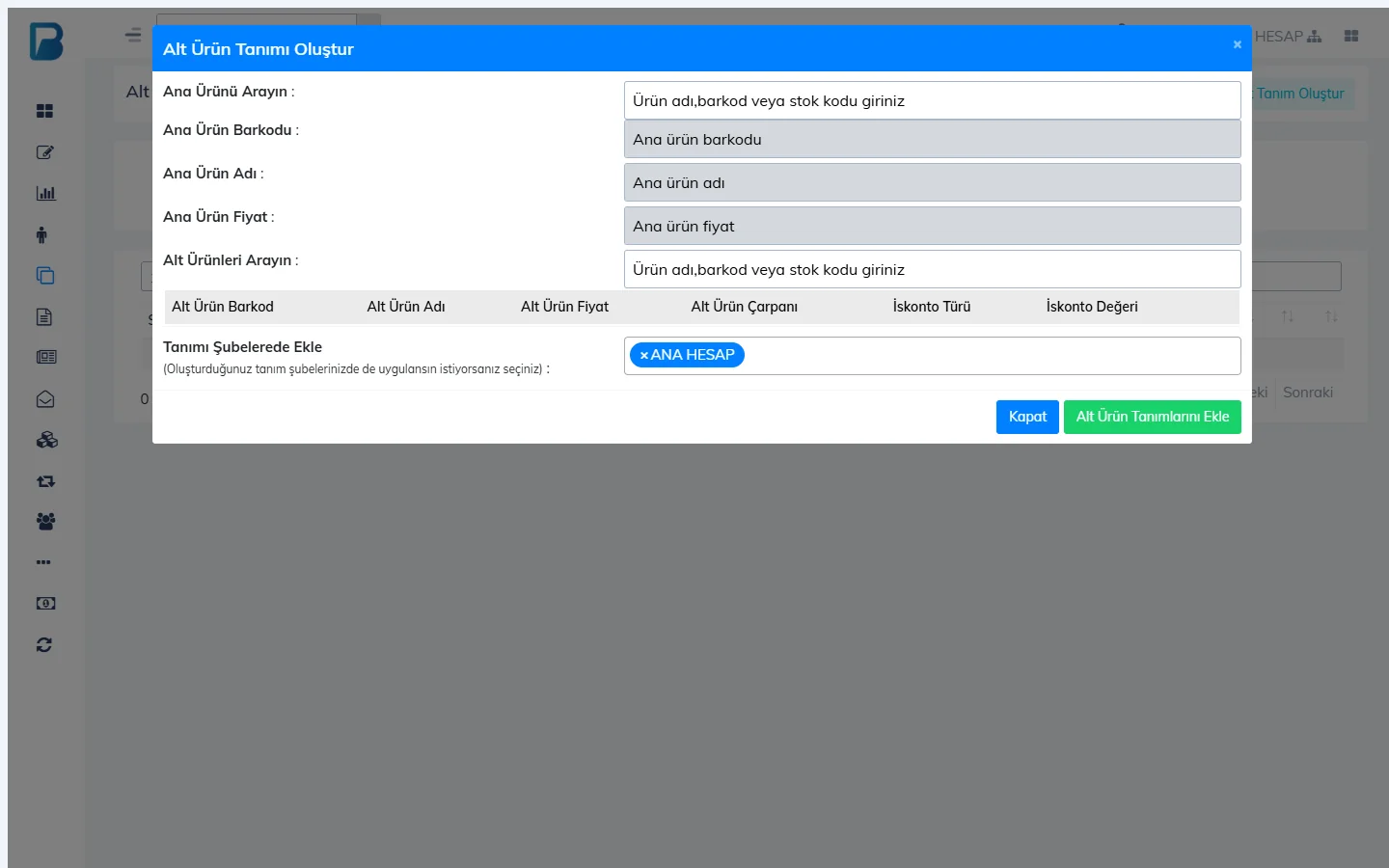
On the Products › Sub-product Definitions page, press New Sub-product Definition.
Select the main product
Type the barcode, name or stock code of the pack in the Search Main Product box and click the product in the list.
Select the sub-product
Find the single product in the Search Sub-products field and click it; it is added to the list below.
Enter the multiplier
In Sub-product Multiplier, enter how many sub-product units are in the main product (6 for a 6-pack). To apply a discount for bulk purchases, enter the Discount Type and Discount Value.
Save
For the definition to apply in your branches too, select the branches and press Add Sub-product Definitions.
Using it in sales
When you scan the main product, the sales screen shows the options (e.g. "1 pack" or "6 units"); the option you choose is added to the receipt with that quantity and price.
When you open the pack and start selling units one by one, enter the number of packs you opened with Transfer Stock in the definition list; the sub-product stock goes up according to the multiplier, and the pack stock goes down.
Sub-product definitions are not available in the desktop app; set them up in the web panel. When you scan a defined product in the desktop app, the Product options window opens: click an option or press one of the keys 1–9. If you chose Sell as case or Sell as single units for "When a case is scanned at checkout" on the Case / Pack tab, it is added without opening the window (latest version).
Sub-product definitions are not available on mobile; set them up in the web panel. When you scan a defined product on mobile, the Product options window opens and each option shows how many units it contains. If you chose Sell as case or Sell as single units for "When a case is scanned at checkout" on the Case / Pack tab, it is added without opening the window.