




Additional barcodes: linking case, pack and other barcodes to a product
Link a case or pack barcode, or a product's changed or second barcode, to the main product with a quantity; scanning it adds the product in that quantity and stock stays on the main product.
You can link different barcodes, such as a case, a pack or a six-pack, to a single product as additional barcodes. When an additional barcode is scanned, the product is added in the quantity you entered (e.g. scanning the barcode of a case of 24 adds 24 pcs of the product). You don't need a separate product card for the case; stock, sales and reports are always kept under the main product's own barcode.
If a product's barcode has changed (e.g. the manufacturer switched to a new barcode) or the same product has more than one barcode (different packaging, imported / local label), add the other barcodes as additional barcodes with qty 1: whichever barcode is scanned, 1 pc of the same product is sold and the stock stays on one card.
Additional barcodes work in sales, purchase invoices, stock counts, returns, price check and product search. A barcode that belongs to another product, or an additional barcode already linked to another product, can't be reused; you also can't create a new product card with an additional barcode (the system takes you to the main product's card). On a saved product, adding and removing additional barcodes is saved instantly; you don't need to save the product separately.
Adding an additional barcode
Open the product card
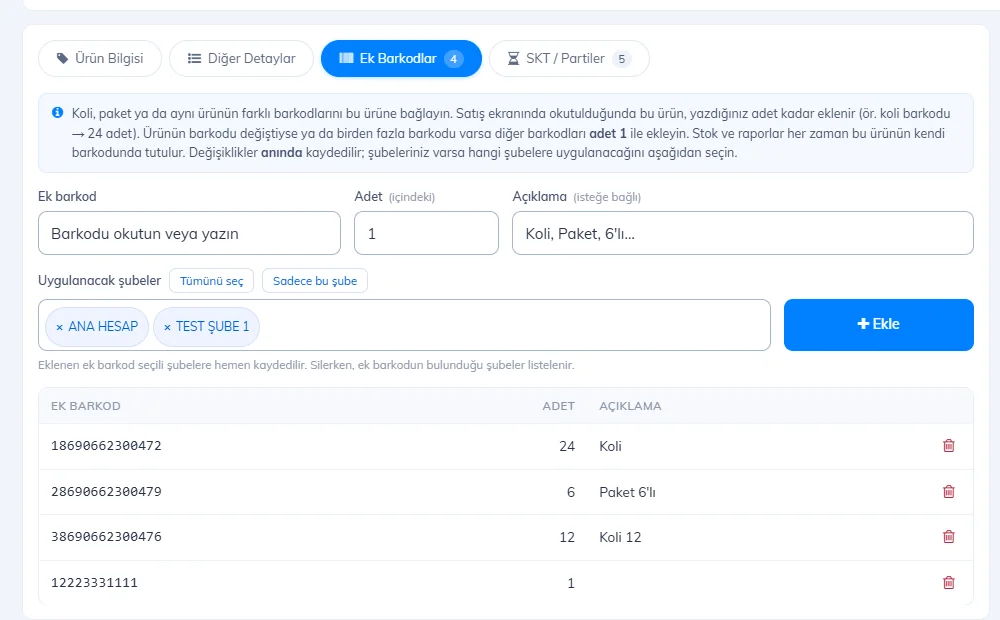
On the Products › Add & Update Products page, scan the product's own barcode and press Get Product, then go to the 1 Additional Barcodes tab at the top of the card. The number on the tab is how many additional barcodes are linked to the product.
 1234567
Enter the barcode and quantity
Scan the case/pack barcode into the 2 Additional barcode box. In 3 Qty, enter how many items it contains (24 for a case of 24; 1 for the product's other or old barcode). Optionally enter a 4 Description (e.g. "Case", "Pack of 6", "Old barcode").
Choose branches and add
If you have branches, use 5 Branches to apply to to choose which branches get the additional barcode (Select all / This branch only); branches without the product card show as "no product" and can't be selected. Press 6 Add: the additional barcode is saved right away to the selected branches and 7 added to the list. If you have no branches, this field isn't shown and the additional barcode is added only to this account.
Remove it if needed
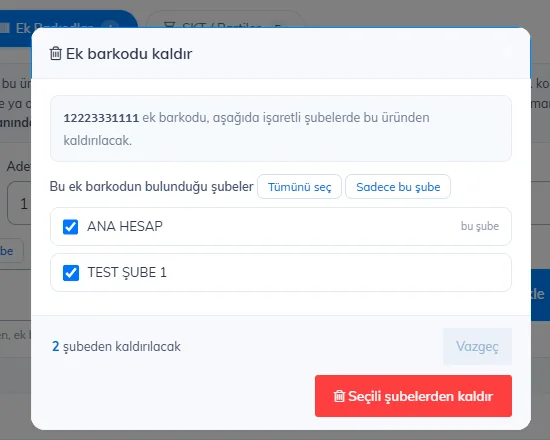
Press the trash icon on the row. If you have branches, the branches that have the additional barcode are listed: 1 tick the branches you want to remove it from and press 2 Remove from selected branches. If it exists in only one branch, you are just asked to confirm.
 12
12
On the Additional Barcodes and Expiry / Batches tabs, the branch selection and the Save product button at the bottom are hidden; changes on these tabs are saved instantly. Saving an existing product doesn't touch its additional barcodes. If you are creating a new product, the additional barcodes are saved to the selected branches together with the product when you save it from the Product Info tab.
If you want to count cases in separate stock (for example, to see how many cases are in the warehouse), use the Case / Pack tab on the product card instead of an additional barcode: Tracking case / pack stock separately. You can move an existing additional barcode there with the Track in separate stock button on its row.
Additional barcodes in sales
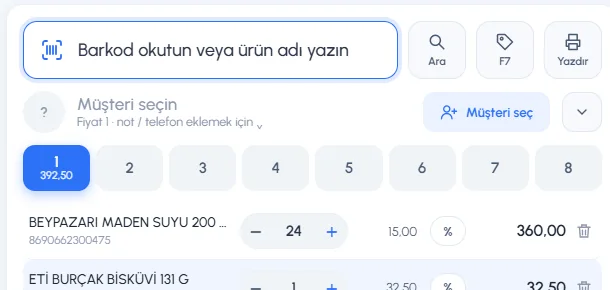
When you scan a case barcode into the 1 barcode box on the sales screen, the main product is added to the receipt 2 with the pack quantity; the price is the product's unit price × quantity. If you scan the same case again, the quantity goes up by one more case.
 12
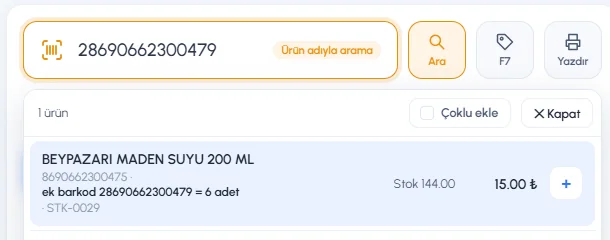
12If you type an additional barcode in the Search by product name (F6) window, 1 the main product is listed and 2 "additional barcode … = 6 pcs" is shown; press Enter to add it with the pack quantity.
 12
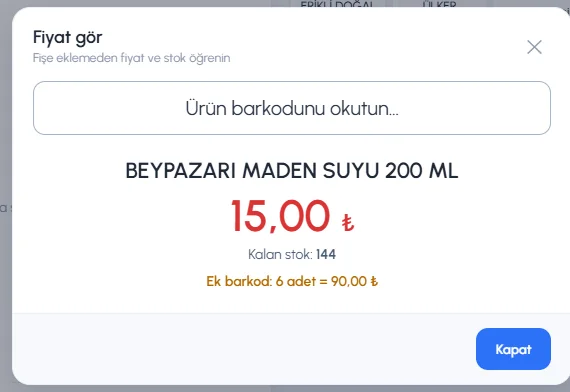
12When you scan an additional barcode in the Price check (F7) window, 2 the pack quantity and total amount are also shown below the 1 unit price.
 12
12Adding several cases: first type the number of cases and * in the barcode box, then scan the case. Example: type 3* and scan the case of 24, and 3 cases = 72 pcs are added. The quantity on the receipt is always in single items: if the line says 24, it means 24 pcs. If you change the quantity by hand, the number you type is taken as pieces (type 48 for 2 cases, or scan the case twice).
Additional barcodes on purchase invoices
When you scan a case barcode on the Purchase Invoices › Create Purchase Invoice screen, the line gets 1 the main product's own barcode, 2 the quantity is filled with the pack quantity (24) and 3 the unit price is the purchase price of a single item. When the invoice is saved, the stock goes to the main product.
 123
123Linking a product from an e-invoice
When you convert an incoming e-invoice (e-fatura) into a purchase invoice and the supplier's product code doesn't exist in your account, an orange 🔗 (link) button and the text "This product code is not in your account" appear on the line. You used to have to enter this code as the product's stock code; now you can link it to the product as an additional barcode with this button.
Press the button
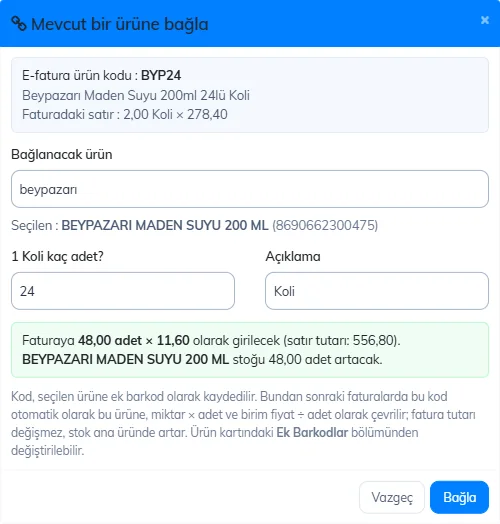
Press the 🔗 button on the line. The top of the window that opens shows 1 the product code, name and quantity from the e-invoice.
 1234567
Choose the product
Type the product's name or barcode in the 2 box and click the product in the list. 3 The selected product is shown below.
Enter how many it contains
4 Enter how many items are in 1 unit on the invoice (case, carton, box). Example: 10 for a carton of cigarettes, 24 for a case of 24. If items come one by one, leave it at 1. 5 The description is filled in automatically with the unit from the invoice. 6 The green box shows how the line will appear on the invoice and how much the stock will increase.
Link it
Press 7 Link. The line is converted to the product you selected: quantity × qty, unit price ÷ qty. The invoice total doesn't change, and the stock of the selected product increases.
You only link once: from then on, on invoices from the same supplier this code is converted to that product automatically, and the line shows "E-invoice code … · 1 Case = 24 pcs". The linked code appears on the Additional Barcodes tab of the product card; you can change or remove it there.
If you want to count cases in separate stock (the case has its own card), use the Case / Pack tab instead of an additional barcode.
Additional barcodes in stock counts
When you scan a 1 case barcode on the count screen, the main product is found, 2 pack ×24 is shown next to the product name and 3 the quantity is filled with the pack quantity; when you save, the count is recorded on the main product.
 123
123Other screens
- Returns and product search: when you search with an additional barcode, the main product and its sales are listed.
- Product list: typing an additional barcode in the search box brings up the main product.
- Importing products from Excel: rows in the file whose barcode is another product's additional barcode are skipped, not created as new products.
If the case should be kept as a separate product (with its own stock and price), use the Case / Pack tab. An additional barcode only means "when this barcode is scanned, add N pcs of the main product"; it doesn't keep separate stock.
Adding an additional barcode
Open the product card
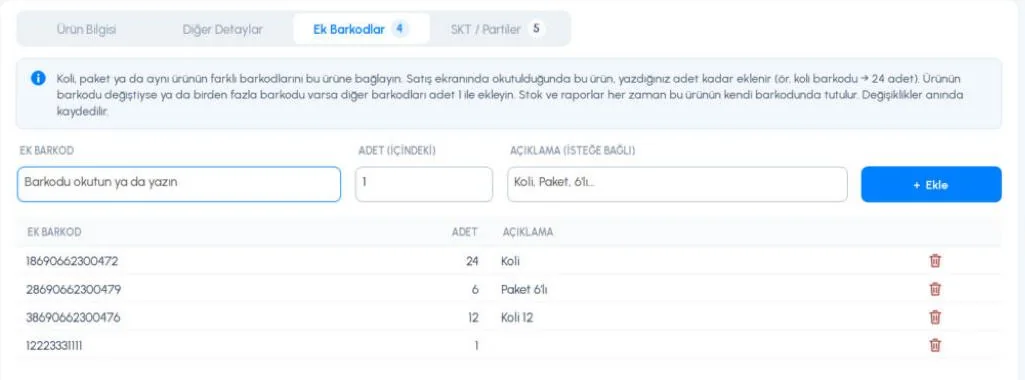
Scan the product's barcode on the Products › Add / Update Product page. Go to the 1 Additional Barcodes tab at the top of the card; the number in the circle next to the tab is how many additional barcodes are linked to the product.
 1234567
Add the additional barcode
Scan the case barcode into 2 ADDITIONAL BARCODE, enter the number of items in the pack in 3 QTY (1 for the product's other barcode), optionally enter a 4 DESCRIPTION, then press 5 + Add (or Enter in the description). It is saved right away, 6 appears in the list and syncs to the web and mobile apps; you don't need to save the product separately.
Remove it if needed
Press the 7 trash icon on the row and confirm.
- On a new (not yet saved) product, the Additional Barcodes and Expiry tabs are disabled; save the product first.
- When the window is small, the description box at the top is hidden to leave more room for the list.
In sales and on the product card
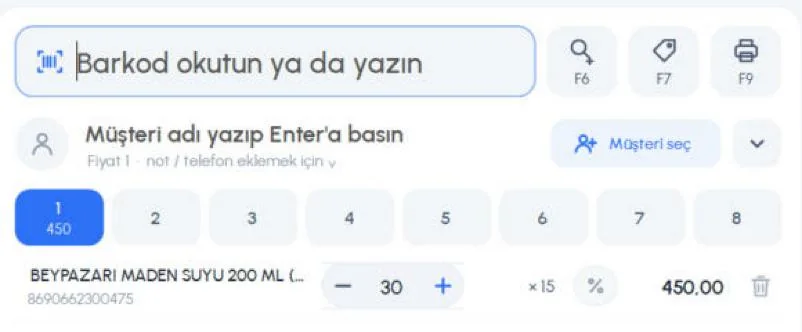
When you scan a 1 case barcode on the sales screen, the main product is added 2 with the pack quantity.
 12
12Adding several cases: type 3* in the barcode box and scan the case, and 3 cases = 72 pcs are added. The quantity on the receipt is in single items; if you change it by hand, the number you type is taken as pieces (type 48 for 2 cases, or scan the case twice).
If you scan an additional barcode 1 on the product card, 2 you are told it is an additional barcode and the main product's card opens; you can't create a new product card with an additional barcode.
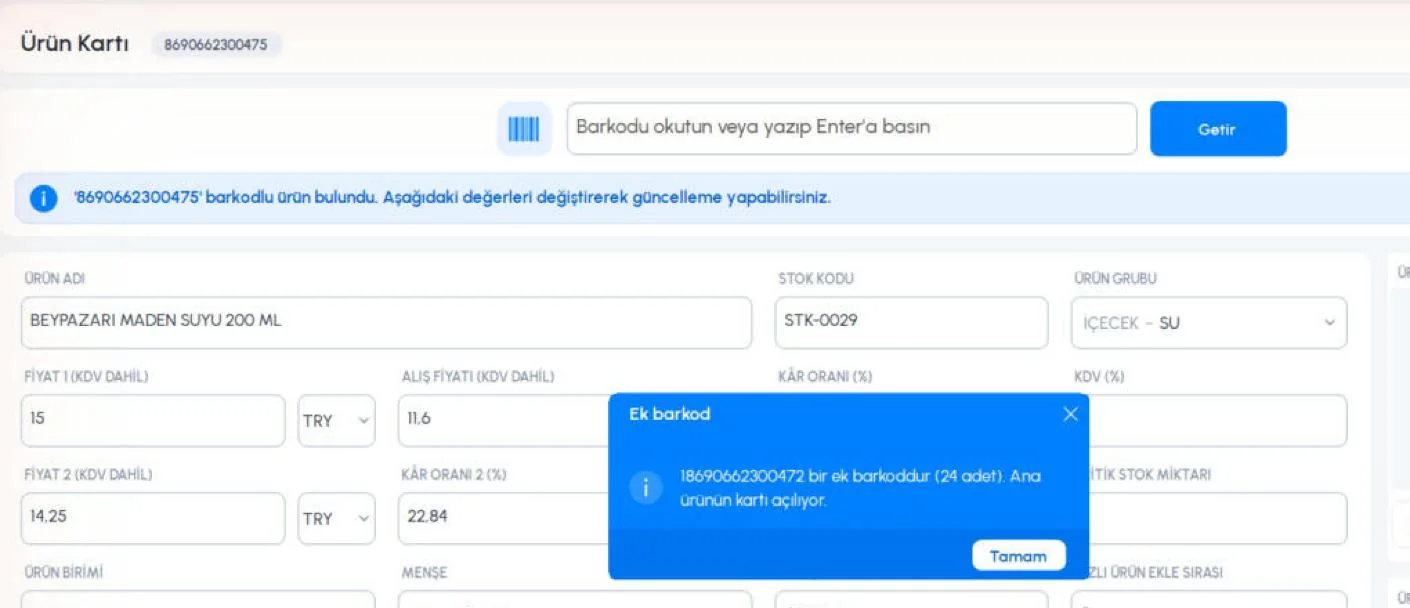 12
12- On the purchase invoice, return and price check screens, additional barcodes are also converted to the main product.
- Additional barcodes also work without an internet connection; they sync when the connection is back.
Adding an additional barcode
Open the product card
Open the product on the Menu › Products page (or scan its barcode). Tap 3 Add. Barcode in the tabs at the top of the card. The tabs are: 1 Product (product info), 2 Details (Price 2, Price 3, stock code…), 3 Add. Barcode and 4 Expiry.
Add the additional barcode
Type the barcode in the 3 Additional barcode field or scan it with the scan icon next to it, enter the number of items in the pack in 4 Qty (inside) (1 for another barcode of the same product), and optionally type a 5 description. If you have branches, choose 6 Branches to apply to and tap 7 Add; the additional barcode is saved right away and 8 appears in the list.
Remove it if needed
Tap the trash icon on the row. If you have branches, in the window that opens 1 tick the branches and tap 2 Remove from selected branches.
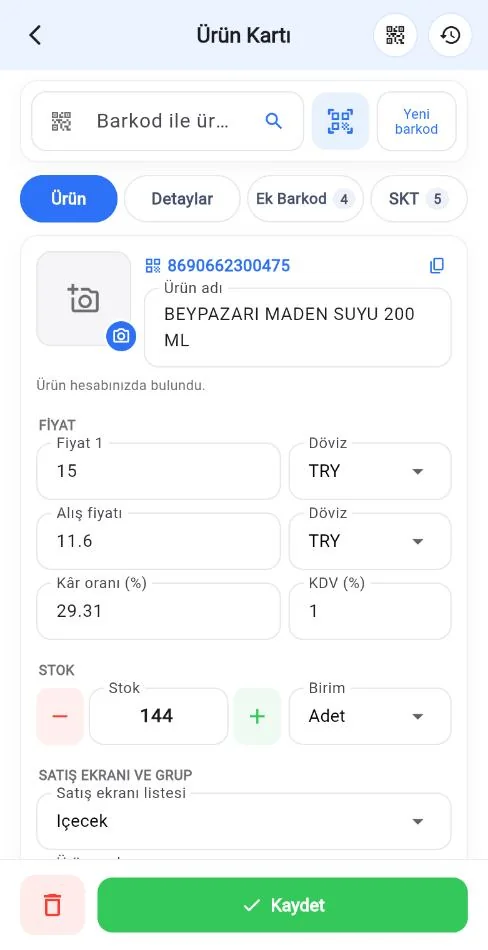 1234
1234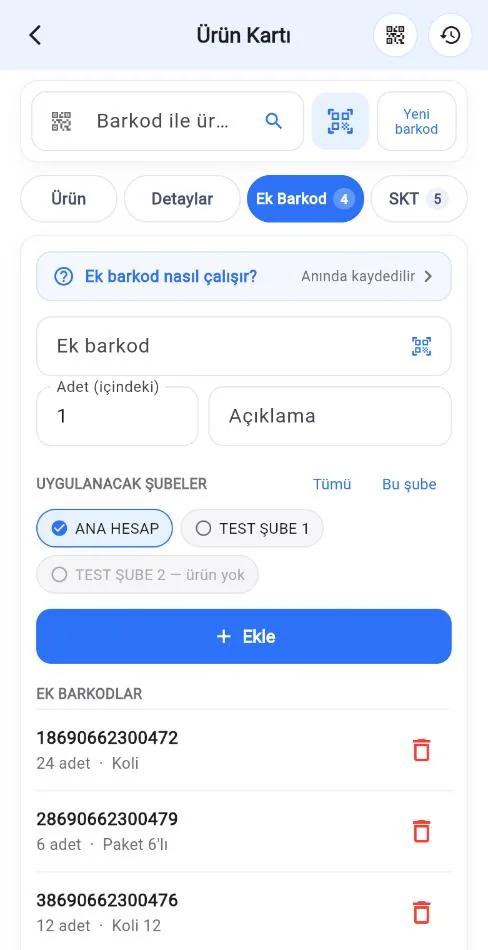 12345678
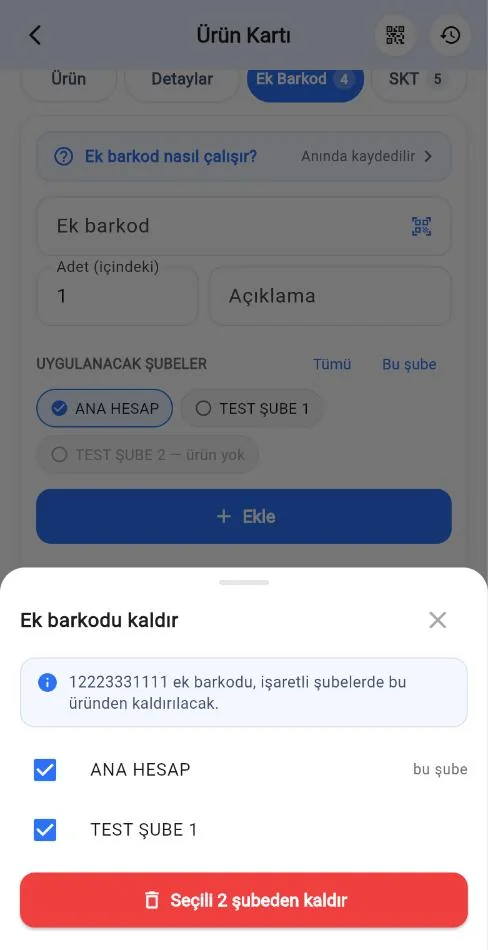 12
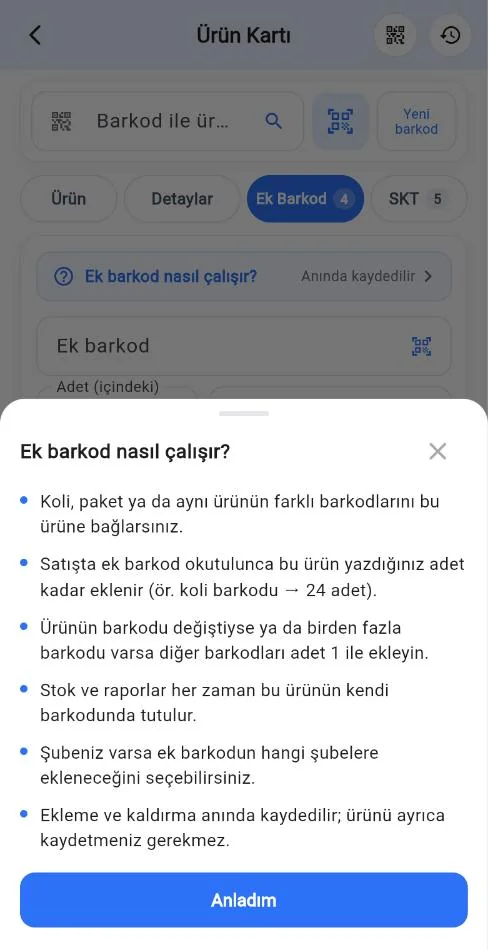
12To keep the screen clean, the explanation is collapsed: tap the 2 How do additional barcodes work? line at the top of the tab and 2 a short explanation slides up from the bottom; close it with 3 Got it. The Expiry tab has a similar How does expiry tracking work? line.
 123
123On the Add. Barcode and Expiry tabs, the Save button at the bottom is hidden; changes on these tabs are saved instantly.
In sales, stock counts and on the product card
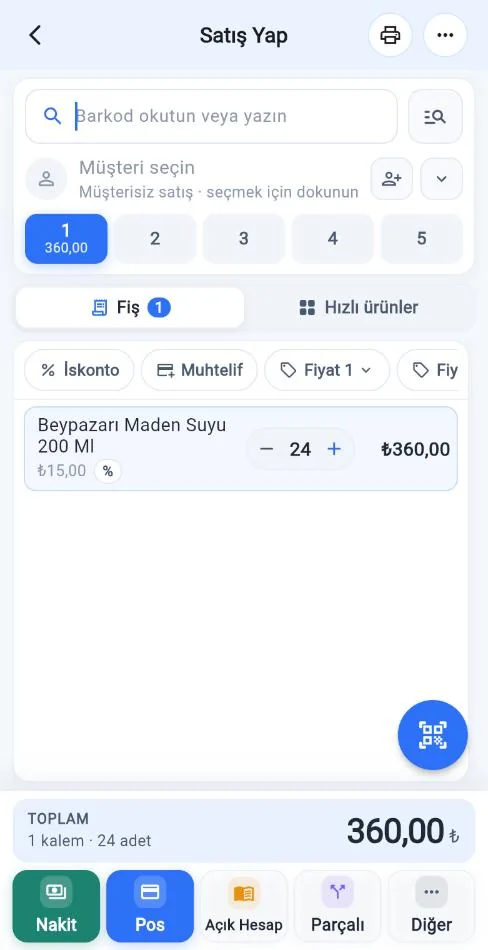
When you type or scan a case barcode in the 1 barcode field on the sales screen, 2 the main product is added to the cart 3 with the pack quantity (24). In a stock count, when you scan the case barcode with Scan barcode, 1 the main product is found and 2 the quantity is filled with the pack quantity; 3 Add product to count records it on the main product. If you scan an additional barcode on the Products page, 1 you are told it is an additional barcode and 2 the main product's card opens.
 123
123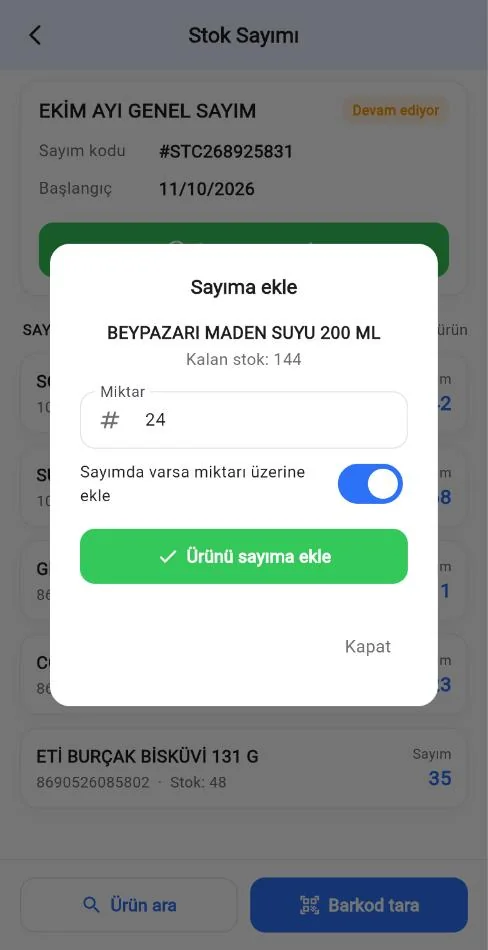 123
123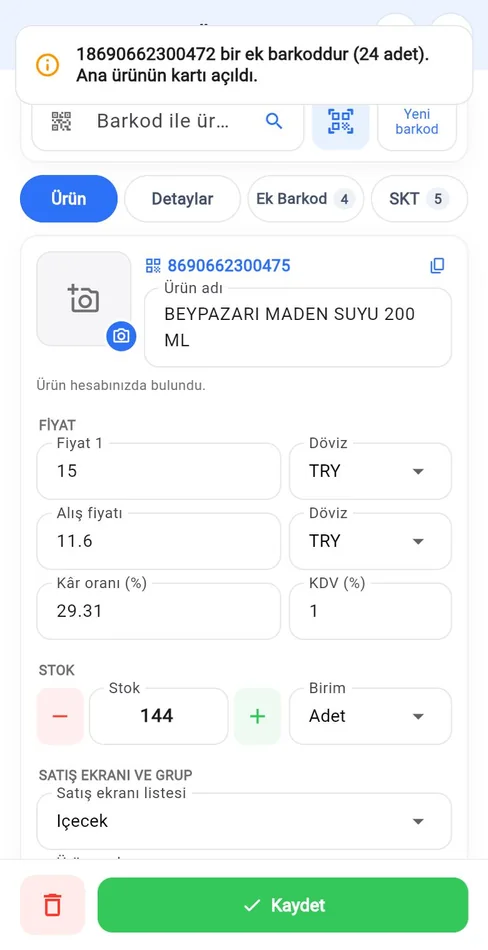 12
12This feature is in the latest version of the app. If you haven't updated the app, you can set up additional barcodes from the web panel or the desktop app; they still work in sales.
The mobile app doesn't support scanning with 3*: for several cases, scan the case again. The quantity in the cart is in single items; if you change it by hand, the number you type is taken as pieces (type 48 for 2 cases).
Details and common questions
The points below explain exactly what an additional barcode does on each screen. If you're wondering "why did this happen?", the answer is here.
I scanned the case and 24 pcs were added to the receipt. Why not 1?
An additional barcode means "when this barcode is scanned, add 24 pcs of the main product". The case isn't a separate product; the main product always goes onto the receipt and into stock in single items. If you want to see it as cases separately, use Case / Pack.
I changed the quantity on the receipt to 2, but it didn't become 2 cases.
The quantity on the receipt is the number of single items. If you type 2, you get 2 pcs. For 2 cases, type 48, scan the case twice, or (on web and desktop) type 2* and scan.
Why is the case price the single price × quantity? The case has a discounted price.
An additional barcode has no price of its own; the price is always the main product's unit price × quantity. To give the case its own (e.g. discounted) price, create the case as a separate product card from the Case / Pack tab; you can set any price you want on the case card.
The case barcode doesn't appear in reports or stock.
That's correct. Sales, purchases, counts and stock are always recorded under the main product's own barcode; additional barcodes don't appear in reports, and the line shows the main product's name.
I scanned the case barcode on a purchase invoice. Why is the unit price the price of a single item?
When you scan the barcode into the line and press Enter, the line is converted to the main product: the quantity becomes the pack quantity (24) and the unit price is the product's single purchase price. If you have the case price, enter the unit price as case price ÷ 24, or use the case button next to the quantity.
How is a case line on an e-invoice converted to single items?
If the code on the e-invoice is set up as an additional barcode, the line is converted when the page opens: quantity × qty, unit price ÷ qty. The line amount, VAT, discount rates and invoice total don't change. Example: 0.5 case × 1,200 (10 per case) → 5 pcs × 120 = 600. Below the line it says "E-invoice code … · 1 Case = 10 pcs (additional barcode)".
Why does the unit price have 4 decimals (e.g. 95.5000)?
When the case price is divided by the quantity, the unit price is rounded to 4 decimals so no cents are lost. If the division isn't exact (e.g. 1,000 ÷ 3), the line amount may differ by at most a few ten-thousandths.
Why is the purchase price on the product card 120 when the invoice said 1,200?
Because the invoice line is converted to single items, the purchase price of a single item is written to the product card (if purchase price updating is on): 1,200 ÷ 10 = 120. This is correct.
I linked the e-invoice code to the wrong product.
Open the Additional Barcodes tab on the card of the product you linked and remove that code with the trash icon. When you open the invoice again, the 🔗 button appears on the line again; link it to the right product. On an invoice you haven't saved yet, you can also correct the line's barcode by hand.
In what order is a product on an e-invoice matched?
The product barcode is checked first, then additional barcodes, then the stock code. If none match, the 🔗 button appears on the line; if you don't link it, a new product card is created with that code when the invoice is saved.
I tried to create a new product with an additional barcode and it didn't work.
You can't create a new product with a barcode that is another product's additional barcode: on the web product card you are taken to the main product's card; quick product add, the mobile app and e-invoices show a warning; in Excel imports and the API that row is skipped. If you want a separate product with that barcode, first remove the additional barcode or use Track in separate stock.
I got a warning that this additional barcode is assigned to another product.
A barcode can only be used in one place: it is either a product's own barcode or the additional barcode of a single product. Remove it from the other product first. When a product is deleted, its additional barcodes are released automatically and can be used again.
It works in one branch but not in another.
Additional barcodes are branch-specific. When adding one, also select the other branch in Branches to apply to; it can't be added to a branch that doesn't have the product card.
I scanned the case in a stock count and the quantity came up as 24.
That's correct. The count is recorded on the main product in single items. If you counted 3 cases, set the quantity to 72.
How does it work in transfers (between branches)?
On the web, scanning the case on the transfer screen adds the main product with the pack quantity. In mobile transfers, searching by the case barcode finds the main product; enter the quantity in pcs.
I entered an additional barcode in quick product update.
The change is applied to the main product; no separate product is created with the additional barcode.
An additional barcode was sent in a sale coming from an integration (API).
The line is converted to the main product: quantity × qty, sale and purchase price ÷ qty; the amount stays the same. Product updates via the API are not applied to additional barcodes (so a case price doesn't overwrite the main product's price); send the main product's own barcode.
Additional barcodes don't work on mobile or desktop.
Make sure you are using the latest version of the app and that sync has run. Additional barcodes added on the web reach the desktop and mobile apps through sync.