




Quick product lists
Add products to the quick lists on the sales screen, rename the lists and change their order, and show product groups as tabs.
The quick products on the right of the sales screen let you add products without a barcode, or products you sell often, to the receipt with a single tap. Products are split into a Main list and four extra lists (List 1–4); product groups you choose to show on the sales page also appear as tabs.
Adding a product to a quick list
Open the product card
On the Products › Add & Update Products page, scan the product's barcode or open the product from the product list.
Choose the list
Choose the list in the Show on sales page field: Main products or List 1–4 (shown with the names you gave them). To remove it, choose Do not show on sales page.
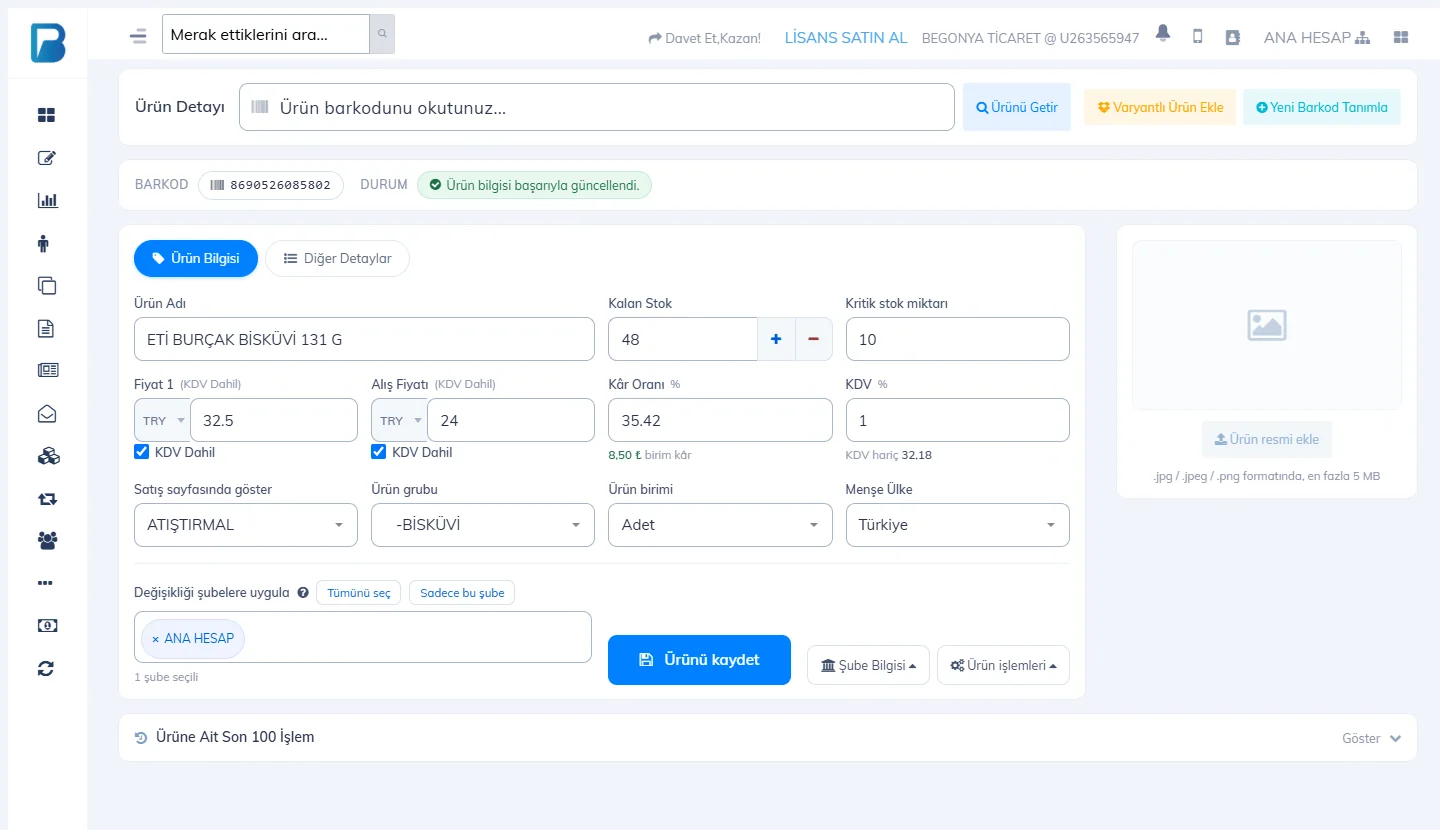
Set the order
Type a number in Quick Item Order on the Other Details tab; products with lower numbers come first.
Save
Save the product; when you refresh the sales screen, the product appears in the list.
Renaming the lists
On the My Profile › Stock & Product Settings tab, type department names in the 2 Quick item department names boxes (List 1–4) (e.g. Fruit & Veg, Deli; up to 10 characters) and press Update & Save.
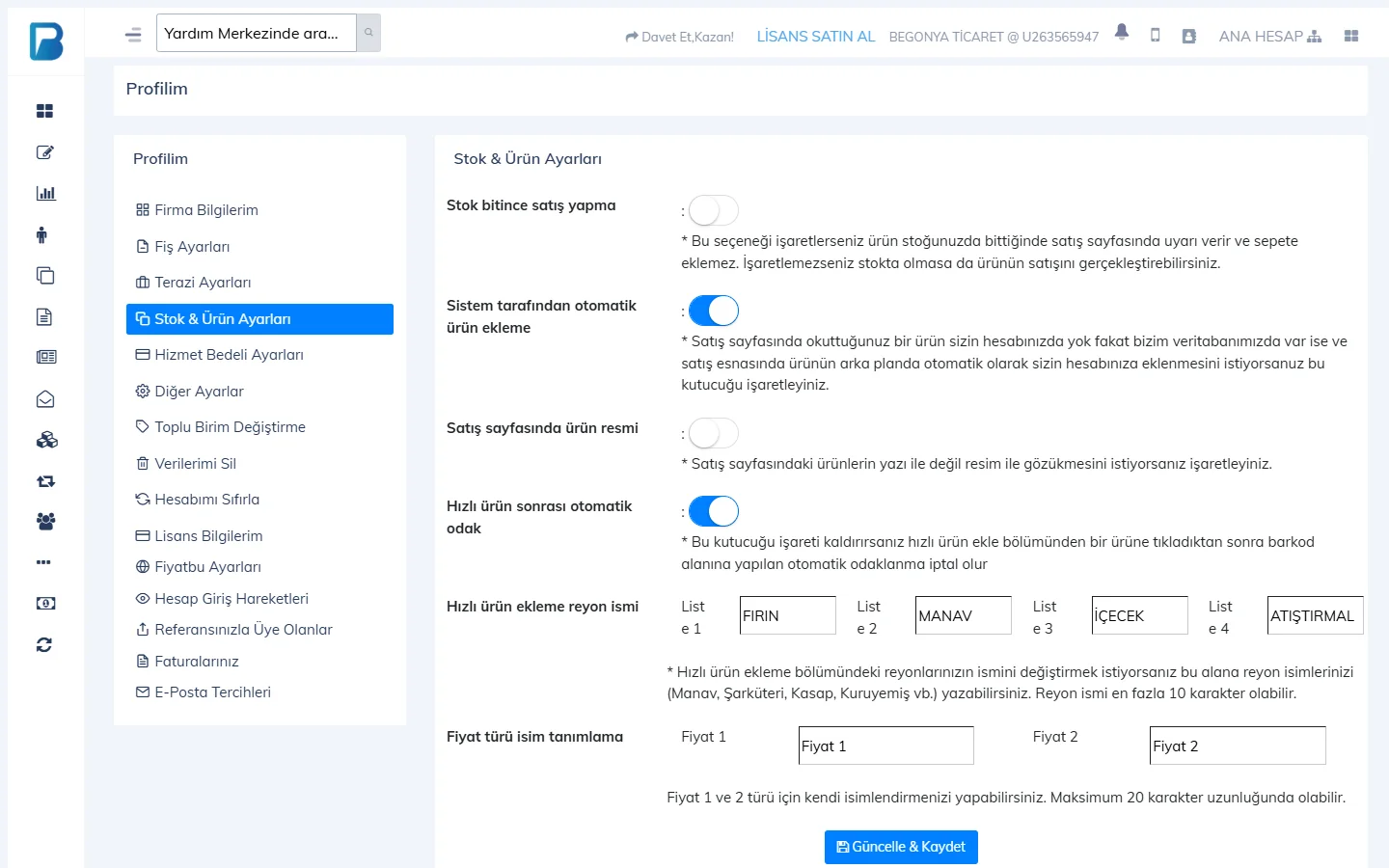 1234
1234Showing a product group as a tab
In Products › Product Groups, edit the group and turn on Show on sales page; the group appears as a separate tab on the sales screen. Product groups
If you want product cards to show a picture instead of text, turn on Product images on sales page in Stock & Product Settings. You can change the card size on the sales screen with Options › Product cards (Automatic / Small / Medium / Large).
If a product in a quick list doesn't show, the Do not sell when out of stock setting may be on and the product may be out of stock.
Quick products
Quick product cards are on the right of the sales screen. The tabs at the top are: MAIN, List 1–4 with department names (e.g. BAKERY, PRODUCE, DRINKS, SNACKS) and the product groups shown on the sales page. Clicking a card adds the product to the receipt; if “3*” is typed in the barcode box, 3 units are added.
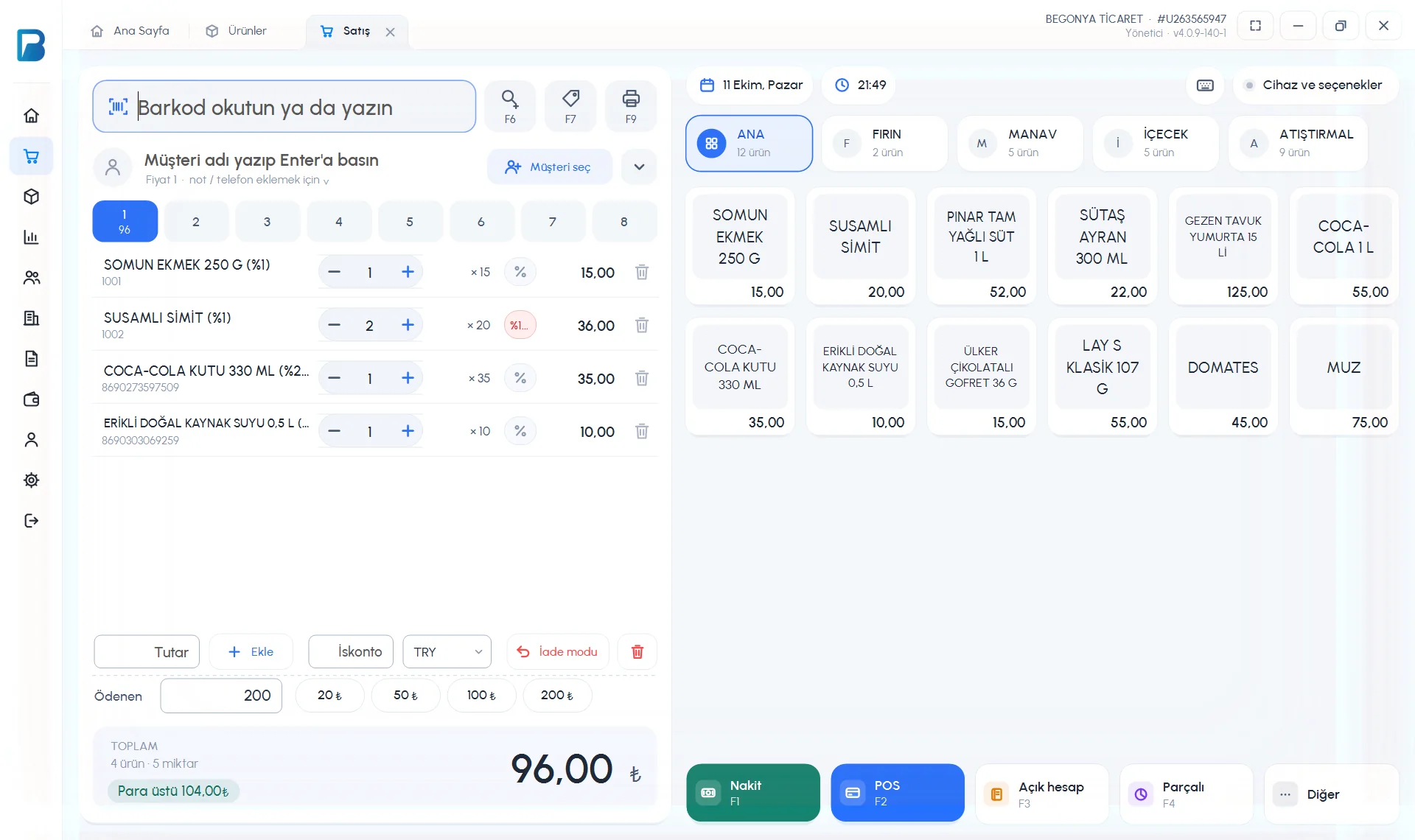 123456
- Adding a product to a list: on the product card, choose the list in SHOW ON SALES SCREEN and press Save.
- Order: on the product card, type a number in QUICK PRODUCT ORDER.
- List names: Settings › Profile settings › LIST 1–4 on the Shelf names card (up to 10 characters) › Save Changes.
- Card size: Devices and options › APPEARANCE › Product cards (Automatic, Small, Medium, Large); receipt area width: Receipt area.
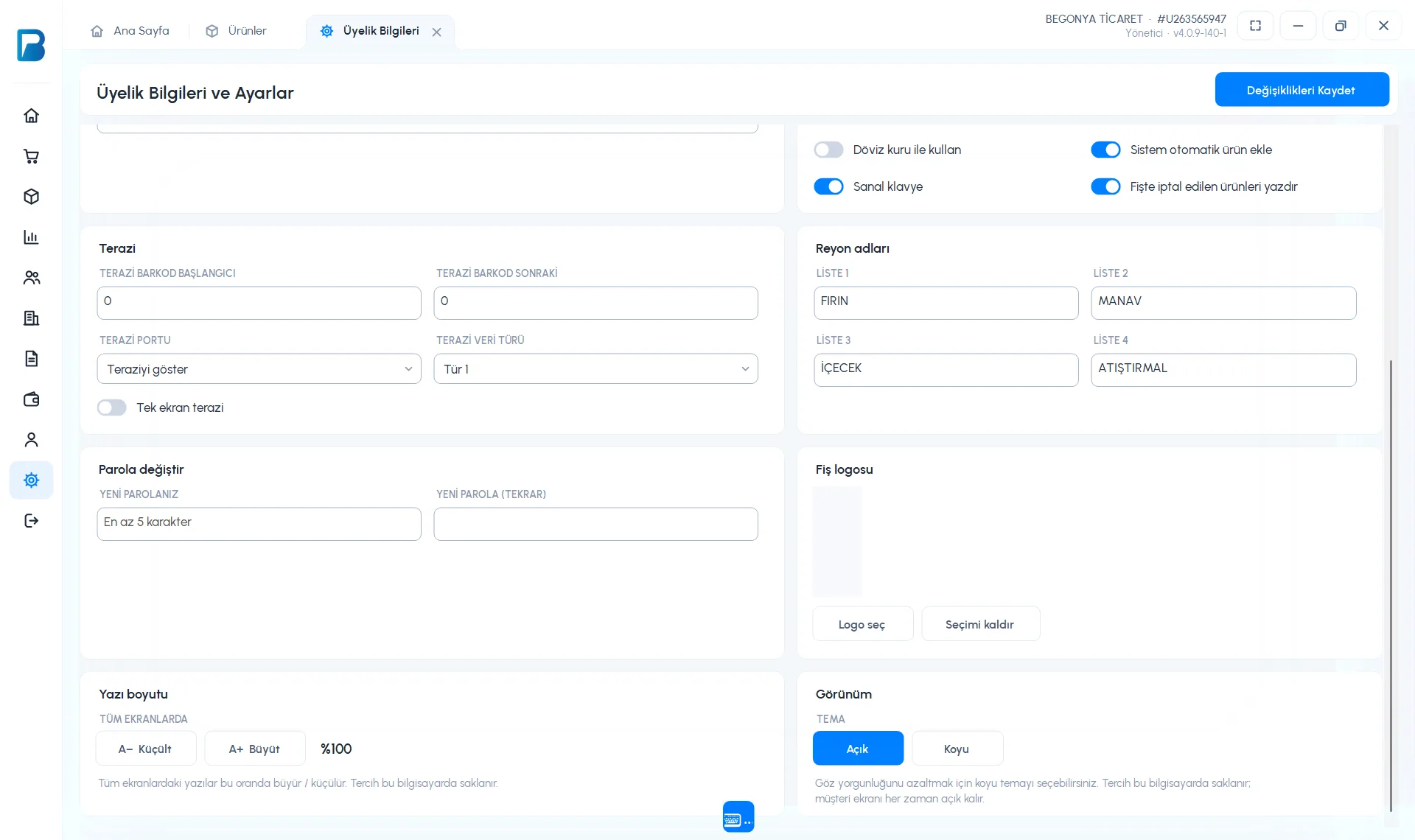 1234
1234Quick products
On the sales screen, tap the Quick products tab. Choose the list with the chips at the top (Main List, List 1–4 and product groups) and tap a product to add it to the receipt.
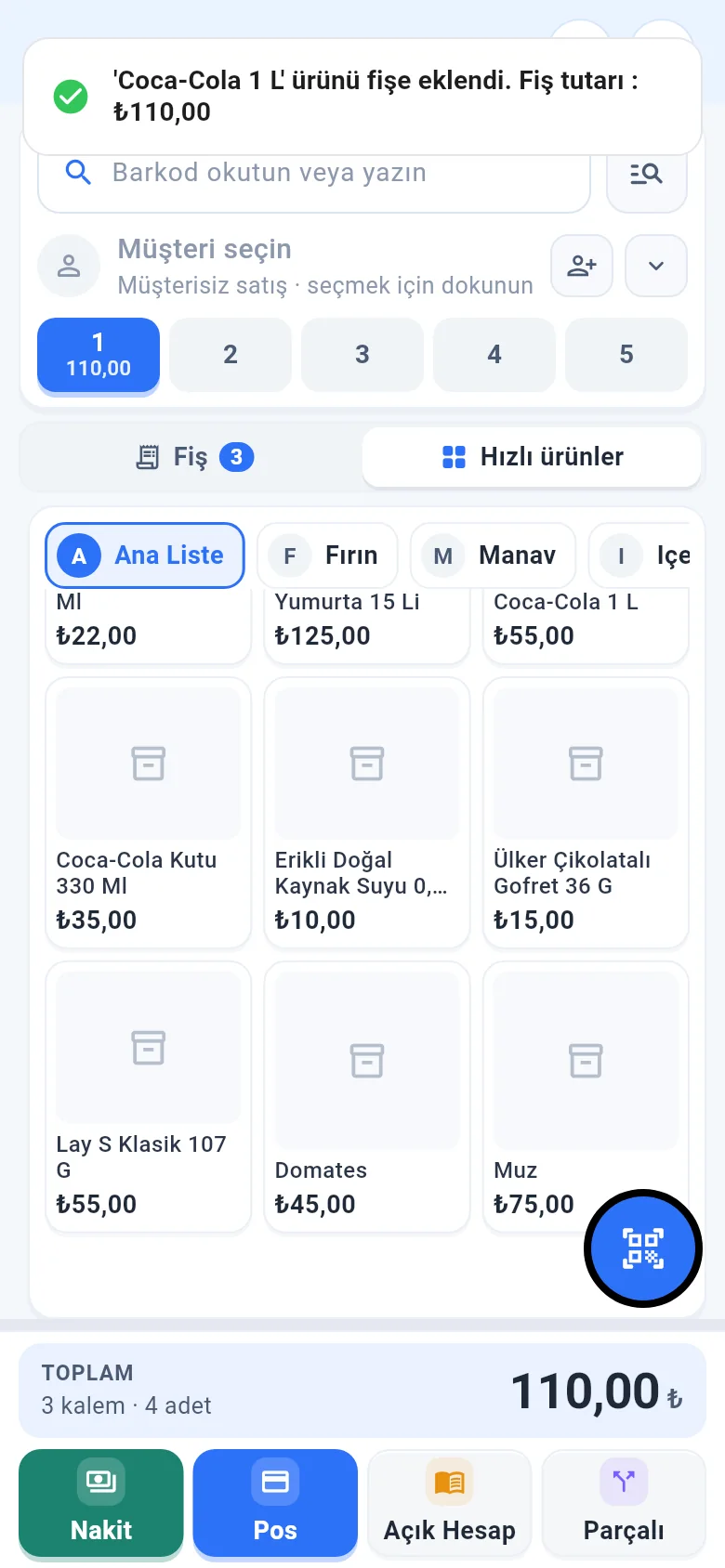
- To add a product to a list, choose the Sales screen list in the SALES SCREEN AND GROUP section of the Product Card and tap Save.
- For the order: Product Card › Other details › Sales page order.
- List names: Menu › Profile › LIST AND PRICE NAMES.