




Misc. amounts and selling products without a barcode
Sell a product that isn't in the system by its amount only, and sell products without a barcode with quick lists and search by name.
To sell a product that isn't in the system, use a misc. amount: you type only the amount, and a "Misc. Item" line is added to the receipt. Miscellaneous sales don't deduct stock and are recorded with 0% VAT. For products without a barcode that you sell often (bread, simit, fruit and vegetables), it's better to create a product card and add it to a quick list.
Adding a misc. amount
On the sales screen, type the amount in the 1 Misc. amount box below the basket and press 2 + Add (or Enter). A "Misc." line is added to the receipt; you can change its quantity and discount like any other product.
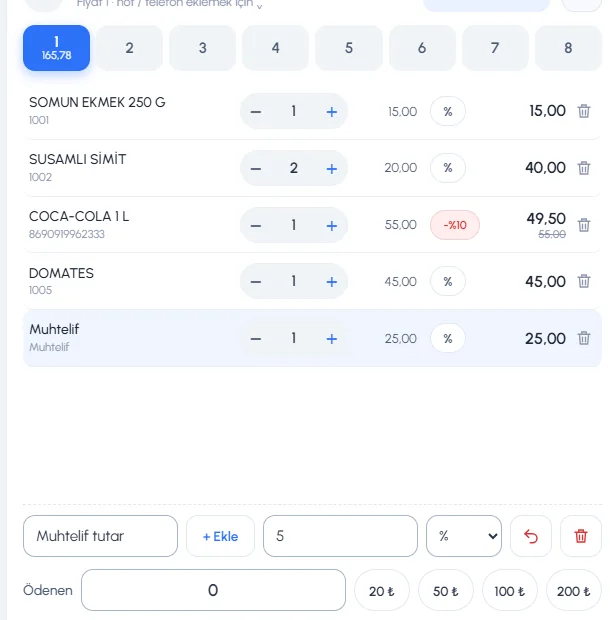 12
12Selling products without a barcode
- Quick products: Add the product to the list you choose with Show on sales page on the product card; in the sale, tap the card to add it. Quick product lists
- Search by name: Type a few letters of the product name in the barcode box, or press F6. Searching for products
- Generate a barcode: With New Barcode on the product card, you can save the product with a barcode generated by the system and print labels for it.
Miscellaneous sales aren't shown in the product report by default; to see them, turn on Include misc. sales under the report's More Options.
Adding a misc. amount
To sell a product that has no barcode or that you haven't entered in the system by its amount, type the amount in the 1 Amount box below the receipt and press 2 Add (or Enter). A 3 Misc. Item line is added to the receipt; you can change its quantity and discount like any other product.
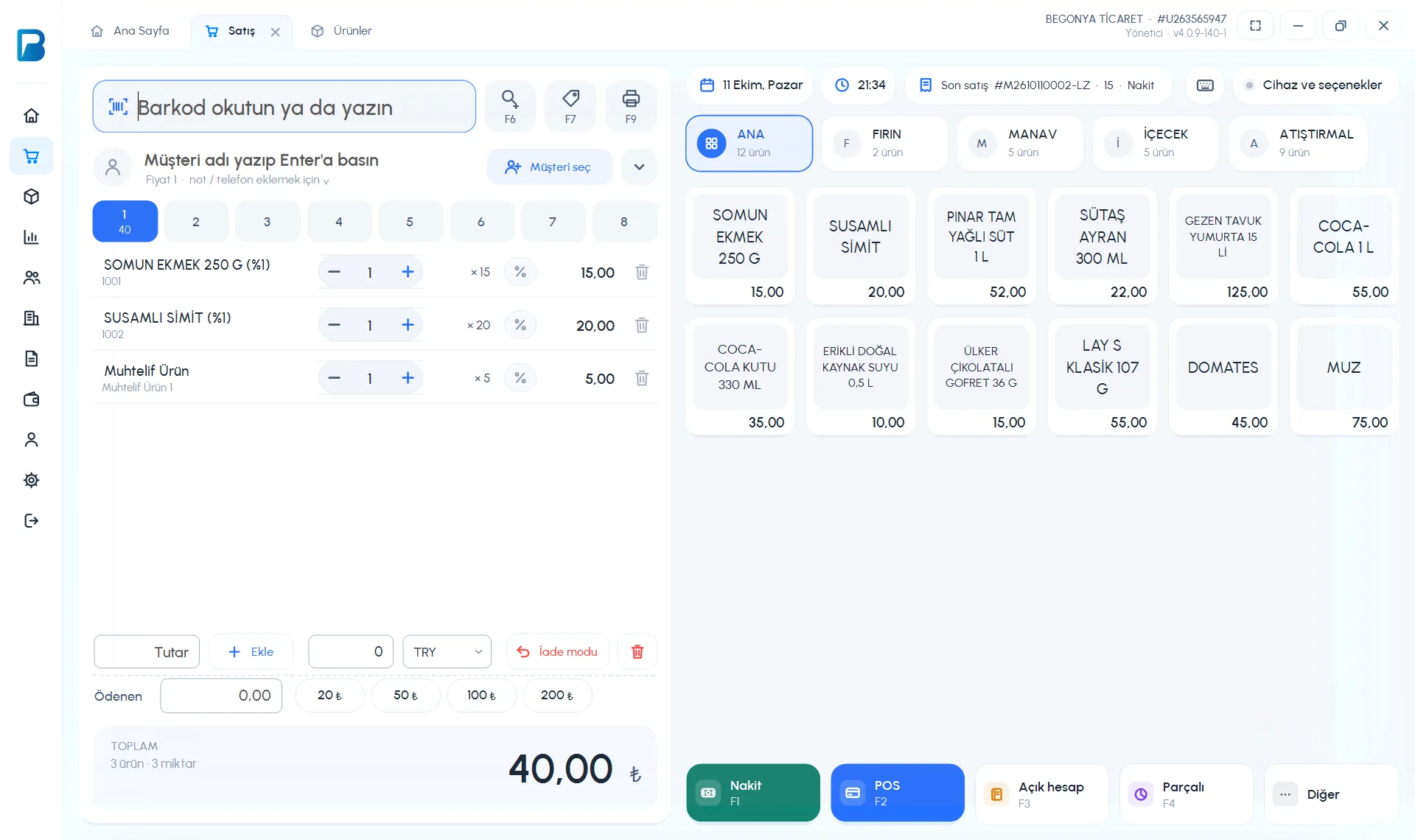 123
123Products without a barcode
- Save the products without a barcode that you sell often (bread, simit, vegetables) with New Barcode on the product card, and add them to a quick list from SHOW ON SALES SCREEN; they appear as cards on the right of the sales screen.
- If you type a product name in the barcode box and press Enter, the Find product window opens with that search.
- If you scan a barcode that isn't saved, you're asked “No product found with this barcode! Do you want to add a new product now?”; if you click Yes, the product card opens with the barcode, and when you save it, the product is added to the receipt.
Miscellaneous sales aren't tracked separately by product in reports; save the products you want to track stock for as product cards.
Adding a misc. amount
On the sales screen, tap the Misc. chip (or ••• › Add misc. amount). Type the amount or choose one of the preset amounts and tap Add to receipt. Each addition goes on the receipt as a separate "Misc. Item" line.
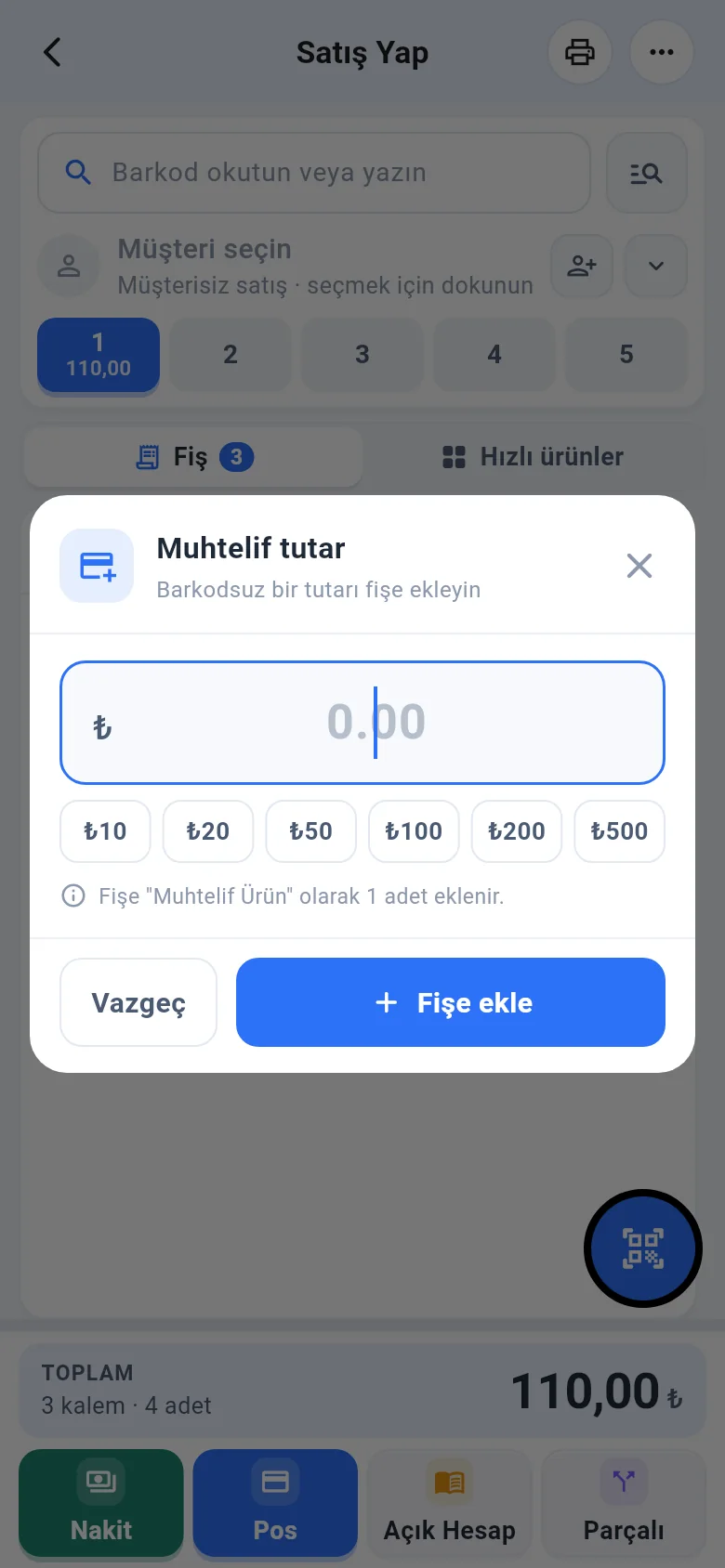
For saved products without a barcode, use the Quick products tab or the search button next to the barcode field.