Product transfer

Stock transfers between branches and the warehouse

Send products that one branch has too many of to a branch that is short, or from the warehouse to a store. The product is deducted from the sender's stock and added to the recipient as a purchase invoice; if the recipient has no product card, one is created automatically.

All features open for the first month. No credit card required.
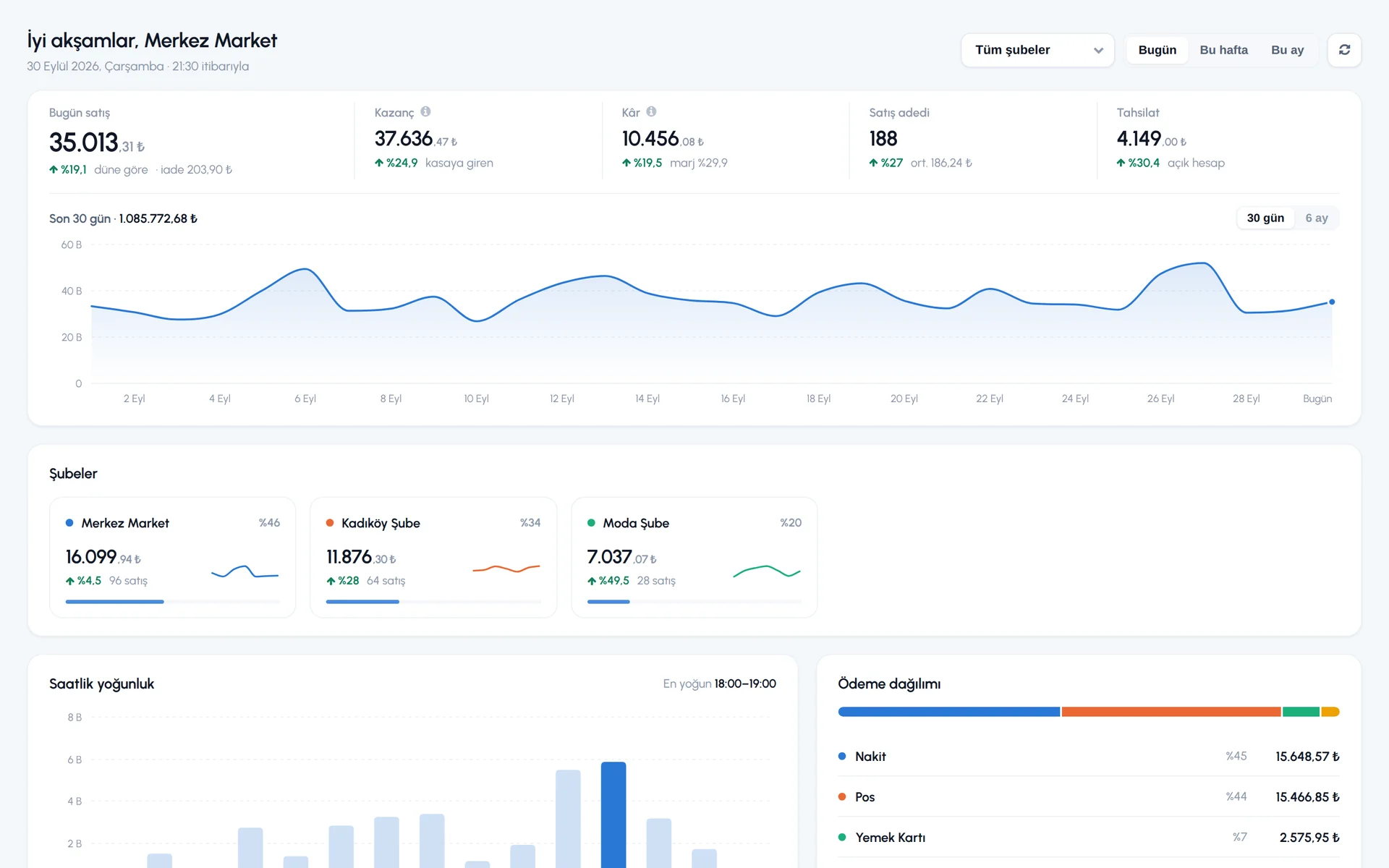
BenimPOS screenshot
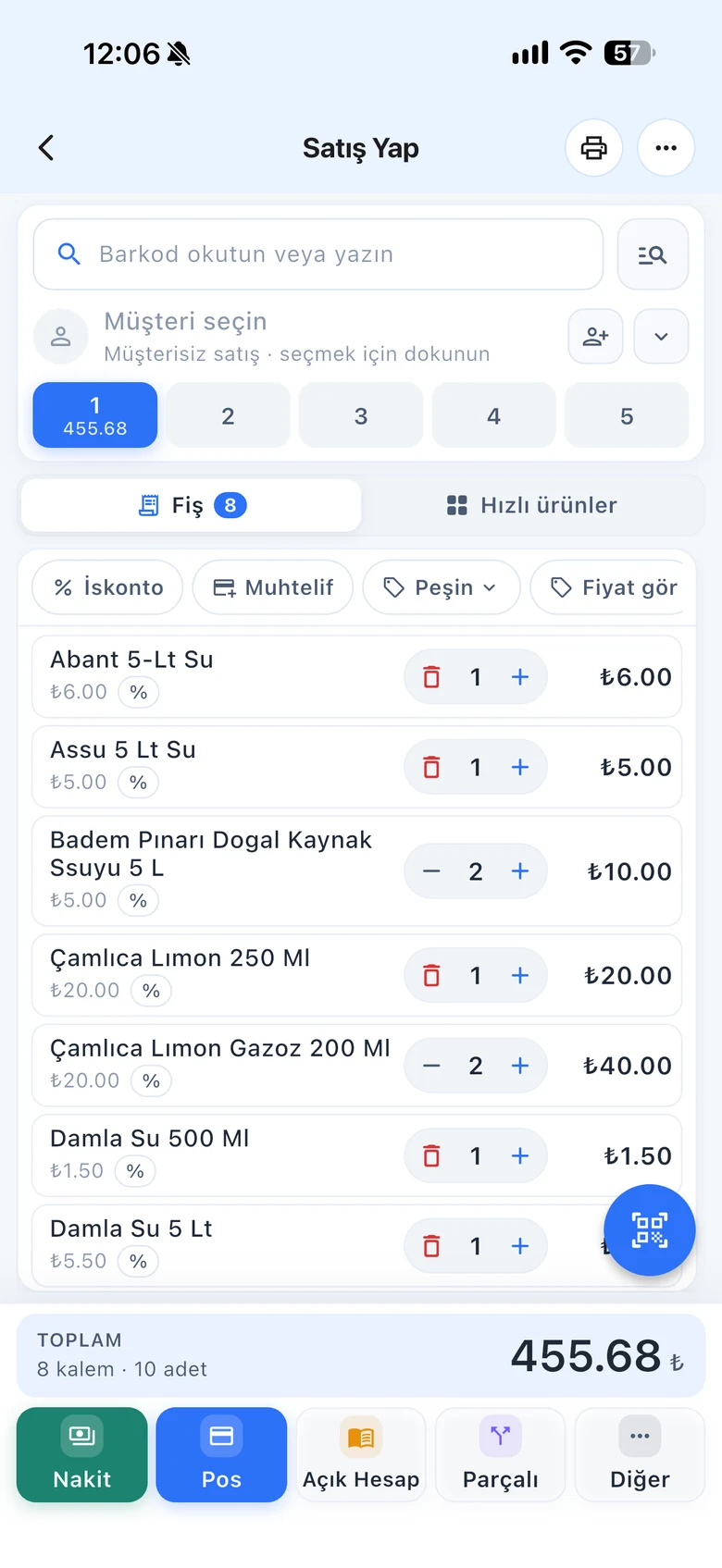
BenimPOS mobile app

Stock should not sit idle in one branch while another runs out.

In a business with several branches, a product waits on the shelf in one place and runs out in another. During a transfer you see the stock and prices of all branches side by side and send what is needed. If you set up the warehouse as a branch, you also track warehouse stock separately.

Transfer

Select products, select the branch, send

Add products by scanning their barcode or by name; the list shows stock and prices in the main account and branches. Enter the quantities and select the receiving branch, the date and the transfer description.

  • Stock and prices of all branches
  • Transfer description (e.g. weekly shipment)
  • Going to a transfer from the product card
Step by step in the Help Center
BenimPOS web: product transfer
Prices

Match the recipient's prices

With the Update Prices at Recipient option, set the receiving branch's sale prices to the sender's prices. You can link the transfer to a customer or supplier and choose a payment type and price level.

  • Updating prices at the recipient
  • Linking to an account
  • Price level selection
Step by step in the Help Center
BenimPOS web panel
Tracking

Incoming and outgoing transfers

Filter the transfer list by date range and by incoming or outgoing, and download it to Excel. You can change a transfer's recipient or cancel it.

  • Incoming and outgoing filter
  • Download to Excel
  • Changing the recipient and cancelling
Step by step in the Help Center
BenimPOS mobile app

Transfers on web and mobile.

Desktop

Transfers are not done on the desktop; stock syncs to the register after the transfer.

Web

Creating transfers, matching prices, incoming and outgoing lists.

Mobile

Scan products with the camera in the warehouse and transfer them.

Frequently asked questions

If you can't find the answer to your question, check the Help Center or message our WhatsApp support line: +90 312 911 22 33

How do I track my warehouse?
One account cannot hold two separate stocks. If you set up the warehouse as a branch, its stock is kept separately and you send goods to the store with a product transfer. Branches and warehouse
Can I add products to a completed transfer?
No. Create a separate transfer for the new products.
I cannot see the transfer menu.
The Product Transfer menu appears when your account has at least one branch. Branch management

Balance your stock across branches

Signing up takes two minutes. All features are open for the first month; if you get stuck during setup, our WhatsApp support line will help.