Selling with a scale

Sell weighed products with the scale label

Cheese, olives, nuts, vegetables. When you scan the barcode printed by the scale, the product goes on the receipt with its weight and amount. With a scale connected to the computer by cable, the weight goes straight to the sales screen.

All features open for the first month. No credit card required.
BenimPOS screenshot
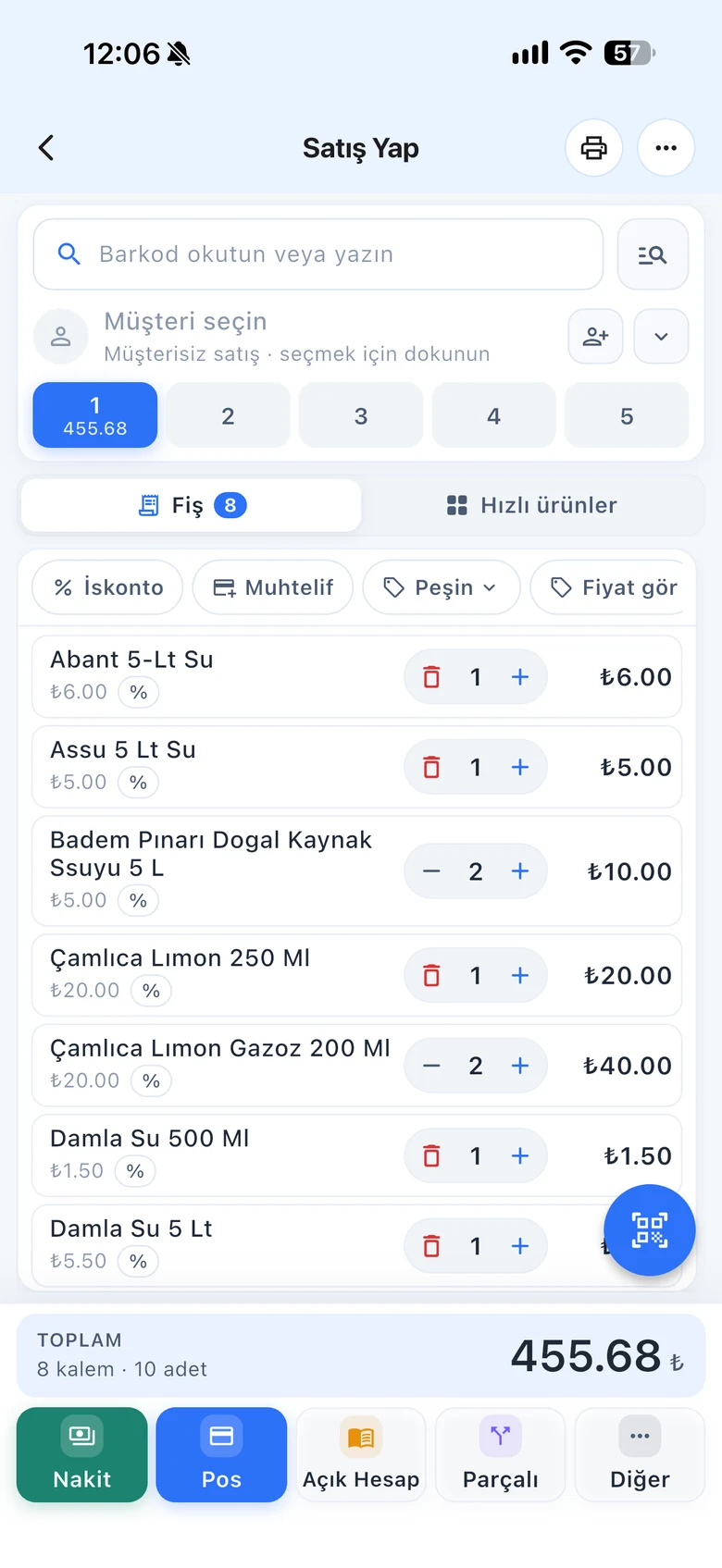
BenimPOS mobile app

Works with both types of scale.

A barcode scale prints a label with the weight for the weighed product, and you scan this label at the till. A scale connected to the computer sends the weight directly to the sales screen by cable. Depending on which one you use, a few settings in BenimPOS are all you need.

Barcode scale

Scan the label and the product comes up with its weight

The first digits of the scale barcode are the product code, and the next digits are the weight. Enter these digit counts once in the settings; save weighed products with the first 7 or 8 digits of the barcode and select KG as the unit.

  • Product code and weight digit settings
  • Products with KG and gram units
  • The label is read like a barcode on mobile too
Step by step in the Help Center
BenimPOS sales screen: scale label
Export to the scale

Send your product list to the scale with one file

The Barcode Scale Export page lists your KG and gram unit products in the format the scale needs. Download the list as Excel and load it into the scale's software; you don't define products on the scale one by one.

  • Product list in scale format
  • Export as Excel or text file
  • Resend the list when prices change
Step by step in the Help Center
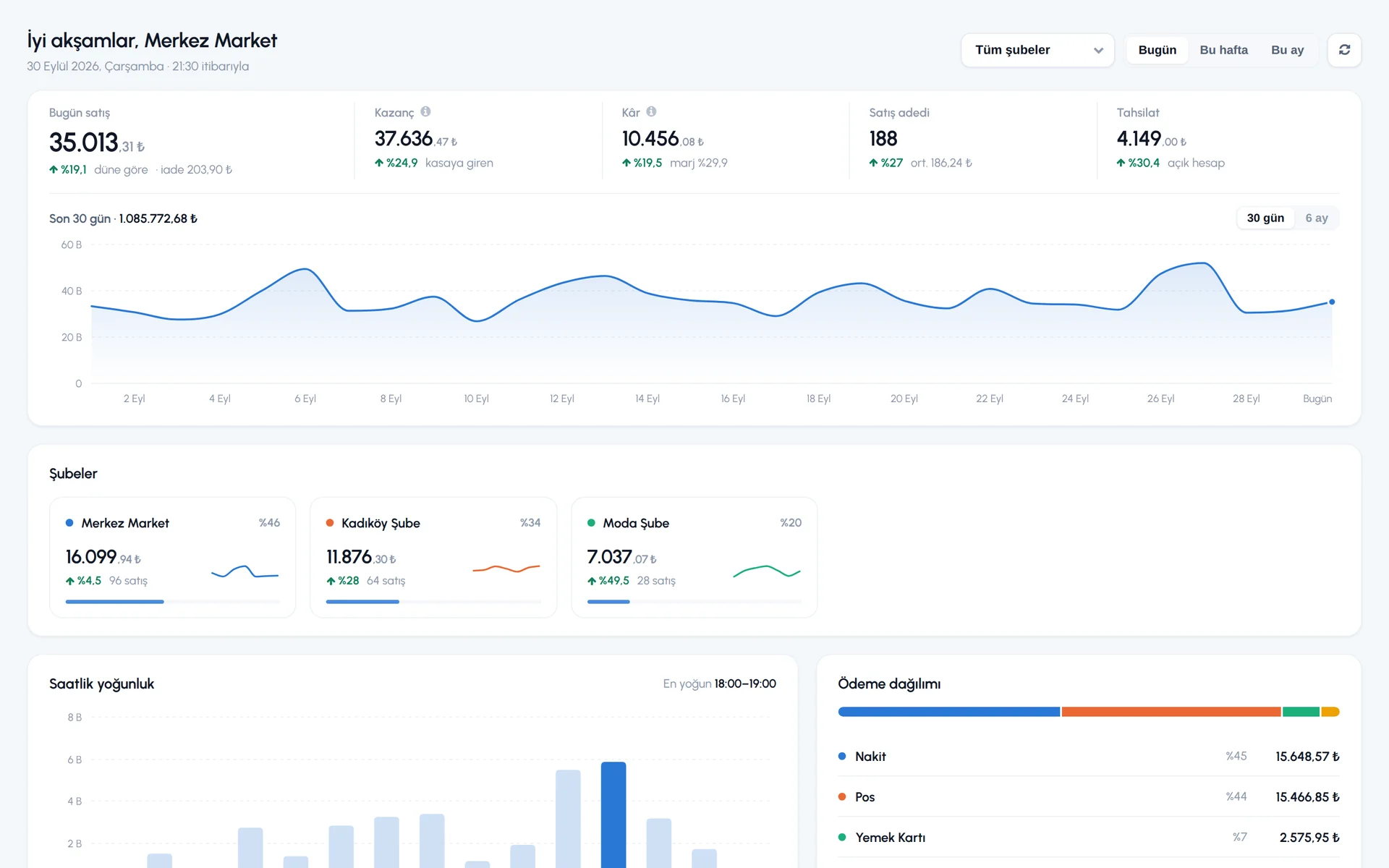
BenimPOS web panel
Scale connected to the computer

Let the weight go straight to the sales screen

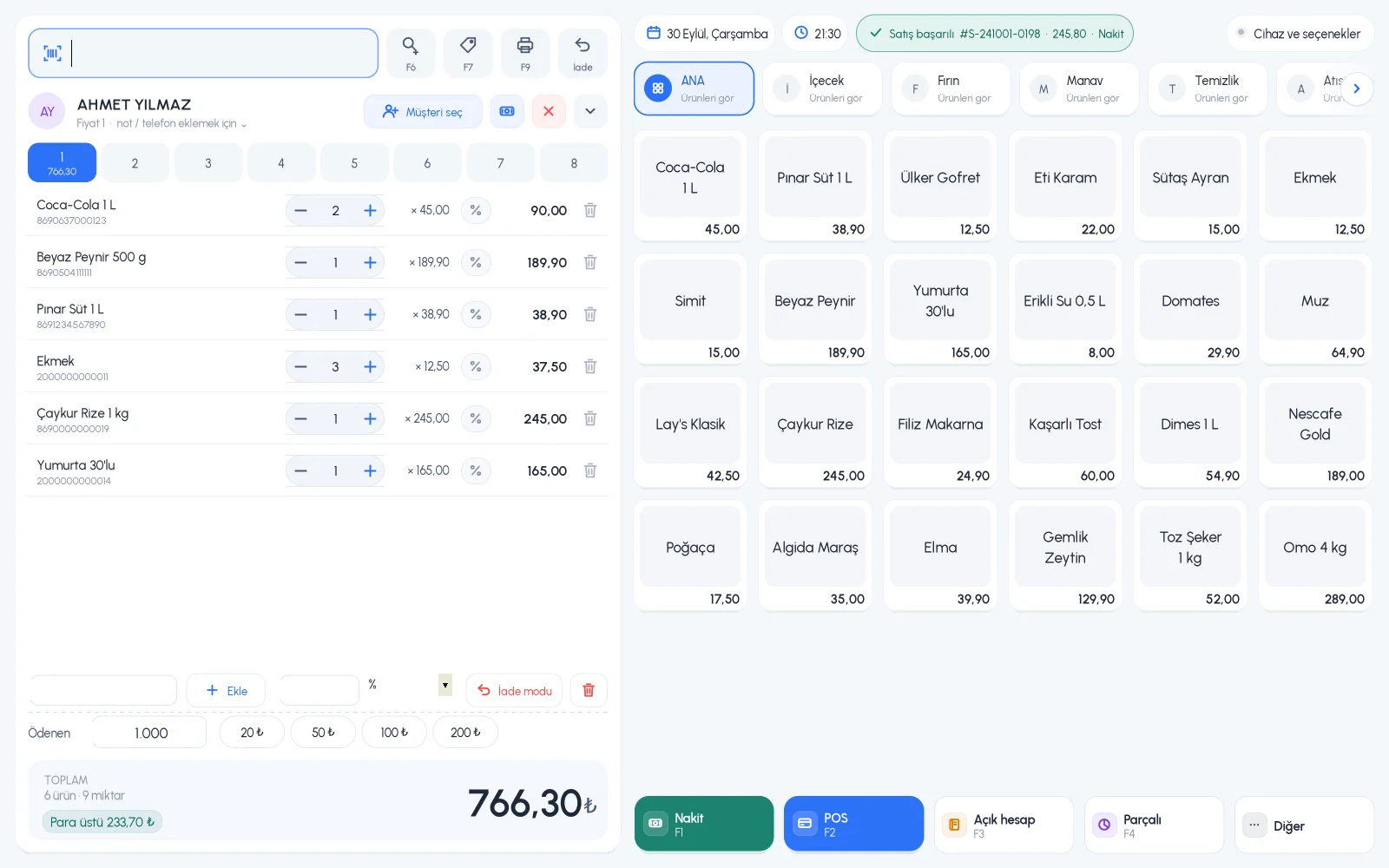
Connect the scale to the till computer via USB and select the scale port and data type. When you scan a KG or gram unit product or select it from the quick list, the product is added to the receipt with the weight on the scale.

  • USB and RS232 scales
  • Port and data type selection
  • Access driver installation from the sales screen
Step by step in the Help Center
BenimPOS desktop sales screen

Wherever the scale is.

Desktop

Scan the barcode scale label, or connect the scale to the computer and sell by weighing.

Web

Scale settings, scale export and sales with barcode scale labels.

Mobile

Scan the scale label like a barcode with your phone camera.

Frequently asked questions

If you can't find the answer to your question, check the Help Center or message our WhatsApp support line: +90 312 911 22 33

Which scales does it work with?
It works with scales that print barcodes containing the product code and weight, and with scales that connect to the computer and send the weight. The models we recommend for connected scales are on the hardware recommendations page.
Why isn't the product found when I scan a scale barcode?
The product code and weight digit counts in the settings must match the barcode printed by the scale, and the product must be saved with the first 7 or 8 digits of the barcode. Details are in the selling with a scale article.
Does a connected scale work on web or mobile?
No. A scale connected by cable works with the desktop app. On web and mobile you sell by scanning the barcode scale's label.

Connect your weighed products to the till today

Signing up takes two minutes. All features are open for the first month; if you get stuck during setup, our WhatsApp support line will help.