




Selling with a scale (barcode and computer-connected)
Barcode settings for label-printing scales, exporting products to the scale, and selling products by the kilogram with a scale connected to the desktop app.
BenimPOS works with two types of scales: barcode scales (they print a barcode label containing the weight for the weighed product) and computer-connected scales that are connected to the desktop app with a cable (they send the weight straight to the sales screen).
Barcode scale settings
In the barcode printed by the scale, the first digits are the product code and the following digits are the weight (in grams). For example, in the barcode 2000127 01630 2 the first 7 digits are the product code and the next 5 digits are the weight (1.630 kg); the last digit is a check digit and is not used in the calculation.
Open the scale settings
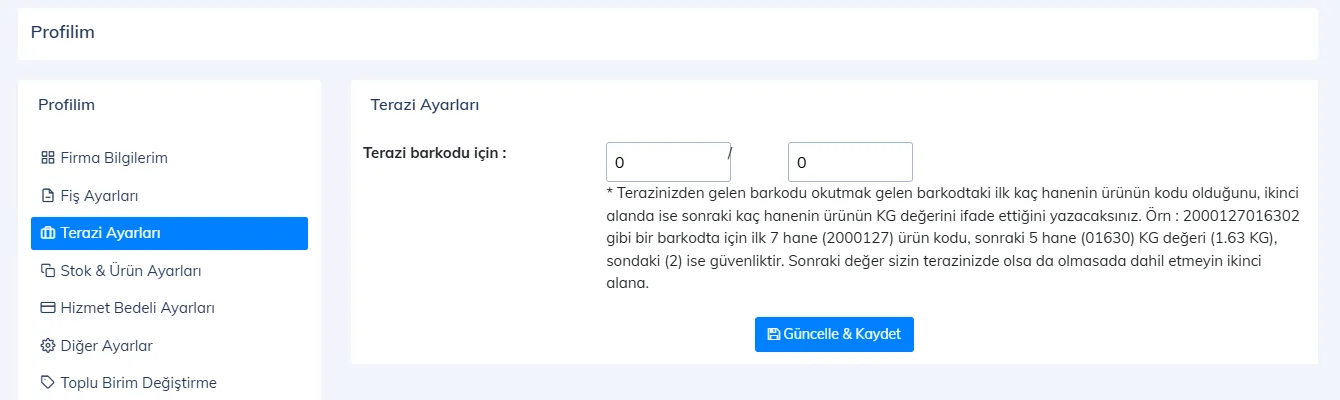
My Profile › 1 Scale Settings.
 1234
1234Enter the number of digits
2 In the first box, enter the number of digits in the product code (usually 7 or 8), 3 in the second box the number of weight digits (usually 5 or 4); 4 Update & Save.
Save the products
Save weighed products with the first 7 (or 8) digits of the barcode and set their unit to KG.
Export the products to the scale
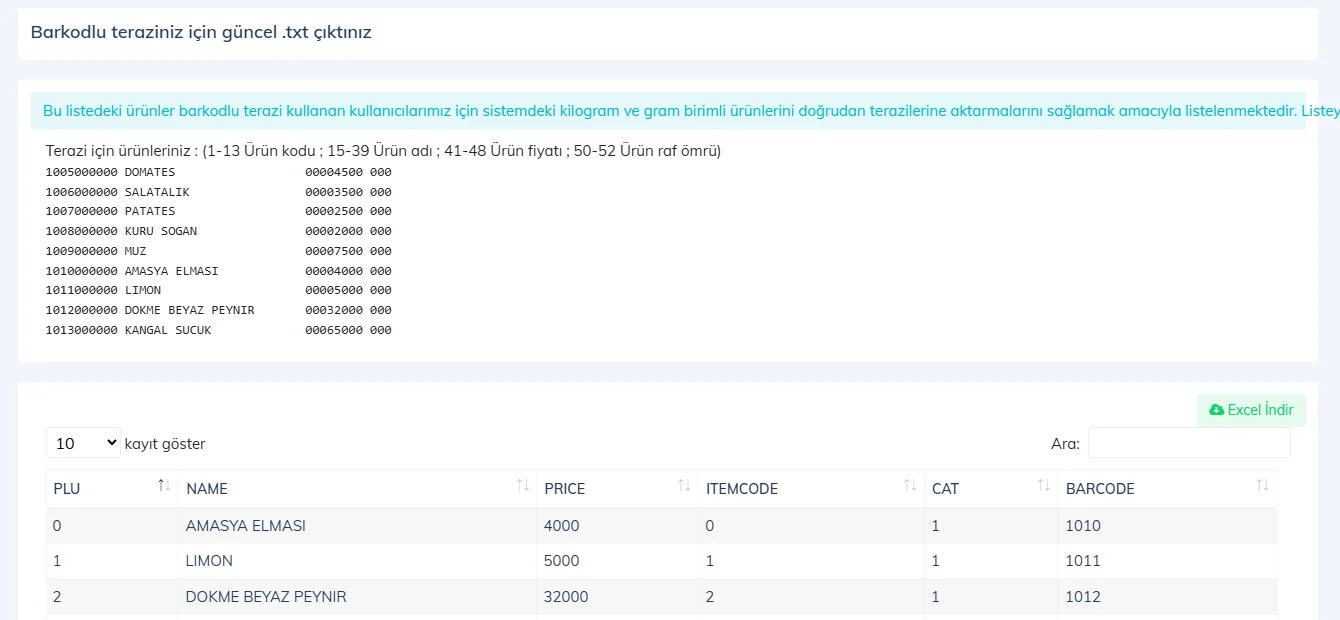
The Products › Barcode Scale Export page lists your products with KG and gram units in the scale format. Copy the list and paste it into a .txt file, or get it with 1 Download Excel, and load it into the scale's software.
 1
1
During a sale, when you scan the label printed by the scale, the product is added to the receipt with the weighed quantity and its amount.
 1234
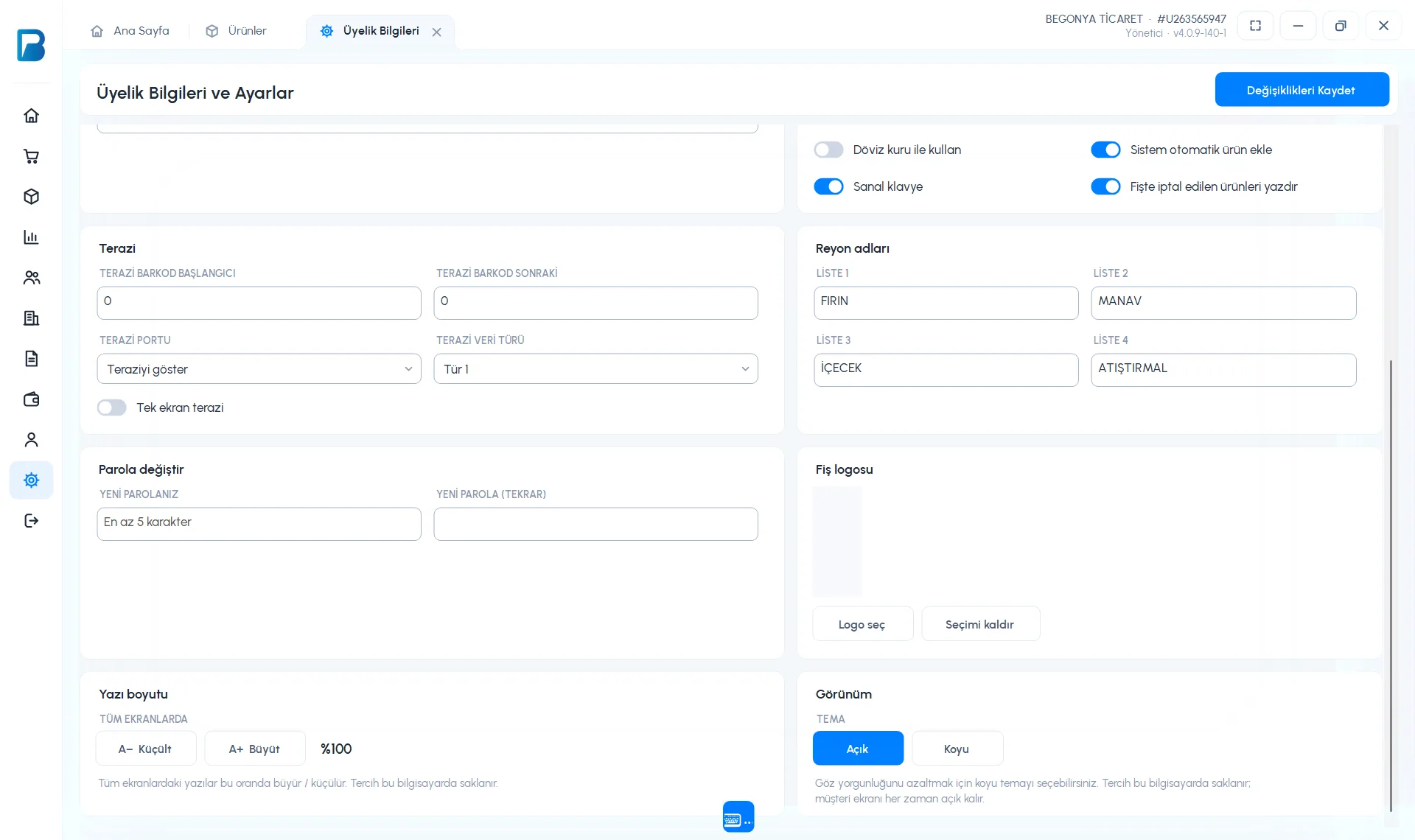
1234Barcode scale
Fill in the SCALE BARCODE PREFIX (product code digits) and SCALE BARCODE NEXT (gram digits) fields on the Scale card in Settings › Profile settings. For example, if you enter 7 and 5, the barcode 2700001 00564 is read as 0.564 kg of the product with code "2700001".
Computer-connected scale
Connect the scale
Connect the scale to the computer via USB (on most scales with an RS232 → USB adapter).
Select the port
On the same Scale card, select the scale's COM port in SCALE PORT and the SCALE DATA TYPE (Type 1 / Type 2), then save.
Make a sale
On the scale card on the sales screen, Scale Port must be selected; the weight appears in the Weight (KG) box. When you scan a product whose unit is KG or Gram, or select it from the quick list, the product is added with the weighed quantity.
If no weight comes through even though the port is selected, or it stopped coming after the port changed, install the scale's USB driver (usually CH340): the Install Scale Driver button on the sales screen opens the installation page. Then close and reopen the sales screen.
This can't be done in the mobile app. Set up the scale in the web or desktop app; once that's done, you can scan scale labels on mobile like any barcode.