Payment types

Cash, card, meal card, bank transfer: in one sale

A customer may want to pay part of the amount in cash and part by card, or come with a meal card or a bank transfer. In BenimPOS, split the payment, define your own payment types and see each one separately in reports.

All features open for the first month. No credit card required.
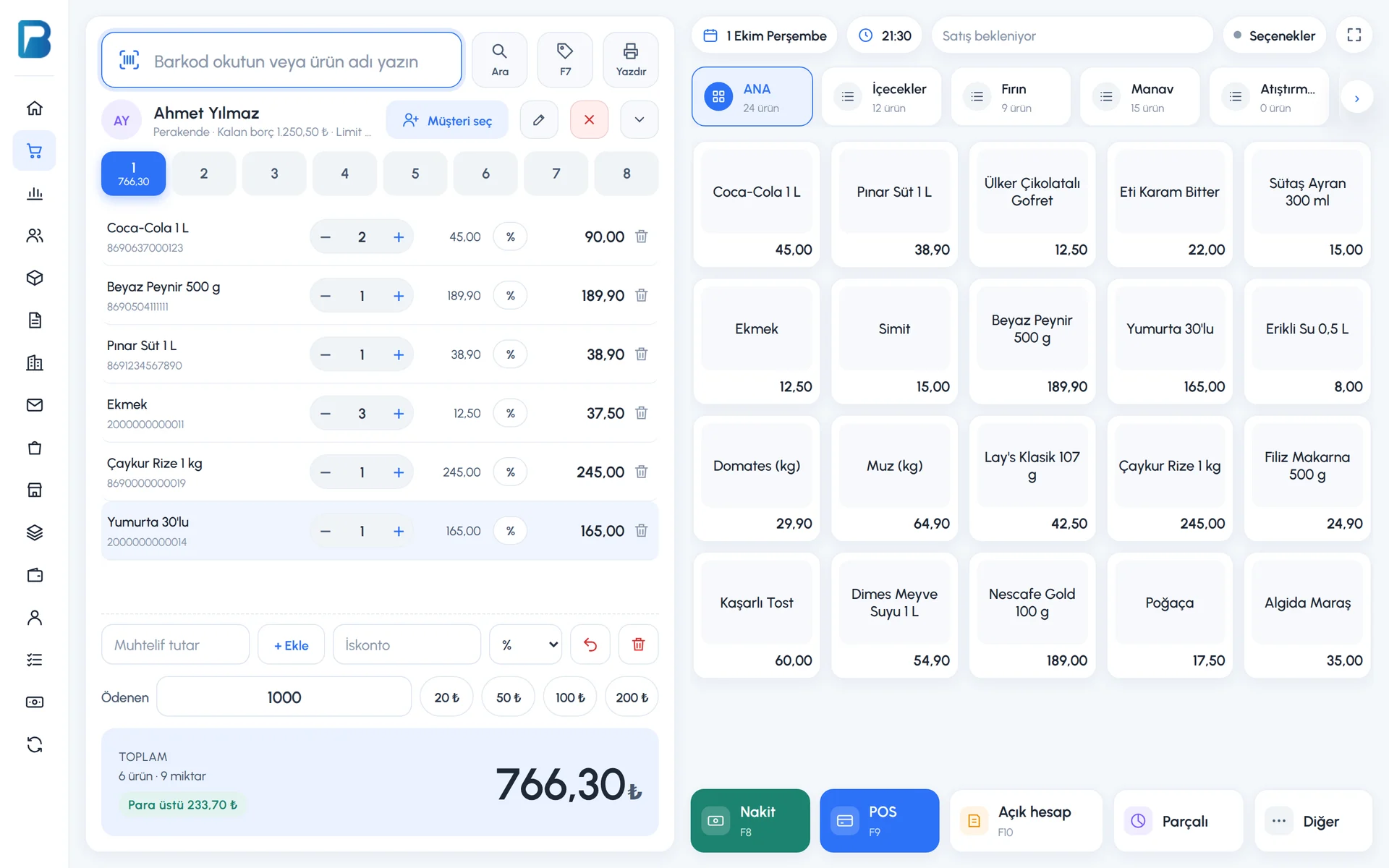
BenimPOS screenshot
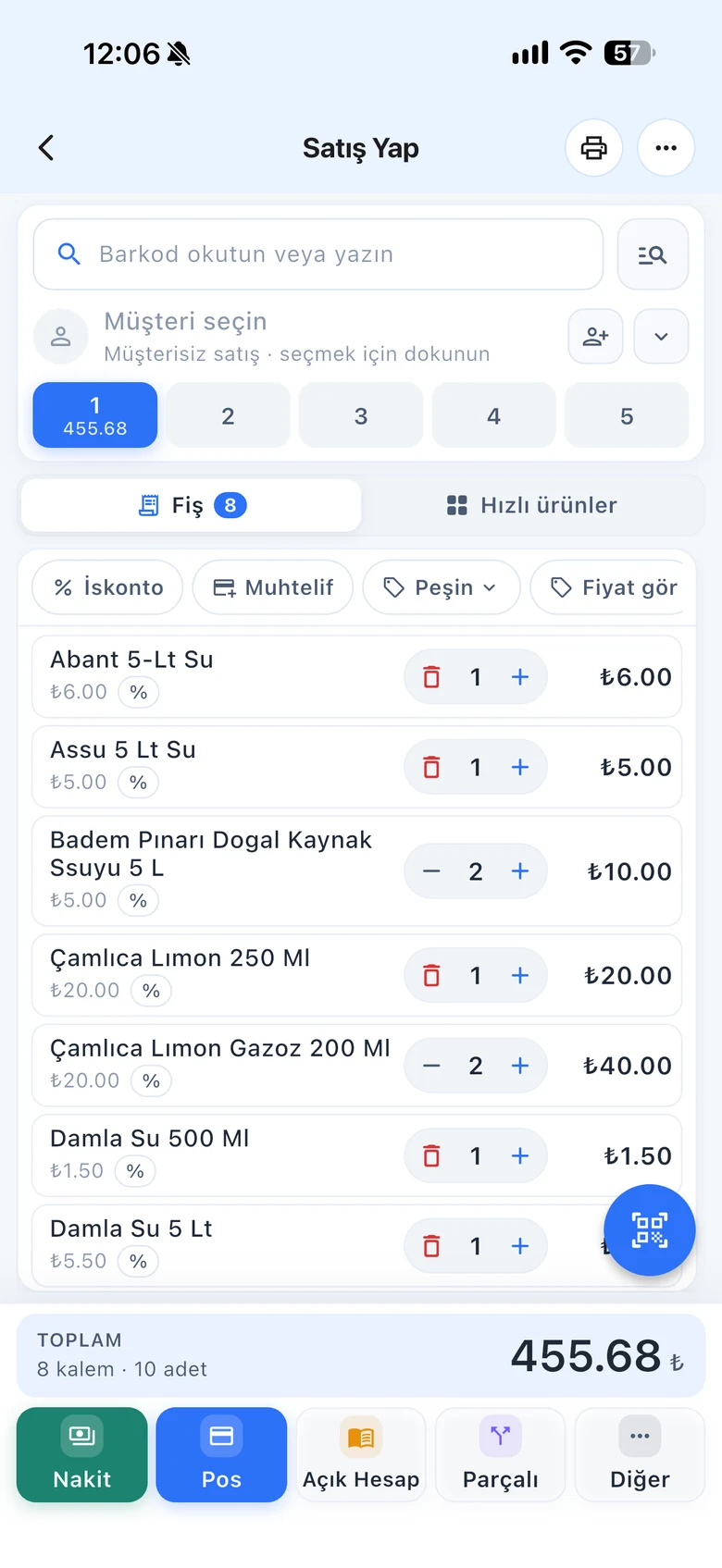
BenimPOS mobile app

Money in the till, in the right place in the report.

If money taken by meal card gets mixed into the cash drawer, the end of day won't balance. You link each payment type to a register: added to cash, added to card, or shown as a separate register. At the end of the day, everything is in its place.

Split payment

Part in cash, part by card, the rest on credit

Split the amount between payment types with the Split button. If a customer is selected, put the remaining amount on their account. The additional payment types you define are also listed in split payment.

  • Combine cash, card and on account
  • Split payment with additional payment types
  • Fast payment with shortcut keys
Step by step in the Help Center
BenimPOS web sales screen: payment
Your own payment types

Meal card, bank transfer, cash on delivery

Define the methods you use besides cash, card and on account as payment types, and link each one to a register: the cash total, the card total or a separate register.

  • Types like meal card and bank transfer
  • Link to cash, card or an external register
  • Select from the Other button when selling
Step by step in the Help Center
BenimPOS web panel: payment types
Reports

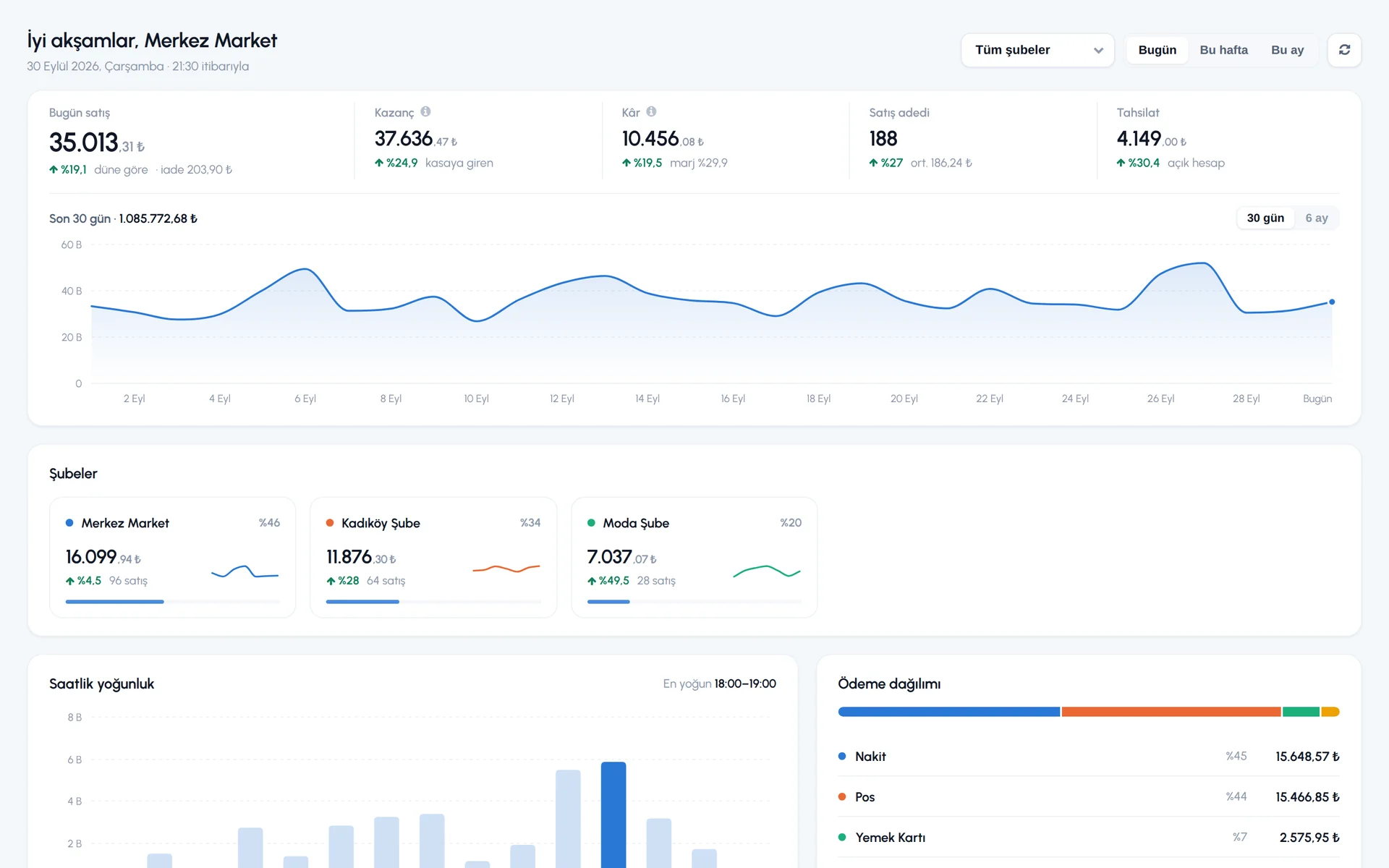
Each payment type in its own card in the report

In the sales report summary, each additional payment type is totaled in its own card next to cash, card and on account. You can correct a wrongly selected payment type later from the sale details.

  • End of day by payment type
  • Change the payment type in the sale details
  • The same types for customer and supplier payments
Step by step in the Help Center
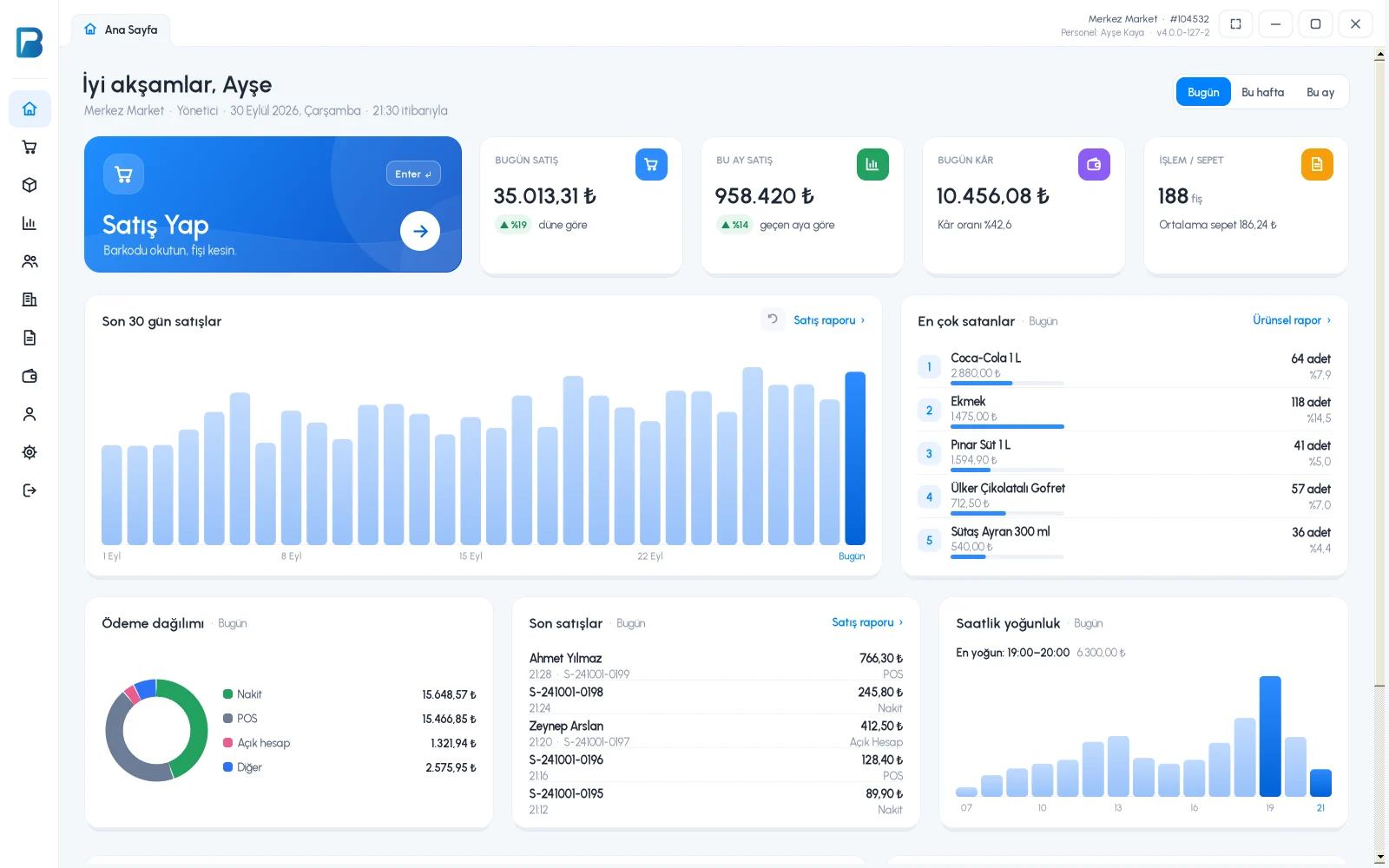
BenimPOS desktop home page

Payment types are the same on every device.

Desktop

Split payment and additional payment types on the sales screen; definitions sync from the web.

Web

Define payment types, link them to registers, and reports.

Mobile

Tap Other when selling and choose the payment type; use it in split sales too.

Frequently asked questions

If you can't find the answer to your question, check the Help Center or message our WhatsApp support line: +90 312 911 22 33

How do I see meal card payments separately?
Define the meal card as a payment type and link it to a separate register or to card. It is totaled in its own card in the reports.
What happens if I delete a payment type I use?
Before deleting, the number of records made with that type is shown and you choose which payment type to move those records to. If you only want to rename it, use edit.
Can I put the remaining amount of a split payment on credit?
Yes. Select the customer in the sale and put the remaining amount of the split payment on their account. Credit sales tracking

Let your end-of-day cash balance to the cent

Signing up takes two minutes. All features are open for the first month; if you get stuck during setup, our WhatsApp support line will help.