




Payment types: meal cards, bank transfers and more
Set up payment methods other than cash, card and on account, link them to a register and use them in sales.
Payment methods you use besides Cash, Card and On account (meal cards, bank transfer/EFT, cash on delivery, etc.) can be set up as payment types. Each payment type is linked to a register: this decides whether it is added to cash or card in the reports, or shown as a separate register.
New payment type
Open the Payment Types page
Open Payment Types from the left menu and press 1 New Payment Type.
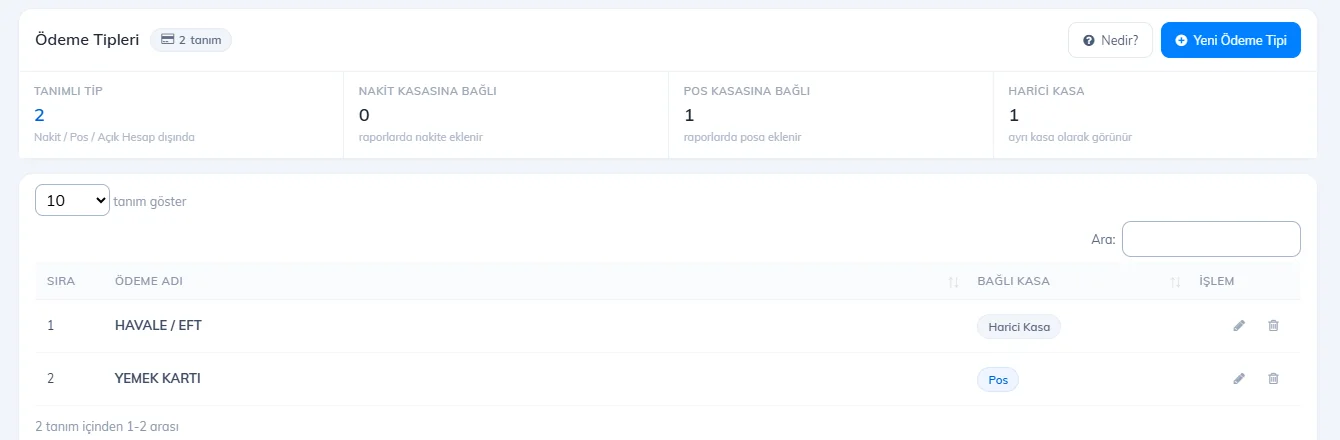 1
1Enter the name and choose the register
Enter the Payment type name (e.g. MEAL CARD) and choose the Linked register:
Linked register In reports Cash Added to the cash total. Card Added to the card total (e.g. if meal cards are charged on the card terminal). External register Shown as a separate register, not mixed with cash and card (e.g. bank transfer/EFT). 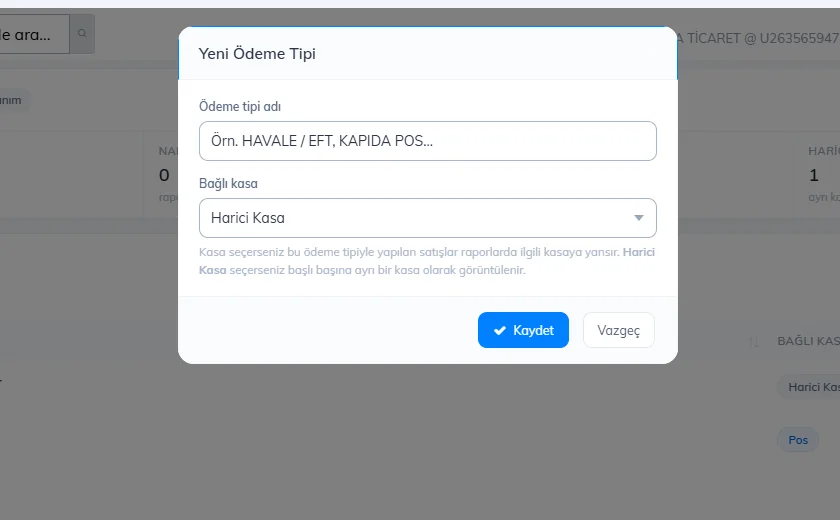
Save
Press Save.
Using it in a sale
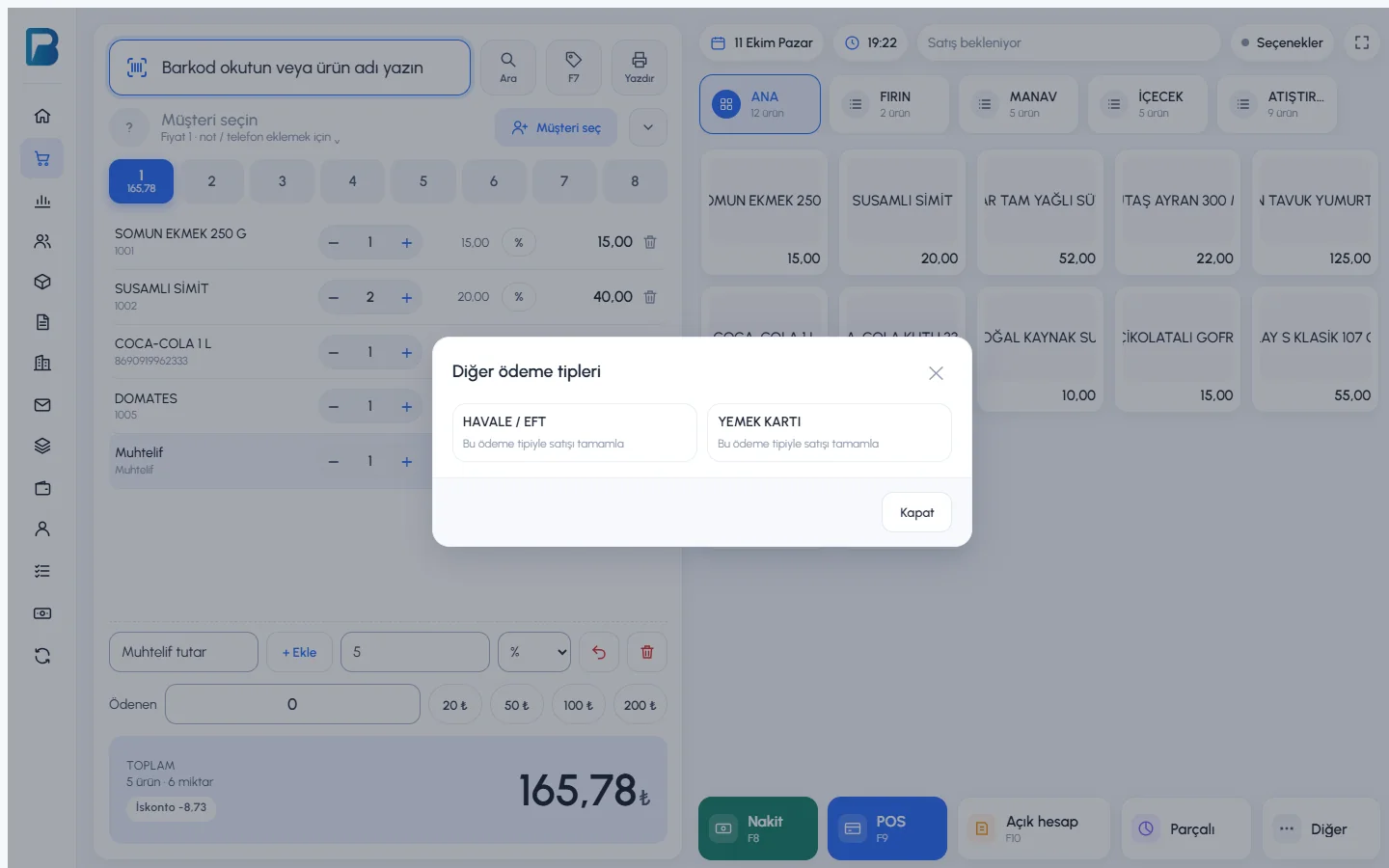
On the sales screen, press Other at the far right of the payment buttons and choose the payment type. These types are also listed for split payments and for customer and supplier payments.
When you delete a payment type that has been used, you see how many sales, payments and invoices were made with it, and you choose which payment type (Cash, Card or another type) to move these records to. To change only its name, use the edit icon.
Payment types can't be set up in the desktop app; the types you set up in the web panel (e.g. MEAL CARD, BANK TRANSFER / EFT) reach the desktop app through sync.
Additional payment types in sales
On the sales screen, press 1 Other; 2 the payment types you have set up are listed. Click a type or press the number key next to it (1–2…); the sale is saved with that payment type.
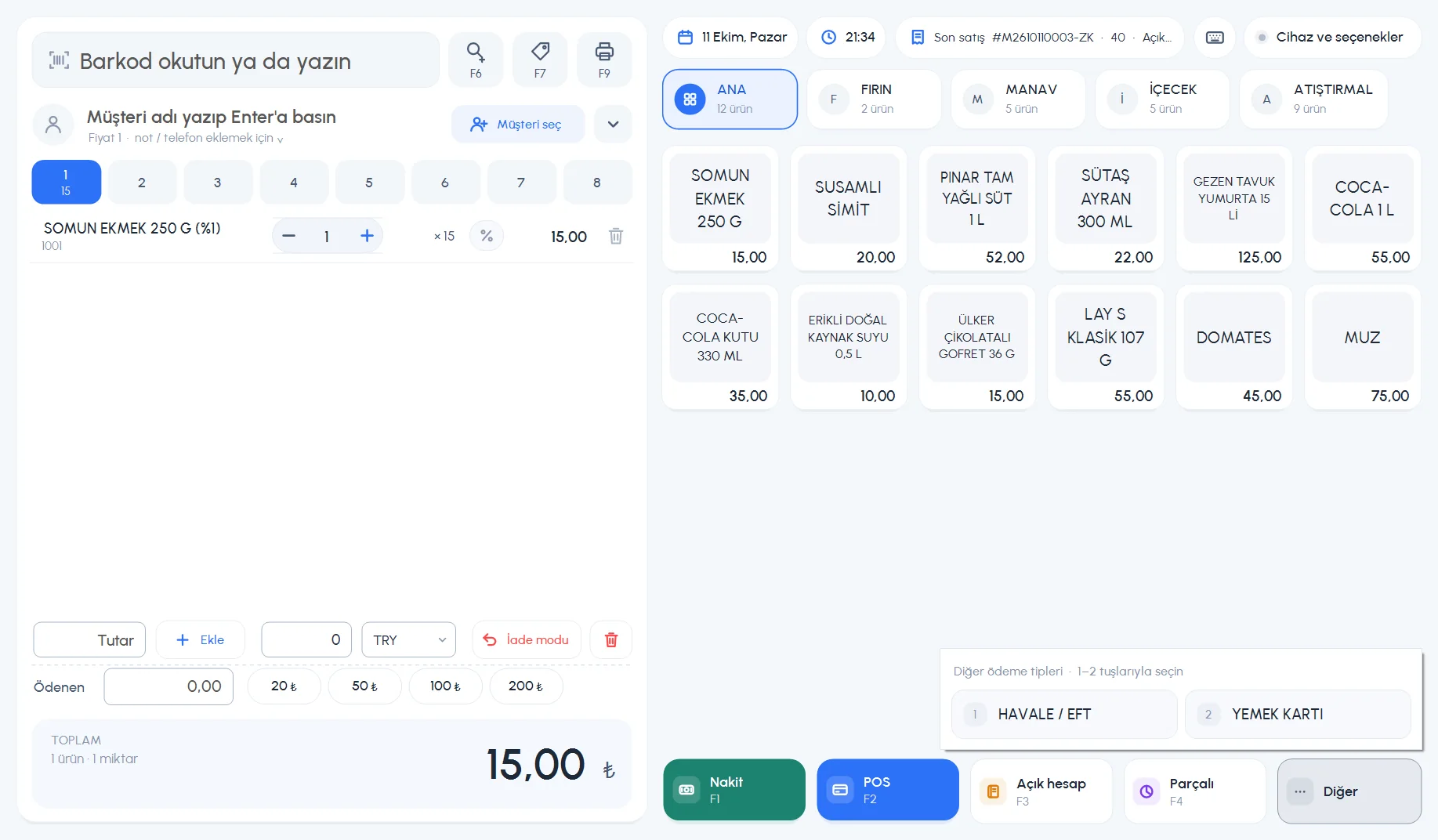 12
12- Additional types can also be used in Split payments with + Other payment.
- They also appear in the Payment type list in the sale details; you can change a wrongly chosen type there.
- In the sales report summary, each additional payment type is totalled on its own card.
Payment types can't be set up on mobile; set them up in the web panel. In a sale, tap Other and choose the type; they are also listed for split sales and in the customer/supplier payment forms.