




How do I make a sale?
Get to know the sales screen, add products by barcode, complete the sale with cash, card, on account or split payment, and learn the shortcuts.
Get to know the sales screen
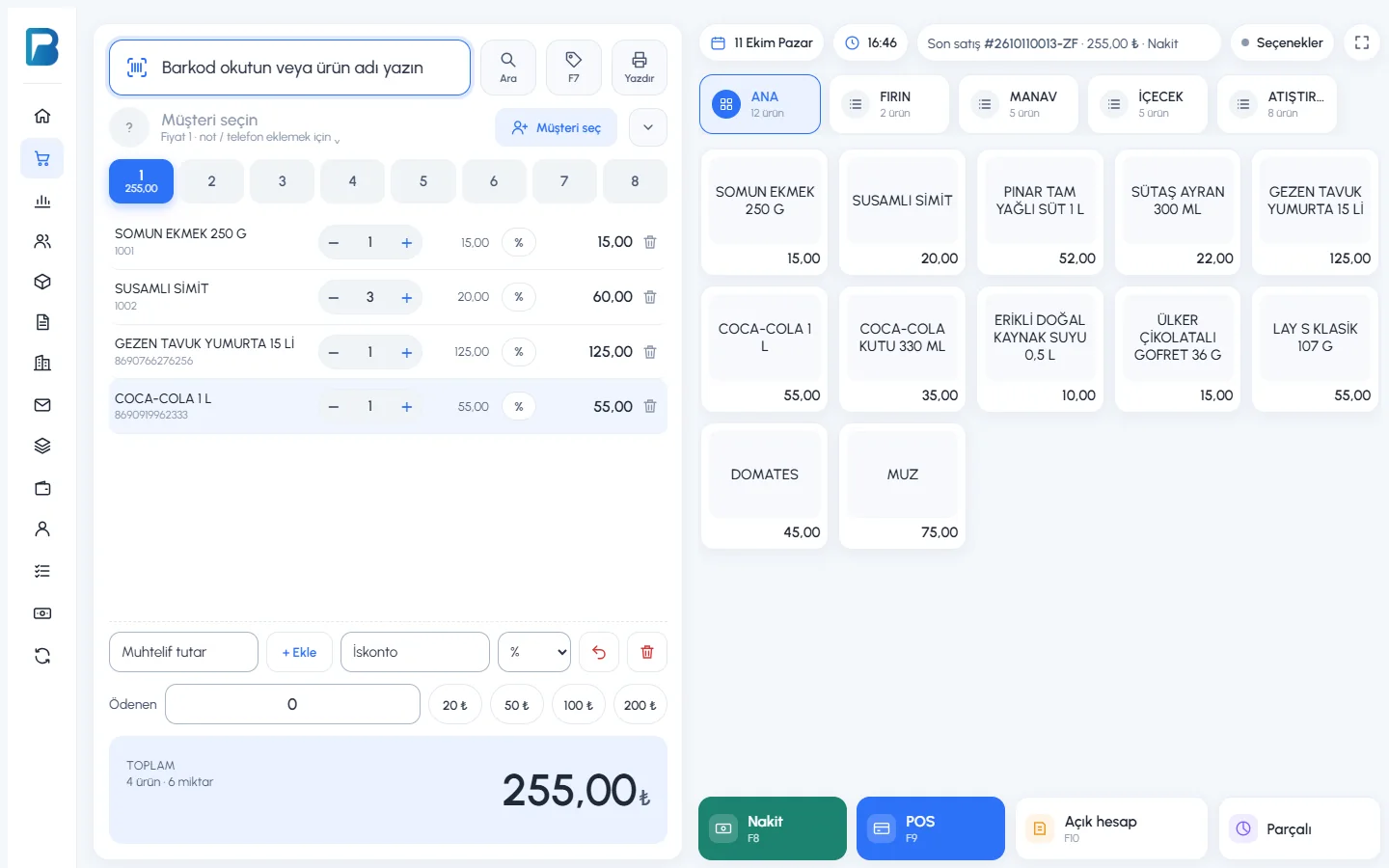
Open the sales screen from New Sale (the basket icon) in the left menu. Your basket is on the left of the screen; your quick products and the payment buttons are on the right.
 1234567
- 1 Barcode box: Scan the barcode, or type the product name and press Enter.
- 2 Quick lists: Tabs you create yourself, such as Main products, Bakery or Greengrocer.
- 3 Quick products: Tap them to add products without a barcode, or products you sell often, to the basket.
- 4 Receipts (1–8): You can keep the baskets of 8 different customers open at the same time.
- 5 Basket: Change the quantity with + / −, apply a discount to a line with %, and delete a line with the bin icon.
- 6 Total: Number of different products, quantity and amount to pay.
- 7 Payment buttons: Cash, Card, On account and Split.
Selling step by step
Add products to the basket
Scan the barcode. If you don't have a scanner, type a few letters of the product name and pick it from the list, or tap the quick product on the right. To add several of the same product, type 3* in the barcode box and scan the barcode; 3 units are added. If you type 5* and tap a quick product, 5 units are added.
Enter the amount paid (optional)
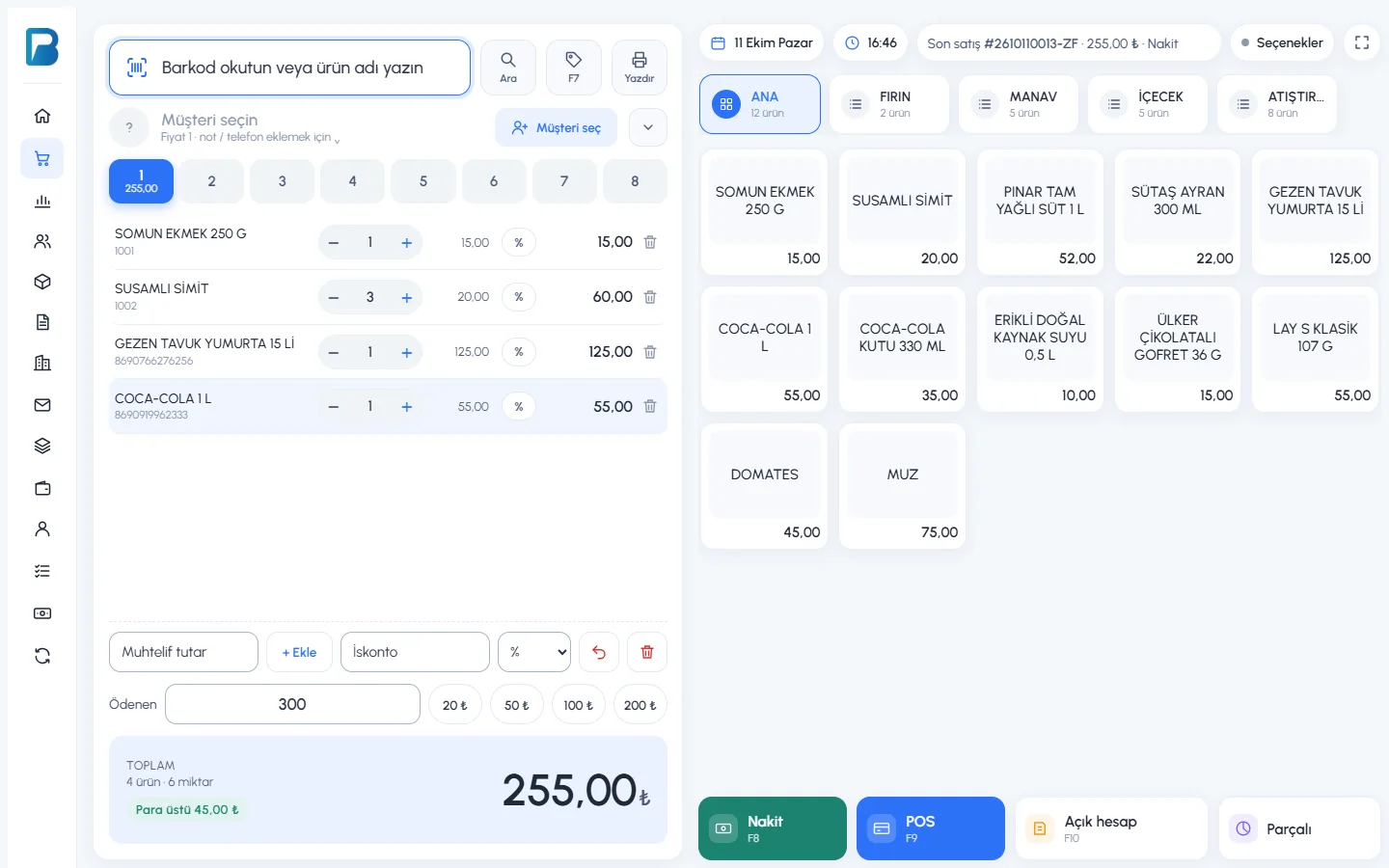
Type the money the customer hands you into the 1 Paid box, or use the 20 ₺, 50 ₺, 100 ₺ and 200 ₺ buttons. The change 2 appears in green in the total box.
 123
123Choose the payment type
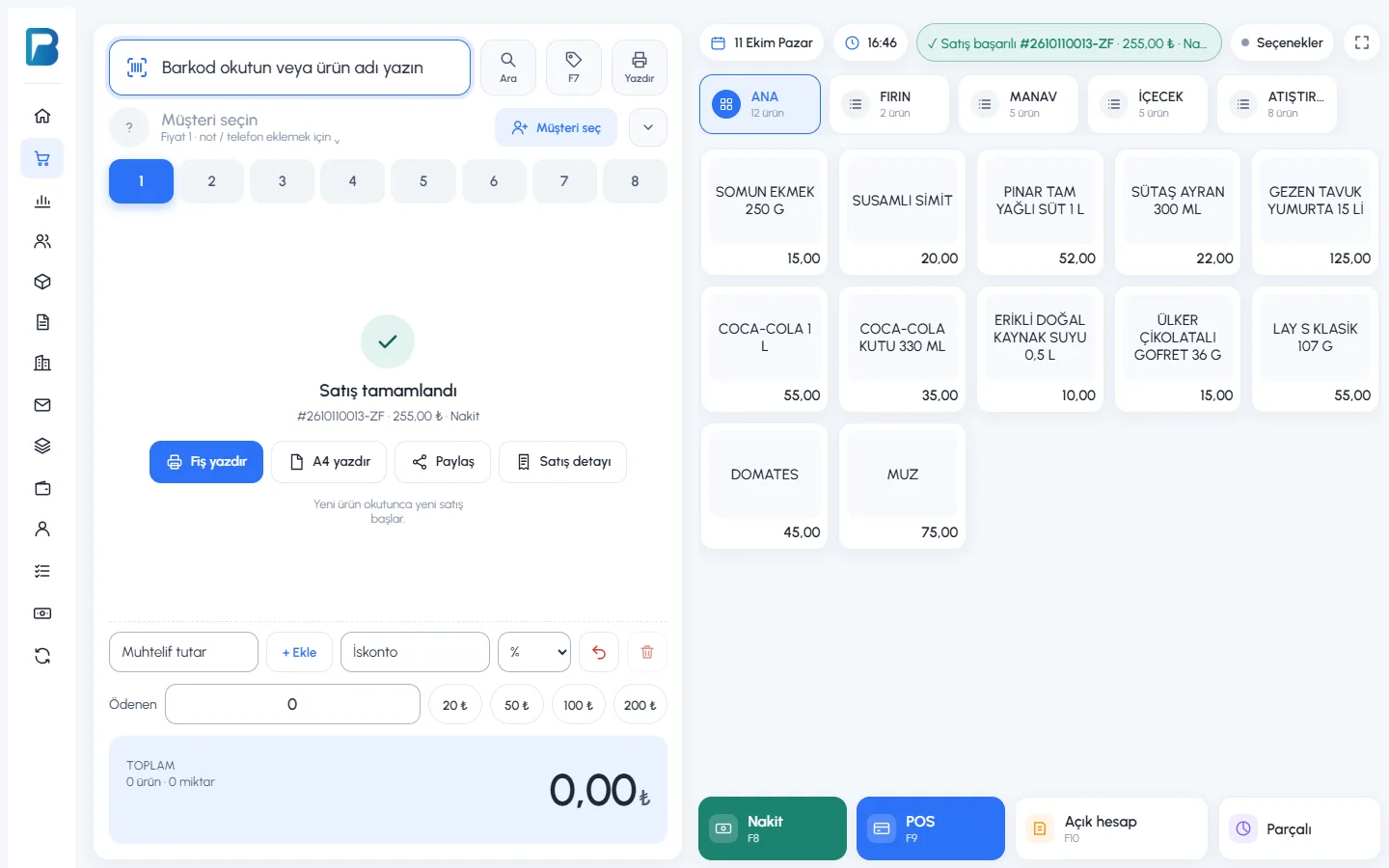
Press 3 Cash (F8), Card (F9) or On account (F10). The sale is saved, a "Sale completed" notification appears at the top right and the basket is cleared.
 123
123On this screen you can print a thermal receipt with 2 Print receipt, get an A4 printout with Print A4, send the receipt via WhatsApp with Share, and open the record with 3 Sale details. Scanning a new product starts a new sale.
Split payment
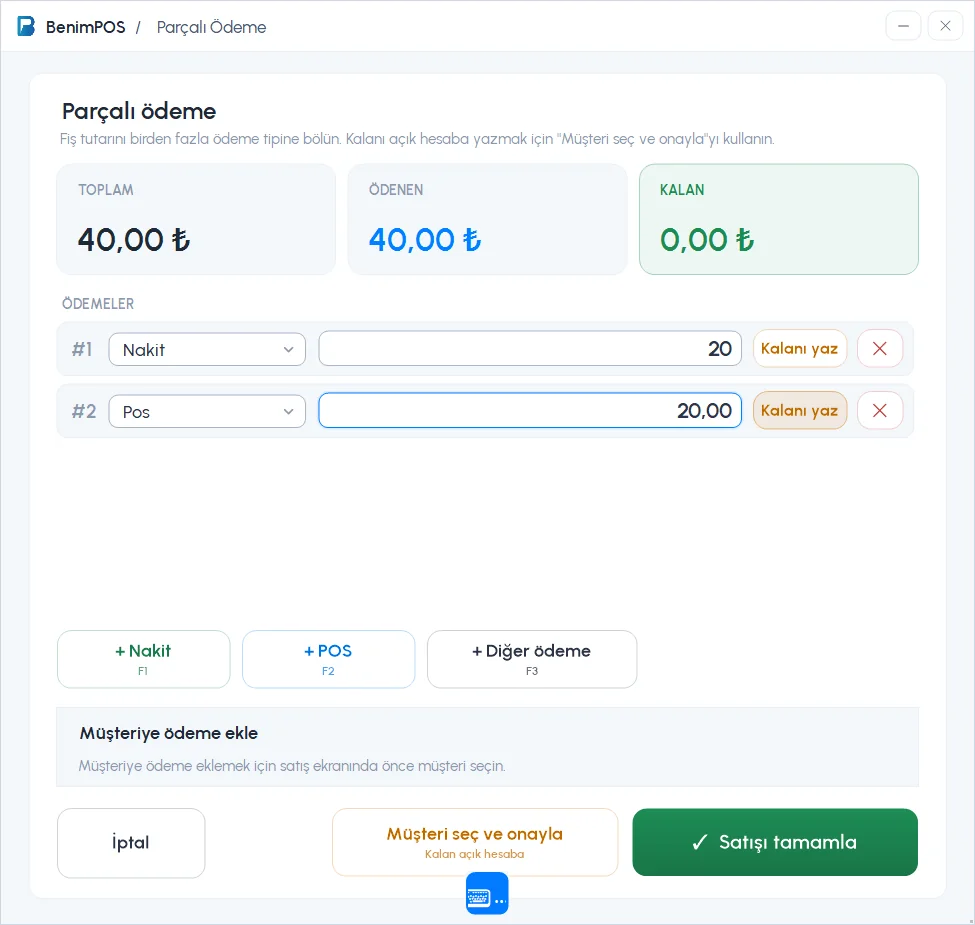
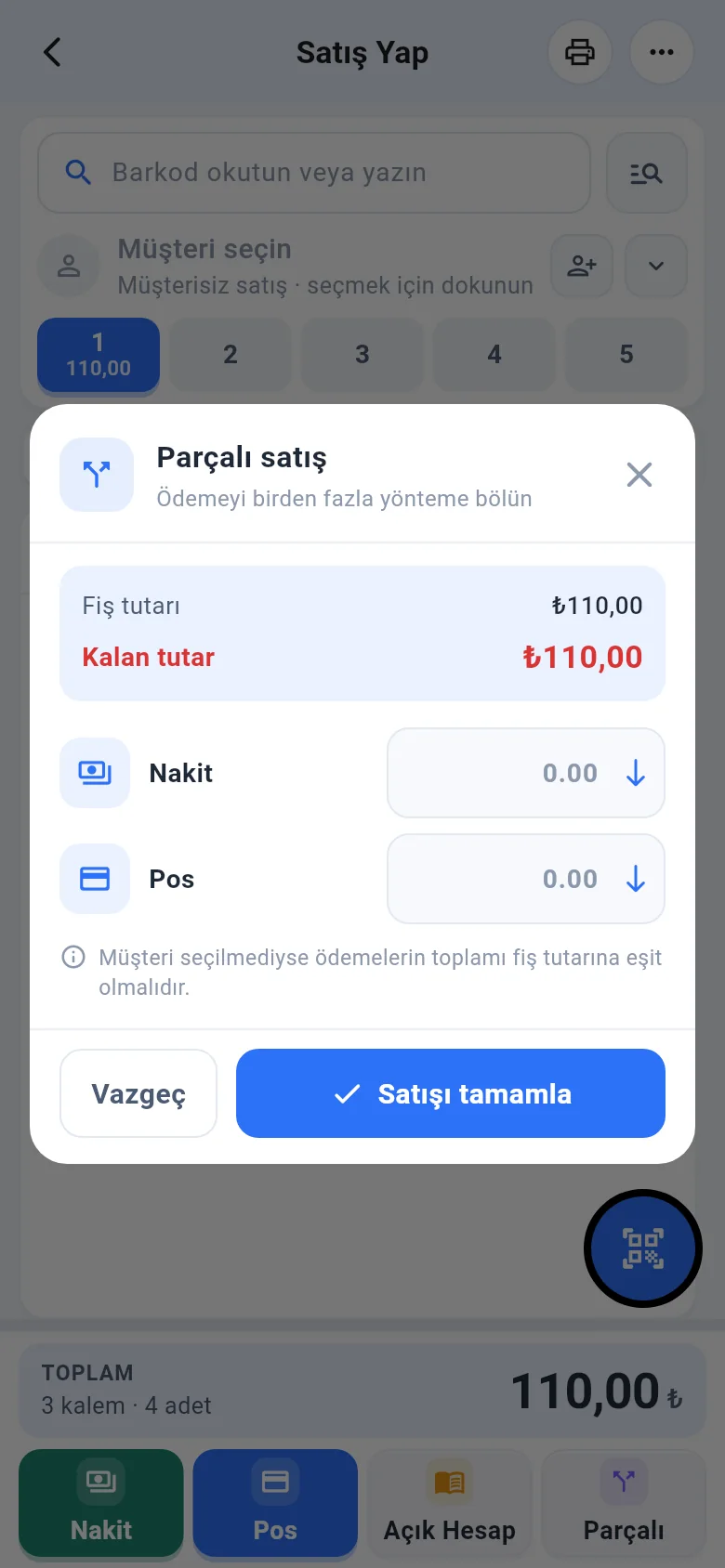
If the customer pays part of the amount in cash and part by card, press Split. In the window that opens, enter the Cash and Card amounts; Fill remaining fills that line with the remaining amount in one click. Then press Complete sale.
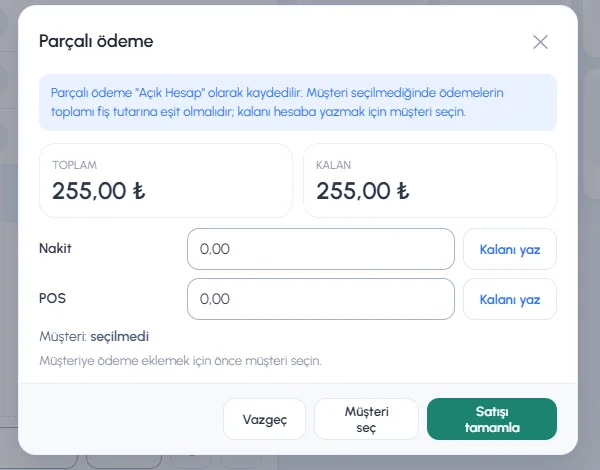
If you haven't selected a customer, the payments must add up to the receipt total. To put the remaining amount on the customer's account (on credit), press Select customer first.
Other tools on the sales screen
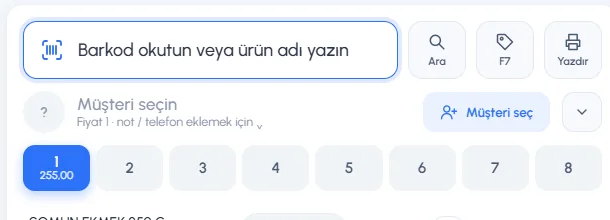 1234
1234- 1 Price check (F7): See a product's price without adding it to the basket.
- 2 Print: Reprint the last sale, print an exchange receipt or send it via WhatsApp.
- 3 Select customer: Add a customer to the receipt. You need this for on-account sales and customer-specific prices.
- 4 Receipt tabs: Keep selling to another customer while one is looking for their wallet.
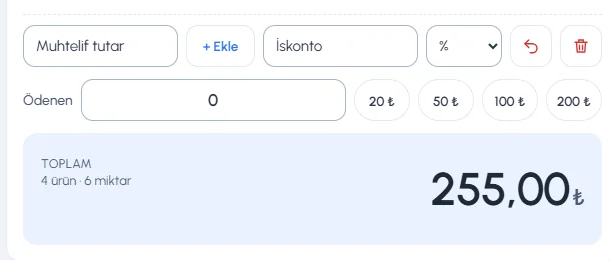 12345
12345- 1 Misc. amount: Sell a product that isn't in the system by entering only its amount.
- 2 Discount: Apply a discount to the whole receipt as a percentage (%) or an amount (₺).
- 3 Return mode: Saves the receipt as a return. Details: How do I process a return?
- 4 Clear: Empties the basket.
- 5 Paid: The amount the customer hands you, used to calculate the change.
Keyboard shortcuts (Web)
| Key | Action |
|---|---|
| F6 | Switch to search by product name |
| F7 | Price check |
| F8 / Page Up | Cash sale |
| F9 | Card (credit card) sale |
| F10 | On-account sale |
| ← → | Switch between receipts |
| Home | Go back to the barcode box |
| Esc | Close the open window |
To use the sales screen in full screen, press the full-screen button at the top right or F11. At the till you can sell without a mouse, using only the barcode scanner and the F keys.
Open the sales screen
Click the large New Sale card on the home page, or press Enter while on the home page. New Sale in the left menu opens the same screen. Your receipt is on the left of the screen, your quick products are on the right and the payment buttons are at the bottom. Sales are saved on your computer even without internet; when the connection is back, they sync with web and mobile automatically.
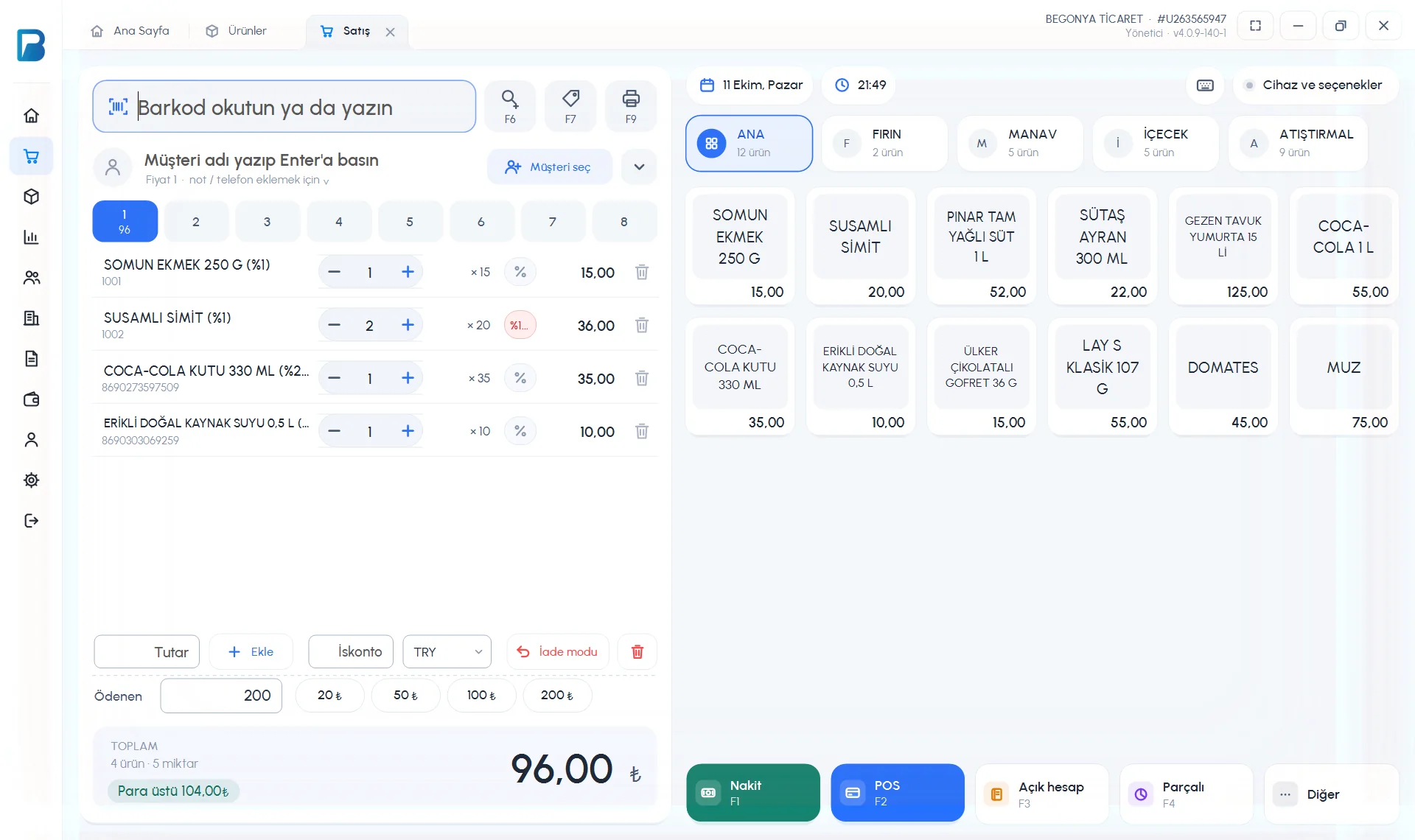 123456
Add products
Scan the barcode into the 1 barcode box. For products without a barcode, click the quick product cards on the right, or search by name with 2 Find product (F6). To add many of the same product, type the quantity first followed by an asterisk:
5*8690000000000.Select a customer if needed
Link a customer to the receipt with 3 Select customer. The customer's discount rate and price level (Price 1 / Price 2) are applied automatically. You must select a customer to sell on account.
Check the receipt
On the receipt 4, change the quantity with − / +, press % to discount a line, and remove a product with the bin icon. With the 1–8 tabs at the top you can keep 8 separate receipts (customers) on hold at the same time.
Take payment
For cash, type the amount the customer hands you into the 5 Paid box, or press the 20 ₺ / 50 ₺ / 100 ₺ / 200 ₺ shortcuts; the Change appears below the total. Then 6 choose the payment type: Cash (F1), Card (F2), On account (F3), Split (F4) or Other (meal card, bank transfer, etc.).
After the sale
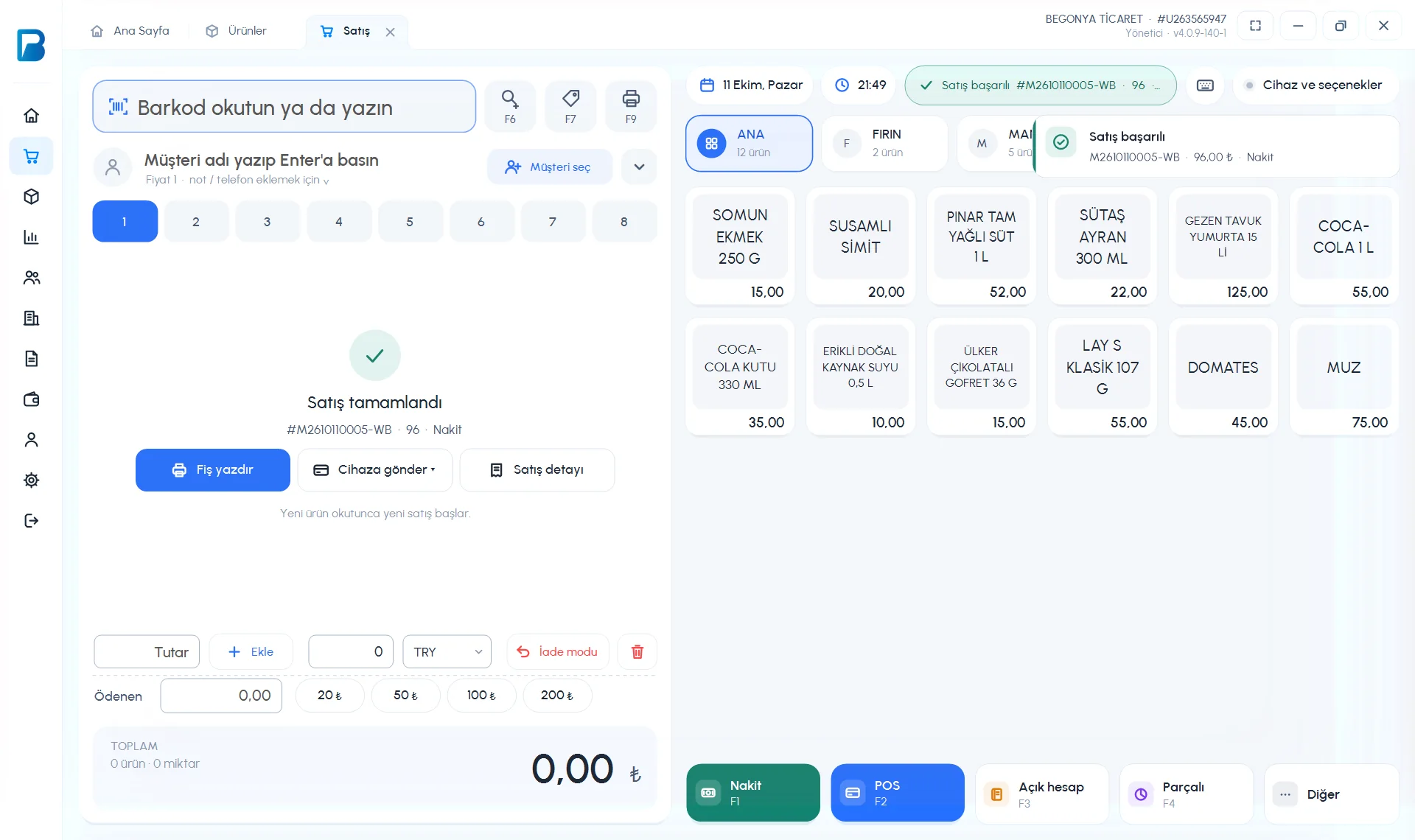
Once the sale is saved, a Sale complete card replaces the receipt and a green Sale completed notification appears at the top right. From the card you can use 1 Print receipt, 2 Send to device (if a fiscal cash register / card terminal is set up) and 3 Sale details. Scanning a new product starts a new sale.
 123
123Split payment
To split the amount across more than one payment type, press Split (F4). 1 Enter the payment type and amount on each line; 2 add lines with + Cash / + Card / + Other payment; 3 Fill remaining puts the remaining amount on that line. When REMAINING is 0, press 4 Complete sale. To put the remainder on the customer's account, use 5 Select customer and confirm.
 122345
Keyboard shortcuts (Desktop)
| Key | Action |
|---|---|
| Enter | Opens the sales screen when you are on the home page |
| F1 | Cash |
| F2 | Card |
| F3 | On account |
| F4 | Split payment |
| F6 | Find product (search by name) |
| F7 | Price check |
| F9 | Print last receipt |
| F11 | Full screen on / off |
| Ctrl+W | Closes the open tab (page) |
| Esc | Closes the open panel (does not close the sales screen) |
The payment shortcuts are different in the desktop and web apps: F1 / F2 / F3 on desktop, F8 / F9 / F10 on the web.
Mobile sales screen
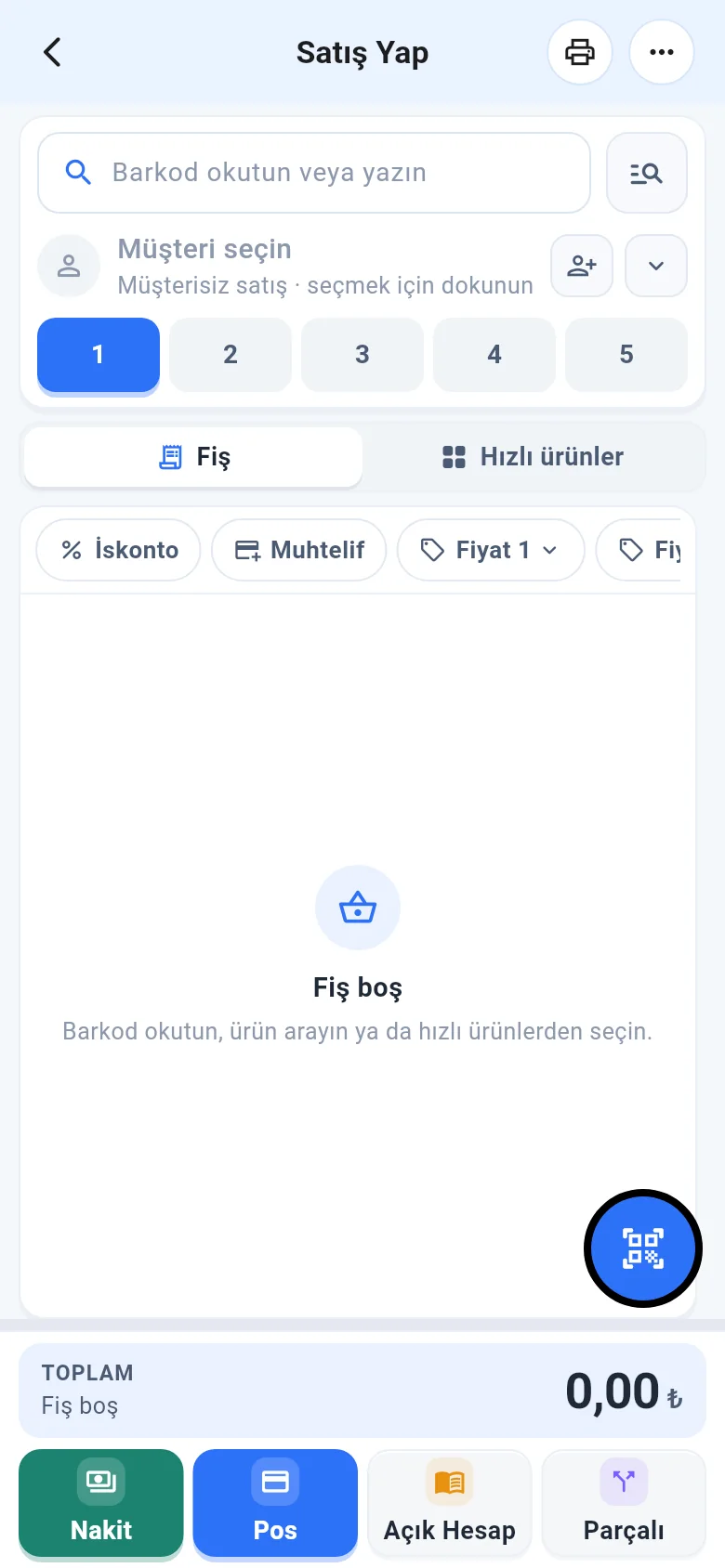
Tap the large New Sale button on the home page. At the top are the 1 barcode field, 2 customer selection and 3 5 separate receipts; at the bottom are the 4 Receipt / Quick products tabs and the 5 payment buttons.
 12345
12345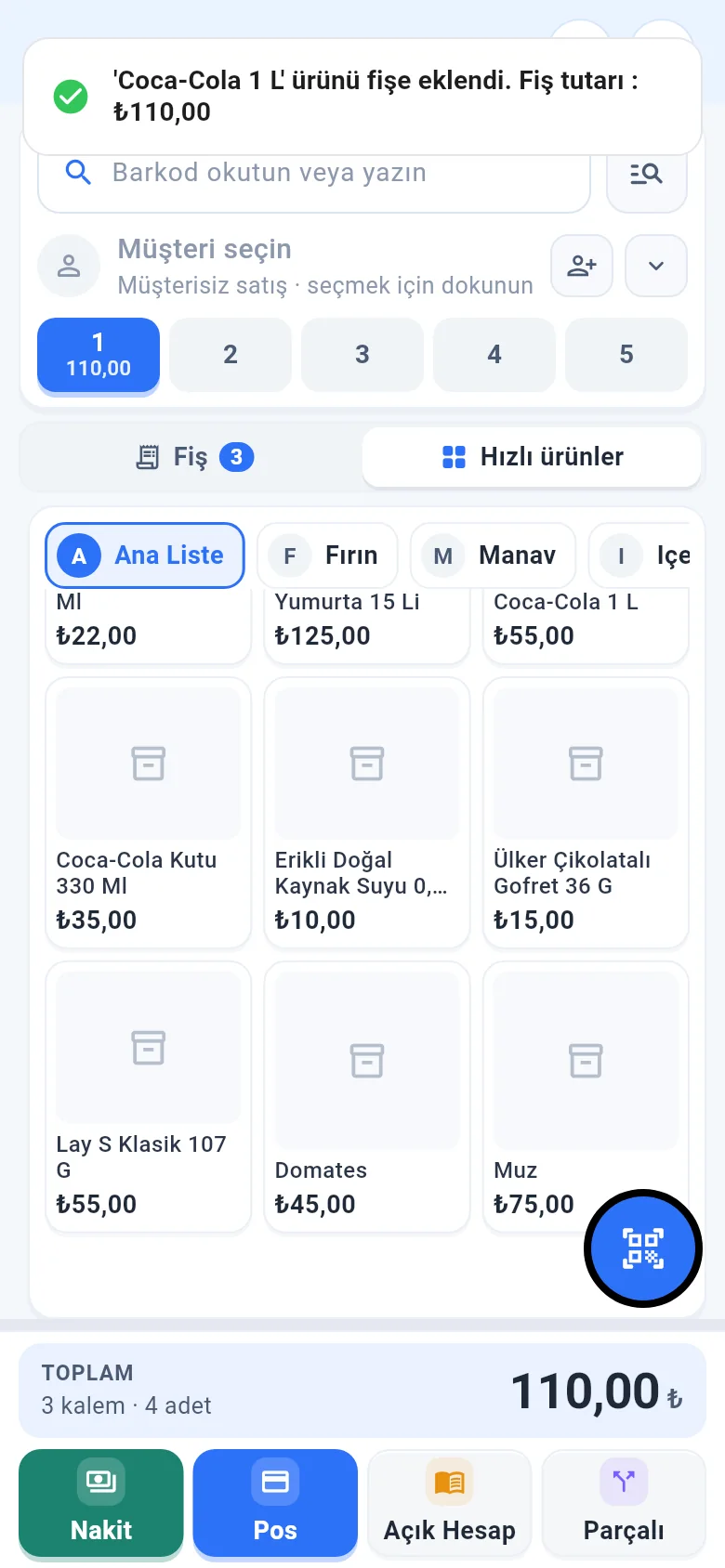
Add products
Scan the barcode with an external scanner, or with the camera using the Scan barcode button at the bottom right. For products without a barcode, tap the product on the Quick products tab; to search by name, use the search button next to the barcode field.
Check the receipt
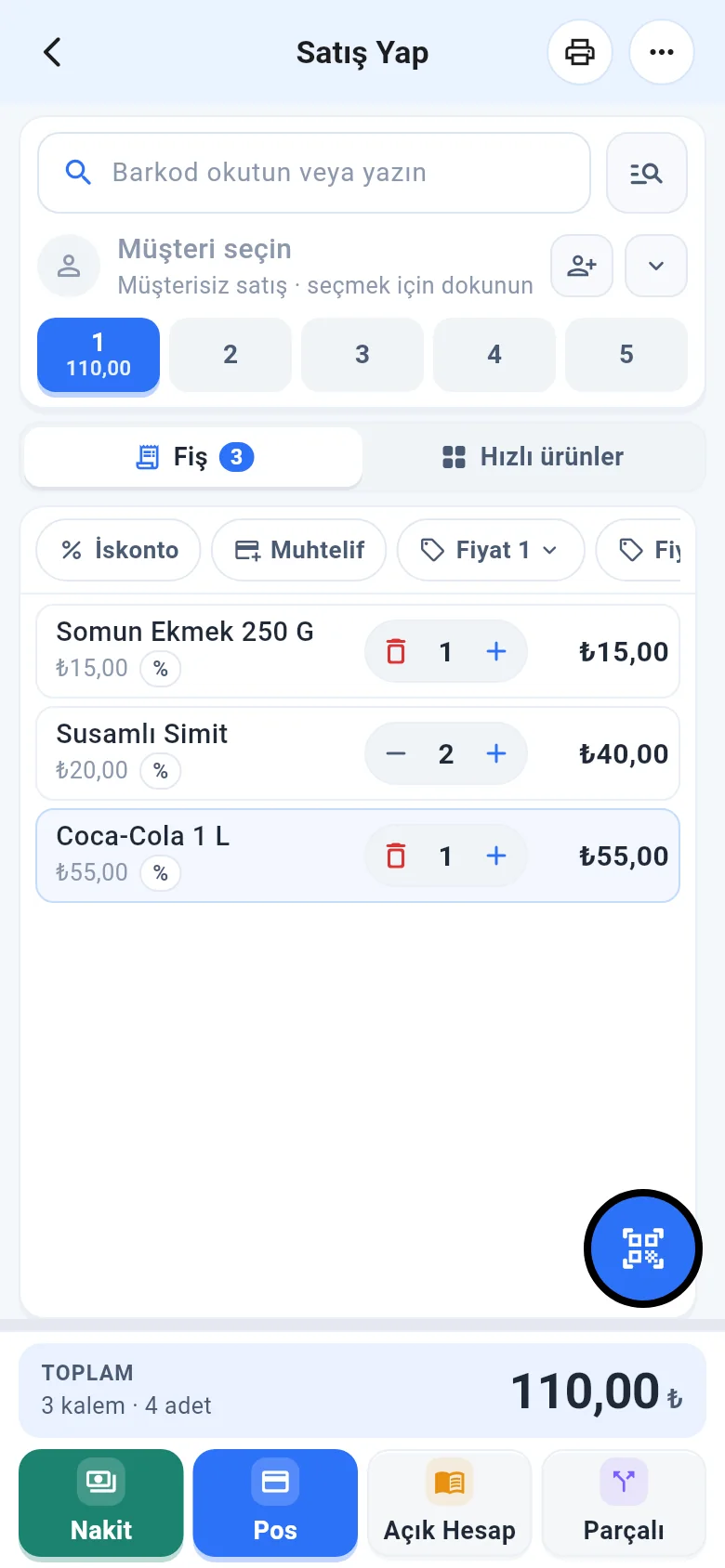
See the products on the Receipt tab. 1 Change the quantity with + / − on the line; tap a line to enter a price, discount or note. 2 The total is shown at the bottom.
 123456
Choose the payment type
Tap 3 Cash, 4 Card, 5 On account (a customer must be selected) or 6 Split. The sale is saved and the receipt is cleared.
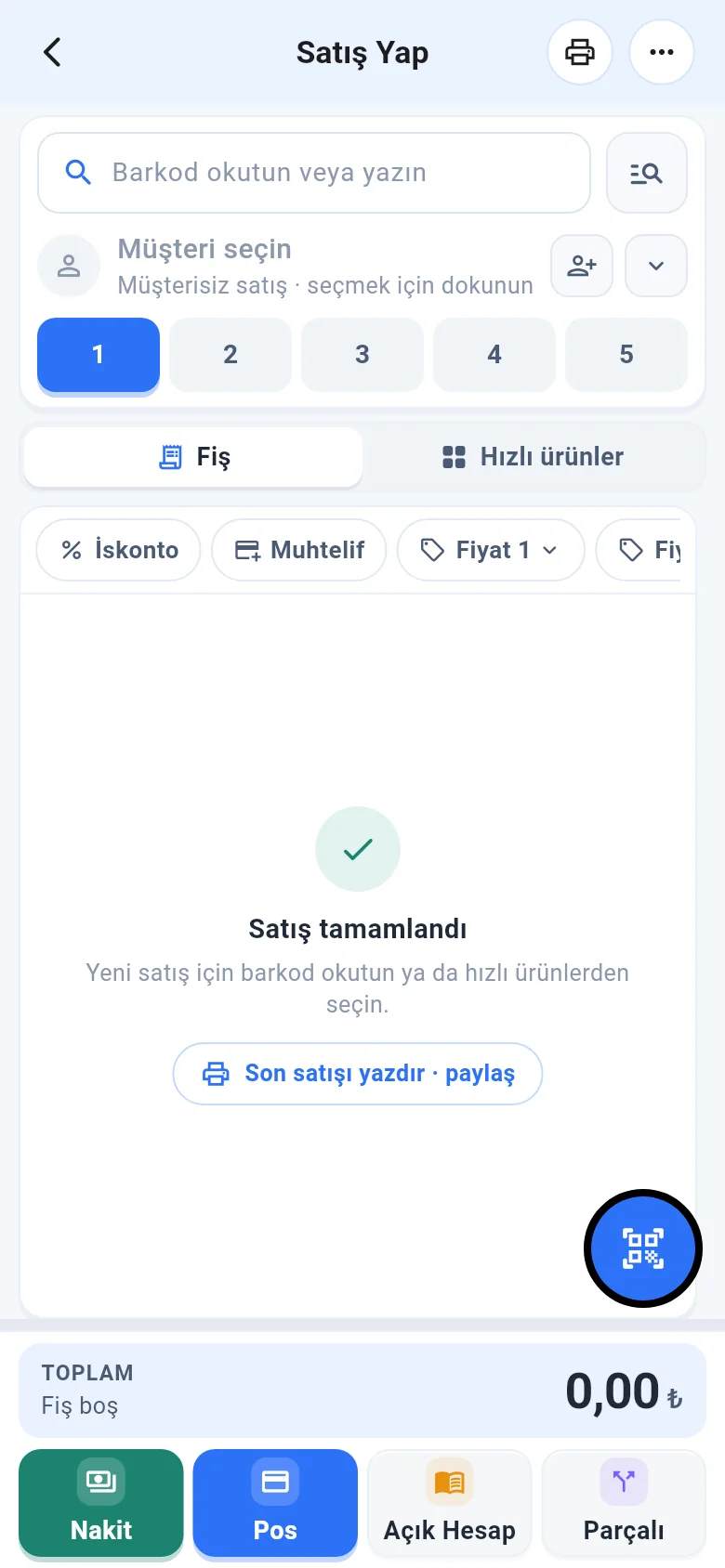
To print the receipt or send it via WhatsApp after the sale, tap the printer icon at the top. Printing receipts