




Recording a sale on a past date and changing the sale date
Record a sale on a past date, enter a sale under another staff member, or change the date of a saved sale.
You can record a sale you forgot, or sales made after the till was closed, on a past date, and change the date of a saved sale later. To do this, the administrator or a staff member with the Can enter sales on other dates permission must be logged in.
Recording a sale on a past date
Open the details section
On the sales screen, press the 1 Note, phone and other details button next to the customer row.
Choose the transaction date
Turn on the 6 TRANSACTION DATE switch and choose the date. To record the sale under another staff member, choose 7 STAFF.
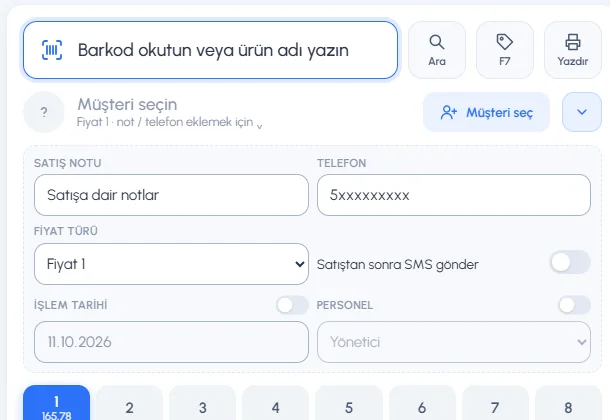 1234567
Complete the sale
Add the products and choose the payment type. The sale is recorded on the date you chose.
Changing the date of a saved sale
In the sale details press Edit, change the Date & Time fields and press Save. Sale details
When you're done, remember to turn the transaction date off; otherwise later sales may also be recorded on the date you chose.
Recording a sale on a past date
Open the options
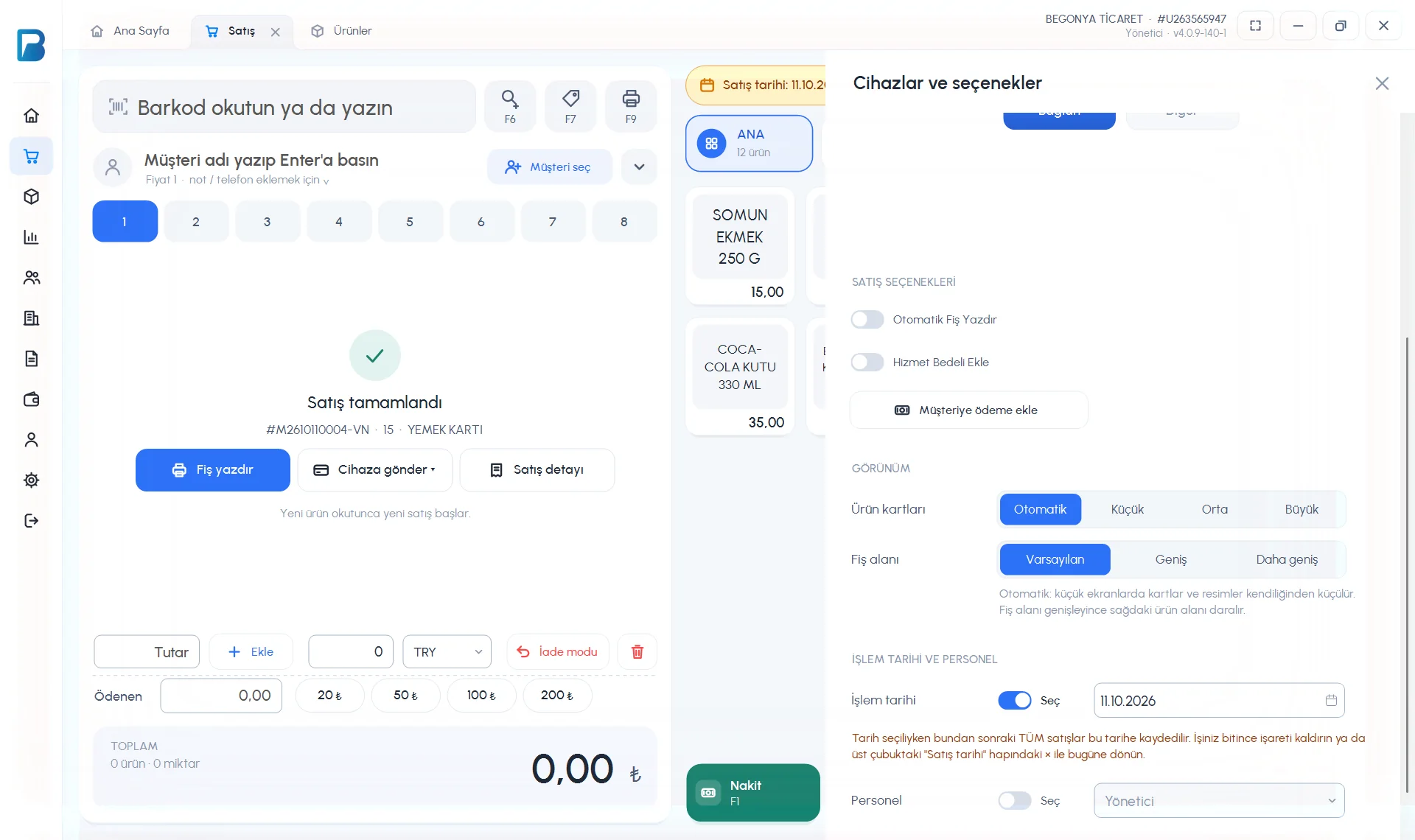
Click the Devices and options button at the top right of the sales screen.
Choose the transaction date
In the TRANSACTION DATE AND STAFF section, turn on the Select switch next to 1 Transaction date and choose the date. The warning “While a date is selected, ALL following sales are recorded on this date” appears below.
 12
12Make the sale
A yellow 2 Sale date: dd.mm.yyyy label appears in the top bar. All sales made while the label is showing are recorded on that date.
Go back to today
When you're done, press the × on the label or turn off the Select switch; a “Sale date set back to today” notification appears.
- With the Staff choice in the same section, you can record the sale under another staff member (administrator only).
- To change the date of a saved sale, change the Date / time in the sale details and press Update.
- For staff to enter sales on another date they need the Can enter sales on other dates permission; in the limited free version this is a PRO feature.
Changing the date of a sale
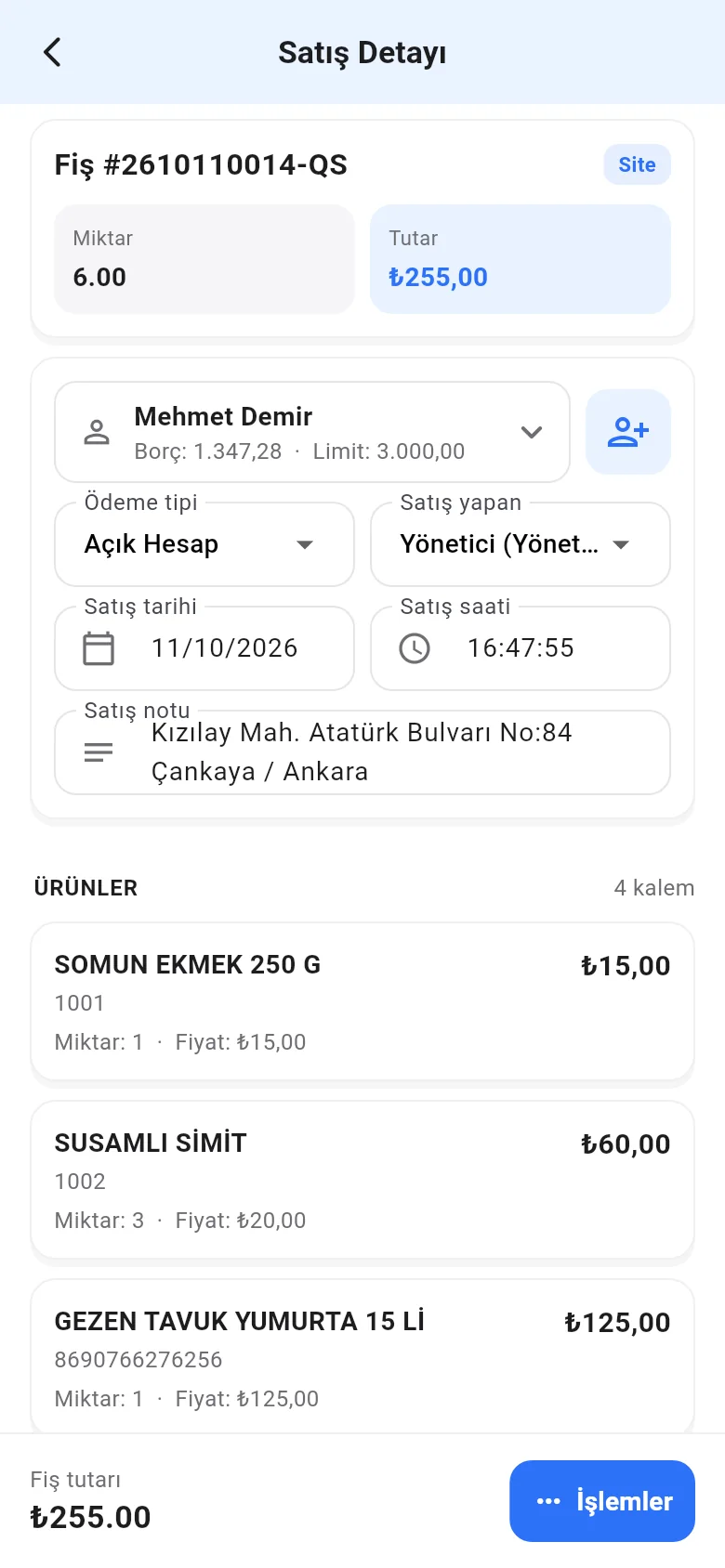
The mobile sales screen has no sale date choice; the sale is recorded with the current date. To change the date later, open the sale details, change the Sale date and Sale time and tap Actions › Save changes.
 123
123