




Installing the desktop app and first login
Download and install the desktop app for Windows, log in as admin or staff, and wait for your data to sync.
The BenimPOS desktop app runs on Windows computers. Sales are saved on your computer first and sync with your web and mobile account automatically whenever there is internet, so you can keep selling even if the internet goes down.
Download the app
Open the download page
In the web panel, open My Desktop Devices from the user menu at the top right and press 1 Download. You can also get the setup file at benimpos.com/masaustu.
 123
123Run the setup
Run the downloaded setup file and follow the steps. Don't run the setup file from inside a .zip; extract it first, or use the setup file you downloaded.
Name your device
The first time you log in to the app, the computer is added to the My Desktop Devices list. Type a name such as "Till 1" in the 2 Nickname field and press 3 Save Changes. In the fiscal cash register integration, you choose the device by this name.
The desktop app only runs on Windows. If you use a Mac, use BenimPOS in the browser (web).
 123
123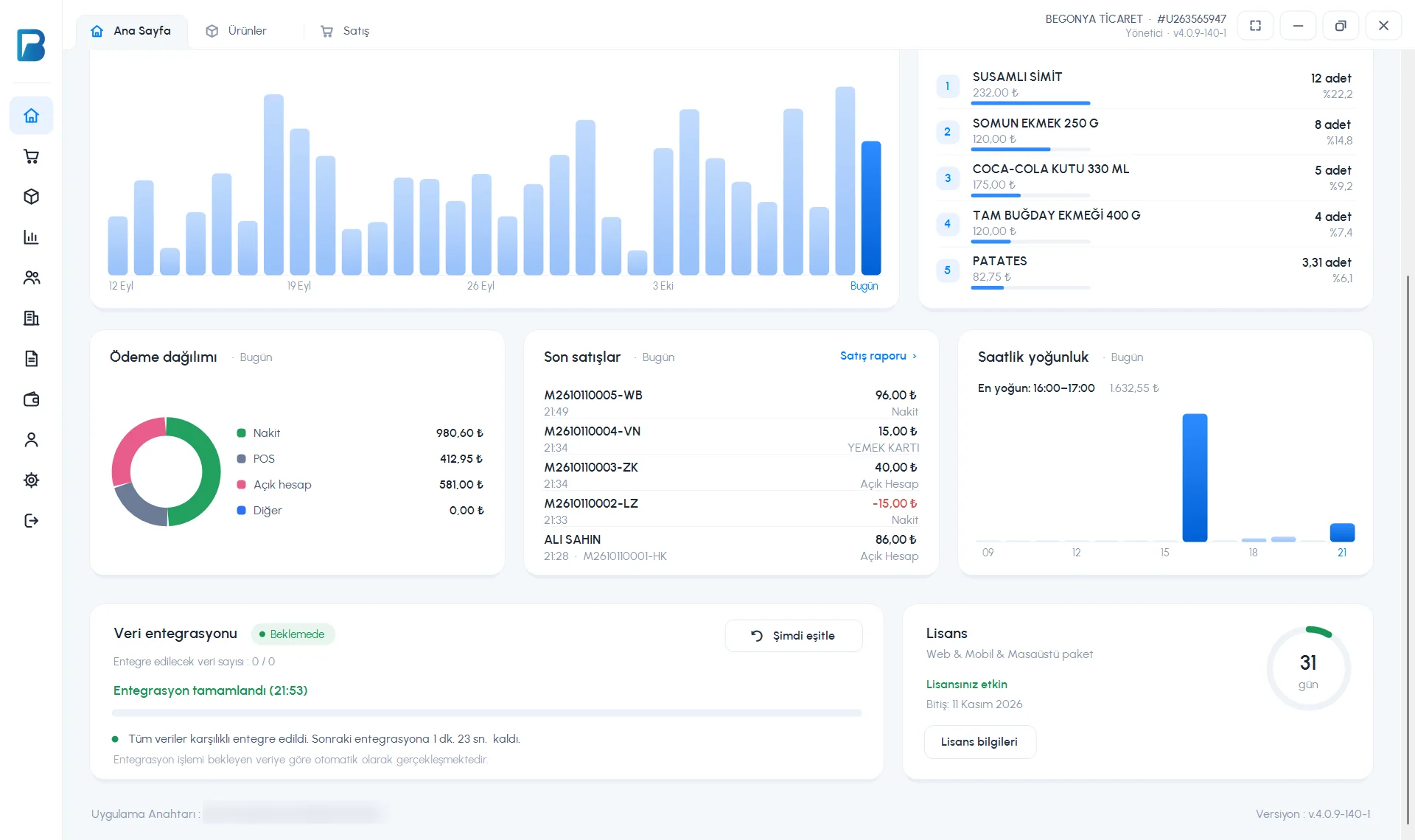 1234
1234First login
Choose the login type
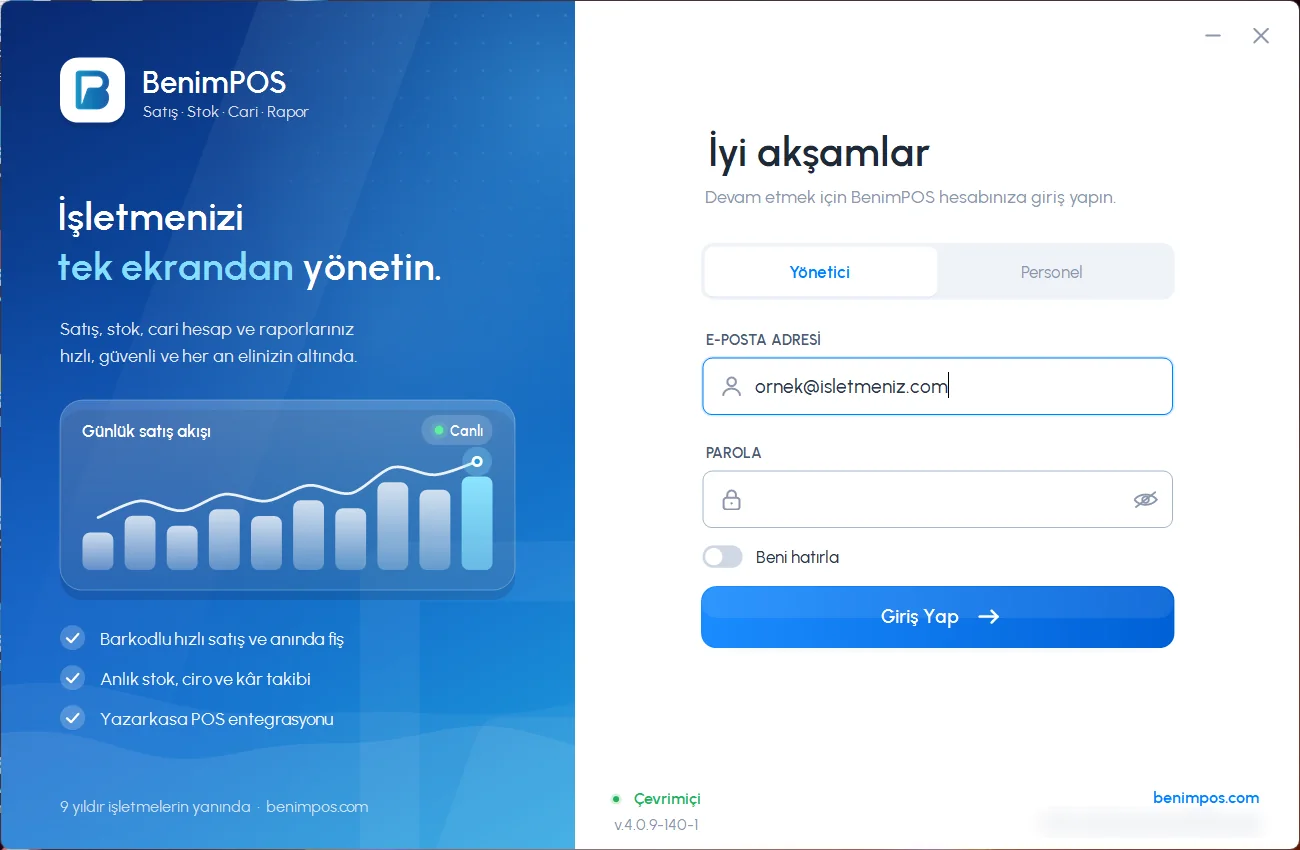
Open the app. In the form on the right, choose Admin or Staff.
Enter your details
For admin, enter your EMAIL ADDRESS and PASSWORD; for staff, enter the STAFF CODE and PASSWORD. To avoid typing them every time the app opens, tick Remember me, then press Log In.
Enter the verification code
If this is the first time you log in to your account on this computer, a 6-digit code is sent to your phone or email. Type the code in the Two-Factor Authentication window and press Verify.
Wait for the data to download
Your products, customers and settings are downloaded on the Data integration card on the home page. Don't close the app or disconnect from the internet until the card says "Integration complete".
Good to know
- The first admin login needs internet. On later logins, if there is no internet, the app opens with the data on the computer.
- Staff log in with the data on the computer; for a staff member you've just added to be able to log in, syncing must finish first.
- The app creates an App Key unique to the computer; it is shown at the bottom of the home page. The support team identifies your computer by this key.
- The app can be open only once on a computer; if you try to open it a second time, the window that is already open comes to the front.
- Shortcuts: Enter on the home page opens the sales screen, Ctrl+W closes the open tab, F11 toggles full screen.
If you log in with a different account on the same computer, the old account's data on the computer is deleted and the new account's data is downloaded. The app warns you in this case and shows how many records haven't been sent to the web yet, if any. If you're not sure, click No and contact the support team.
If you get an error while logging in: I can't log in. If you see a warning after installation that the local database wasn't found, the app downloads the file it needs; when the download finishes, restart the app.
This can't be done in the mobile app. Install the desktop app on your Windows computer; for the mobile app, see the Installing the mobile app article.