




Receipt printing, receipt settings and receipt template
Print receipts on a thermal printer or as A4, turn on automatic printing, and set receipt width, footer notes, VAT, customer balance and the template.
After a sale you can print the receipt on a thermal receipt printer or as A4, and reprint the receipt of an older sale. Details on the receipt such as the business name, logo, footer note, VAT and customer balance are set in the settings.
Printing receipts
- In the window that opens right after the sale, press Print receipt (thermal) or Print A4.
- To print the last sale later, use the Print button on the sales screen.
- For an older sale, open the sale details and choose Thermal printer, A4 printer or Exchange receipt (no prices) from the Print & Send menu.
- To print automatically after every sale, turn on Options › Auto-print thermal or Auto-print A4 on the sales screen (stored on this computer).
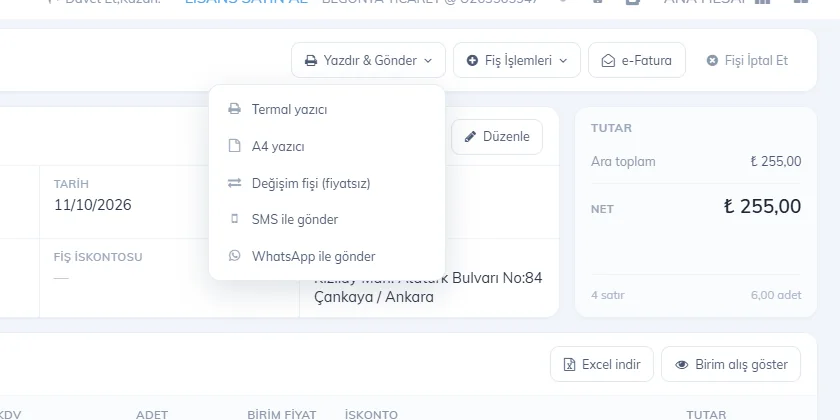 1
1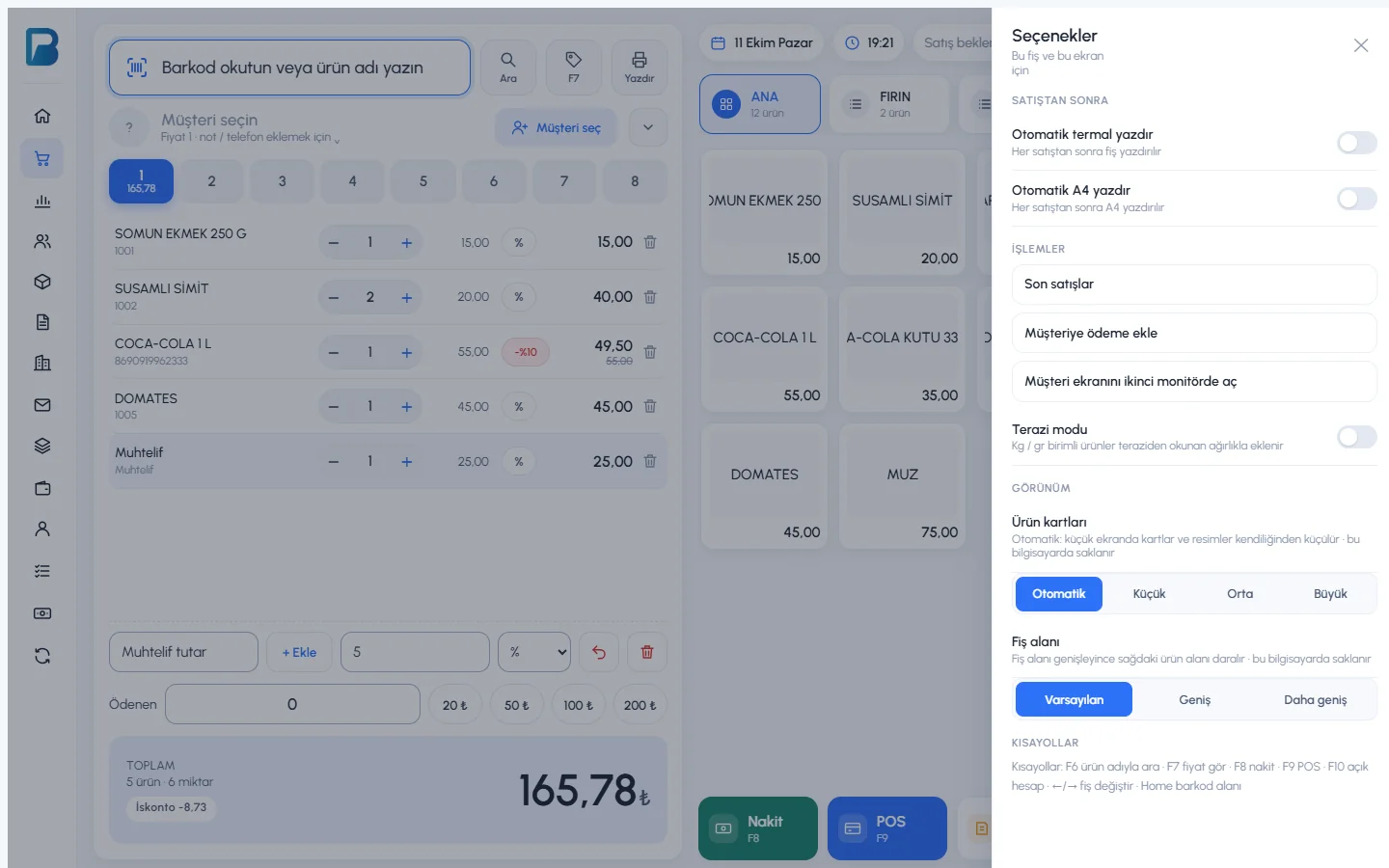 123456
The 1 Options panel on the sales screen has 2 Auto-print thermal, 3 Recent sales, 4 Add payment to customer, 5 Open customer display on second monitor and 6 Scale mode.
In the browser's print window, select your receipt printer, set margins to "None" and scale to "Actual size". If the receipt comes out cut off or too small: Printer problems
Receipt settings
On the My Profile › 1 Receipt Settings tab:
- 2 Receipt width (mm): the width of your receipt roll (usually 58 or 80).
- 3 Receipt footer notes: text printed at the bottom of the receipt (return policy, phone, store no., etc.).
- Customer balance on receipt: on sales with a customer, the total debt, payment and remaining debt are printed on the receipt.
- Show VAT amount on receipt: the VAT amount is shown on the receipt; make sure your products' VAT rates are correct.
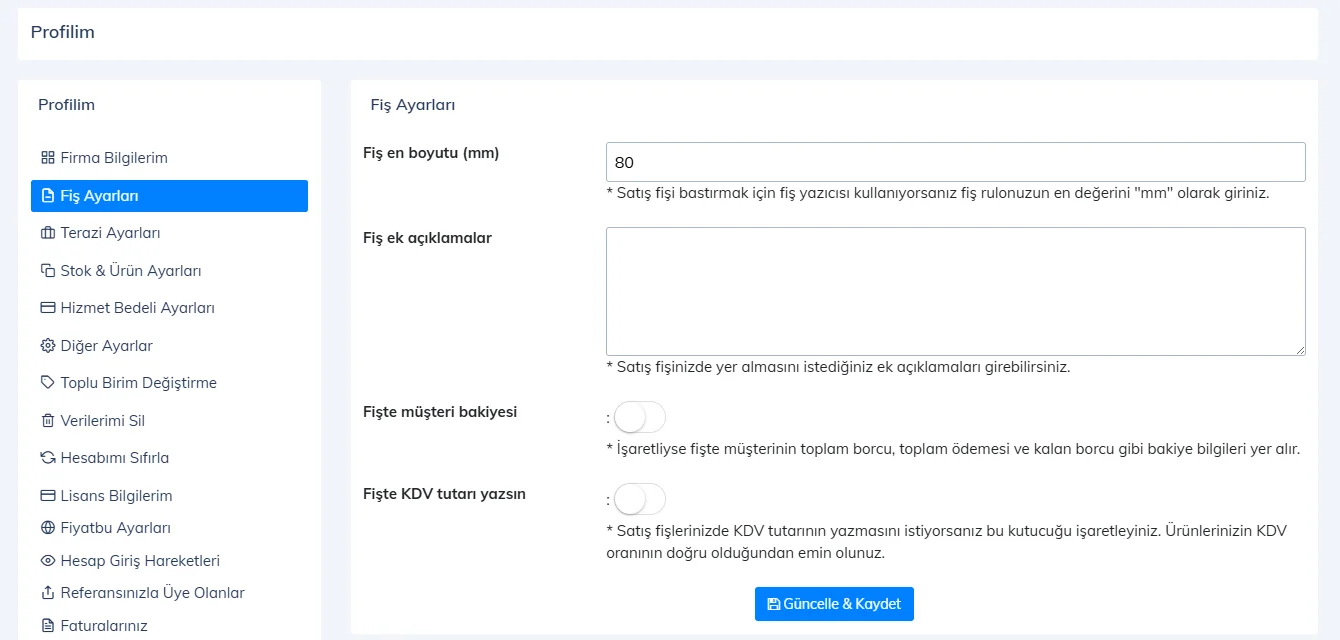 1234
1234Save the settings with 4 Update & Save. The business name on the receipt comes from the Full Business Name (for invoices) field in My Business Info, and the logo comes from the same tab.
Designing a receipt template
With the Receipt Template Designer in the user menu you can change how the receipt looks:
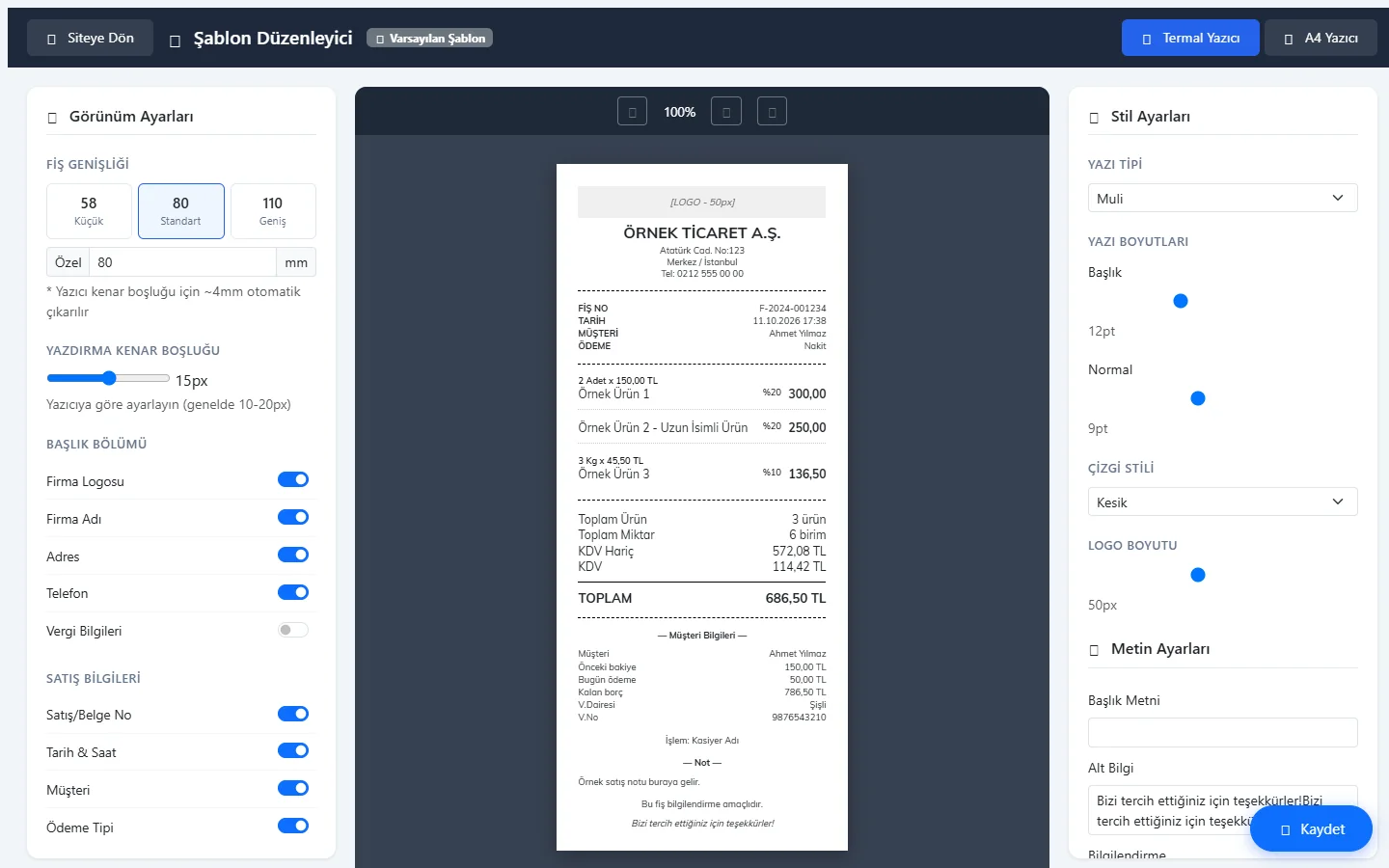 12345
12345- 1 Template: Thermal Printer or A4 Printer; receipt width 58 / 80 / 110 mm or custom.
- 2 Sections shown on the receipt: logo, business name, address, phone, tax details, sale no., date, customer, payment type, barcode, VAT rate, cancelled items, VAT breakdown, staff, sale note, split payment, customer balance.
- 3 Font, font sizes, line style and logo size.
- 4 Header text, footer and information text.
- 5 Save.
For your template to be used on receipts, turn on Use Receipt Design Template on the My Profile › Other Settings tab and save.
Printing receipts
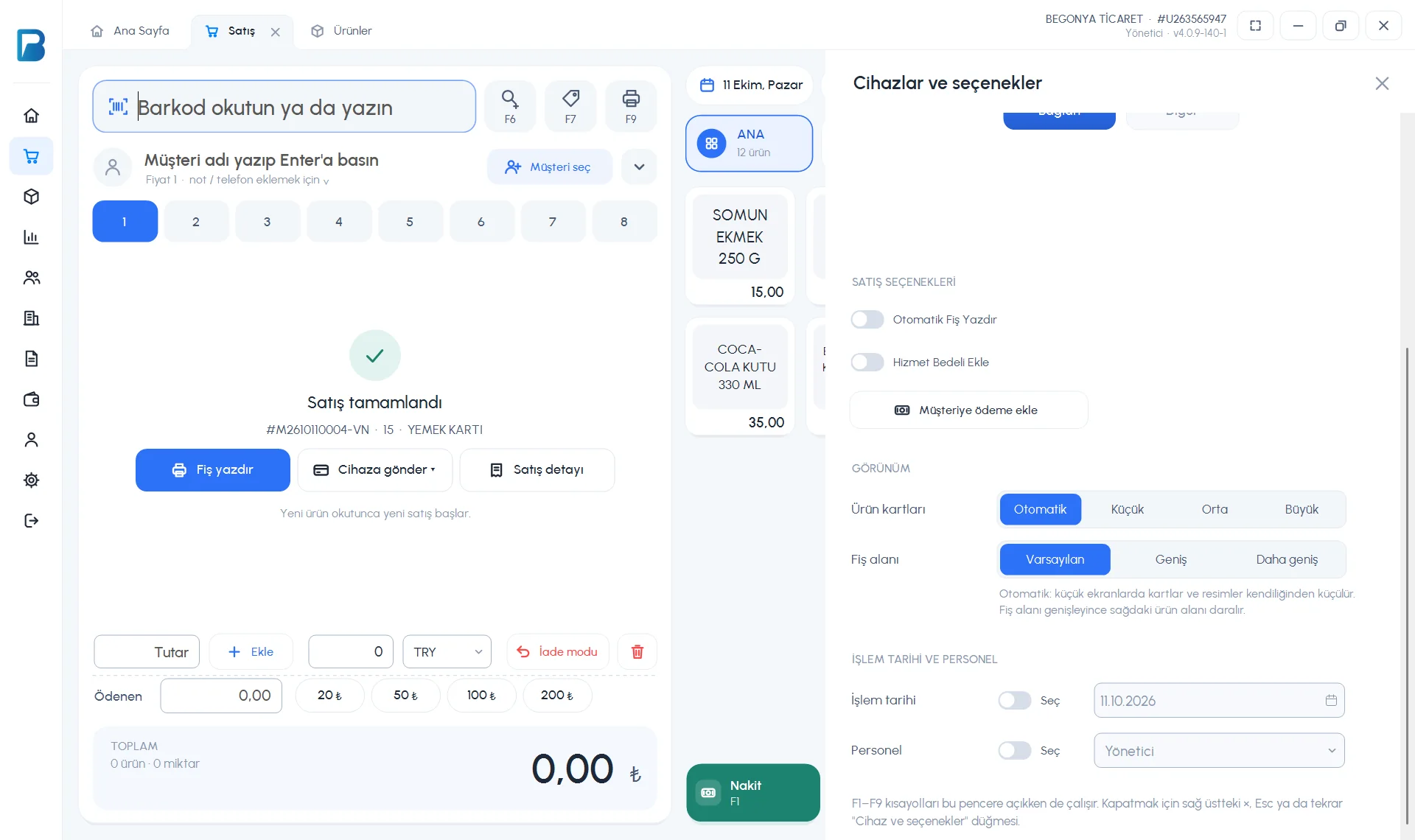
- Receipt for the last sale: F9, or Print receipt on the card shown after the sale.
- Automatically after every sale: Devices and options › SALE OPTIONS › Print Receipt Automatically.
- Older sale: Print in the sale details; Exchange receipt for a receipt without prices.
 123
123The desktop app prepares the receipt as a PDF and sends it to the default printer in Windows; there is no separate printer selection in the app. Receipts are also saved in the Sales Receipts folder inside the app folder.
Receipt settings
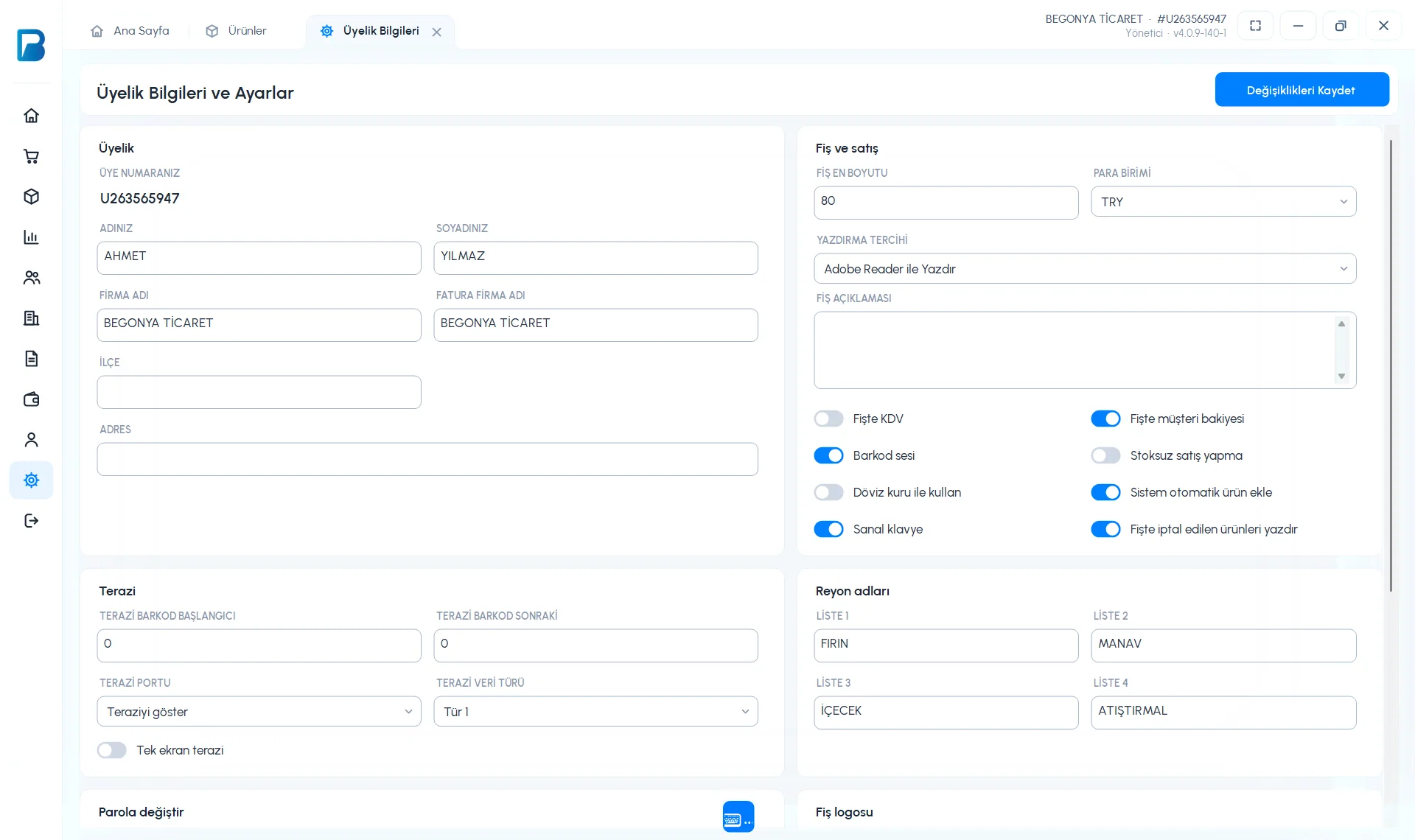
On the Receipt and sales card on the Settings › Profile settings page:
 123
123- 2 RECEIPT WIDTH (mm, roll width — 58 for a 58 mm roll, 80 for 80 mm), PRINT PREFERENCE: Print Directly (the app prints by itself) or Print with Adobe Reader (through the PDF program), RECEIPT NOTE: text at the bottom of the receipt.
- 3 VAT on receipt, Customer balance on receipt, Print cancelled products on receipt.
- Select a .jpg logo on the Receipt logo card. Then press Save Changes.
Receipt template design is not available in the desktop app; use the template tool in the web panel.
Printing and sharing receipts
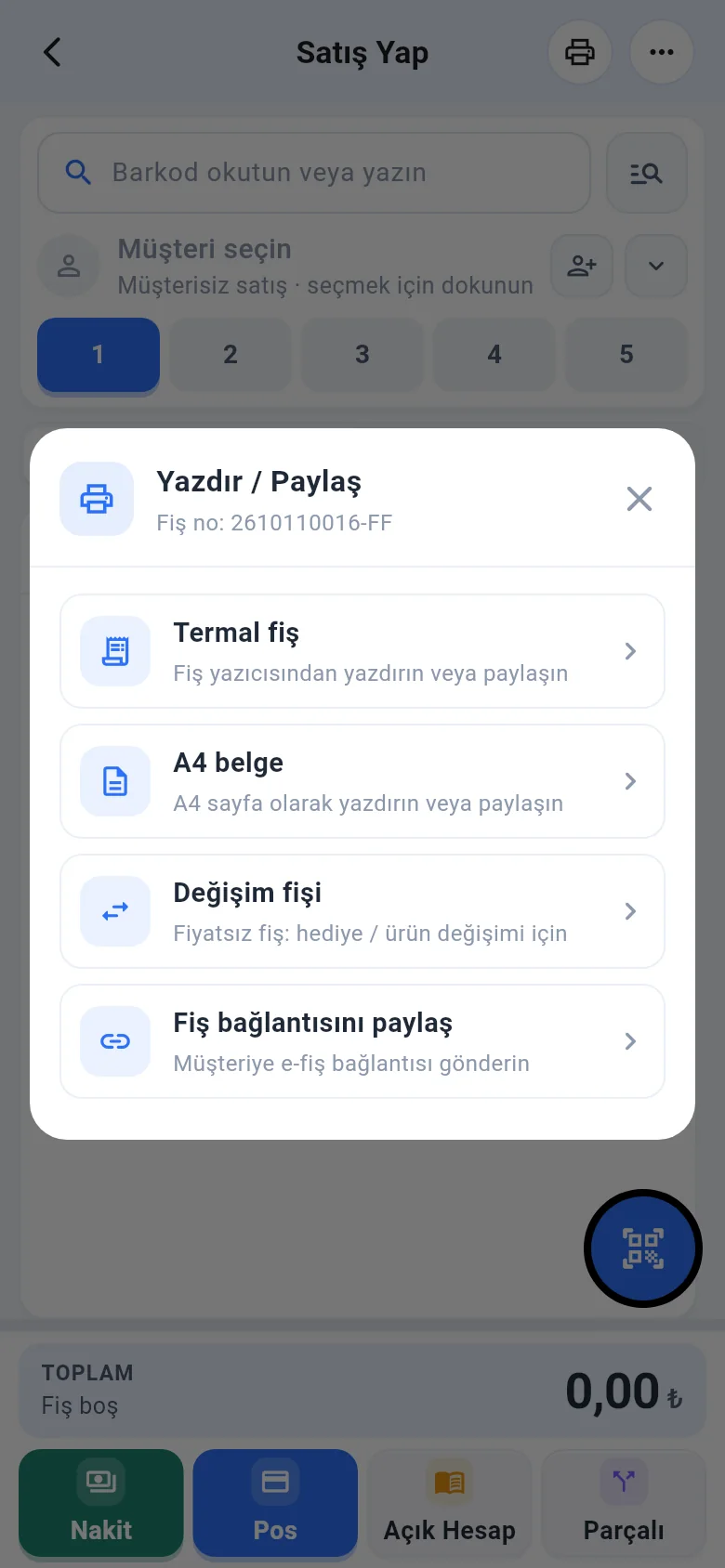
After the sale, tap the printer icon at the top of the sales screen (or ••• › Print / share last sale). In the Print / Share window, choose:
- Thermal receipt: print on a receipt printer or share.
- A4 document
- Exchange receipt: a receipt without prices.
- Share receipt link: an e-receipt link for the customer.
Bluetooth receipt printer
Pair the printer with the phone
Pair your receipt printer in the phone's Bluetooth settings. On Android, give the app Bluetooth and Location permission.
Choose the print method
On the receipt screen, tap Print and choose your printer with Select Bluetooth printer. Next time, Print via Bluetooth sends straight to the connected printer.
Alternative
Standard print opens the phone's own print window (for Wi-Fi/network printers).
The mobile app only has the Receipt width (mm) setting (Menu › Profile). Footer note, logo, VAT and template settings are made in the web panel and also apply to receipts on mobile.