




Editing a sale, changing the payment type and cancelling a receipt
Change a saved sale's payment type, customer, date and products, or cancel a product or the whole receipt.
In the sale details you can change a saved sale's payment type, customer, date, note, product quantities and prices, and cancel a single product or the whole receipt. Cancelled products go back into stock and are removed from reports.
Finding the sale
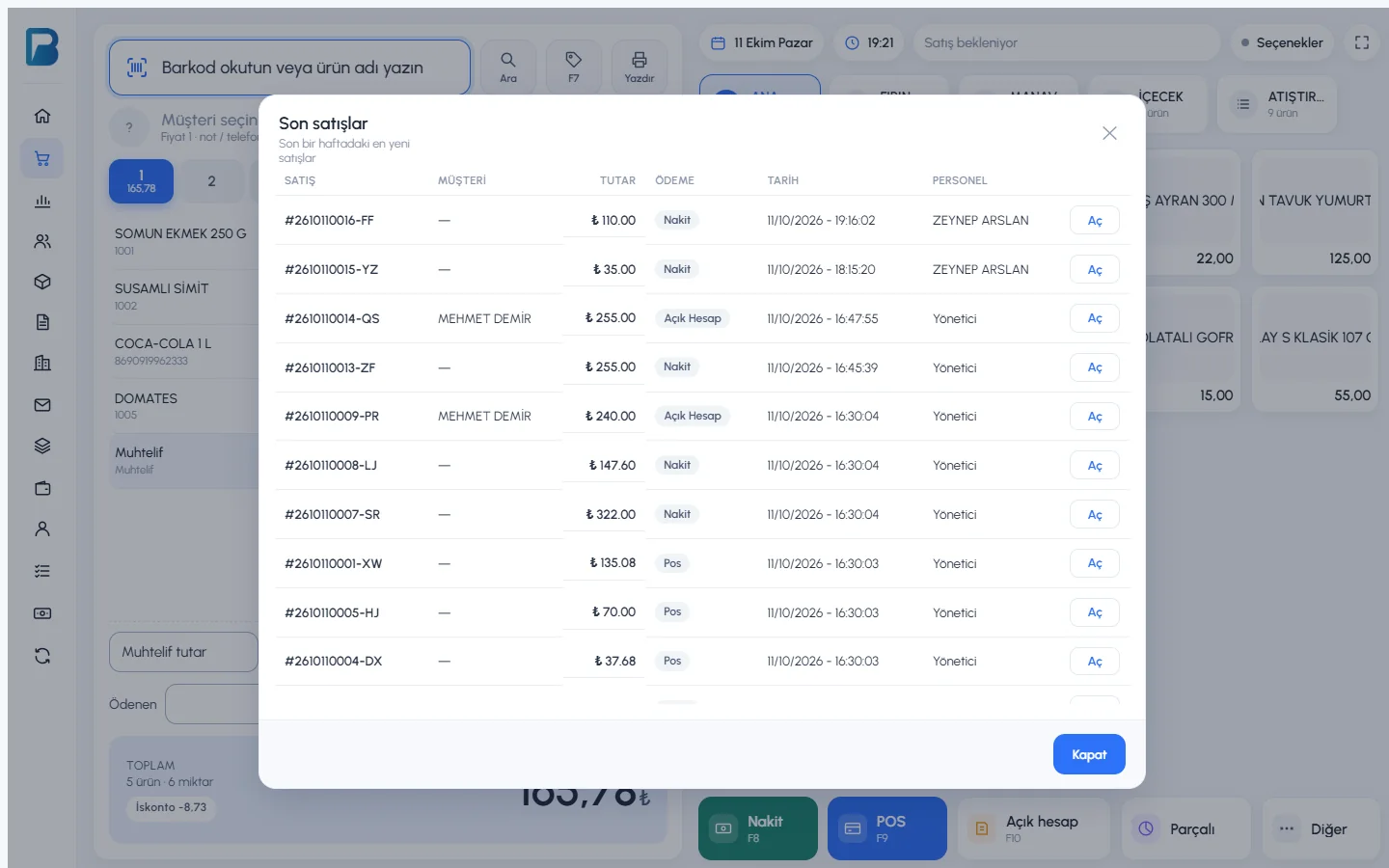
- On the sales screen: Options › Recent sales lists the sales from the last week; open the details with Open.
- From reports: click the sale code in Reports › Daily Report or in the Date Range Report.
- From the customer: click the sale code in the purchase list on the customer card.
Sale details
 1234567
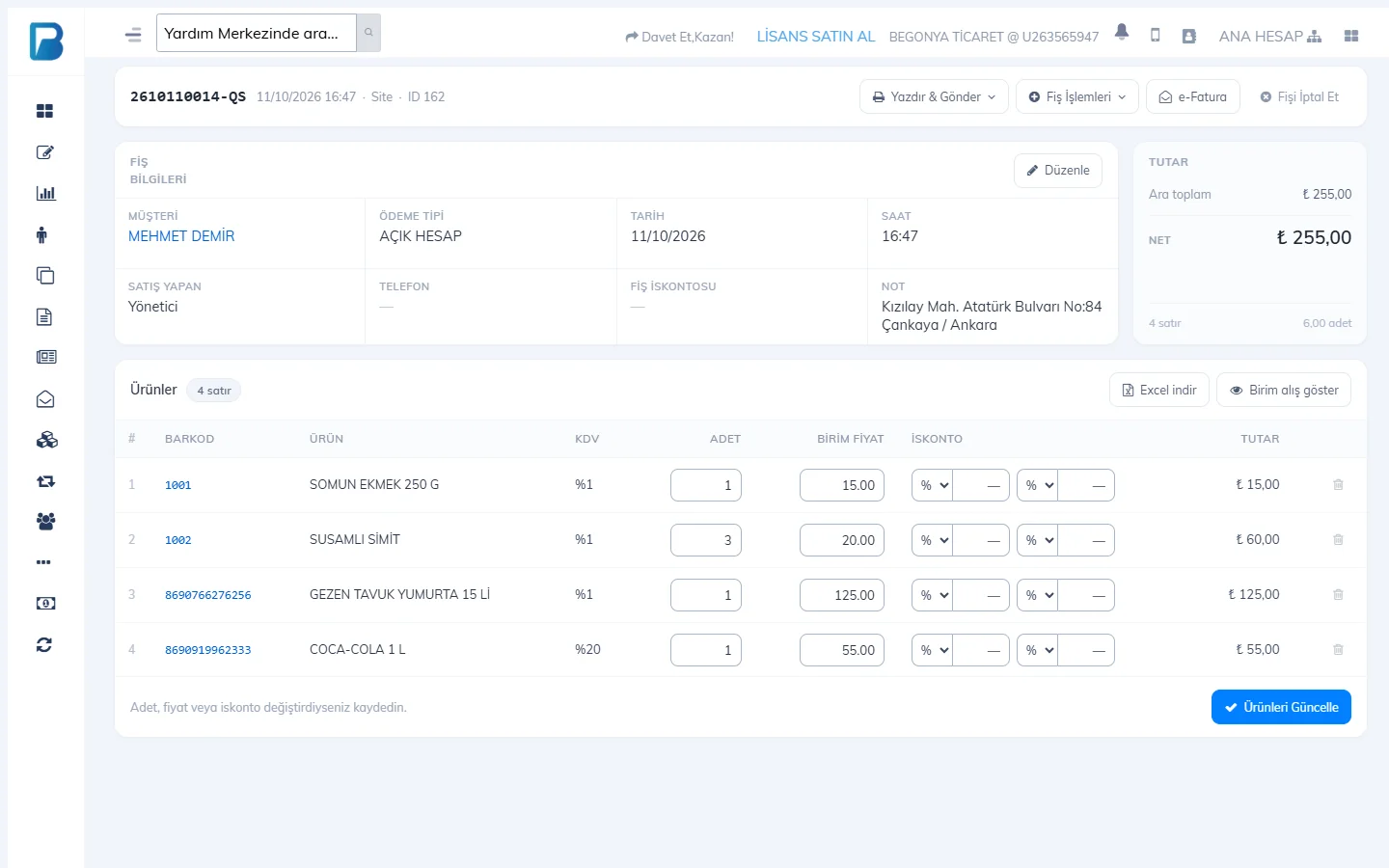
- 1 Edit: customer, payment type, staff who made the sale, date & time, phone, receipt discount and note.
- 2 Print & Send: thermal, A4, exchange receipt, SMS and WhatsApp.
- 3 Receipt Actions: add products to the receipt, create a return.
- 4 Cancel Receipt: cancels the whole receipt.
- 5 On the product lines you can change the quantity, unit price and both discounts; save with 7 Update Products.
- 6 Accept return: cancels that line only.
Changing the payment type, customer or date
Press Edit
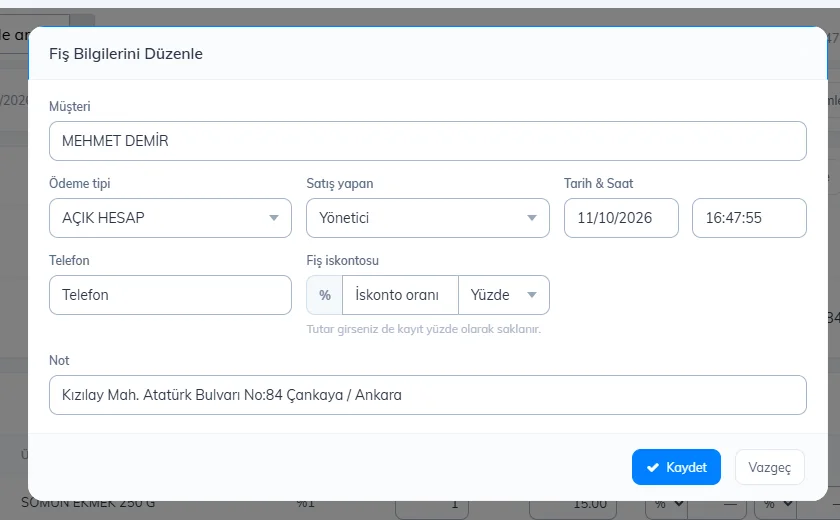
Press Edit in the sale details; the Edit Receipt Details window opens.
Change the details
For example, change the payment type from CASH to ON ACCOUNT and select the customer. A sale you change to on account is added to the customer's debt.
Save
Press Save.
Adding products to the receipt
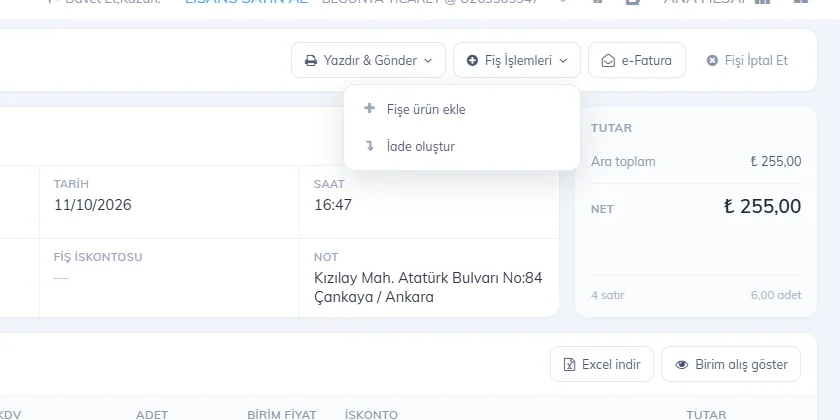
Receipt Actions › Add products to receipt opens the sales screen in "add to existing receipt" mode; the products you add are recorded on the same sale.
 1
1Cancelling the receipt
Press Cancel Receipt and confirm. A cancelled receipt doesn't show in reports; to see it, turn on Cancelled sales under More Options in the Date Range Report.
Staff permissions for editing and cancelling sales are separate: Can edit all sales / Can edit own sales only, Can cancel all sales / Can cancel own sales only. Without the permission, the buttons don't work.
Find the sale
- A sale you've just made: Sale details on the Sale complete card.
- Older sales: in Reports › Sales Report, choose the date range, press List and double-click the row.
- Click the sale on the Recent sales card on the home page; for a customer's sales, use the Sales and Payments list on the customer card.
Editing in the sale details
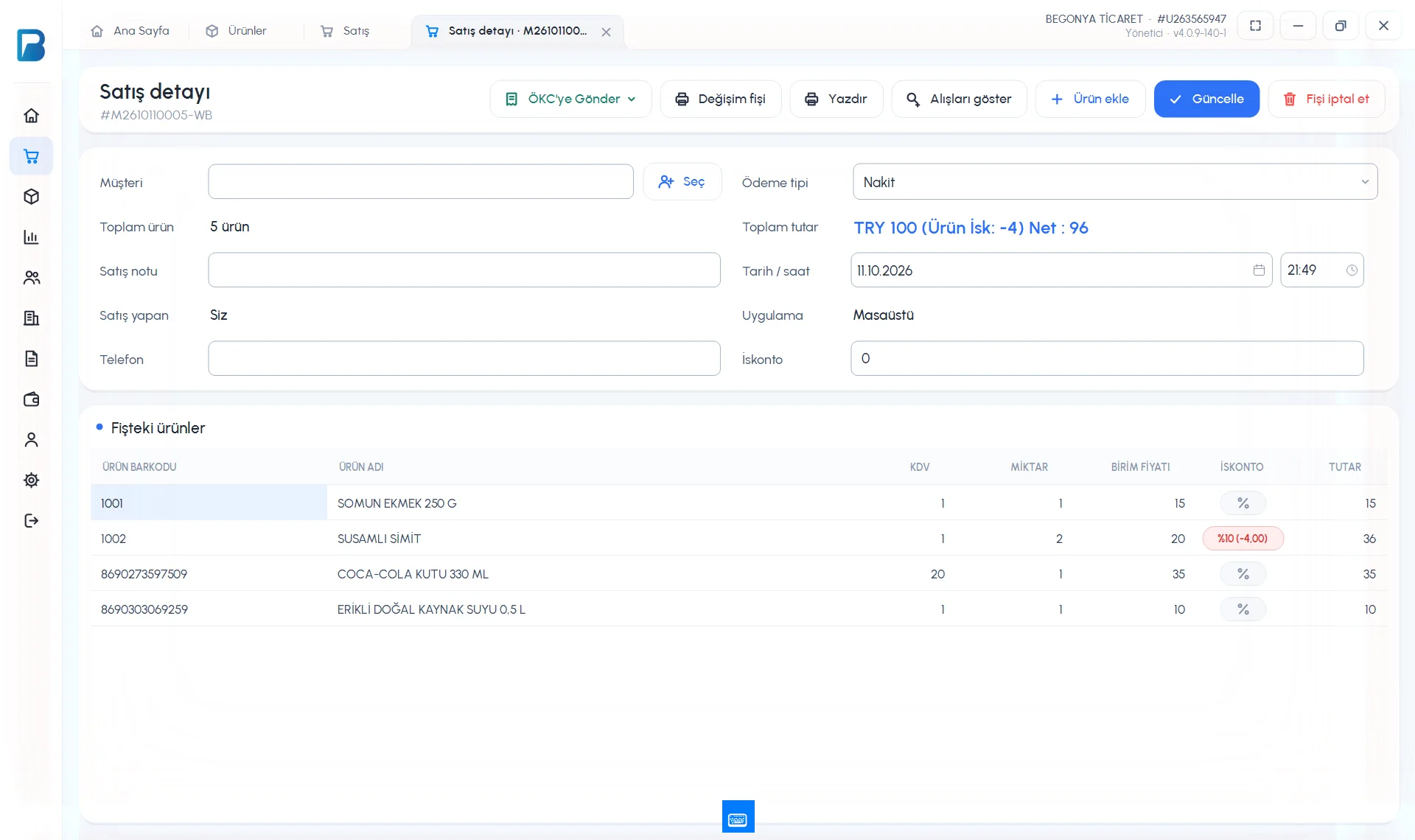 12345678
Change the details
You can change the customer with 1 Select, the 2 Payment type (Cash, Card, On account, Non-revenue and any extra types you've set up), the 3 Date / time, the sale note, the phone and the receipt discount.
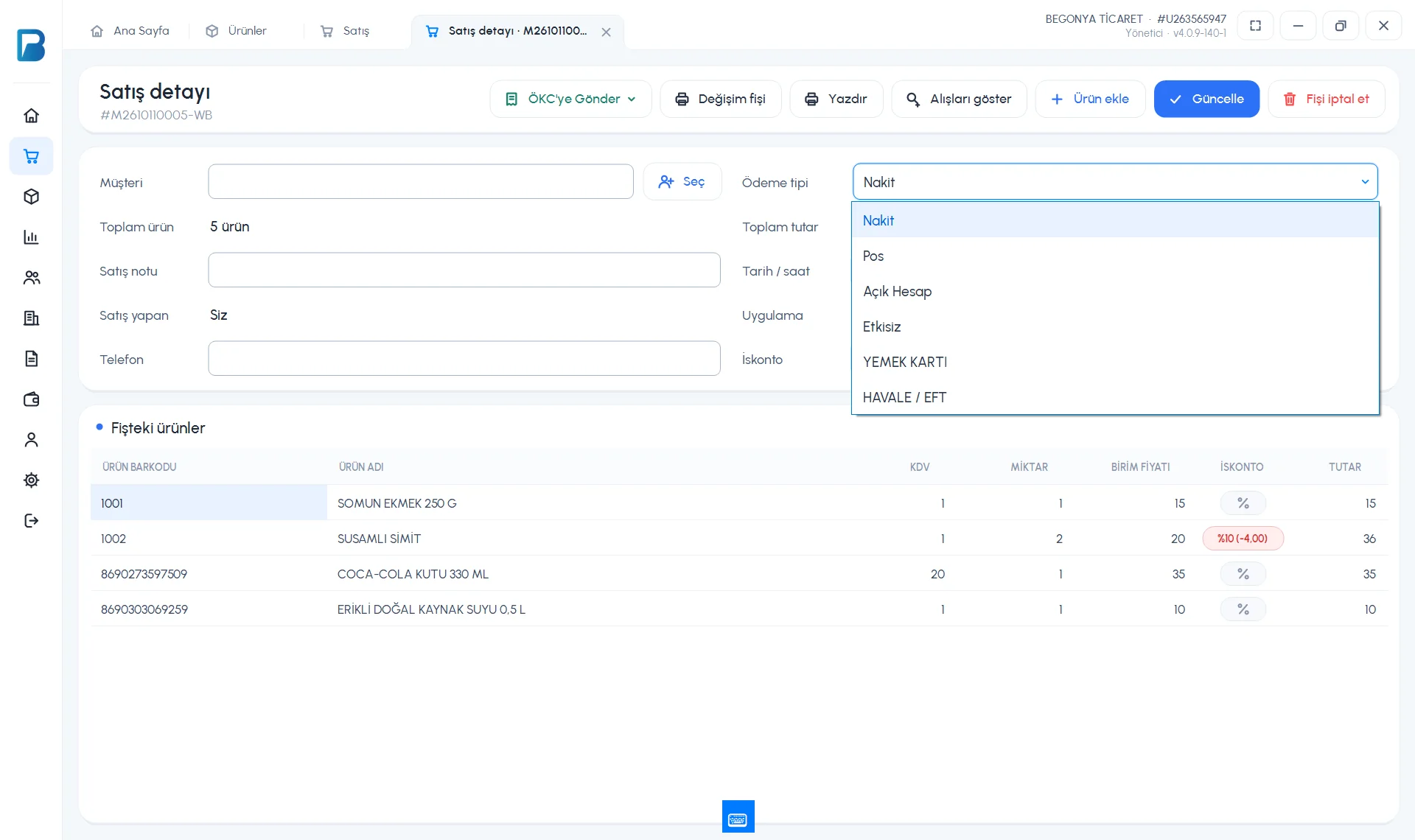 1
1Edit the products
4 Click the Quantity and Unit Price cells of the products on the receipt and change them. To add a new product to the receipt, use Add product at the top.
Save
Press 6 Update; you'll see the message “Receipt details updated.”.
Cancelling a product or the receipt
- To cancel a single product, double-click the product line and answer Yes to “Do you want to cancel the product from the receipt?”. The line stays on the receipt in red as CANCELLED and the product goes back into stock.
- To cancel the whole receipt, press 7 Cancel receipt and confirm.
- To see cancelled receipts in the Sales Report, turn on More options › Cancelled sales (cancellations only).
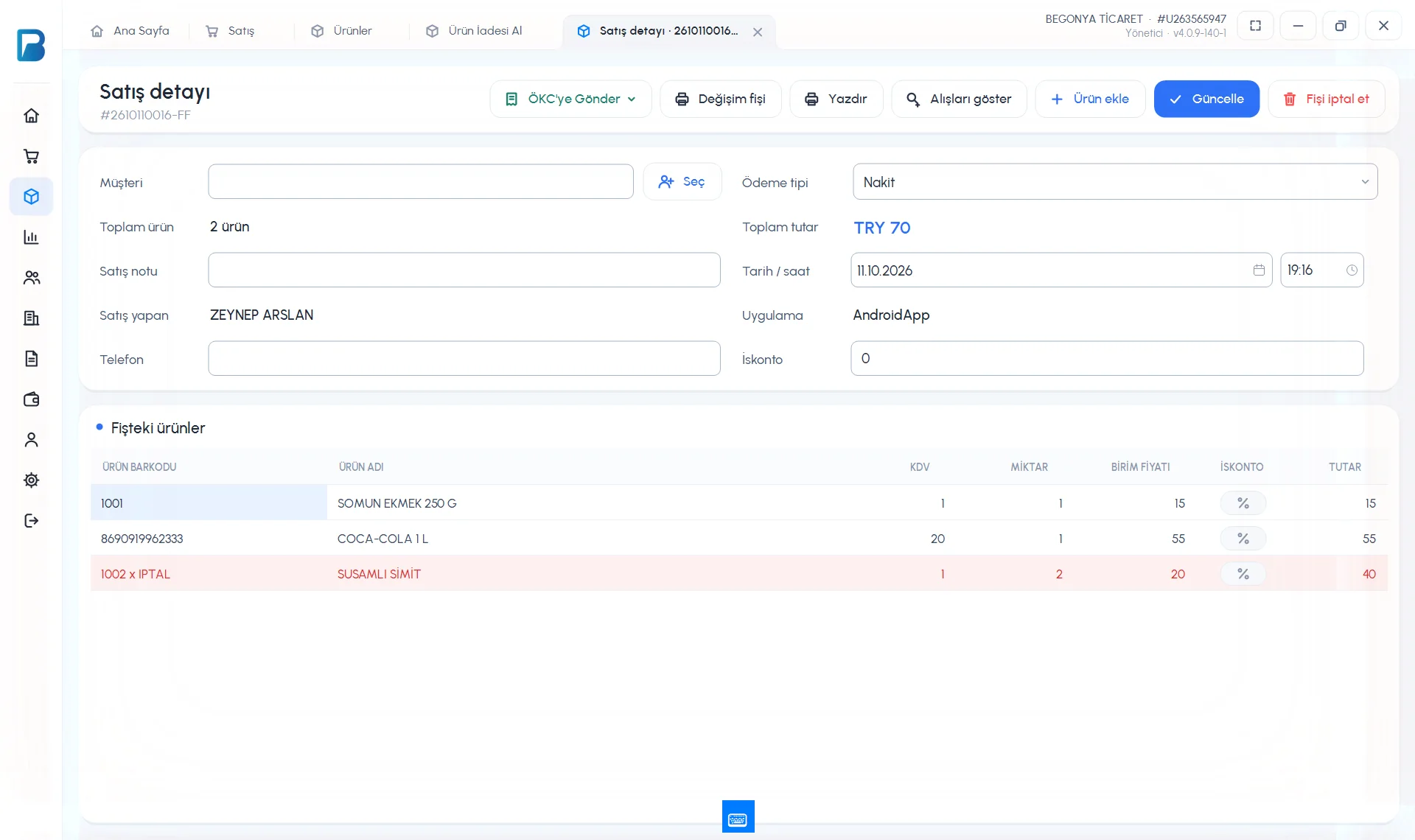 1
1For staff to edit and cancel sales they need the Can edit / cancel all sales or Can … own sales only permissions. In the sale details, 8 Print prints the receipt again; if a fiscal cash register is set up, you can send the receipt to the device with Send to ÖKC (fiscal cash register).
Finding and editing a sale
In Menu › Sales Report, choose the date, tap List and tap the sale. In Sale Details, change the 1 Payment type, customer, Sold by, 2 Sale date / time and Sale note, then tap 3 Actions › Save changes.
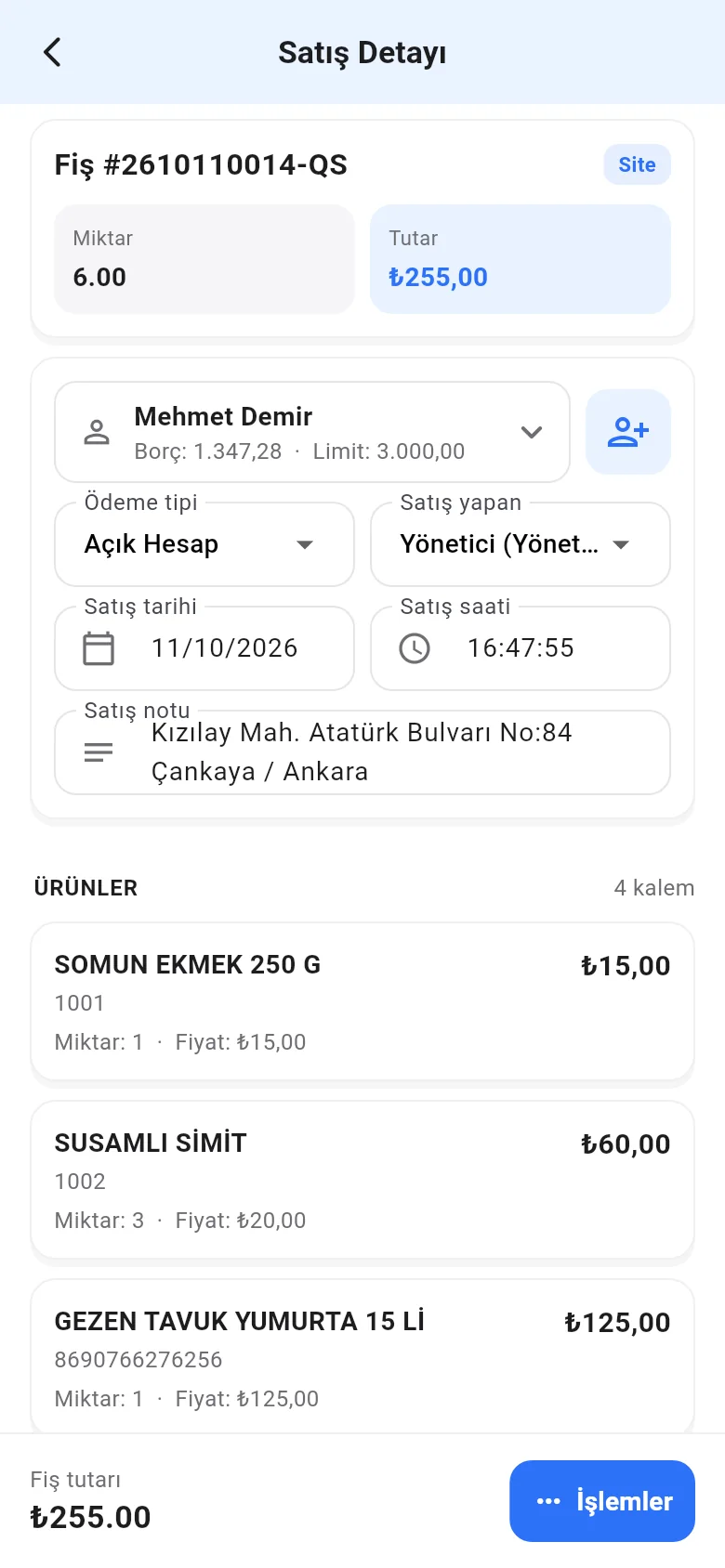 123
123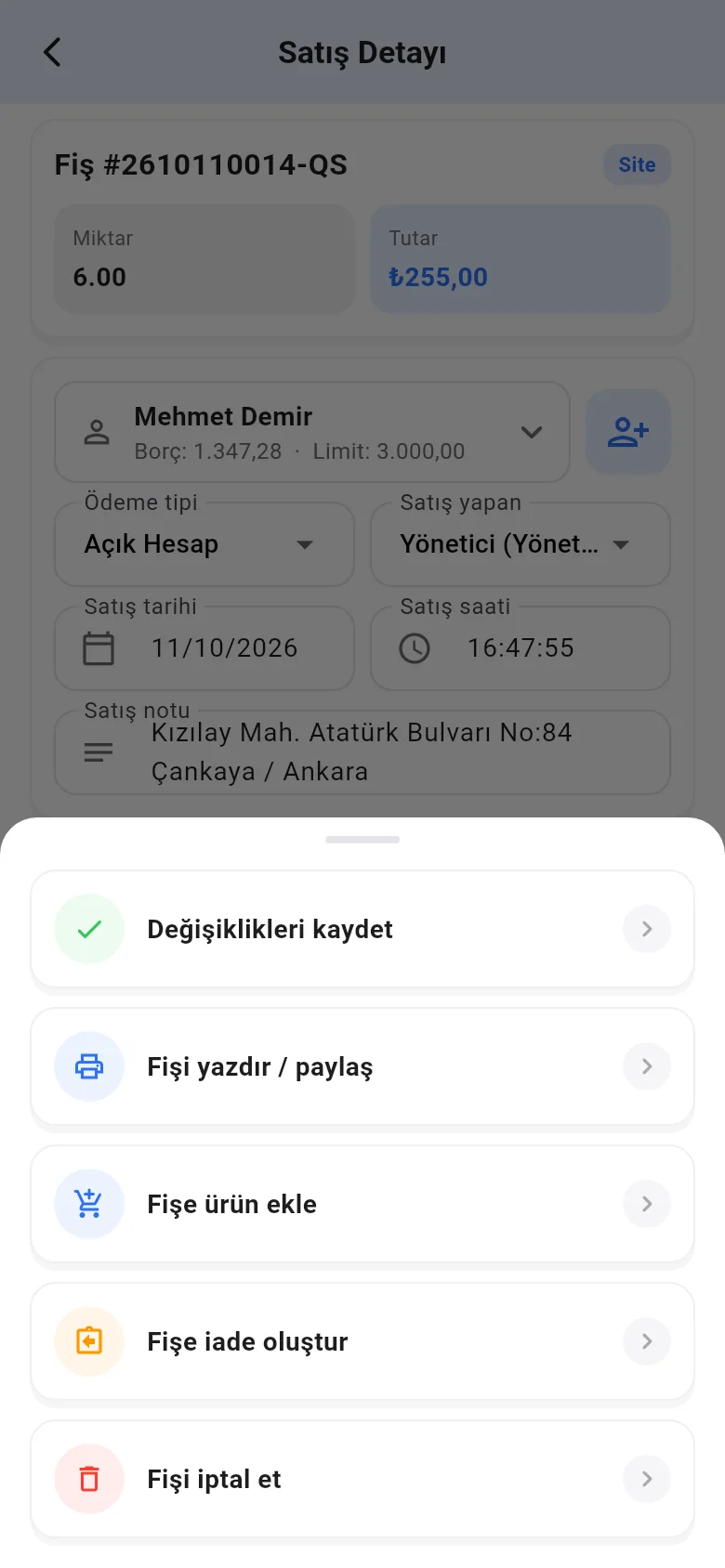
- Tap a product line to change the quantity, price and discount, or remove the product from the receipt with Cancel.
- Add products to receipt and Create return on receipt open the sales screen linked to that receipt.
- Cancel receipt cancels the whole receipt; this can't be undone.