




Price 1 / Price 2 / Price 3: selling at different prices
Enter a second and third price for products, rename the prices, choose a price level during a sale and set a customer-specific price.
You can enter three selling prices for each product: Price 1 (retail), Price 2 (e.g. wholesale, dealer or staff price) and an optional Price 3 (e.g. a promotion or corporate price). You can rename them to suit your business, choose which price to sell at during a sale, and always apply Price 2 or Price 3 to certain customers.
Renaming the prices
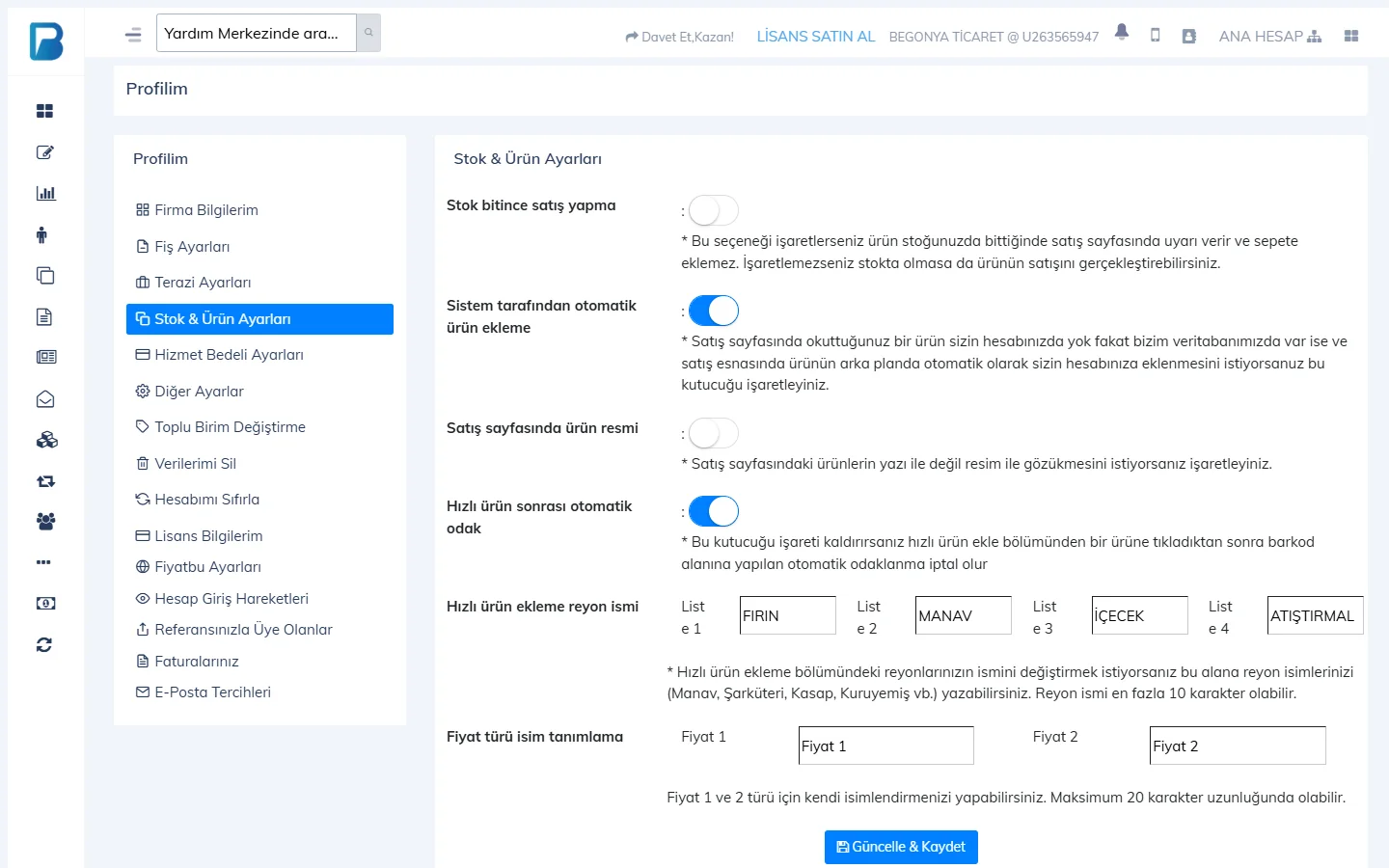
On the My Profile page, open the 1 Stock & Product Settings tab. In the Price level names section, type the names you want into the 3 Price 1 and Price 2 boxes (e.g. "Retail", "Wholesale"; up to 20 characters) and press 4 Update & Save.
 1234
1234Entering a second price for a product
On the product card (Products › Add & Update Products), fill in the Price 2 field on the Other Details tab and save.
Choosing the price level during a sale
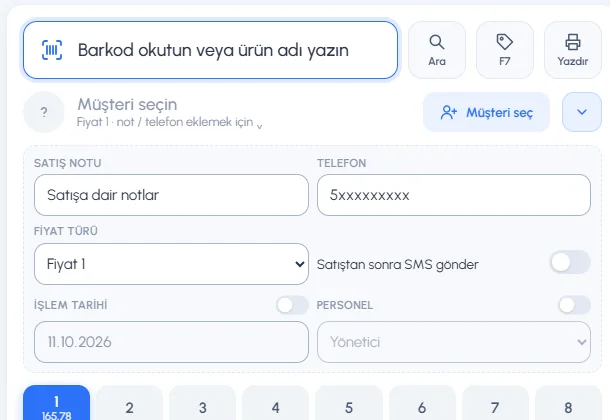
On the sales screen, press the 1 Note, phone and other details button next to the customer row. In the section that opens, choose the price from the 4 PRICE LEVEL list; products you add from then on use that price.
 1234567
Customer-specific price
On the customer card press Edit, set Price Level to Price 2 in the Customer Information window and save. When you select this customer during a sale, the price level switches to Price 2 automatically.
You decide which prices a staff member can use with the Can use Price 1 and Can use Price 2 permissions on the Staff › staff member › Sale tab.
Price 3 (third price)
In addition to Price 1 and Price 2 you can set an optional Price 3 (e.g. promotion, wholesale-2 or corporate price). A product with no Price 3 is sold at Price 1 in a Price 3 sale.
Enter Price 3 for the product
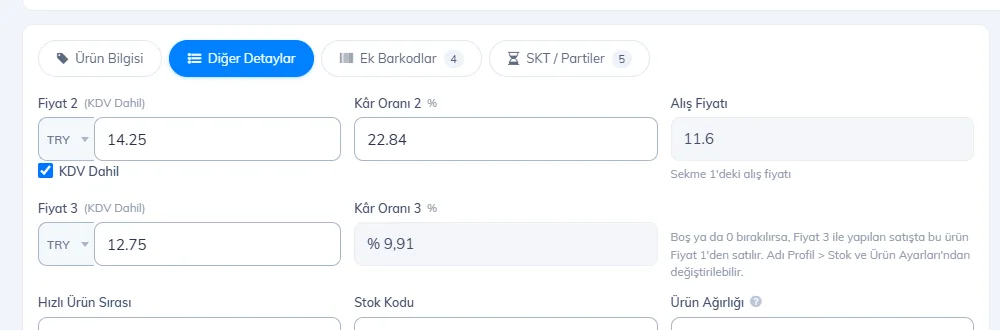
On the product card, fill in the 2 Price 3 (incl. VAT) field on the 1 Other Details tab; 3 Markup 3 is calculated automatically. Save the product with Save product; Price 3 is written to the branches you select at the bottom. When importing from Excel, column U is Price 3 and column V is its currency; select the Price 3 field during the import.
 123
123Choose Price 3 during a sale
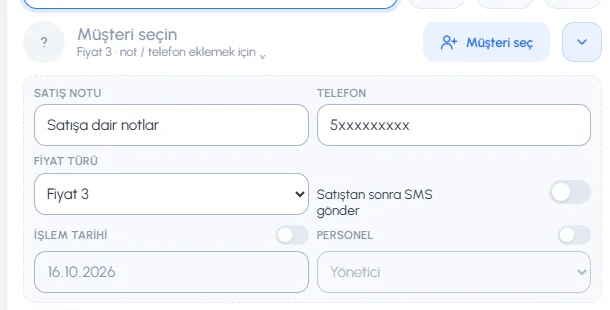
On the sales screen, open 1 Note, phone and other details and set 2 PRICE LEVEL to Price 3; products you add from then on use Price 3.
 12
12Assign Price 3 to a customer
On the customer card press Edit, set 1 Price Level to Price 3 and save. When you select this customer during a sale, the price level switches to Price 3 automatically.
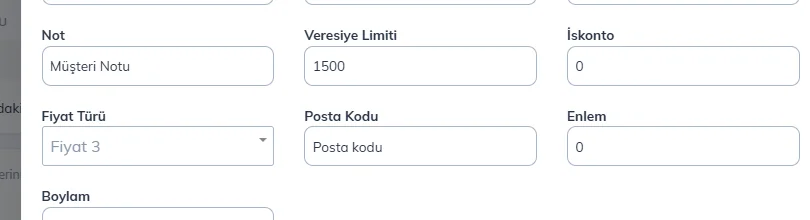 1
1
- You can rename Price 3 in the third box under My Profile › Stock & Product Settings › Price level names.
- Staff permissions: Can use Price 3 (sales), Can see Price 3 and Can change Price 3 (products).
- Price 3 syncs with the desktop and mobile apps; older app versions don't show Price 3 but don't break the customer's Price 3 setting either.
Choosing the price level during a sale
On the sales screen, click the ⌄ button to the right of the customer row (tooltip “Price level, sale note and phone”) and pick from the price level list. The list shows the price names you set in the web panel.
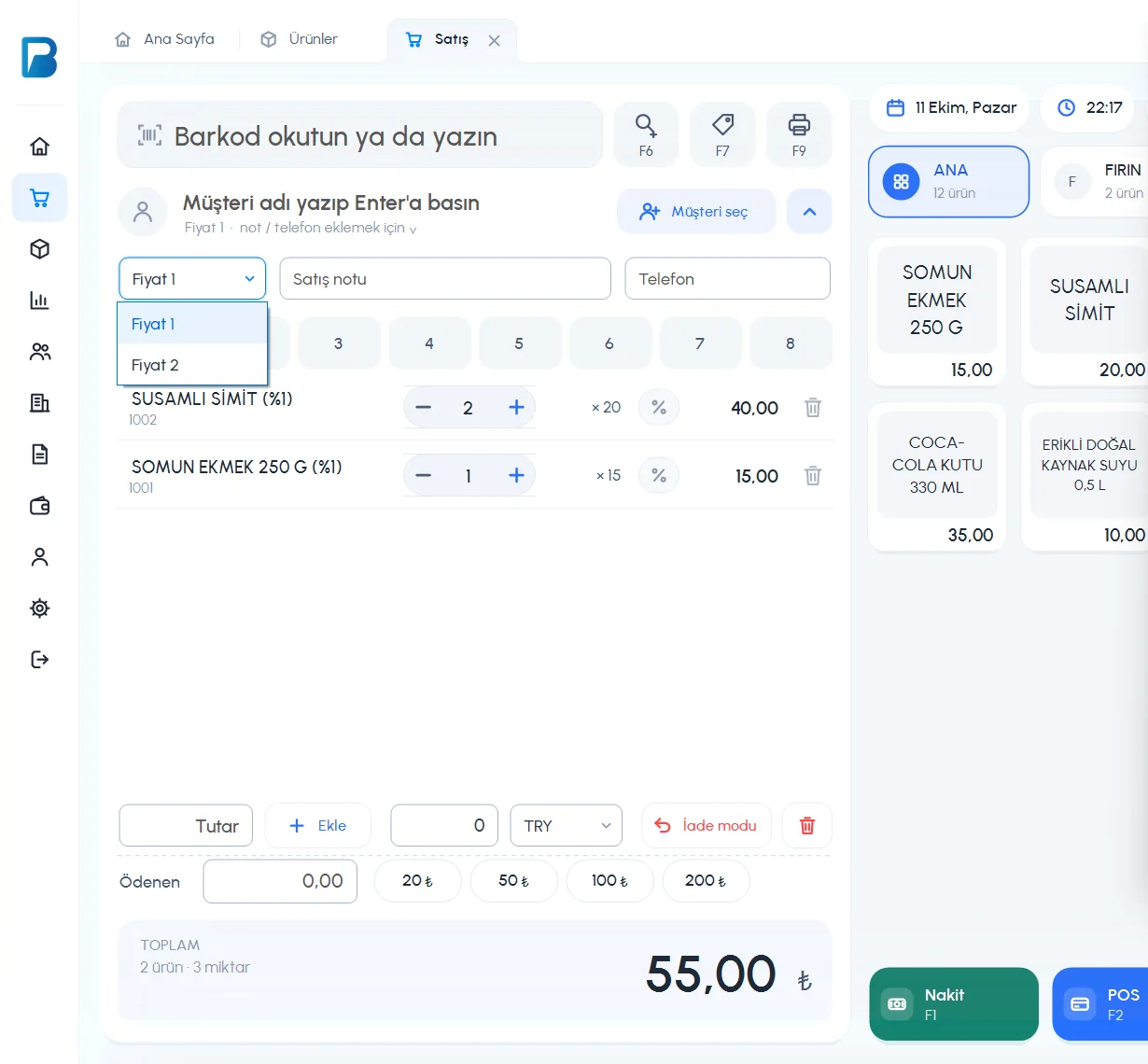 1
1When you 1 pick a price from the list, products you add from then on use that price; lines already on the receipt keep their price (delete the line and add it again if needed).
- When you select a customer whose PRICE LEVEL on the customer card is “Price 2”, the price level switches to that price automatically (for products added afterwards); when you remove the customer it returns to the previous choice. The PRICE column in the Select customer window shows each customer's price level.
- The product card has three prices: PRICE 1 (INCL. VAT), PRICE 2 (INCL. VAT) and PRICE 3 (INCL. VAT); you see the markup for each one separately.
- The Can use Price 1 / Can use Price 2 permissions on the staff card decide which prices a staff member can use.
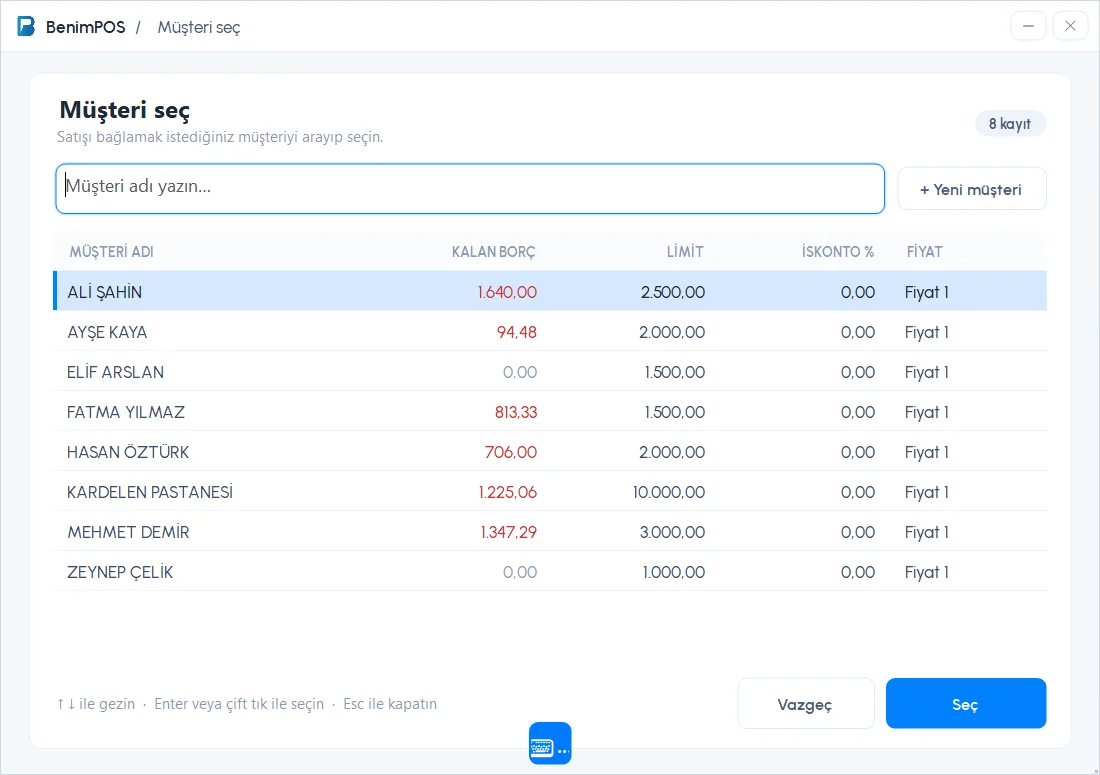 1234
1234You can't rename the prices in the desktop app; rename them in the web panel and the change reaches the desktop app through sync.
Price 3
On the product card, go to the 1 Other Details tab; enter the 2 PRICE 3 (INCL. VAT) amount and currency, and 3 MARKUP 3 is calculated automatically. 4 If you leave it empty or 0, the product is sold at Price 1 in a Price 3 sale. When you save the product with 5 Save, Price 3 is saved too. Price 2, Markup 2, quick product order, stock code and product details are also on this tab.
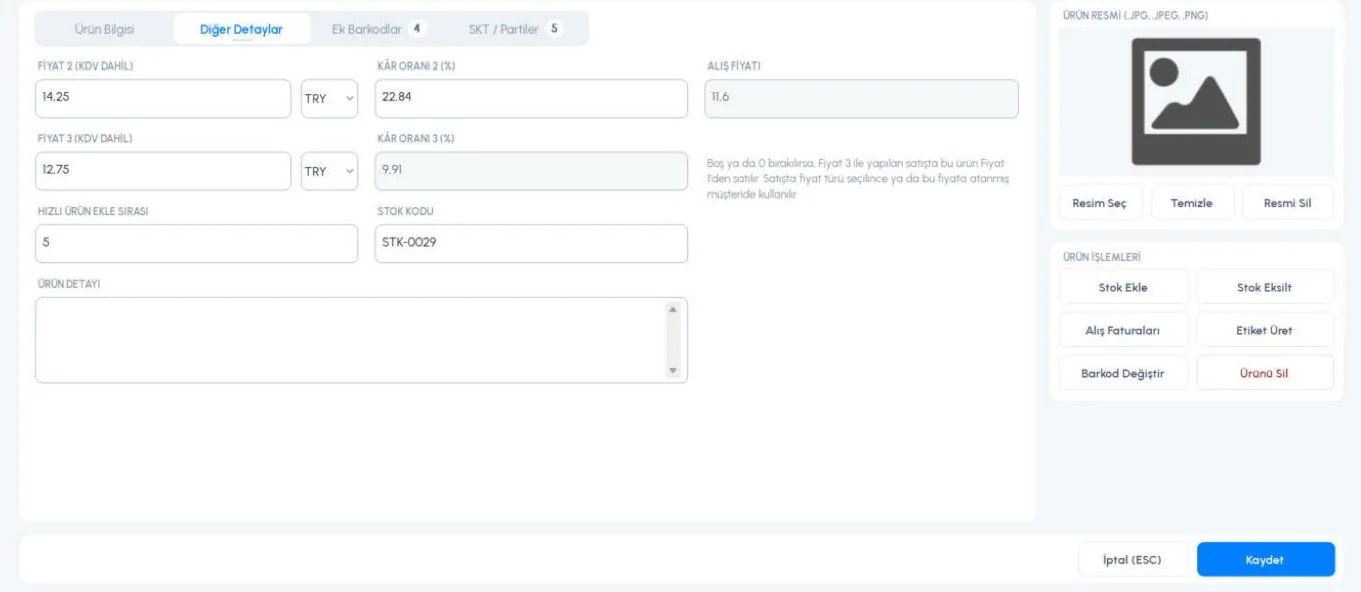 12345
12345During a sale, 2 Price 3 appears in the 1 price level list (if your business uses Price 3 and the staff member has the Can use Price 3 permission).
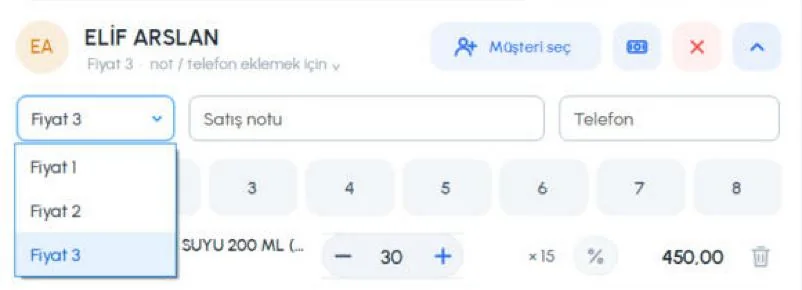 12
12On the customer card you can set Edit Information › PRICE LEVEL to Price 3. In the Select customer window, the 2 PRICE column shows Price 3 for 1 this customer.
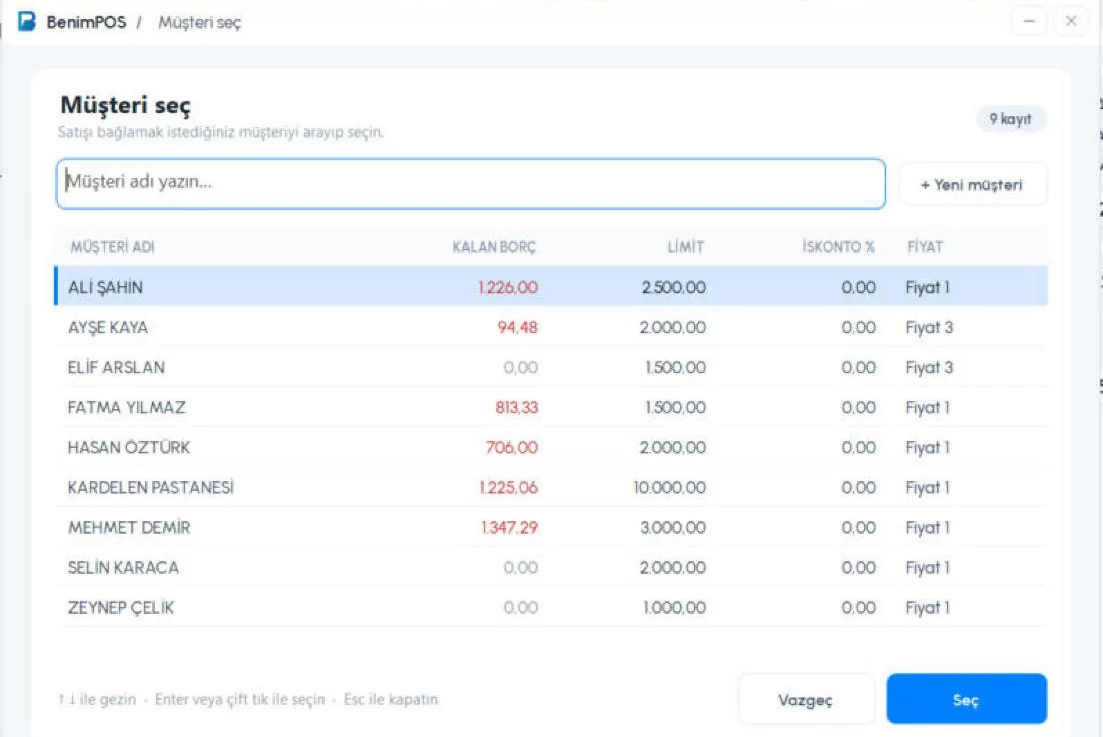 12
12Choosing the price level during a sale
Tap the price level chip (e.g. Price 1) among the tool chips on the sales screen and pick the price from the list. The choice applies to products you add afterwards; lines already on the receipt don't change.
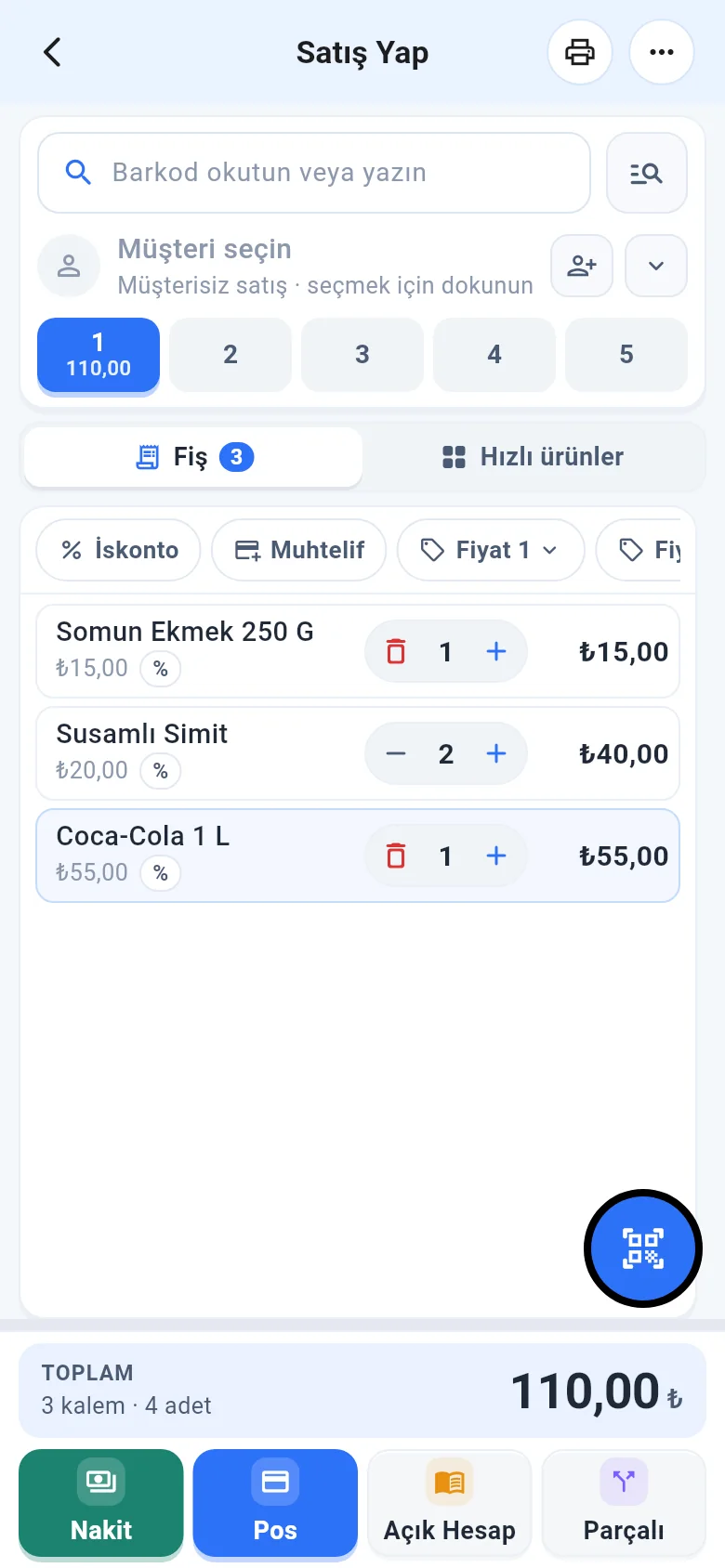 1234
1234- Rename the prices in Menu › Profile › LIST AND PRICE NAMES and tap Save.
- Customer-specific price: customer card › Actions › Personal information › Price.
- The chip only appears if the user has permission to use more than one price level.
Price 3
On the product card, tap the 1 Details tab; fill in 2 Price 3 (incl. VAT) and the 3 currency field. 4 Markup 3 appears below. When you tap 5 Save, Price 3 is written to the branches the product is saved in.
On the sales screen, tap the price level chip (e.g. Price 1) and choose 2 Price 3 from 1 the list that opens. Products you add from then on use Price 3 (it appears in the list if you have permission).
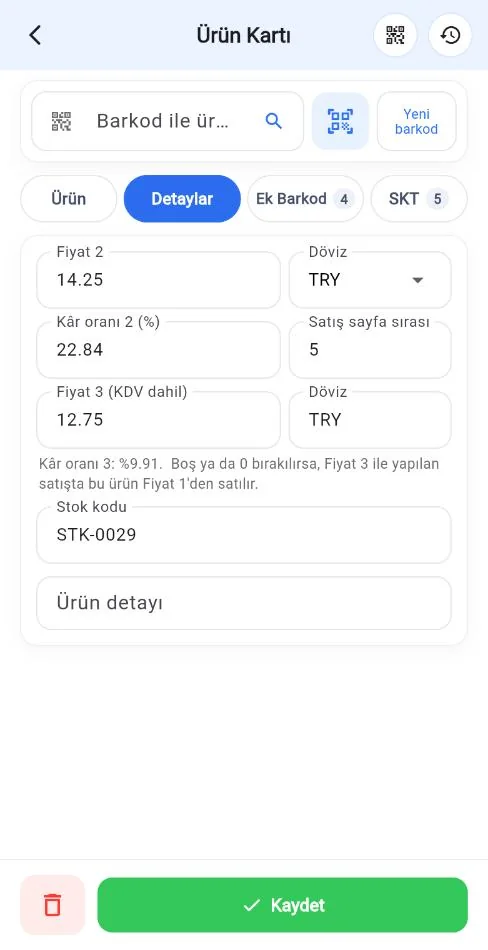 12345
12345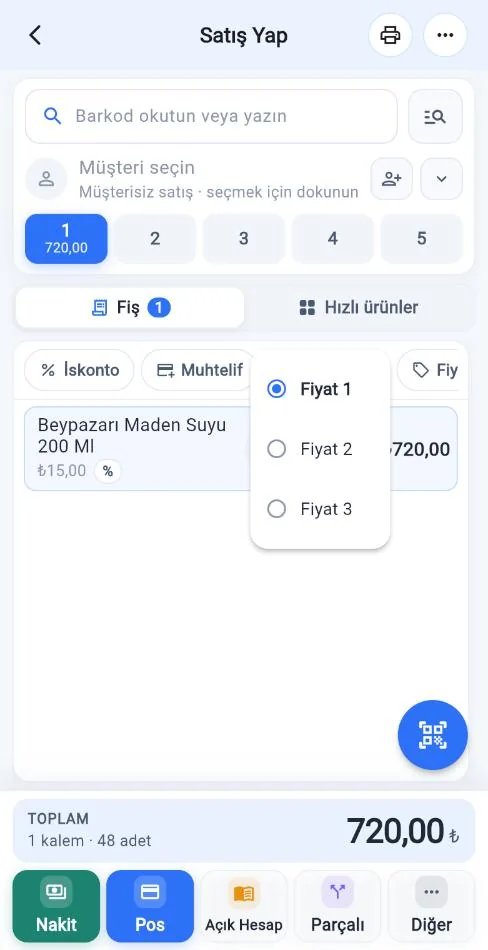 12
12Assigning Price 3 to a customer
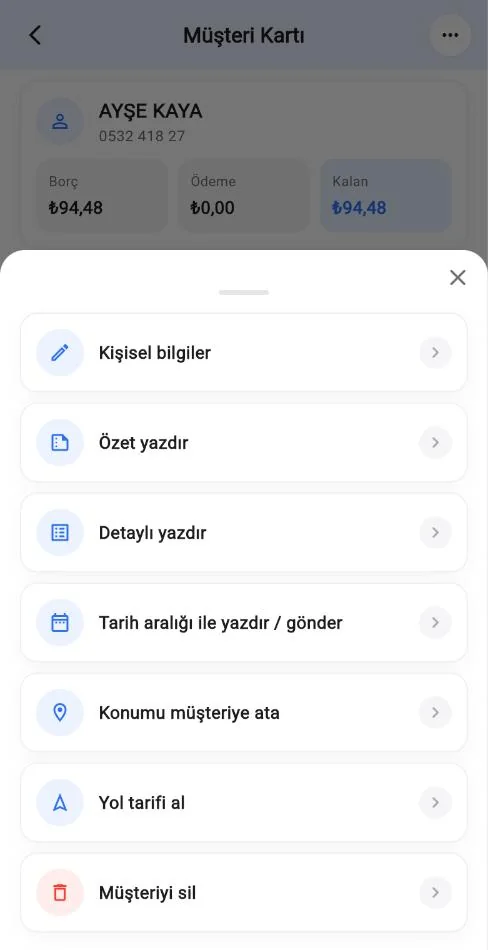
On the customer card, tap the Actions (⋯) button at the top right and open 1 Personal information. Set the 1 Price field to Price 3 and tap 2 Save changes. When you select this customer during a sale, the price level switches to Price 3 automatically.
 1
1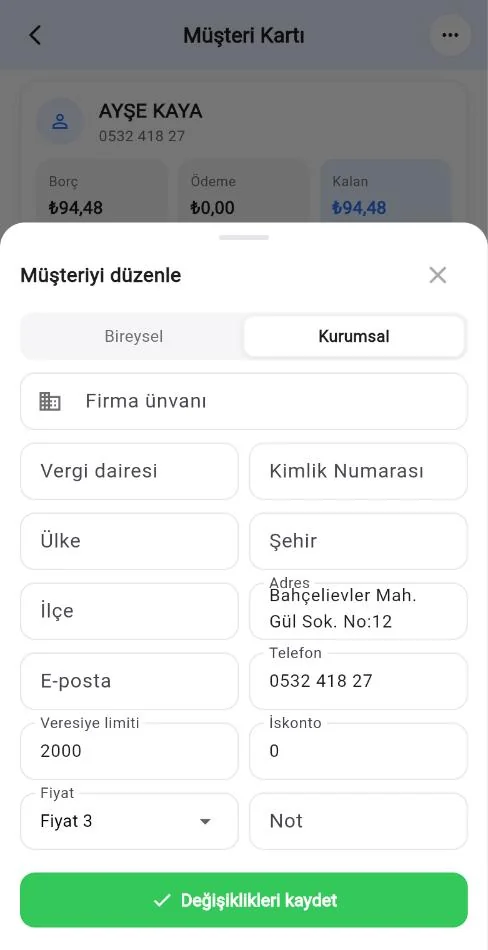 12
12You need the latest version of the app.