




How to take a return
Taking a product return with return mode on the sales screen or from a specific receipt; cash, card and on-account refunds.
In BenimPOS you can take a return in two ways: return mode on the sales screen for quick returns without a receipt, and the Accept Product Return page for a return from a specific sale. Either way, returned products are added back to stock and the amount is deducted from sales in reports.
1. Return mode on the sales screen
Turn on return mode
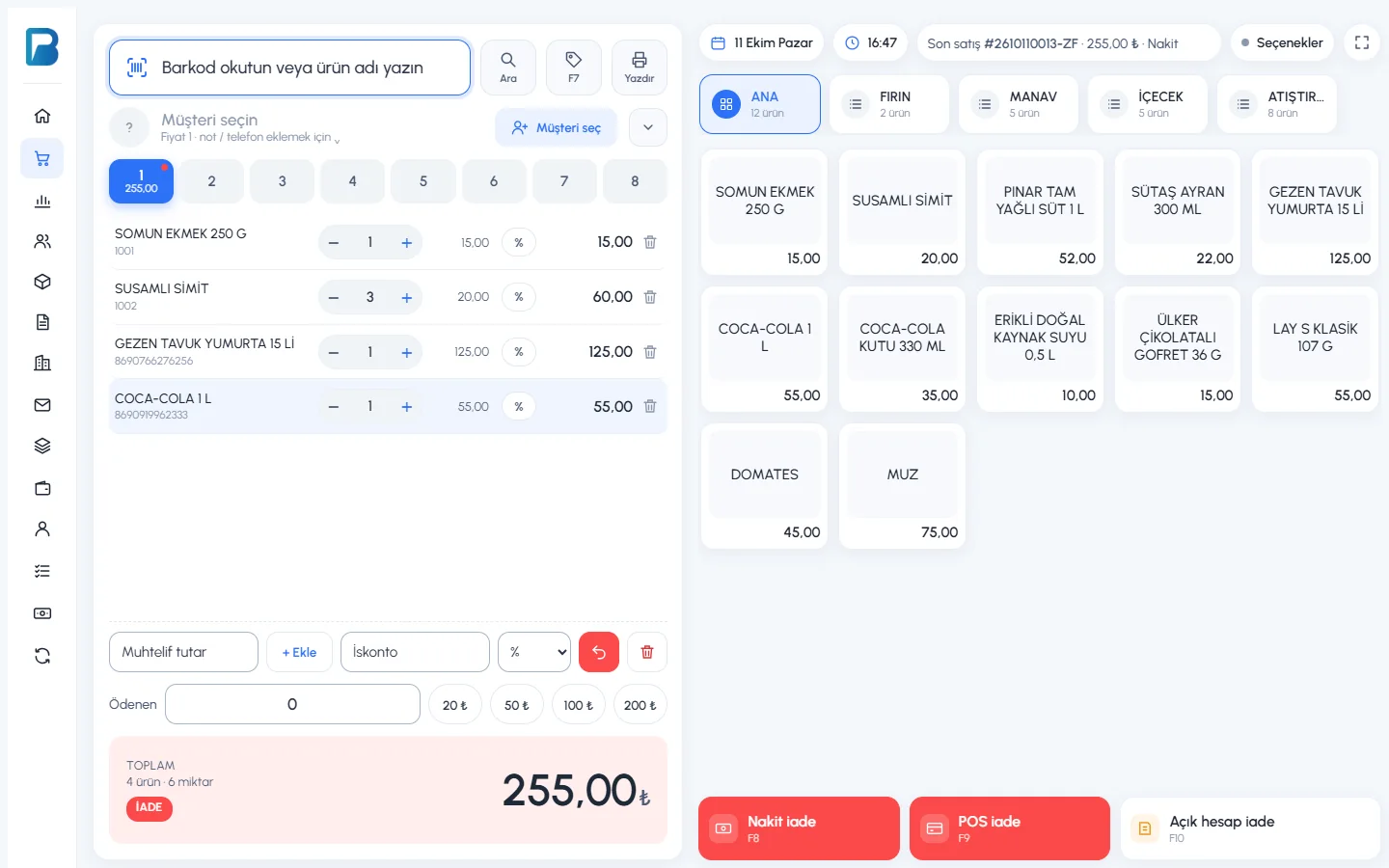
On the sales screen, press the 1 Return mode button next to the discount box. A red 2 RETURN label appears in the total box.
 123
123Scan the products being returned
Scan the barcode or tap the quick product, as in a normal sale.
Choose how to refund
Press 3 Cash refund (F8), Card refund (F9) or On-account refund (F10). With an on-account refund, the amount is deducted from the customer's debt; select the customer first.
Return mode applies only to that receipt. After the return is saved, the new receipt starts as a normal sale. If you turned it on by mistake, press the same button again to turn it off.
2. Return from a specific sale (Accept Product Return)
Use this way if the customer brought their receipt, or if you want the records to show which sale the return came from.
Find the sales that include the product
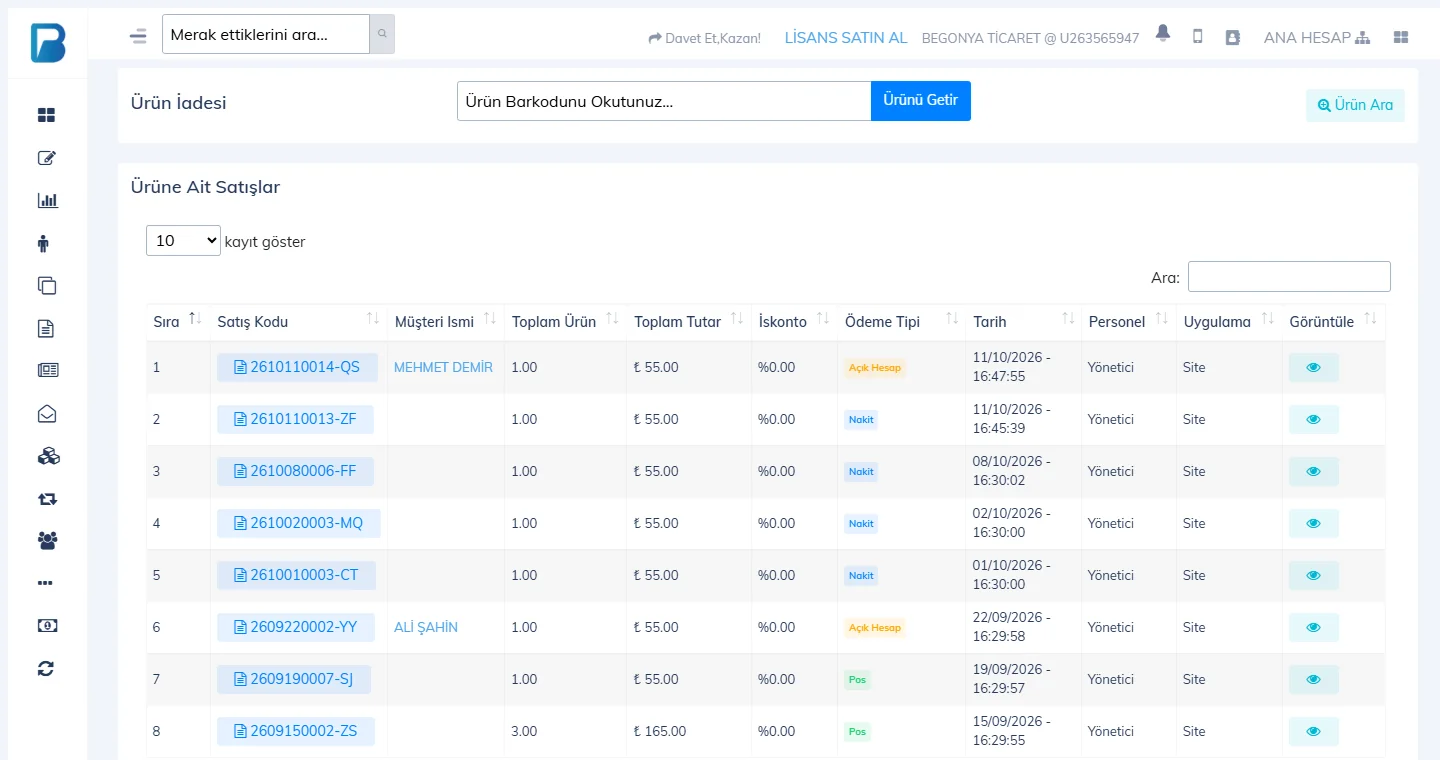
In the left menu, open the Products › Accept Product Return page. Scan the barcode of the product being returned in the 1 box and press Get Product. All sales receipts that include this product are listed by date.
 12
12Open the receipt
Click the 2 sale code on the customer's receipt. The sale details open.
Accept the product return
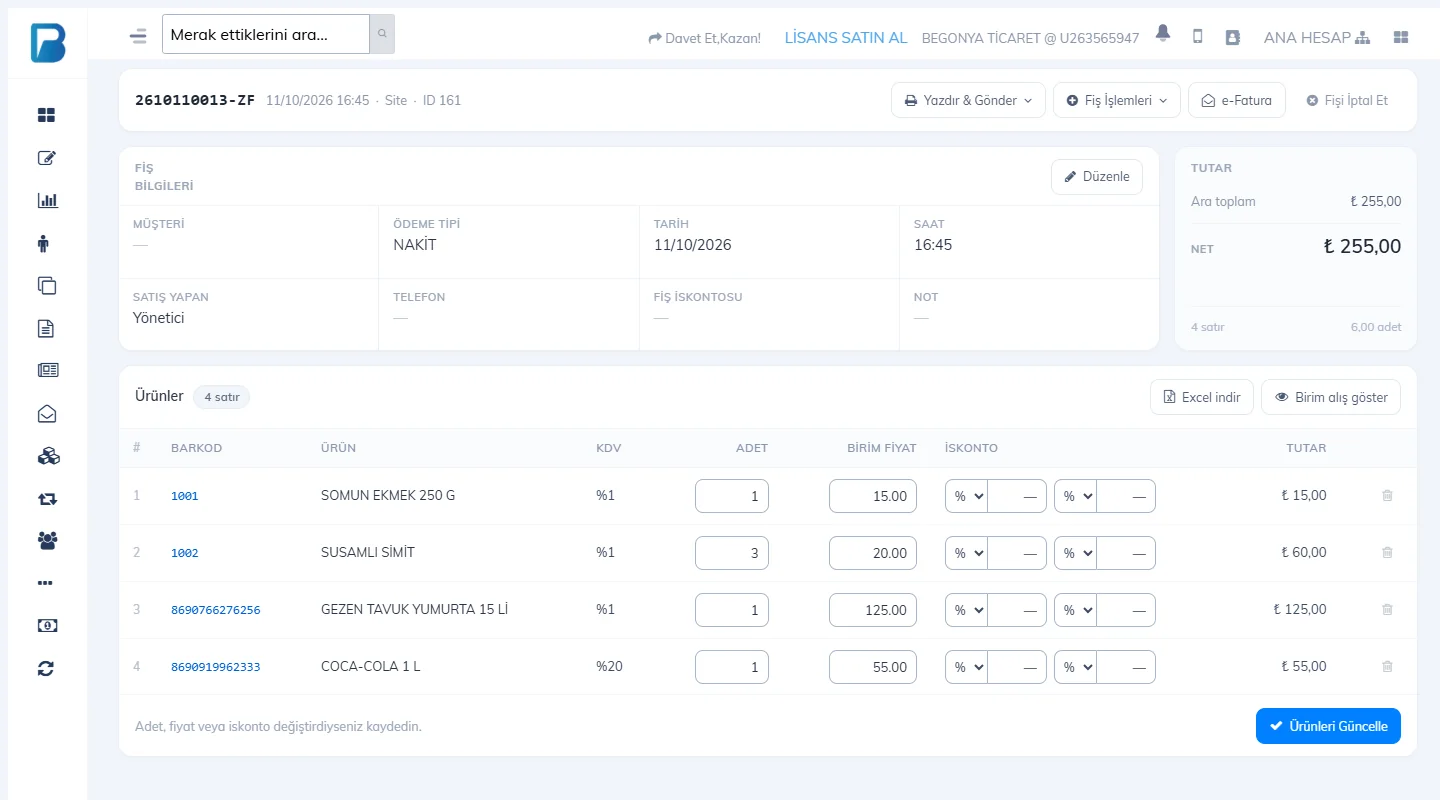
Press the 1 Accept return button at the end of the line being returned and confirm. To take back the whole receipt, use 2 Cancel Receipt.
 123
123
You can also reach the sale details page from the Print › Go to sale details menu on the sales screen, or by clicking the sale code in reports.
In the desktop app you take returns in two ways: Return mode on the sales screen for a quick return without looking up a receipt, and the Accept Product Return page for a return from a specific sale. Returned products are added back to stock, and the amount is deducted from sales in reports.
1. Return mode on the sales screen
Turn on return mode
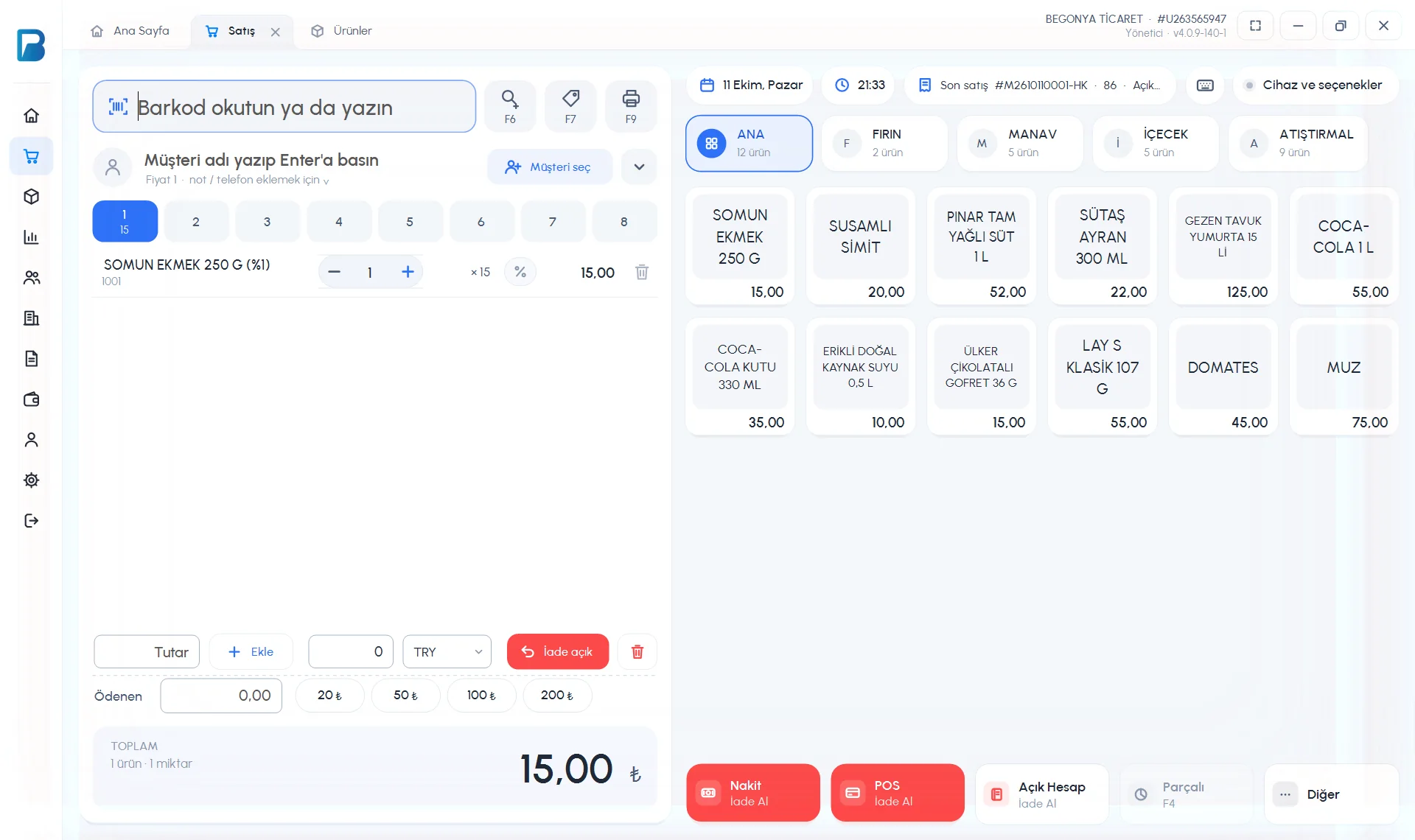
On the sales screen, press the 1 Return mode button under the receipt; the button turns red and shows Return on.
Scan the products
Scan the products being returned as in a normal sale, or pick them from quick products. Stock is not checked in return mode.
Complete the return
The payment buttons change to 2 Cash Refund, Card Refund and On-account Refund. Choose the one matching how you gave the money back. For a refund to the customer's account, select the customer first. When you finish, return mode turns off by itself.
 12
12
Split payment cannot be used in return mode; returns are taken only with Cash, Card and On account. Return mode requires the Can accept returns directly permission for staff.
2. Accept Product Return (return from a sale)
Open the page
In the left menu, open Products › Accept Product Return.
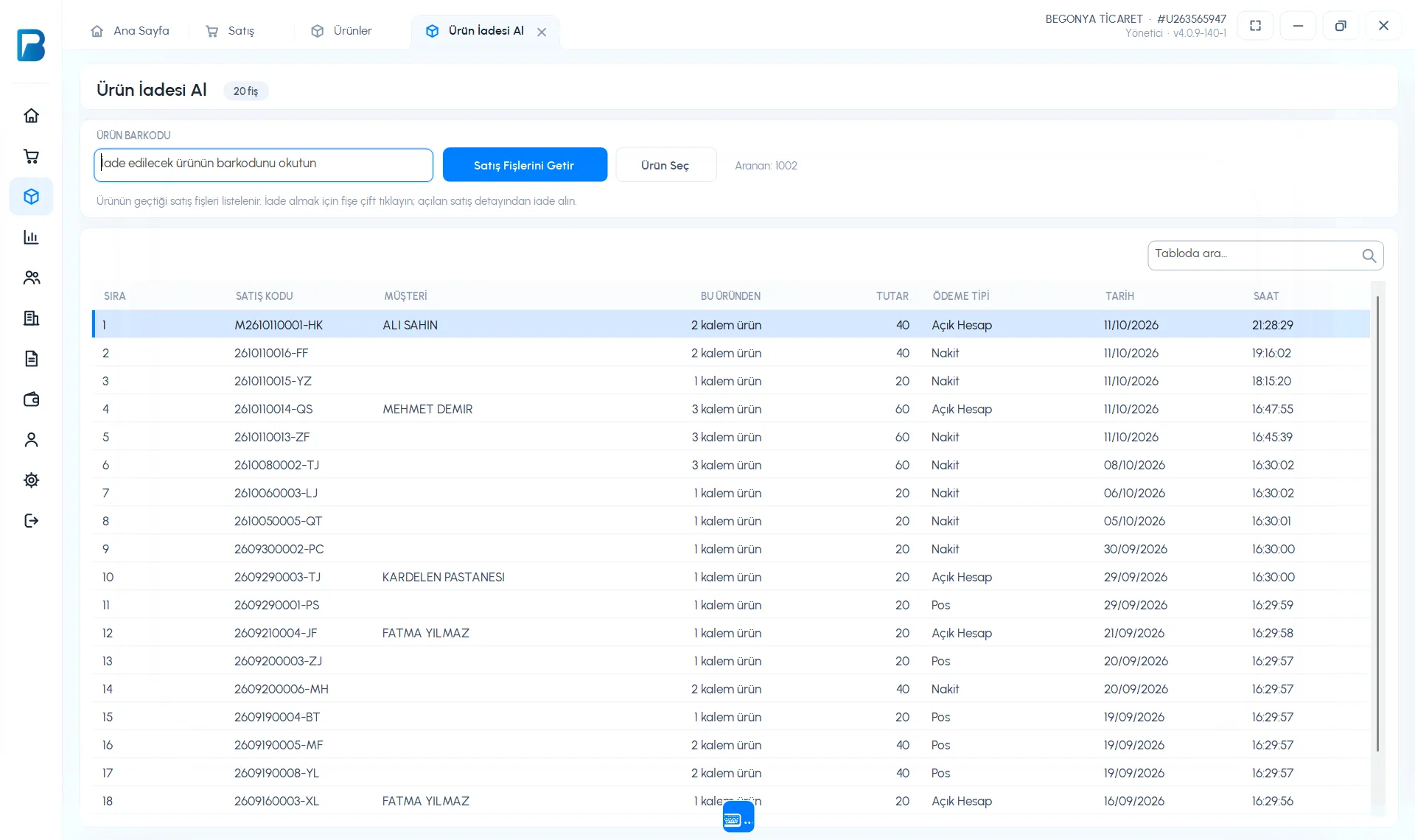
Find the receipts that include the product
1 Scan the barcode of the returned product and press 2 Get Sales Receipts (if you do not know the barcode, use 3 Select Product). The receipts that include the product are listed, newest first.
 1234
1234Open the receipt and return the product
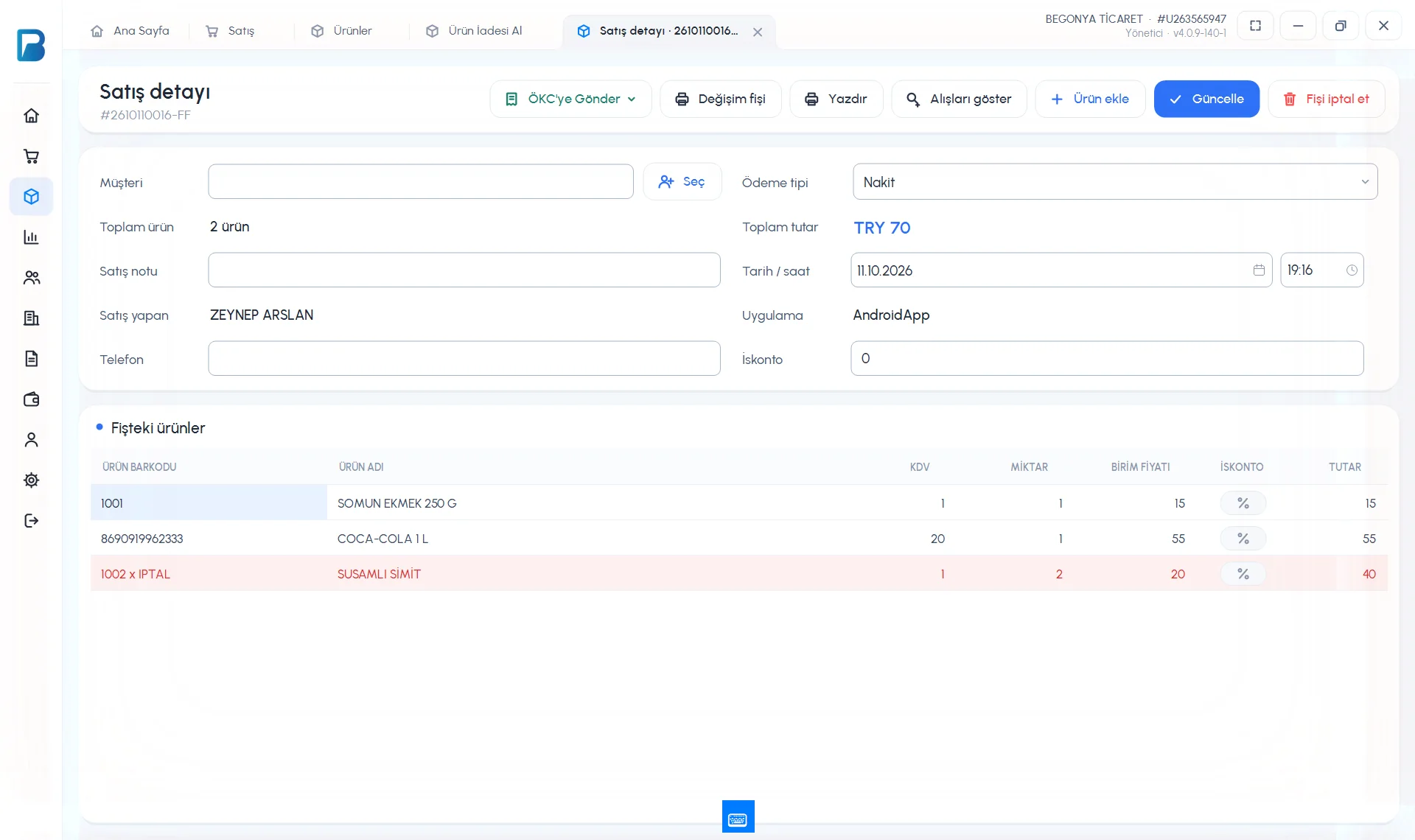
4 Double-click the receipt; the sale details open. Double-click the product line being returned and answer Yes to “Do you want to cancel this product from the receipt?”. The product line is marked in red as CANCELLED, the total is updated and the product goes back into stock.
 1
1
If only part of the product quantity on the receipt is being returned, you can correct the product's Quantity cell in the sale details and press Update.
Returns on mobile
Turn on return mode
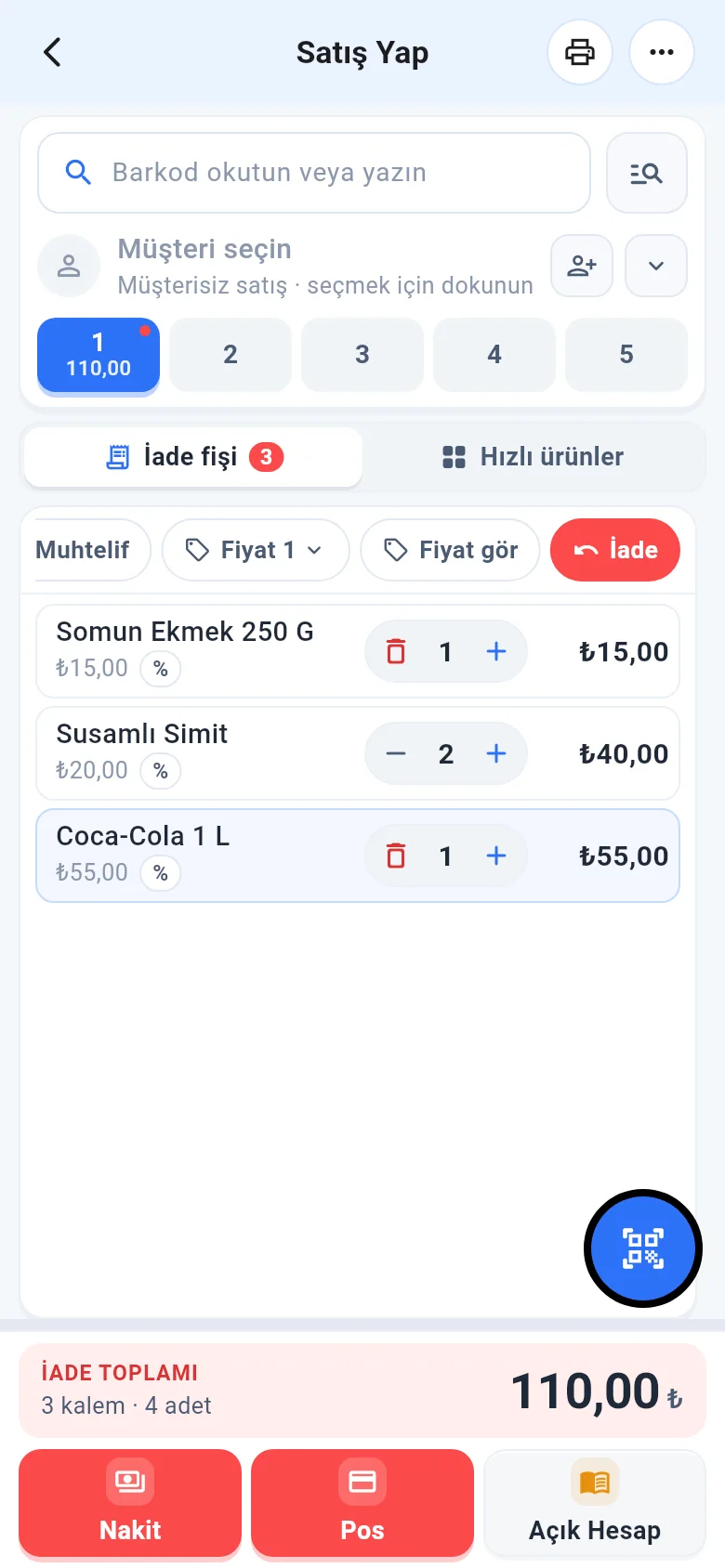
Tap 1 Return in the tool chips on the sales screen. The receipt tab becomes "Return receipt", and the total shows in red as 2 RETURN TOTAL.
 12
12Scan the products
Add the products being returned.
Complete the return
Save the return with the red Cash or Card button; for an on-account refund, select the customer first. Split payment cannot be used in return mode.
- Return from a specific sale: open the sale in the Sales Report and use Actions › Create return on receipt.
- When staff without the direct return permission scan a product, a Return request is created; the manager approves it from Return requests on the Products page.