




Order module: taking orders and converting them into sales
Turn on the order module, save orders from the sales screen and convert an order into a sale.
With the order module, instead of completing a sale straight away, you can save it as an order and convert it into a sale when the products are ready or delivered. Stock is deducted when the order becomes a sale.
Turning on the module
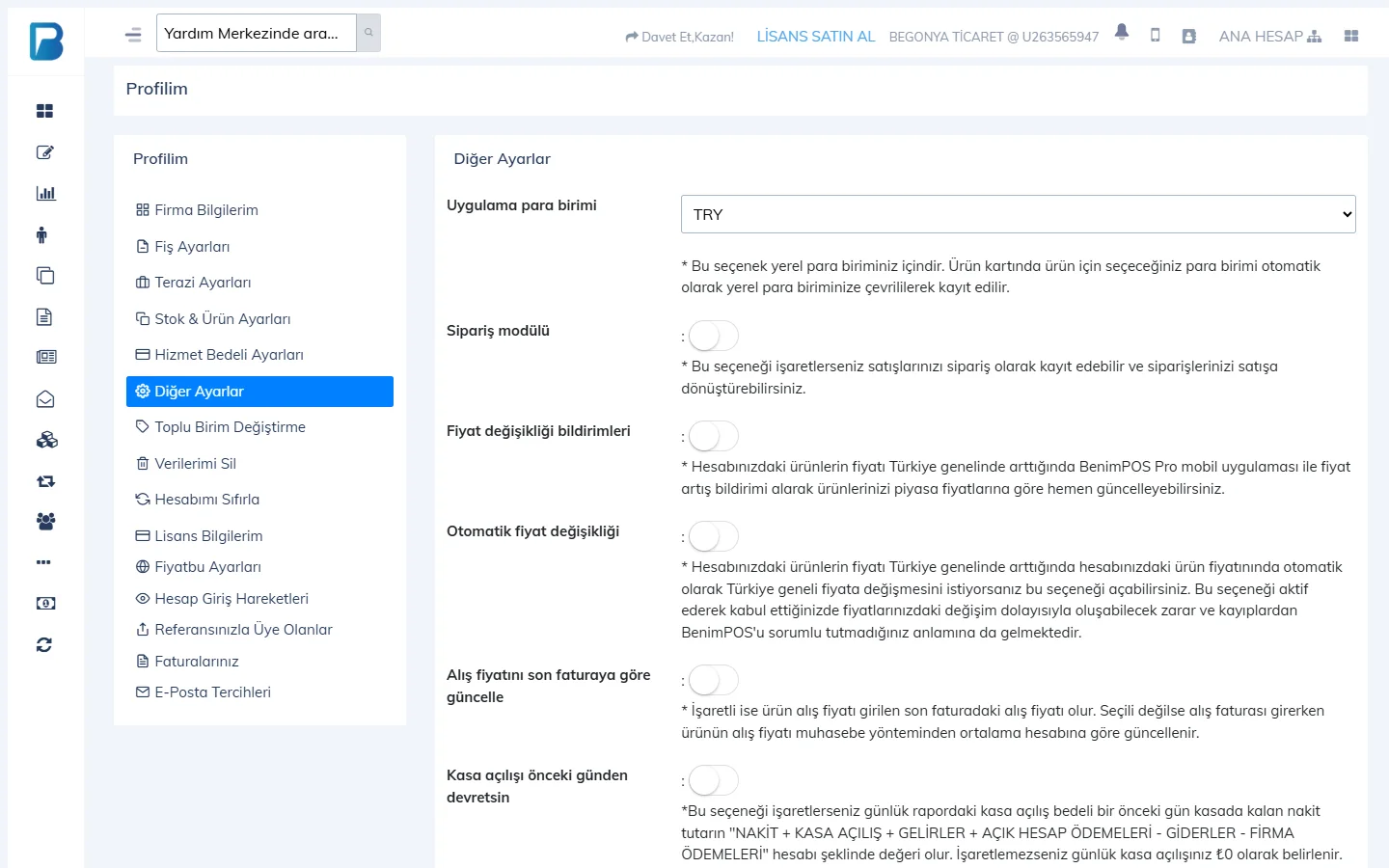
On the My Profile › Other Settings tab, turn on Order module and press Update & Save. Once the module is on, the Orders page appears in the left menu.
 1
1Creating an order
Add the products
On the sales screen, choose the products and the customer.
Save it as an order
Press Other among the payment buttons and choose Save as order.
Converting an order into a sale
On the Orders page, choose the date range and the customer and press List. Open the order; you can add or remove products, print it or convert it into a sale. When you convert it, the sales screen opens with the order's products and you complete it by choosing the payment type.
Staff can create orders; viewing, editing and converting orders into sales are separate permissions (Staff › Orders tab).
This can't be done in the desktop app. Create orders and convert them into sales in the web panel or the mobile app.
Creating an order
Turn on the module with Menu › Profile › SETTINGS › Order module and tap Save. On the sales screen, add the products, tap Other and choose Save as order.
Converting into a sale
In Menu › Orders, choose the date and tap List, open the order and choose Actions › Convert to sale. The sales screen opens with an "Order is being converted to a sale" banner; complete the sale with a payment button.
If you convert an order that has already been converted into a sale again, the products are deducted from stock a second time; the app warns you.