




Expiry date tracking
Enter expiry-dated batches from the product card, a purchase invoice or a stock count; see upcoming and past dates in the Expiry Date Tracking report, close finished batches and get an email every morning for products nearing expiry.
For products with an expiry date, you can record each delivery as a batch with its date and see batches whose date is near or has passed. The method is simple: the system does not deduct batch quantities on sale; the quantity is for information only. When a batch on the shelf runs out, you close it with Done. When the product's stock drops to 0 or below, its open batches close automatically. Batches are branch-specific and saved instantly; you don't need to save the product separately.
Adding a batch
Open the Expiry tab
On the product card, go to the 1 Expiry / Batches tab. The number on the tab is the number of open batches.
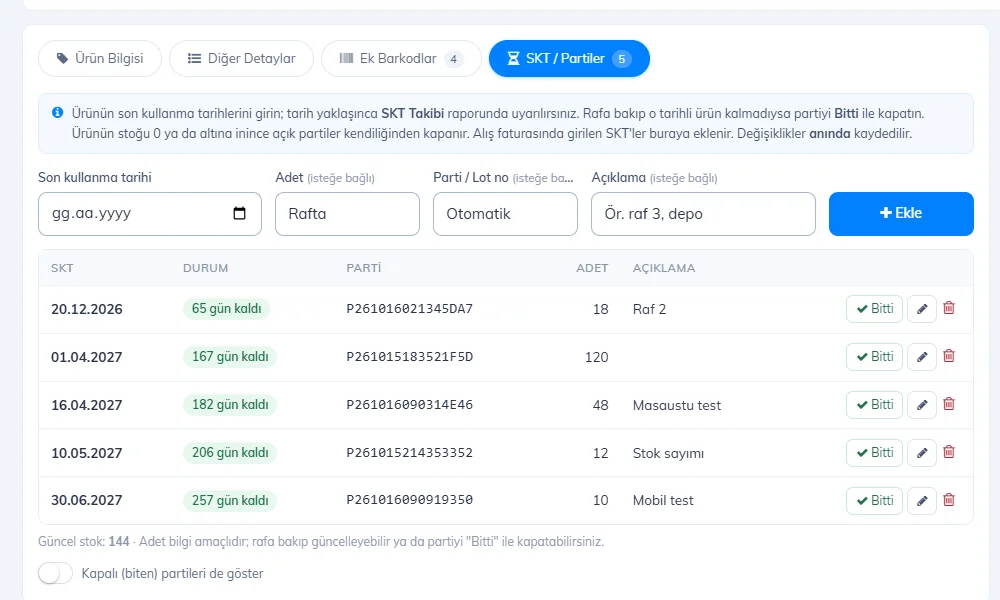 12345678910
Enter the date and quantity
Select the 2 Expiry date, enter 3 how many are on the shelf (optional), the 4 Batch / Lot no. (assigned automatically if left blank) and 5 a note (e.g. "shelf 3, storeroom"), then press 6 Add. The batch is saved right away.
Keep track of batches
7 The list shows in color how many days each batch has left (30 days or less in orange, expired in red). When a batch on the shelf runs out, press 8 Done; use the 9 pencil icon to edit the date, quantity and note, and the bin icon to delete the batch. With 10 Also show closed (finished) batches you can see the ones you closed and Reopen them.
If one of the product's open batches expires within 30 days or has already expired, a 1 warning badge appears at the top of the product card; pressing the badge opens the 2 Expiry / Batches tab.
 12
12Entering expiry dates on a purchase invoice
If you record deliveries with purchase invoices, the easiest way is to enter the dates while creating the invoice; when the invoice is saved, the batches are written to the product card automatically.
Add the product to the invoice
On the Purchase Invoices › Create Purchase Invoice screen, scan the product and enter the 2 quantity. Then press the 1 ⌛ (hourglass) button inside the barcode box.
 12
12Enter the dates
In the Expiry / Batch info window that opens, enter 1 the expiry date and quantity. If the product arrived in boxes with different dates, use 2 Add batch to open a separate row for each date (e.g. 60 units = 20 units 15.03 + 40 units 30.06). 3 At the bottom, the batch total is compared with the quantity on the invoice. Press 4 OK; if you made a mistake, use 5 Remove expiry to clear the dates for that row.
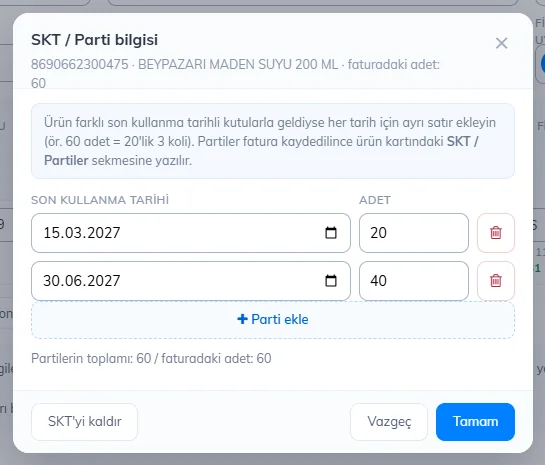 12345
12345Save the invoice
The hourglass turns orange and shows the number of batches entered. When you press Save purchase invoice, the batches are written to the product card's Expiry / Batches tab with the note "Purchase invoice <invoice no>".
- If you edit the invoice later, the dates you entered appear in the window again; when you change them and save, the batches are updated, and the batch of any row you delete is removed.
- Expiry dates are not processed on return invoices.
- When a new invoice is entered for a product with 0 or negative stock, its old open batches are closed, so the new goods don't get mixed up with the old date.
Checking expiry dates during a stock count
While counting, you can also check the shelf and update the dates. On the count screen, when you 1 scan a product, a 2 ⌛ button and the number of open batches appear next to the product name (the same button is also next to the barcode of every product in the count list).
 12
12Pressing the button lists the product's open batches: 1 update the quantity on the shelf, press 2 Done if none with that date are left, add any items with a different date with 3 Add new batch, and press 4 Save. Batches are saved right away; your count is not affected.
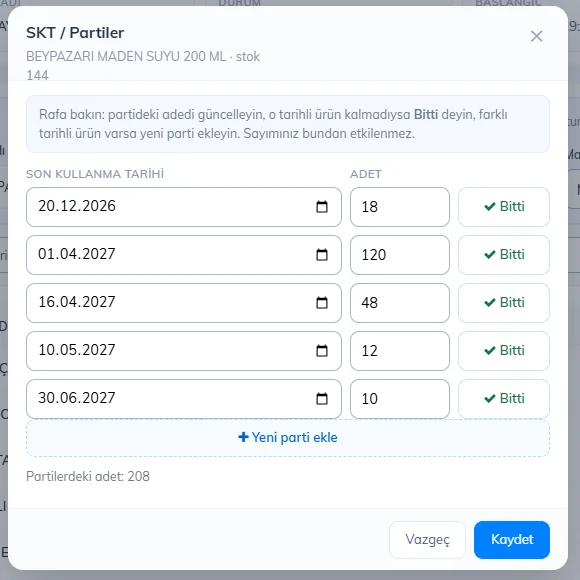 1234
1234Expiry Date Tracking report
The Reports › Expiry Date Tracking page shows the open batches of all products in one list. 1 At the top you see the number of expired batches, batches expiring within 7 and 30 days, and the total number of open batches. 2 Use the filters to select expired batches or those expiring within 7 / 15 / 30 / 60 / 90 days; 3 you can also show closed batches.
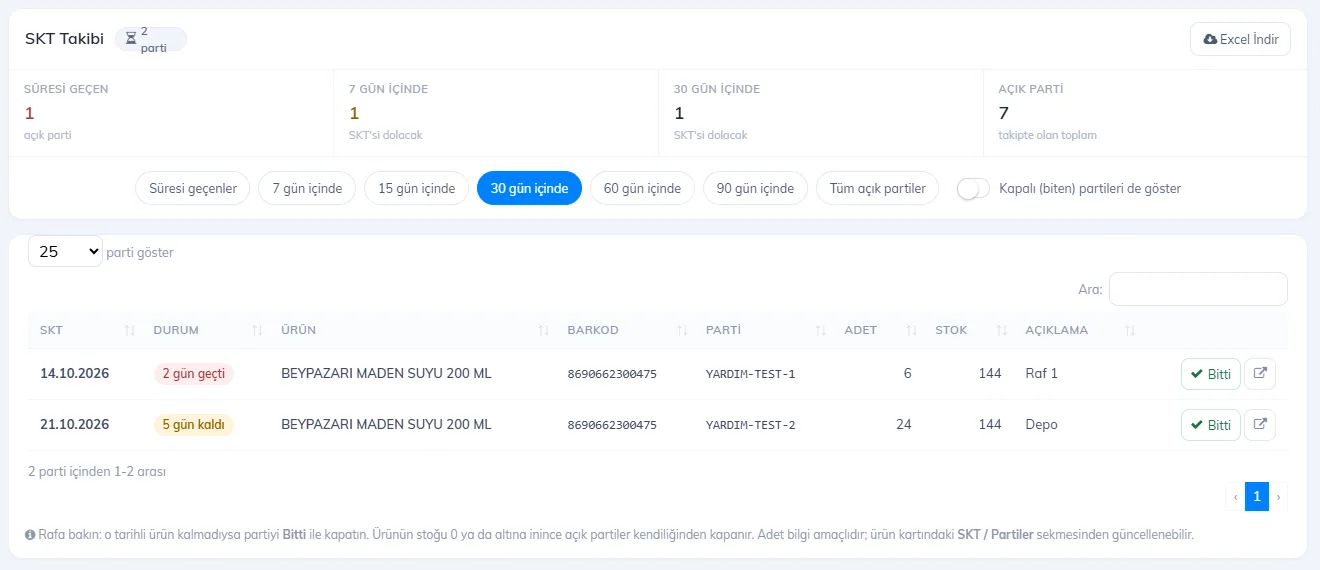 1234567
- 4 The Status column shows the days left or days past in color.
- 5 If there is nothing left on the shelf, you can close the batch here too with Done; the 6 icon opens the product card.
- 7 Download Excel downloads the list as an Excel file.
Adding a batch
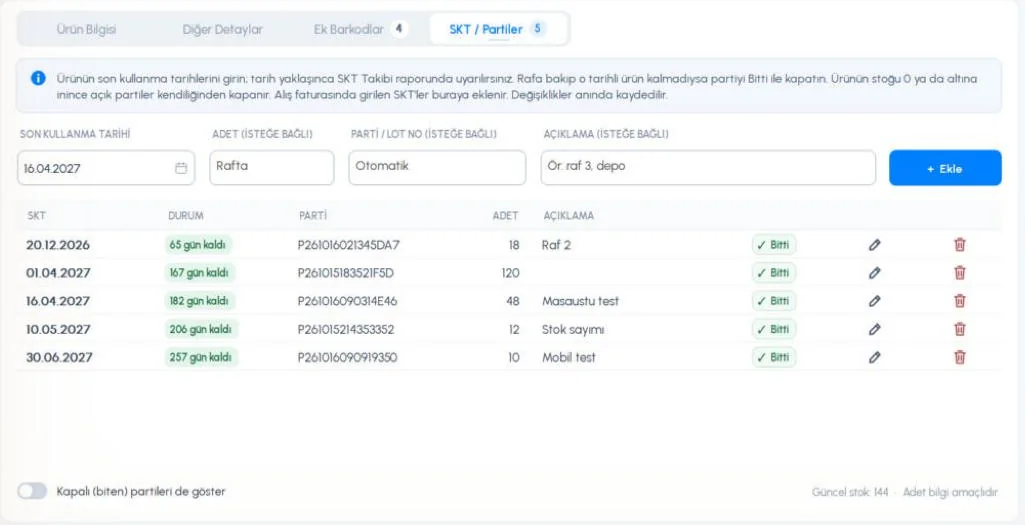
On the product card, go to the 1 Expiry / Batches tab. Select the 2 EXPIRY DATE, enter the 3 QTY (optional), 4 BATCH / LOT NO. (automatic if blank) and 5 DESCRIPTION, then press 6 + Add. The batch is saved right away.
 1234567891011
- 7 The list shows each batch's days left as a colored badge.
- 8 ✓ Done closes the batch; on a closed batch, Reopen appears in the same place.
- 9 The pencil loads the batch into the form; change the date, quantity or description and press Save (Cancel or Esc to cancel). 10 The bin deletes the batch.
- Use 11 Also show closed (finished) batches to see old batches; the product's current stock is shown on the right.
Entering expiry dates on purchase invoices and stock counts, and the Expiry Date Tracking report, are in the web panel; batches entered there also appear in the desktop app after syncing.
Adding a batch
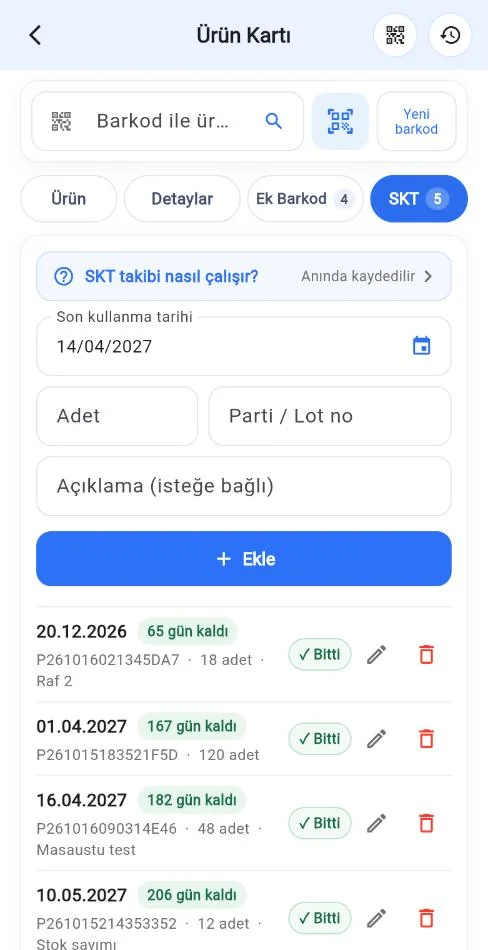
On the product card, tap the 1 Expiry tab. Select the 3 Expiry date, enter 4 the quantity (optional), the 5 Batch / Lot no. (automatic if blank) and 6 a note, then tap 7 Add.
- 8 Each batch shows the date, days left, lot no., quantity and note.
- 9 ✓ Done closes the batch, 10 the pencil edits it, 11 the bin deletes it.
- With Also show closed (finished) batches at the bottom you can see the batches you closed and Reopen them.
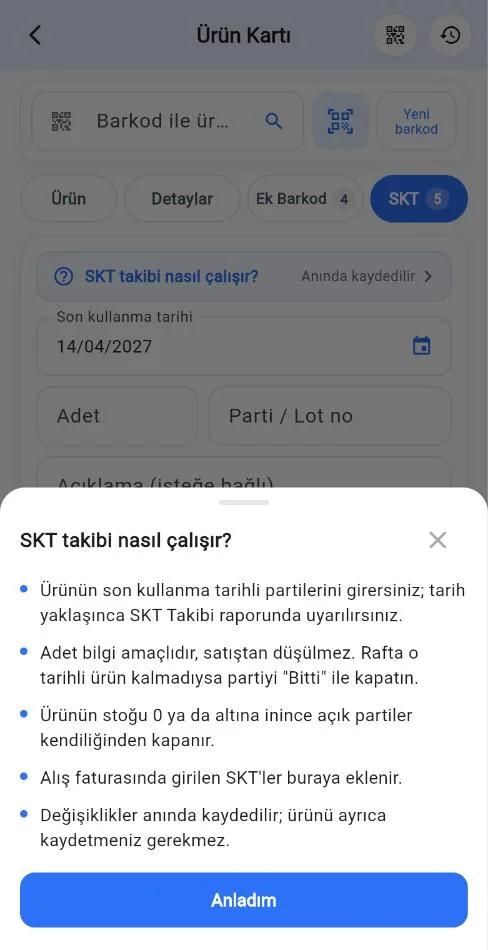
- If you tap the 2 How does expiry tracking work? row, 1 a short explanation slides up from the bottom; close it with 2 Got it.
 1234567891011
 12
12Entering expiry dates during a stock count
While counting, you can check the shelf and enter the dates too. On the count screen, when you scan a product, tap Enter expiry date in the Add to count window that opens. The Expiry button next to each product in the counted products list opens the same screen.
- The screen that opens is the same as the Expiry tab on the product card: add a new date, correct the quantity, or tap Done if the batch on the shelf has run out.
- Changes are saved right away and do not affect your count. Go back and continue counting.
- Staff who can add products to a count can enter expiry dates. Deleting a batch requires permission to edit products.
Entering expiry dates on a purchase invoice
While creating a purchase invoice, tap the product on the invoice; in the Edit product window that opens, tap Enter expiry date and add the date. The date is written to the product's expiry list right away.
Expiry Date Tracking report
In the main menu, tap Expiry Date Tracking under Reports. At the top you see the number of expired batches and batches expiring within 7 days and within 30 days; tap the boxes to filter the list.
- Choose the range with the Expired / 7 days / 30 days / 90 days / All buttons; search by product name, barcode or batch no.
- If none with that date are left on the shelf, tap Done on the row. When Also show finished batches is on, you can Reopen a batch you closed.
- Tapping a row opens all expiry batches of the product; you can correct the date and quantity there.
- Staff who can see the stock movement report can see this report; Done requires permission to edit products or change stock manually.
These features are available in the latest version of the app.
Getting emails for products nearing expiry
You can get a list of expired and soon-to-expire products by email every morning. This setting is in the web panel; once you turn it on, it applies to all dates you enter on the web, desktop and mobile apps.
- In the web panel, open the My Profile › Email Preferences page.
- Turn on the Products Nearing Expiry switch and choose from the list next to it how many days in advance you want to be notified: 3, 7, 15 or 30 days before.
- Press Update & Save.
- The email lists products that have expired and those expiring within the period you chose, with their expiry date, quantity and days left.
- Products with no stock left and batches you closed with Done are not included. If the list is empty, no email is sent.
- The email goes to the email address registered on your account, at most once a day. If you have branches, each branch turns on this setting in its own account.
- If you no longer want to receive it, turn off the same switch and save.