




Product list, filters and bulk actions
Filter products by no price, out of stock, low stock or slow-moving; apply bulk actions to selected products and see the summary.
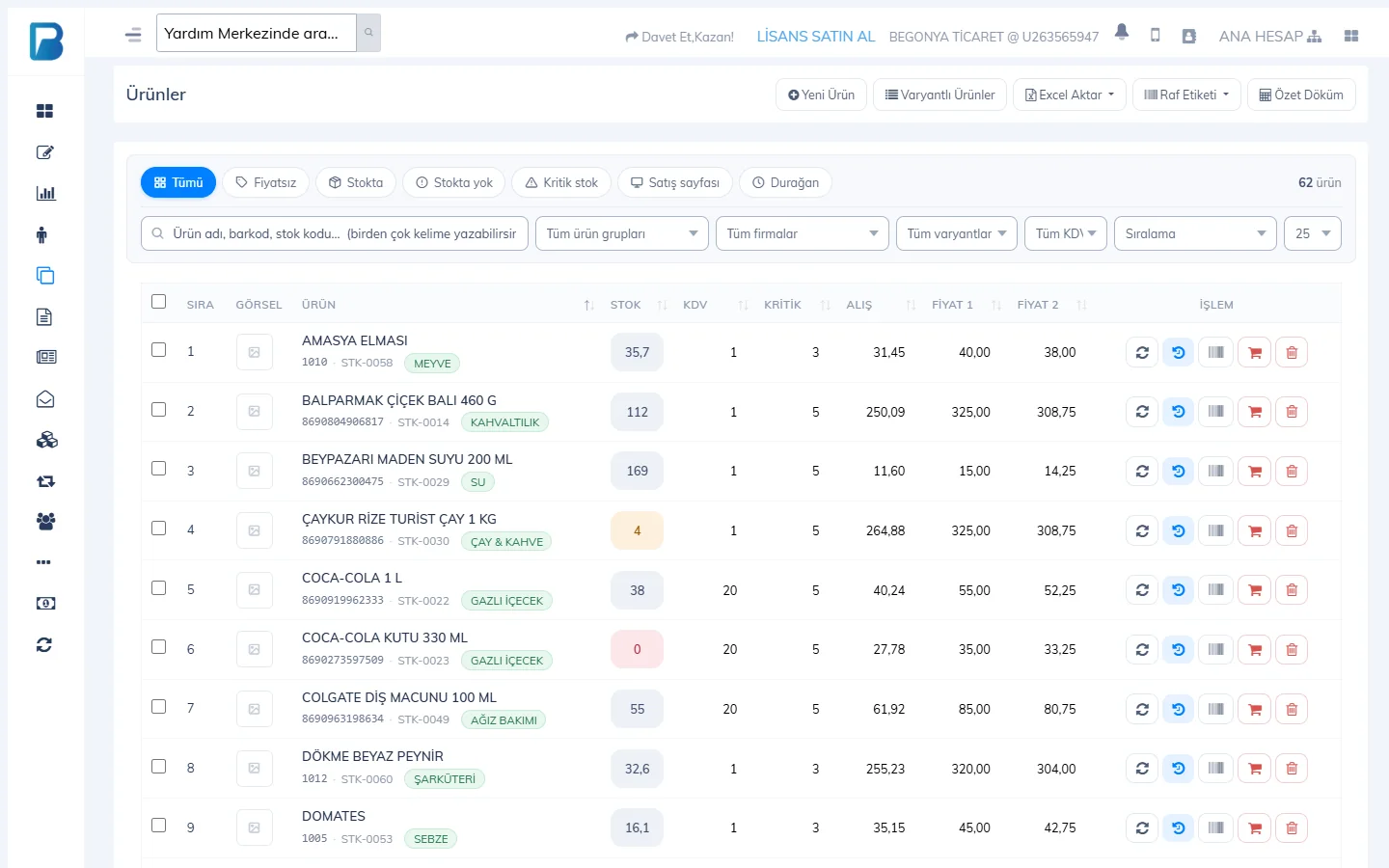
The Products page lists all your products with their stock, price and group details. With the filters you can find products with no price, out of stock or not sold for a long time, and apply bulk actions to the products you select.
 1234
1234Top buttons
- 1 New Product: opens the product card. Adding products
- 2 Excel Import / Export: bulk import / export. Bulk products with Excel
- 3 Shelf Labels: labels for the selected products. Printing labels
- 4 Summary: total number of products, total stock, stock cost and sales value.
Filters
- Chips: All, No price, In stock, Out of stock, Low stock, On sales screen (those in the quick list), Slow-moving (not sold in the last 15–365 days).
- Search box: product name, barcode or stock code; you can type the words in any order.
- Drop-down lists: product group, supplier, variant, VAT rate and sort order (recently added, recently updated, stock low to high, purchase price higher than sale price…).
Quick actions on a row
You can change fields such as price and stock directly in the list and save them with Save changes on the row. Other icons: Price history, Print label, Enable / disable online sales and Delete product.
Bulk actions
Tick the boxes to the left of the products. An "N products selected" bar appears at the top: Assign to group, Enable online / Disable online, Delete and Clear selection.
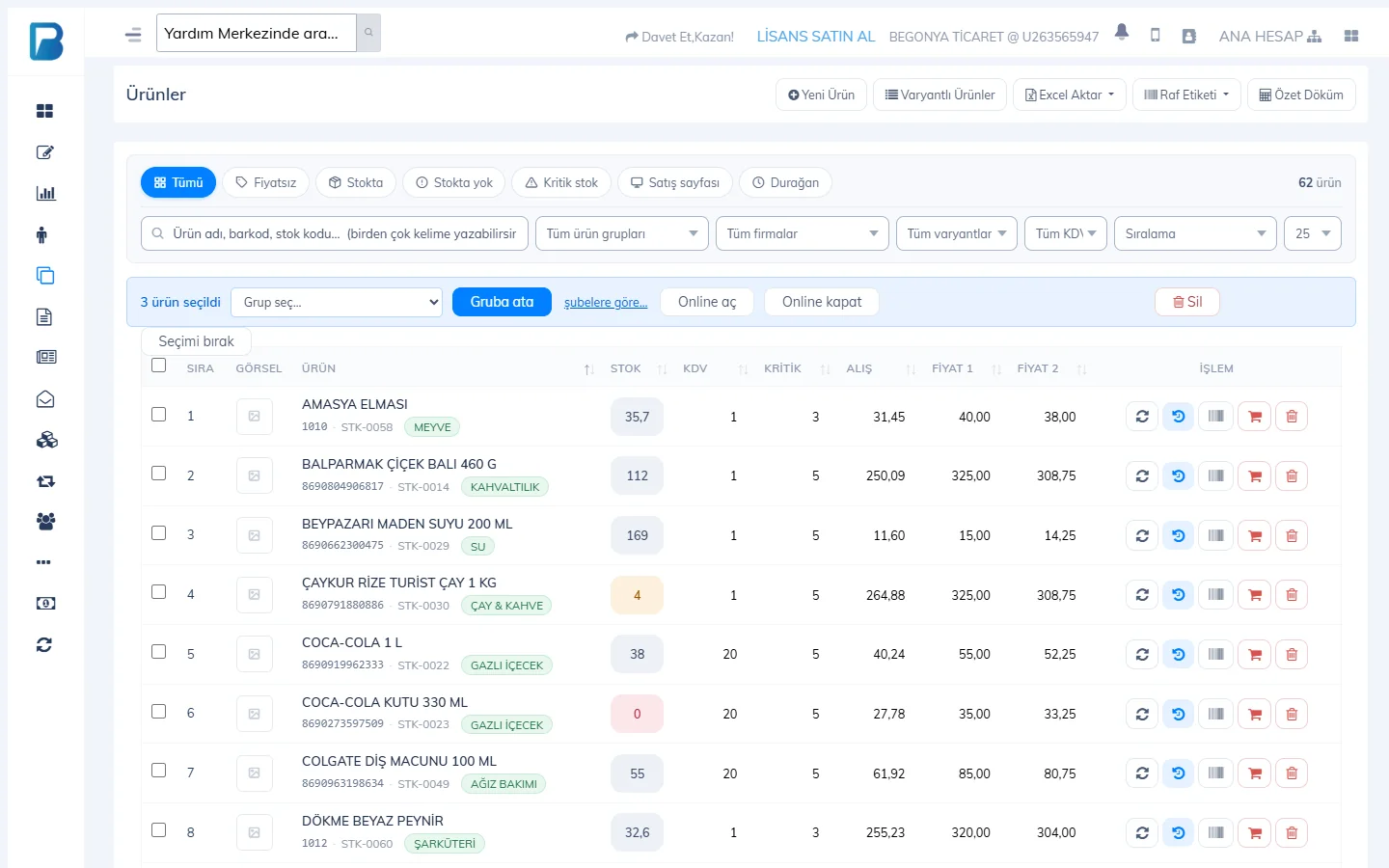
Past sales of deleted products stay in reports. If you only want to stop selling a product, set its stock to zero or remove it from the quick list instead of deleting it.
Your products
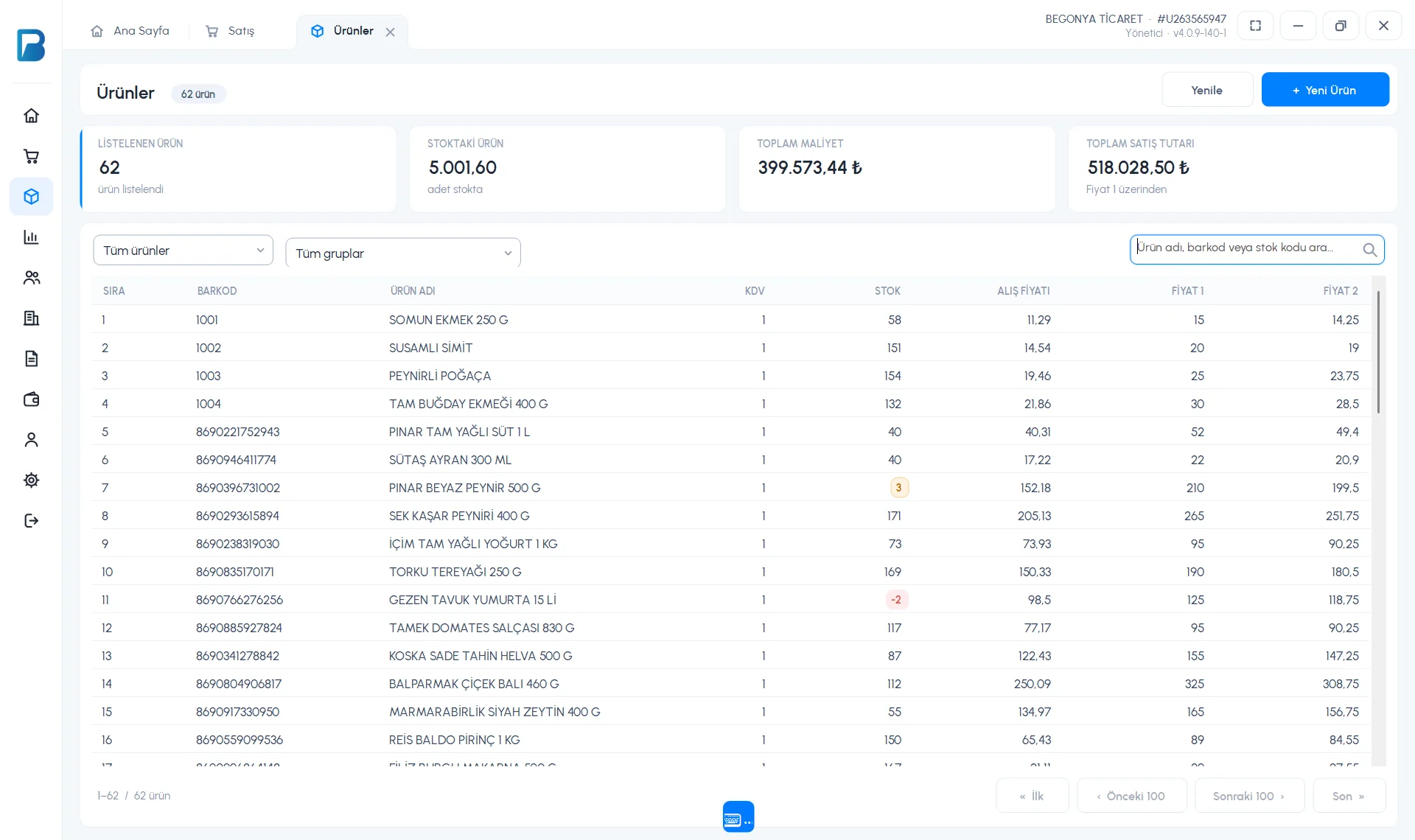
Open Products › Your products. At the top you see LISTED PRODUCTS, PRODUCTS IN STOCK, TOTAL COST and TOTAL SALES VALUE (based on Price 1); the cards update according to the filter.
 12345
12345- 2 Type the product name, barcode or stock code in the search box.
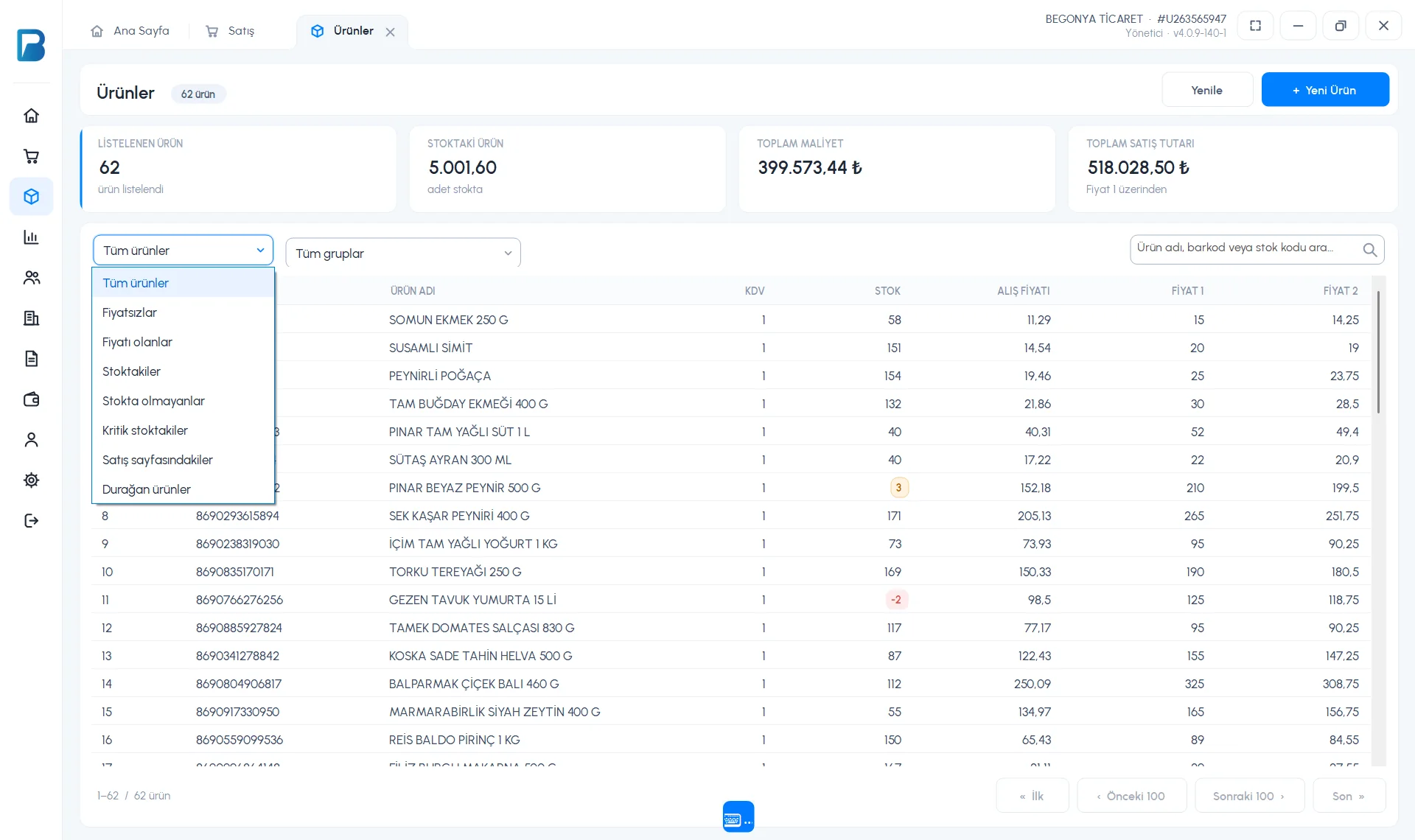
- 3 Status filter: All products, No price, With price, In stock, Out of stock, Low stock, On sales page, Slow-moving.
- 4 Group filter: lists the products of a single product group.
- 5 Double-clicking a product opens the product card; the list shows stock, purchase price, Price 1 and Price 2. Stock below the low stock level is highlighted in color.
- The list comes in pages of 100 products; move between them with First / Previous 100 / Next 100 / Last at the bottom.
 1
1For a new product, press 1 + New Product.
Bulk price changes, bulk group assignment and Excel export/import are not available in the desktop app; use the web panel for these.
Products
The Menu › Products page has a search box, group selection and filter chips (All products, In stock, Out of stock, No price, On sales page, Low stock, Slow-moving). Tap a product to open its product card.
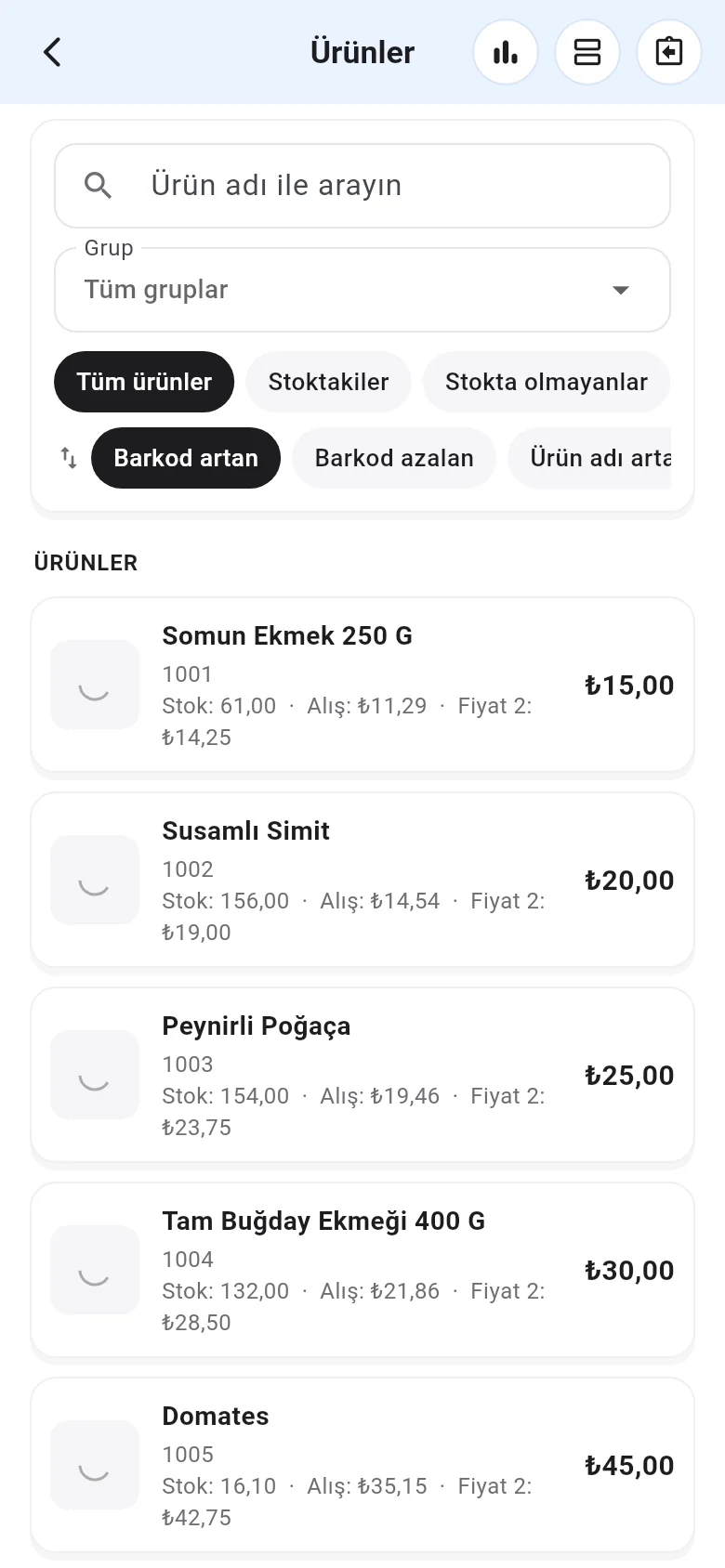
- The chart icon at the top (Product account summary) shows total stock, cost and sales value.
- You can copy a barcode by long-pressing it.
- Use the sort chips to sort by price, stock, stock code or "purchase price higher than sale price".