




Creating products with variants (size, colour)
Define variants such as size and colour, create a product with variants using the wizard and print variant labels.
Products with variants are options of the same model that differ by features such as size or colour. For example, a T-shirt in sizes S-M-L and colours black-white is created as 6 separate products (variants) with the same model code. Each variant has its own barcode and stock.
1. Defining variants
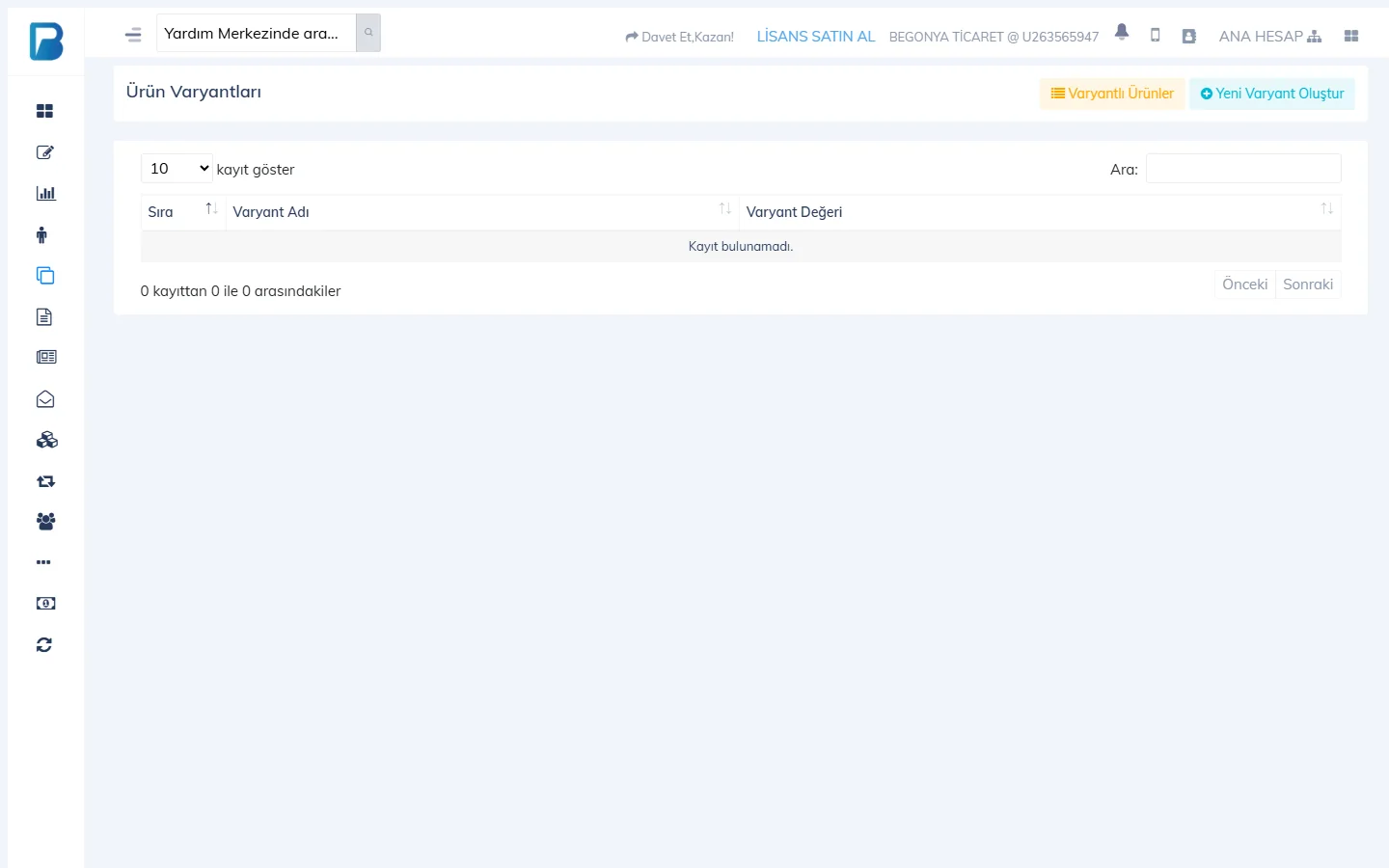
On the Products › Product Variants page, press 2 Create New Variant. Enter the Variant Name (e.g. Size) and its values (S, M, L), then save. Create the Colour variant the same way.
 12
122. Adding a product with variants
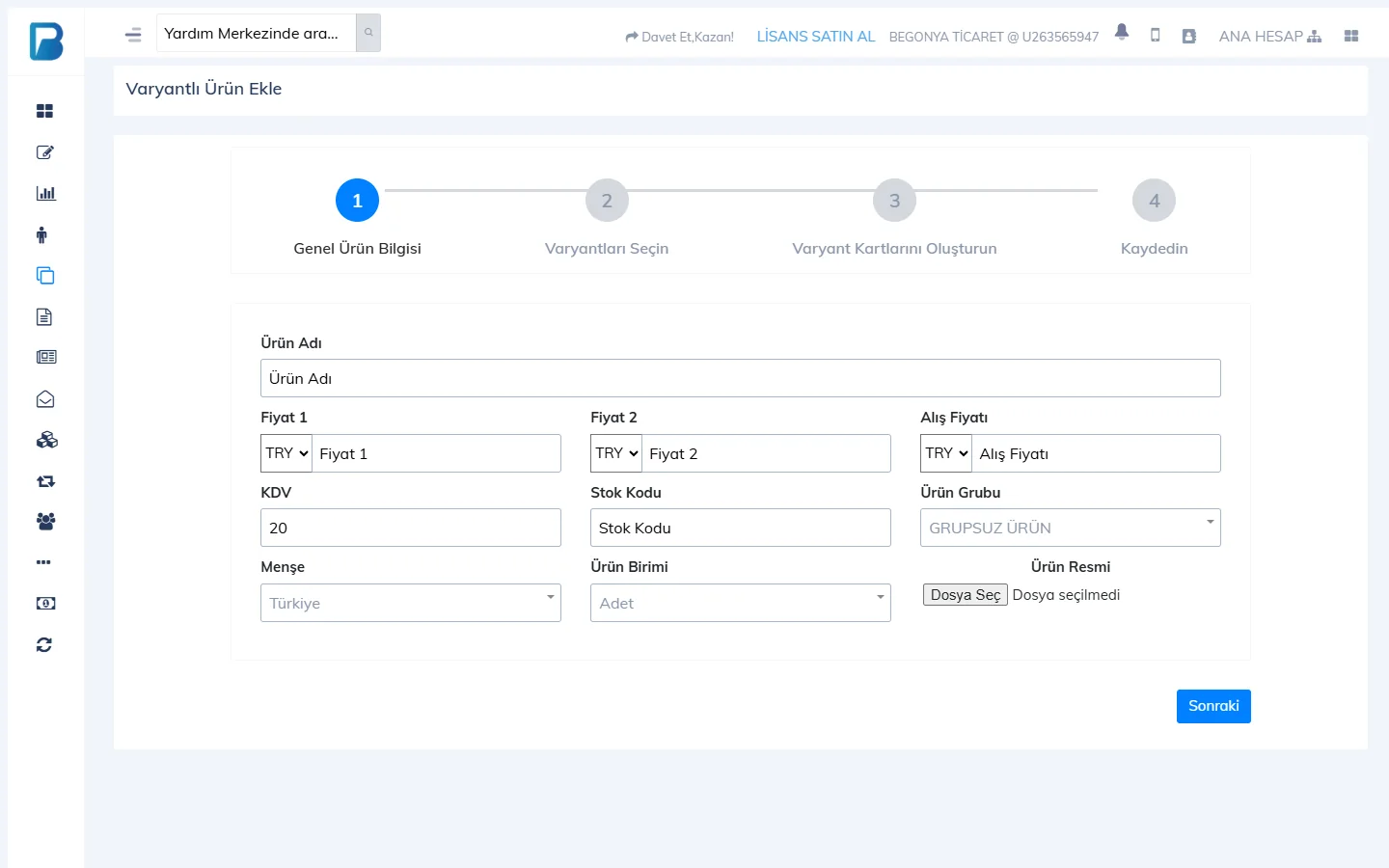
The Products › Add Product with Variants page has 4 steps:
General product details
Enter the details shared by all variants, such as product name, prices, purchase price, VAT, stock code, group, unit and image.
Choose the variants
Tick the variants and values to use (e.g. Size: S, M, L; Colour: Black, White).
Create the variant cards
A card is created for each combination you selected. Enter a barcode, stock and, if needed, a different price for each; if you leave the barcode empty, the system generates one.
Save
Review and save; the products are created with their stock.
Variant labels and bulk prices
- Print a model label from the product card with Product actions › Print Variant Label. When you scan this label during a sale, all variants are listed and the one you choose is added.
- To change the price of all variants of a model together, use the Update icon of the first product in the 1 Products with Variants list.
If you delete a variant, the products linked to it lose their variant link; this can't be undone.
Creating products with variants isn't available in the desktop app; do it in the web panel. When a variant (model) label is scanned during a sale, the Select variant window opens; click the variant or choose it with the 1–9 keys.
This can't be done in the mobile app. Create products with variants in the web panel; you can sell each variant on mobile with its own barcode.