




Switching to BenimPOS from another program: moving products, customers and balances
Move the products, customers and suppliers from your old program to BenimPOS, together with their balances, using ready-made Excel templates.
When you switch to BenimPOS from another sales / stock program, you can move your products, customers and suppliers in bulk, together with their balances, with an Excel file; you do not need to enter them one by one. If you follow the order below, the switch usually takes less than an hour.
What can be moved?
| Data | How | Template |
|---|---|---|
| Products (barcode, name, stock, prices, VAT, purchase price, group, unit…) | Products › Excel Import / Export › Import | Product template |
| Customers and their credit balances | Customers › Import | Customer template |
| Suppliers and their debt / credit balances | Suppliers › Import | Supplier template |
Past sales and receipts from the old program are not moved; your reports in BenimPOS start from your first sale. Because you move customer and supplier balances as opening balances, your accounts continue where they left off.
1. Export the lists from your old program
Almost every program has an Export to Excel, Export or Report › Excel option for the stock list and the account (customer / supplier) list. In the product list, the barcode, product name, stock, sale price, purchase price and VAT columns are enough; in the account list, the name, balance and phone columns. If you cannot find it, ask the old program's support how to "export the stock and account lists to Excel".
2. Move the products
Fill in the template
Download the product template. Copy the columns from the old list in the order of the template: A barcode, B product name, C stock, D unit, E Price 1, F VAT, G purchase price, H/I parent group / group… Only the product name is required; the system generates barcodes for products without one. Do not delete the headers in the first row of the template; delete the sample rows.
Upload
In the web panel, on the Products page, open Excel Import / Export › Import and drop the file. In the preview, you see 1 how many new products will be added; 3 check the values in the table and press Import products.
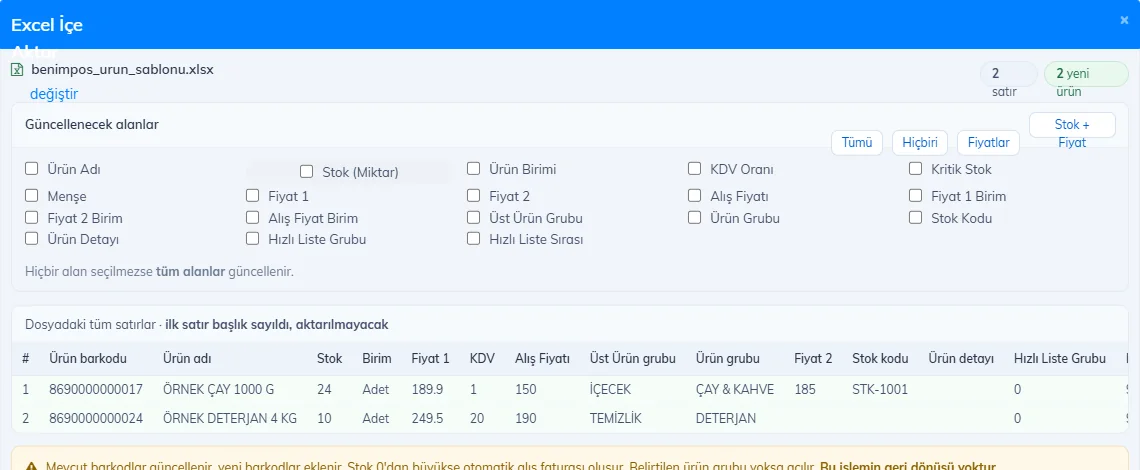 123
123
For the quantity in the stock column, an automatic "opening" purchase invoice is created; this way your stock value and profit are calculated correctly from day one. Details: Adding products in bulk with Excel.
3. Move customers and their credit balances
Fill in the template
Download the customer template. Write one customer per row, without a header row: A customer name, B balance, C balance type — B if the customer owes you, A if you owe the customer. Phone, address, tax details, payment term and credit limit are optional.
Upload
On the Customers page, press Import and choose your .xlsx file. In the preview, check that the Balance Type column shows "Debt" / "Credit" and confirm. Details: Importing customers with Excel.
4. Move the suppliers
Fill in the template
Download the supplier template. Without headers: A supplier name, B balance, C balance type — A if you owe the supplier, B if the supplier owes you; then contact person, phone numbers, address, tax details and payment term.
Upload
On the Suppliers page, press Import, choose the file and click 3 Import; check the preview and confirm.
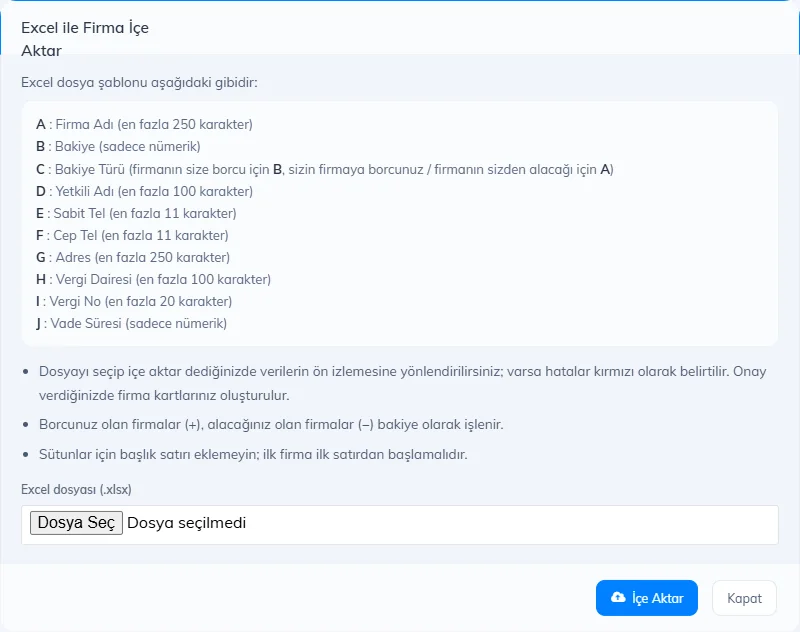 123
123
If you upload the supplier file twice, the suppliers are created a second time (for customers, the same name is skipped). Before uploading, try with a file of a few rows.
5. Final settings
- Business details and receipt logo, receipt settings and extra payment types (meal card, bank transfer…).
- Add your staff and give them permissions.
- At the till, install the desktop app or sign in with the mobile app; the products and customers you moved arrive through sync.
- If you use a fiscal cash register or card terminal, set up the fiscal cash register integration.
If you get stuck on a step, our support team can check your file with you; just message the WhatsApp support line.