




Adding stock, deducting stock and low stock
Add stock to products or deduct it, set up low stock warnings and block sales of products that are out of stock.
Stock goes up when you enter a purchase invoice or add stock by hand on the product card, and goes down when you sell. For products with a low stock level set, you get a warning when they run low. If you want, you can block sales of products that are out of stock.
Adding stock
- With a purchase invoice (recommended): enter goods from your supplier as a purchase invoice; stock levels and purchase prices are updated, and the amount can be recorded as debt to the supplier.
- From the product card: on the product card, press the + (Add stock) button next to Remaining Stock. Fill in How many units are you adding?, Which supplier did you buy from?, Unit price and the payment type, then save. This creates a purchase invoice in the background.
- With Excel: fill in the stock column and import; if the stock is greater than 0, a purchase invoice is created automatically.
Deducting stock
For damaged or lost products, press the − (Deduct stock) button on the product card. Fill in How many units to deduct? and Why are you deducting it?; with the Record in the register? choice, decide whether the deduction is recorded as a sale or as non-revenue (not counted in turnover).
Low stock
- Enter the minimum in Low stock level on the product card (e.g. 10).
- In the Products list, the Low stock chip shows the products below this level.
- You can get a daily email with Low-Stock Products and Out-of-Stock Products under My Profile › Email Preferences. The same page has a separate email option for products approaching their expiry date.
Blocking sales when stock runs out
Turn on Do not sell when out of stock under My Profile › Stock & Product Settings. When it's on, an out-of-stock product shows a warning on the sales screen and isn't added to the basket; when it's off, the product can be sold and its stock goes negative.
Stock history
To see all stock movements in and out for a product, use Product actions › Stock movement report on the product card or the Stock Movement Report.
Adding stock
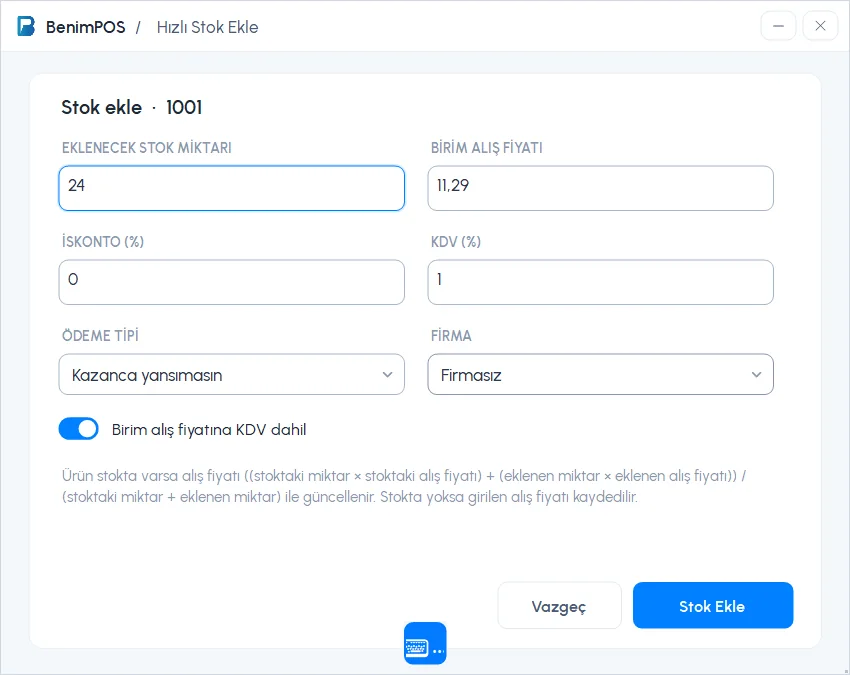
Open the product card (double-click the product, or scan the barcode and press Fetch) and press Add Stock in the PRODUCT ACTIONS section.
Enter the quantity and purchase price
Type the 1 STOCK QTY TO ADD and the 2 UNIT PURCHASE PRICE; enter DISCOUNT (%) and VAT (%) if needed.
Choose the payment type and supplier
Choose the 3 PAYMENT TYPE (Do not affect earnings, Cash, Credit card, On account…) and the SUPPLIER. If you choose on account, the amount is recorded as debt to the supplier.
Save
Press 4 Add Stock. The stock entry is saved as a purchase invoice; if the product already has stock, its purchase price is updated with a weighted average.
 1234
1234
Reducing stock
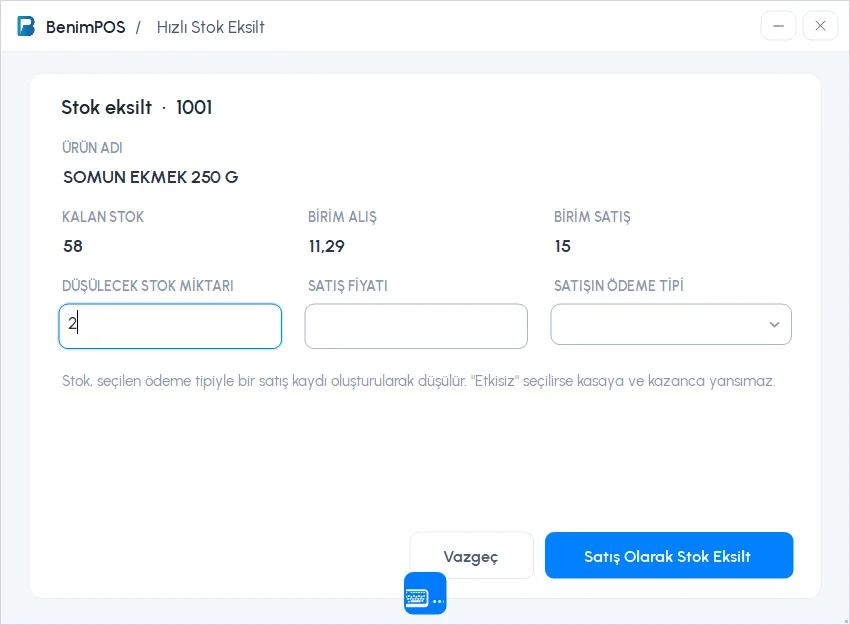
For wastage, lost or damaged products, press Reduce Stock on the product card. Enter the 1 STOCK QTY TO DEDUCT, 2 the sale price and the PAYMENT TYPE OF THE SALE, then press 3 Reduce Stock as Sale. The stock is deducted with a sale record; if you choose Non-revenue, it doesn't affect the till or earnings.
 123
123Low stock
Enter the minimum in the LOW STOCK LEVEL field on the product card. When stock drops to this level, a “Low stock warning” notification appears after the sale; on the Products page you can see the list with the Low stock filter. To block sales of out-of-stock products, turn on Do not sell without stock in Settings › Profile settings › Receipt and sales.
Adding stock
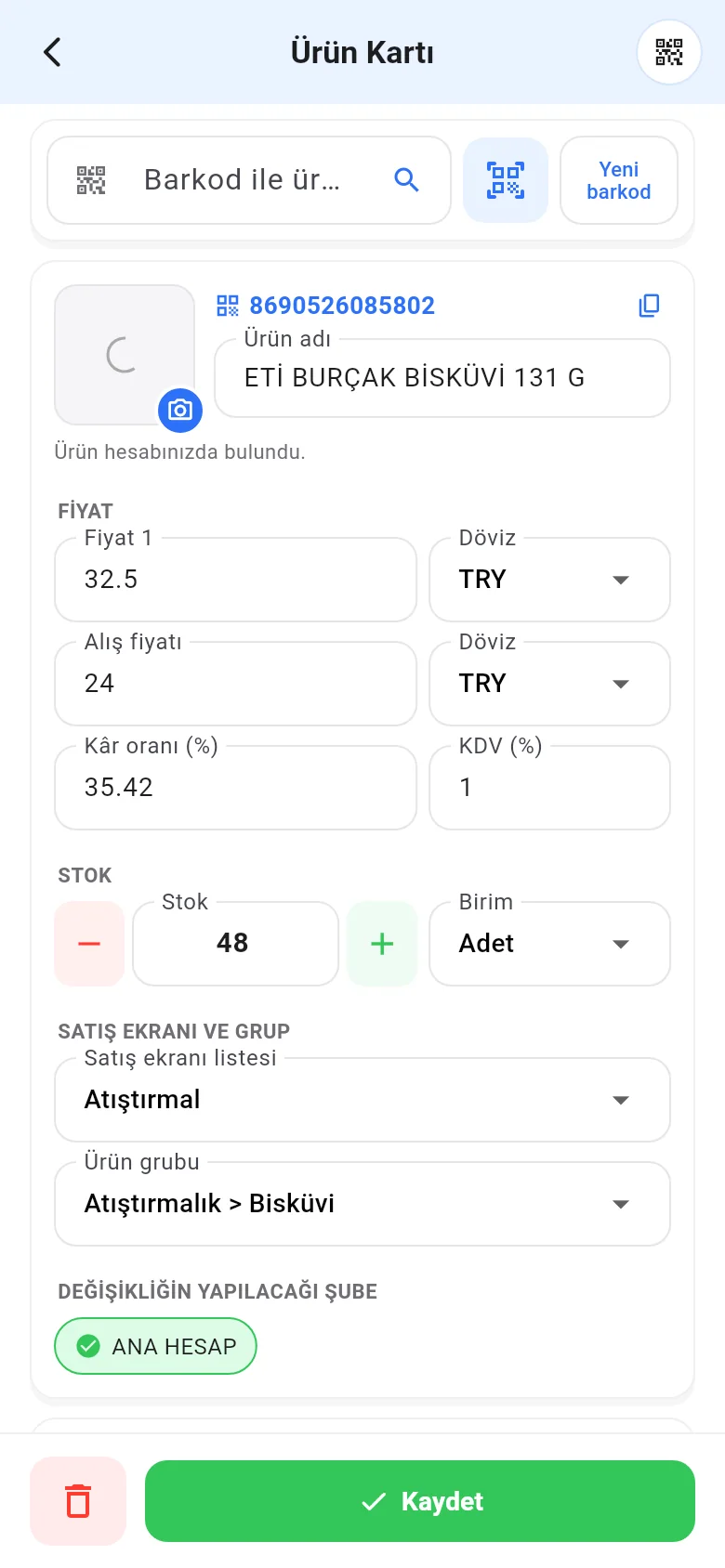
On the product card, change the stock with the + / − buttons in the STOCK section or by typing in the field, then tap Save. When stock goes up, you're asked how to record it: Do not affect earnings, Cash purchase or Card purchase (at the purchase price).
 1234567
- Products with low stock: Products › Low stock chip. (You can't set the low stock level on mobile; set it on the web.)
- Blocking sales when stock runs out: Menu › Profile › Don't sell when out of stock.
- A product's stock history: the Last 100 transactions icon on the product card.