




How do I add and update a product?
Create a new product card with a barcode, set the price, purchase price, VAT, stock and quick list, and update existing products.
Adding a new product
Open the product card
Open the Products › Add & Update Products page from the left menu. Scan the product's barcode into the box at the top and press Get Product. If the barcode isn't saved, you see the message "product not found, you can add a new product by entering the product name and price".
If the product has no barcode, New Barcode makes BenimPOS generate a unique barcode for you.
Fill in the details
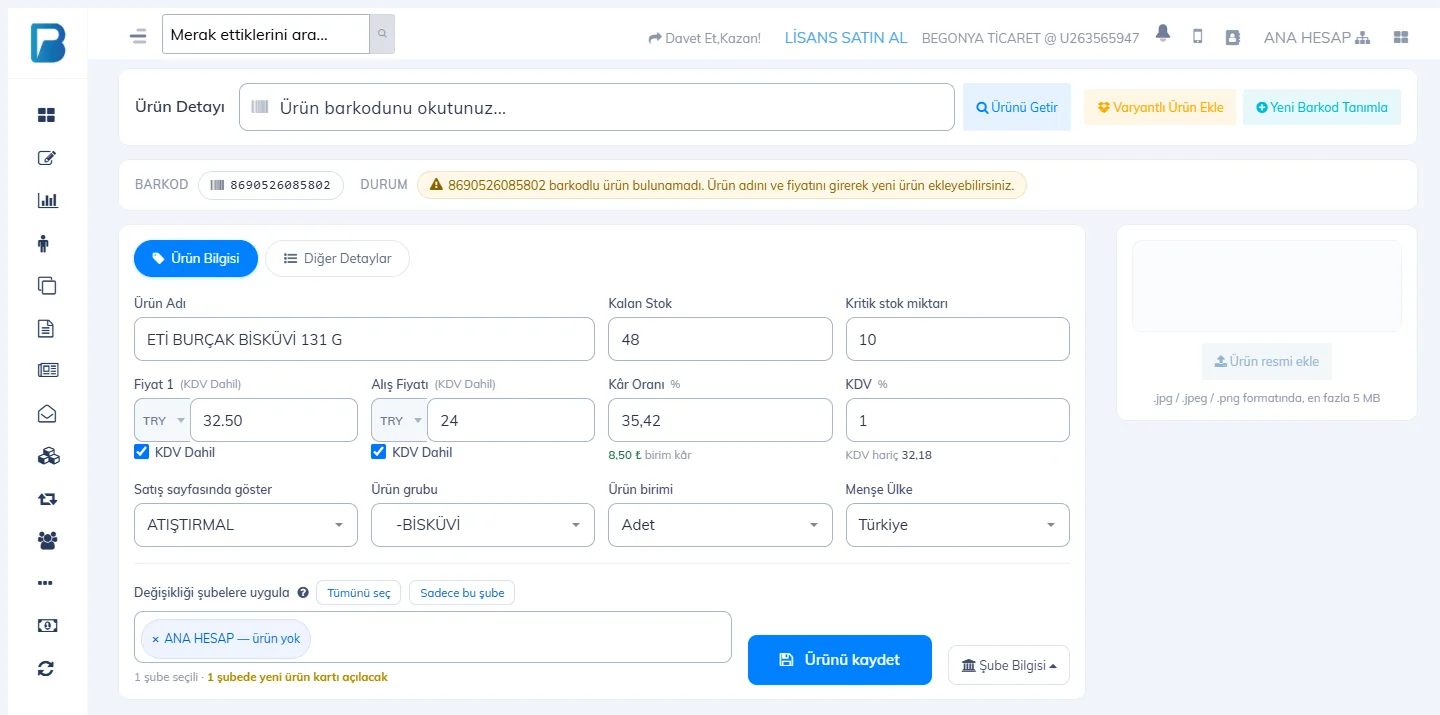 12345678
- 1 Product name: the name shown on the receipt and the label.
- 2 Remaining stock: the quantity you have. You get a warning when it falls below the critical stock level.
- 3 Price 1: the sale price. If incl. VAT is ticked, the price includes VAT.
- 4 Purchase price: when you enter it, the Profit margin and unit profit are calculated automatically; profit reports use this information.
- 5 VAT %: the product's VAT rate (e.g. 1% for basic food, 20% for many products). For a new product, the default VAT rate from My Profile › Basic settings is filled in. The VAT breakdown in reports is calculated from this.
- 6 Show on sales page: adds the product to one of the quick lists on the sales screen.
- 7 Product group: for grouping in reports and printing labels in bulk.
Also choose the product unit (Pcs, KG, Case…) and the country of origin. Extra details such as Price 2, stock code, product description and quick product order are on the Other Details tab.
Save
Press 8 Save product. The status area shows "Product information updated successfully". The product can be used right away on the sales screen and in the desktop app.
Updating an existing product
Scan the barcode on the same page; all the product's details are filled in. Change the price or stock and press Save product. Use the + / − buttons next to the remaining stock to add or remove stock. Last 100 Transactions for This Product at the bottom of the page shows the product's sales, purchases and stock movements.
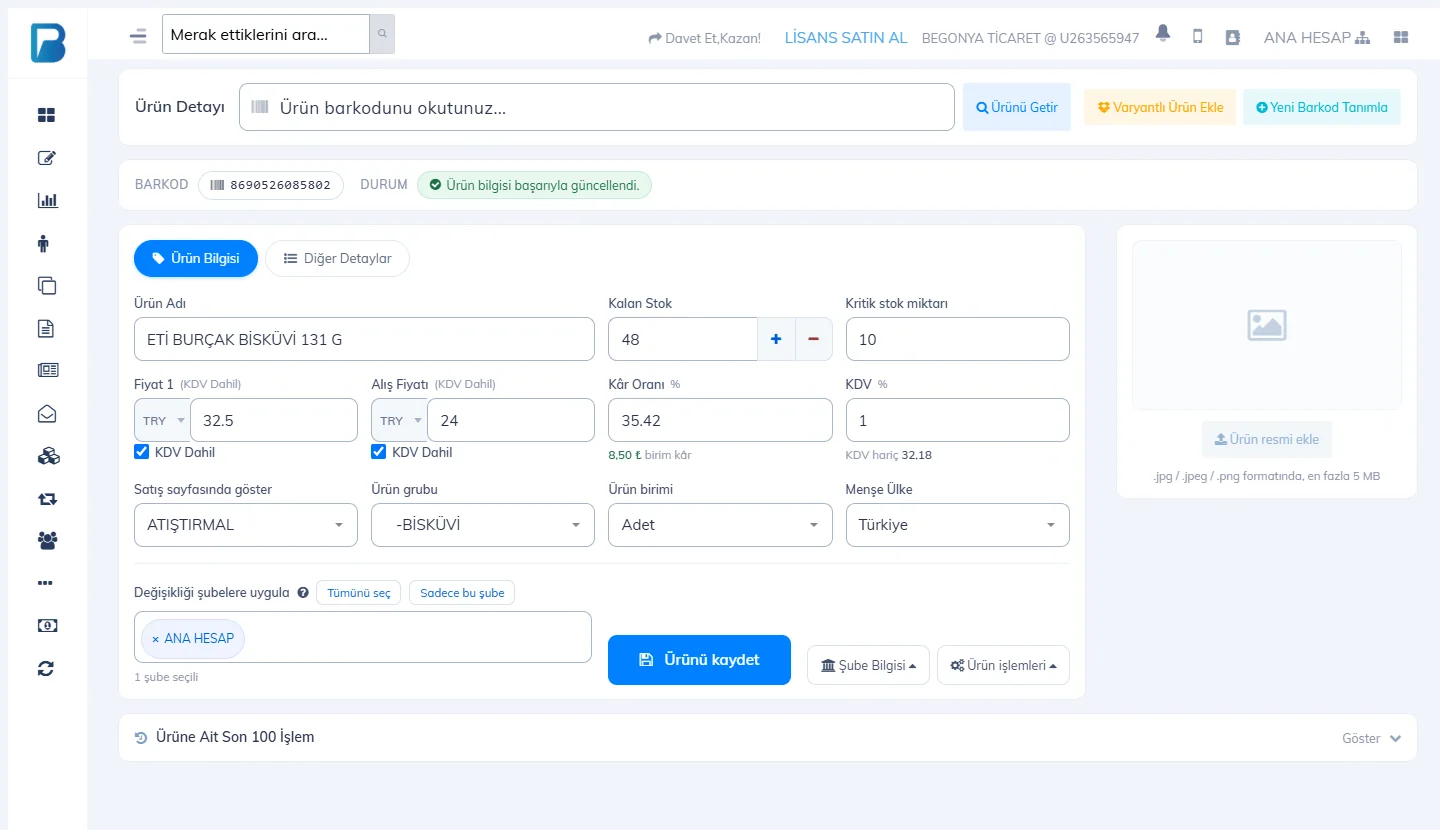
If you have more than one branch, choose which branches the prices and details are copied to in Apply changes to branches.
Instead of entering many products one by one, you can add them in bulk or update prices in bulk from an Excel file with Import on the Products page.
Open the product card
Open Products › Add / Update Product from the left menu. Double-clicking a product in the Products list also opens its card.
Scan the barcode
1 Scan the barcode into the box at the top and press Fetch (or Enter). If the barcode is saved, the message “product with this barcode found” appears and 2 the details are filled in; you can change them and save. For a product without a barcode, press 3 New Barcode; the app generates a new barcode for the product.
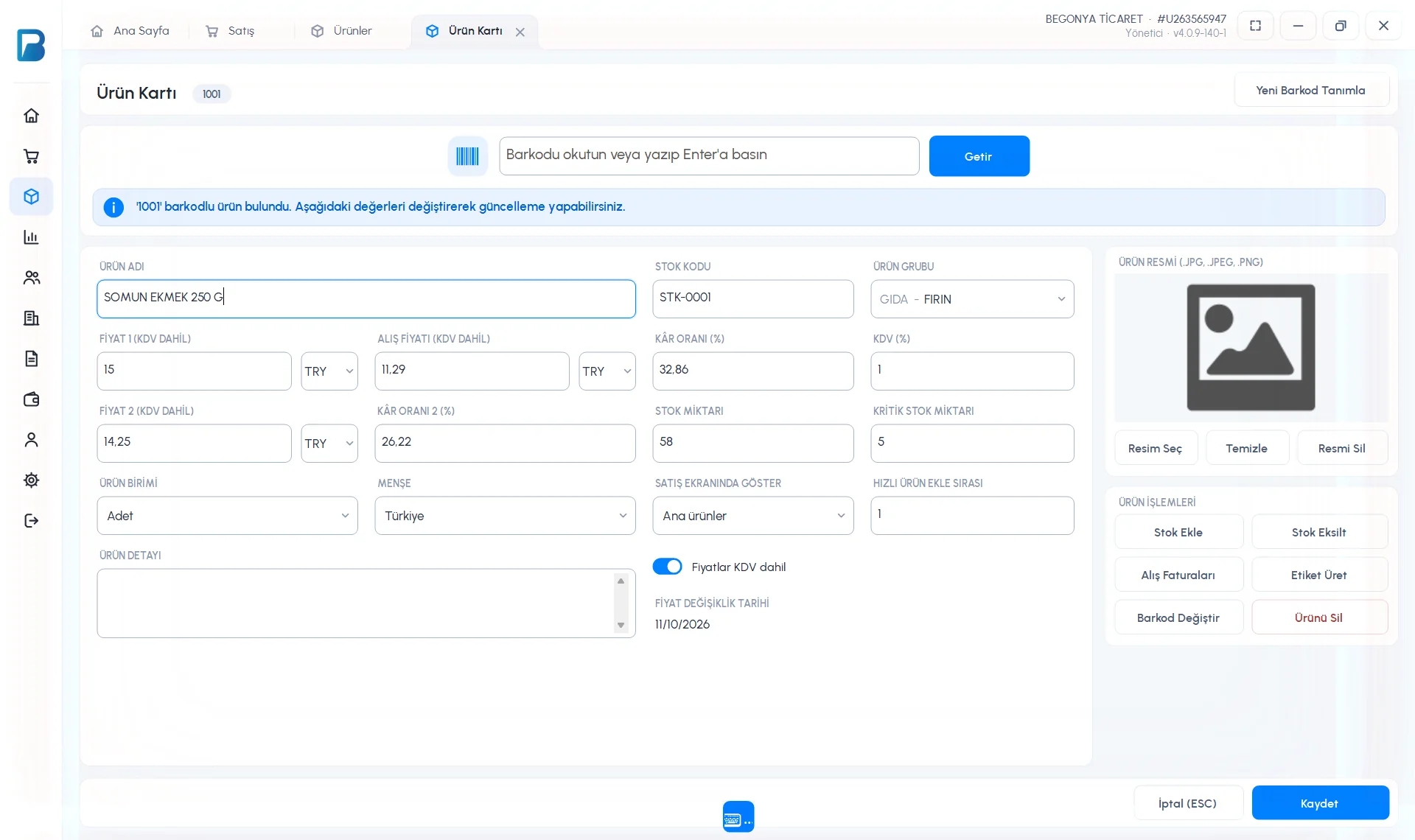 1234
1234Enter the new product's details
If the barcode isn't saved, 1 the message “product not found, you can add a new product by entering the product name and price” appears. Enter the 2 PRODUCT NAME, 3 PRICE 1 and PURCHASE PRICE; the PROFIT MARGIN is calculated automatically. If you like, also fill in STOCK CODE, PRODUCT GROUP, VAT, PRICE 2, 4 STOCK QTY, CRITICAL STOCK, PRODUCT UNIT, ORIGIN and SHOW ON SALES SCREEN.
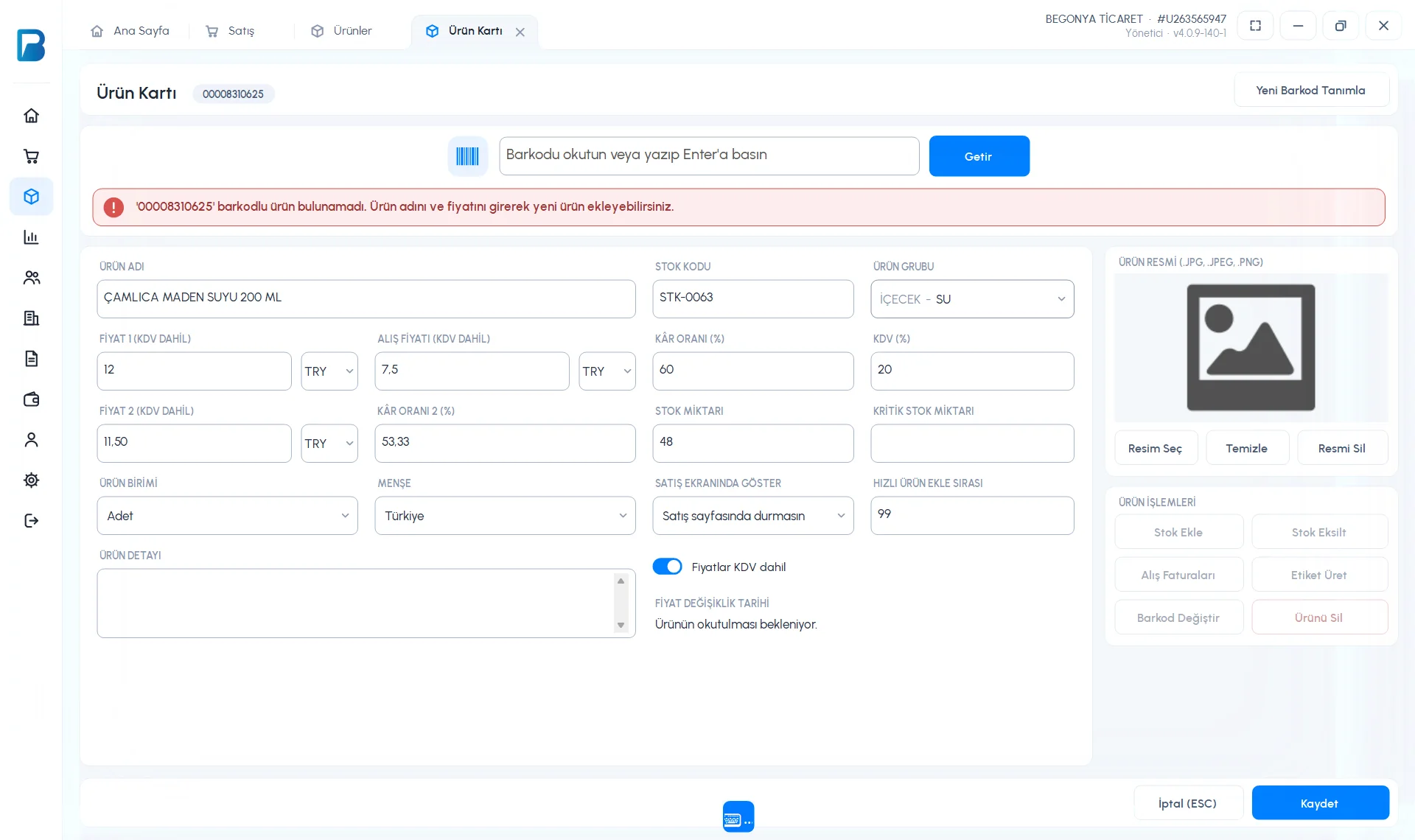 12345
12345Save
Press 5 Save. The product is ready to sell right away and syncs to the web and mobile apps.
When the Prices include VAT switch is on, you enter prices including VAT. If you turn it off, the fields are shown excluding VAT.
Product actions
On the card of a saved product, the 4 PRODUCT ACTIONS section gives you Add Stock, Reduce Stock, Purchase Invoices, Print Labels, Change Barcode and Delete Product. To add an image to the product, use Select Image (JPG, JPEG, PNG). Changing a barcode requires an internet connection.
Adding a product on mobile
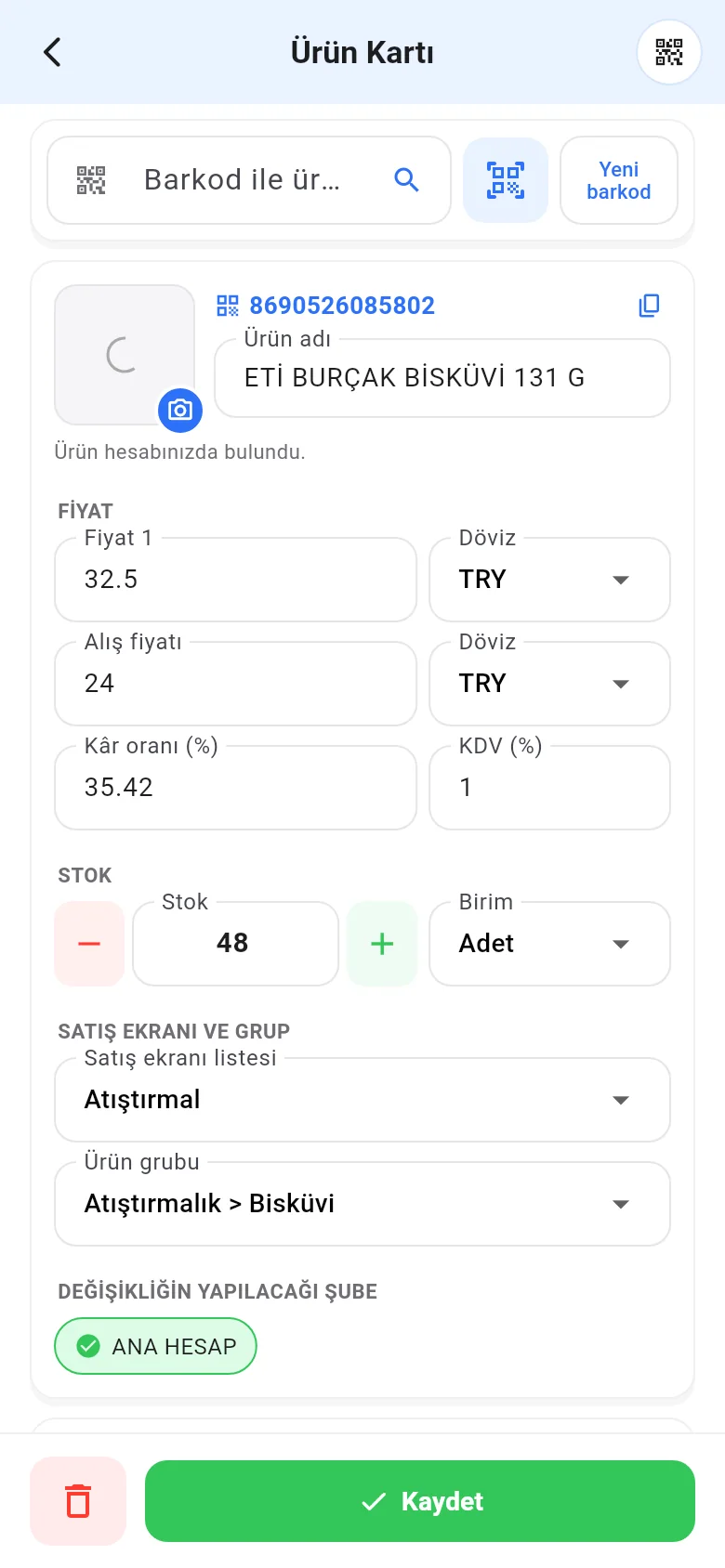
Open Menu › Add / Update Product. 1 Type the barcode or scan it with the scanner icon (New barcode for a product without a barcode). Enter the 2 Product name, 3 sale price, 4 Purchase price, 5 VAT (%) and stock; add it to a quick list with 6 Sales screen list, then tap 7 Save.
 1234567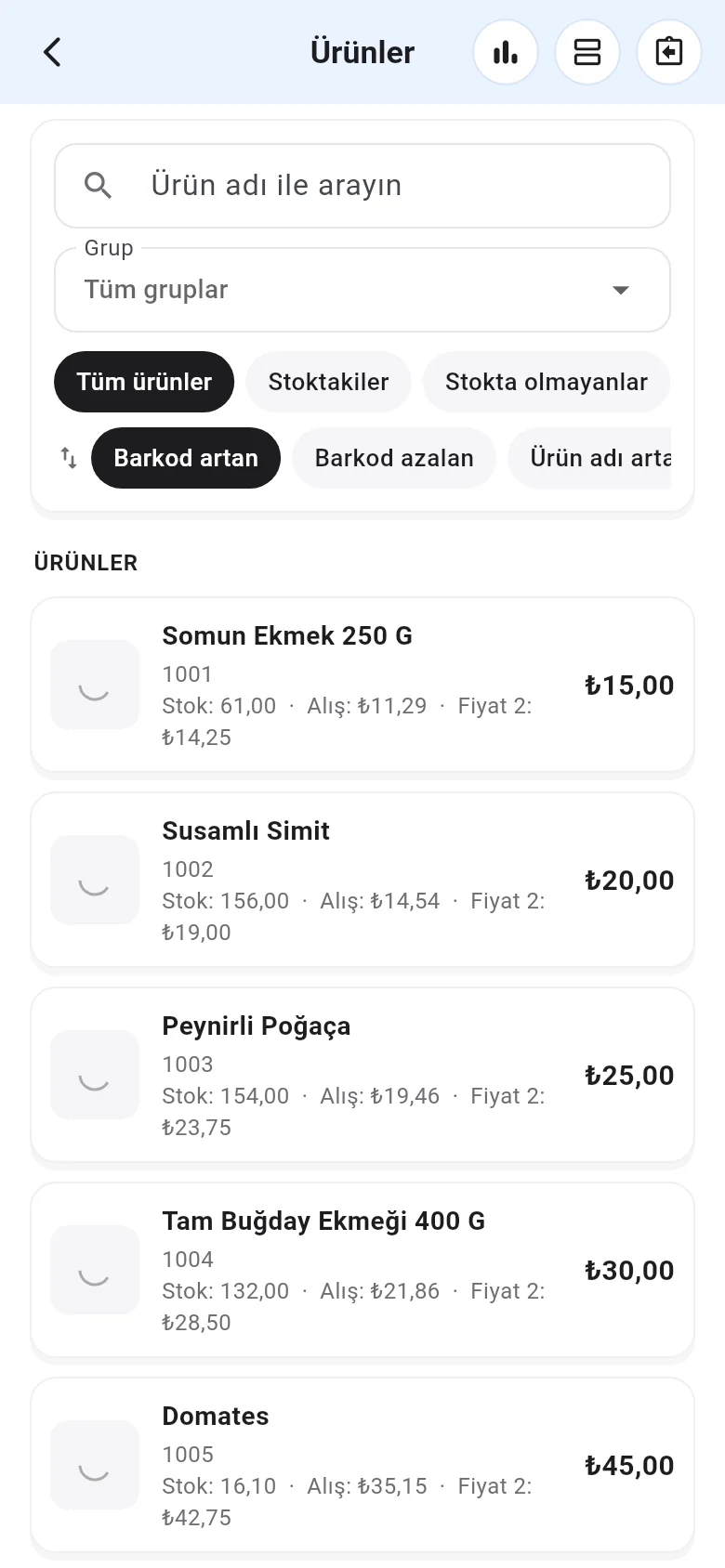
Price 2, stock code and product description are in the Other details section. To update an existing product, tap it in the Products list.