




Adding and updating products in bulk with Excel
Upload your products in bulk with an Excel file; export prices and stock, edit them and update everything in one go.
Instead of entering hundreds of products one by one, you can add them in bulk with an Excel file, and update the prices and stock of your existing products in bulk. If you are switching from another program, also see the switching to BenimPOS from another program article.
1. Prepare the file
If you have no products yet (new account or switching from another program): download the ready-made template, delete the sample rows and enter your own products. Download the product template (.xlsx). You can also use the Excel list from your old program by moving its columns into the order below.
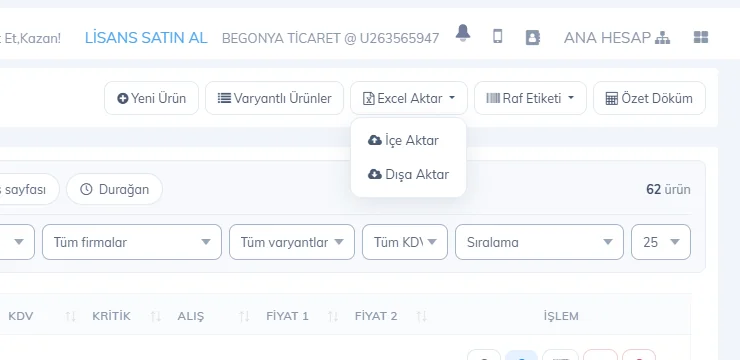
If your products are already saved (bulk price / stock update): on the Products page, download your list with 2 Excel Import / Export › Export; the downloaded file is in the import layout, so you can edit it and upload it back.
 1
1File layout
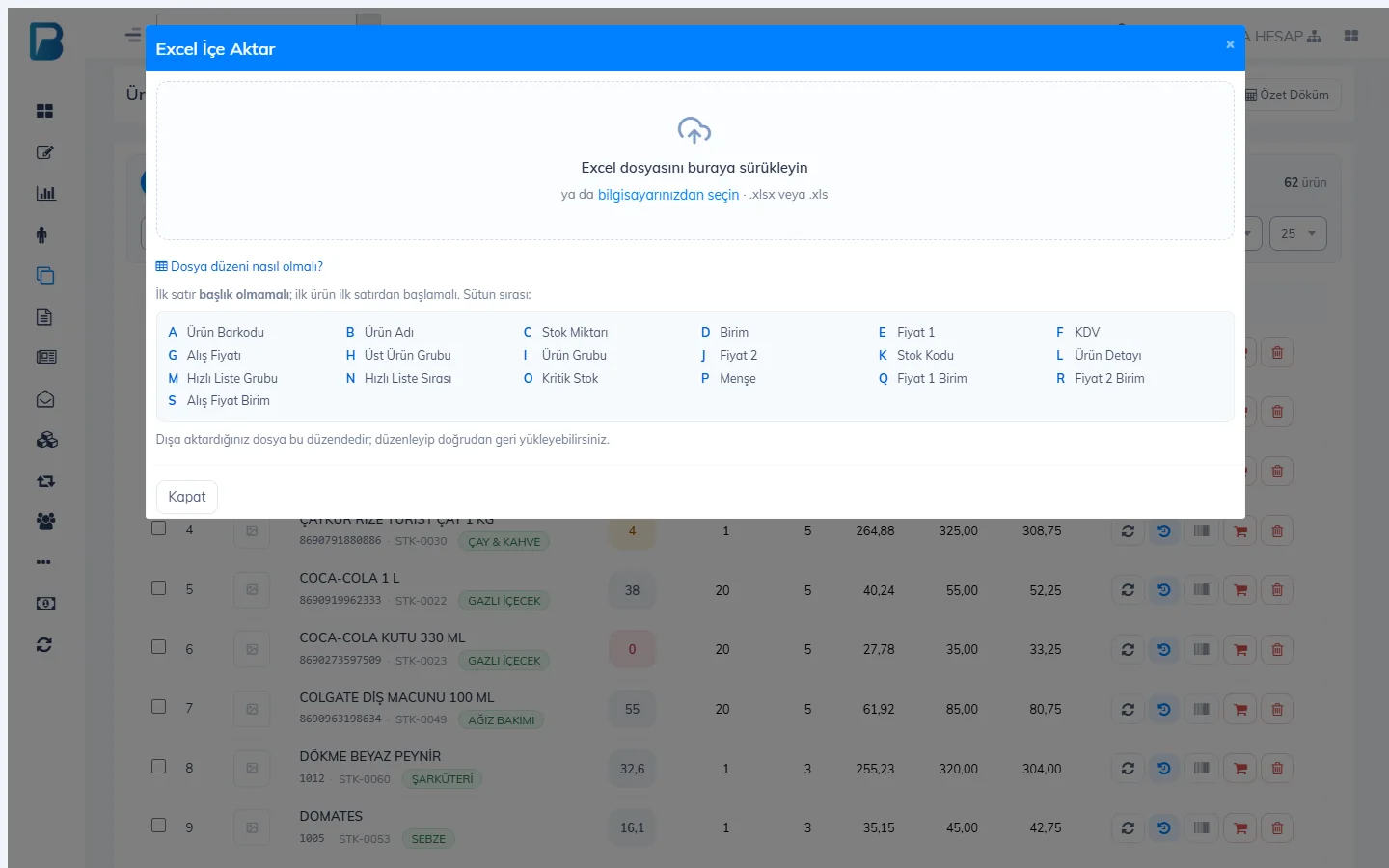
The columns are in the order below. Only B (Product name) is required; the others can be left empty.
| Column | Content | Column | Content |
|---|---|---|---|
| A | Product barcode | K | Stock code |
| B | Product name (required) | L | Product details |
| C | Stock quantity | M | Quick list group (0–5) |
| D | Unit (Qty, KG, Gram, Liter…) | N | Quick list order |
| E | Price 1 | O | Low stock level |
| F | VAT (0, 1, 10, 20…); if empty, the default VAT rate | P | Origin |
| G | Purchase price | Q | Price 1 currency (TRY, USD…) |
| H | Parent product group | R | Price 2 currency |
| I | Product group | S | Purchase price currency |
| J | Price 2 |
- Header row: the safest way is to prepare the file without headers, with the first product in the first row. If you add headers, write exactly Product Barcode (or Barcode) in A1 and Product Name in B1; this header is skipped automatically. A header written with other words is added as a product.
- Products without a barcode: you can leave the barcode cell empty; the system generates a barcode for the product automatically.
- Unit: upper/lower case does not matter (kg, Kg, KG); abbreviations such as “kilo”, “gr”, “lt”, “mt” are also recognized. An unrecognized unit counts as Qty.
- Numbers: you can use a comma or a dot for decimals. Save the file as .xlsx (convert old .xls files to .xlsx in Excel with “Save As › Excel Workbook”).
2. Import
Open the import window
Choose Excel Import / Export › Import. Drag your file into the window or choose it from your computer.
Check the preview
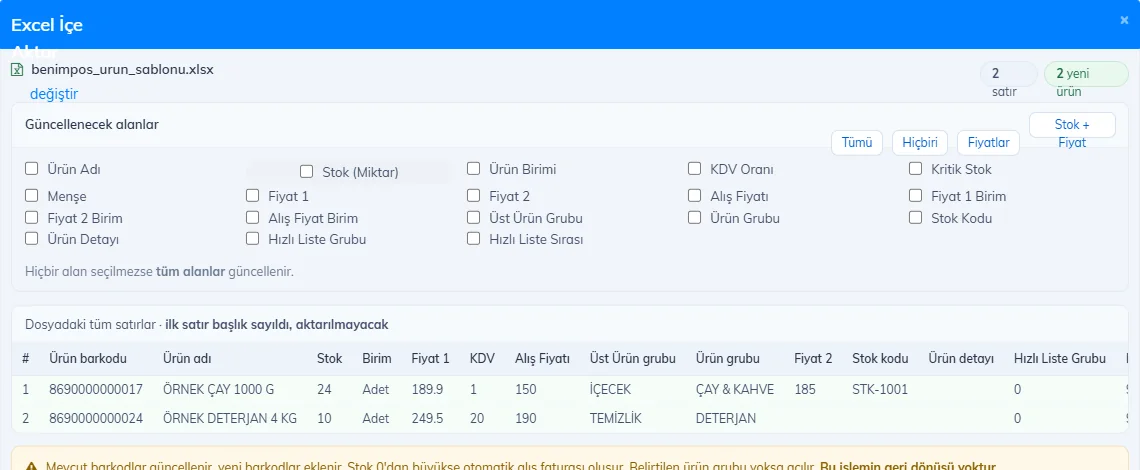
The window shows how many rows are new products and how many are to update, plus duplicate barcodes and rows with errors; you see the first 100 rows in the table. Choose which details will change for existing products: All, Prices, Stock + Price or individual fields. If you select no field, all fields are updated.
 123
123Import the products
Press Import products and confirm; do not close the window until the progress bar finishes. When it is done, the message “N products imported.” appears.
If a barcode in the file exists in your account, the product is updated; if not, it is added. The stock column is the target stock: if it is more than the current stock, an automatic purchase invoice is created for the difference; if it is less, the difference is deducted. If a product group in the file does not exist, it is created. This cannot be undone; if you already have products, export a backup before making large changes.
To reset all stock to zero, set the stock column to 0 in the exported file and import it with only the Stock field selected.
This cannot be done in the desktop app. Upload and update products in bulk with Excel in the web panel; the products reach the desktop app through sync.
This cannot be done in the mobile app. Do bulk product work with Excel in the web panel.