




Stock movement report
List all stock entries and exits for your products with the remaining stock, and find out why stock changed.
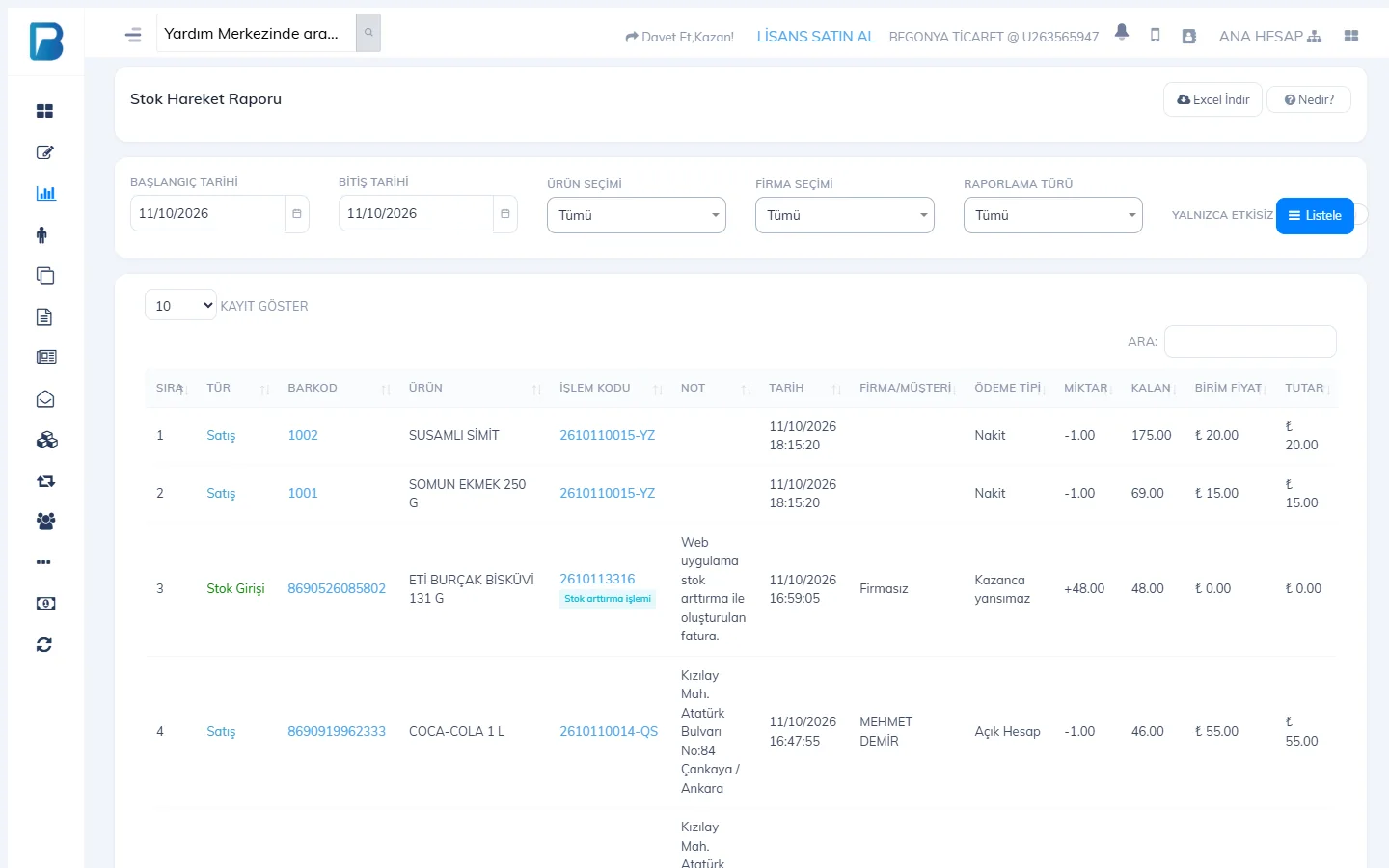
The Stock Movement Report shows every transaction that increased or reduced your products' stock (sales, returns, purchase invoices, manual stock additions/deductions, counts, transfers) in date order, with the remaining stock. Use it to find out why a product's stock changed.
Running the report
Open the report
Reports › Stock Movement Report.
 123
123Choose the filters
Enter the date range; choose a single product with 1 PRODUCT SELECTION or a supplier with SUPPLIER SELECTION. With 2 REPORT TYPE, list only stock entries or only stock exits. To see non-revenue deductions made by hand, turn on NON-REVENUE TRANSACTIONS ONLY.
List
Press 3 List. Each row shows the transaction type, transaction code, date, supplier/customer, payment type, quantity, REMAINING stock and amount. Export it with Download Excel.
You can also reach a single product's history from its product card: Product actions › Stock movement report or Last 100 Transactions for This Product. To see it from the product's first record, move the start date back.
This can't be done in the desktop app. Run the stock movement report from the web panel.
There is no separate stock movement report on mobile. To see a product's recent transactions, tap the Last 100 transactions icon at the top right of the product card; entries and exits are listed with arrows, date, payment type and quantity.