




How do I print shelf labels?
Choose products by barcode, name or group, then print them on a single label printer or on A4 label sheets.
Choose the products
Open the label page
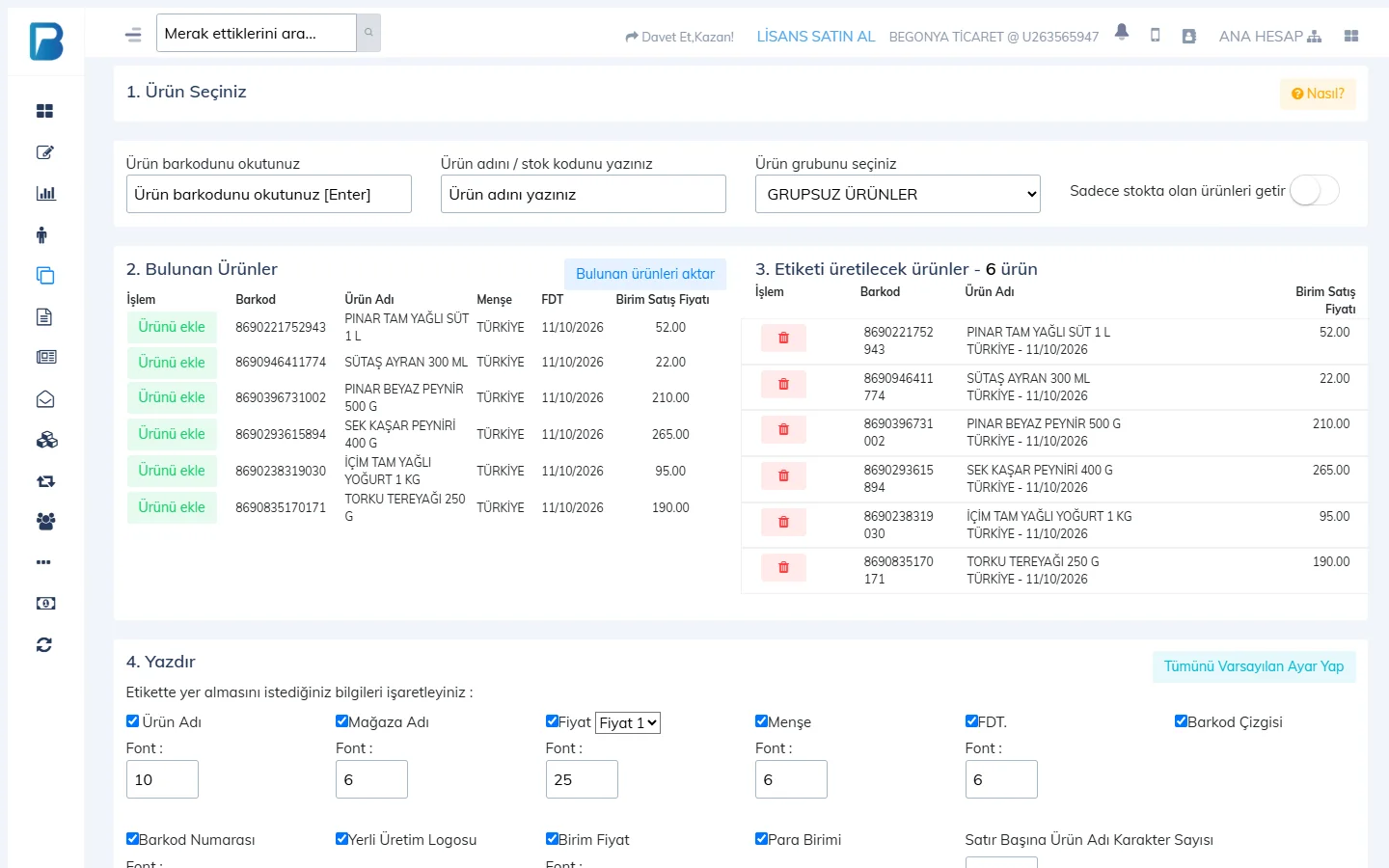
Open the Products › Print Product Labels page from the left menu.
Find the products
Search for products in one of three ways: 1 scan the barcode and press Enter, 2 type the product name or stock code, or 3 choose a product group. To see only products with stock, turn on Only products in stock.
 1234
1234Add them to the list
In the 2. Products Found list, press Add product next to the product you want, or add them all with 4 Add all found products. The products move to the 3. Products to Label list; remove any you added by mistake with the red button.
Print the labels
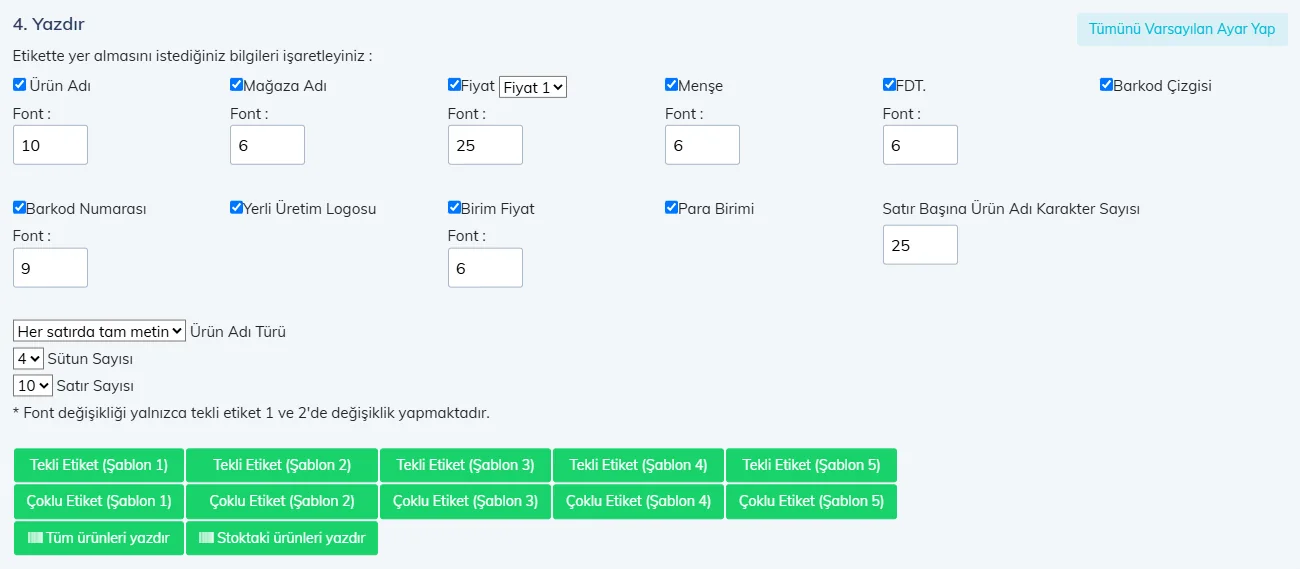
In the 4. Print section, tick the details to show on the label and set the font sizes.
 1234
1234- 1 Fields: product name, store name, price (Price 1 / Price 2), origin, FDT (price change date), barcode lines and number, made-in-Turkey logo, unit price, currency.
- 2 Single Label (Template 1–5): for a label printer; each product is printed on a separate label.
- 3 Multiple Labels (Template 1–5): for A4 label sheets; many labels are laid out on one page.
- 4 Columns / Rows: how many columns and rows fit on one A4 page for multiple labels.
Font size settings only apply to Single Label Templates 1 and 2. To restore the original settings, press Reset All to Defaults.
To refresh the labels for the whole store, use Print all products or Print products in stock; products are printed in batches of 250. Shelf labels may be required to show the unit price and price change date (FDT); we recommend keeping these fields on.
If you want to design your own labels, use the Products › Design & Print Labels page.
The desktop app has two label screens: Create Multiple Labels for bulk printing on A4 label sheets, and Create Single Label for printing one by one on a roll label printer. Create Multiple Labels prepares the labels as a PDF. Create Single Label prints the labels directly on the label printer you choose; it can also create a PDF if you want.
Multiple labels (A4 sheet)
Open the screen
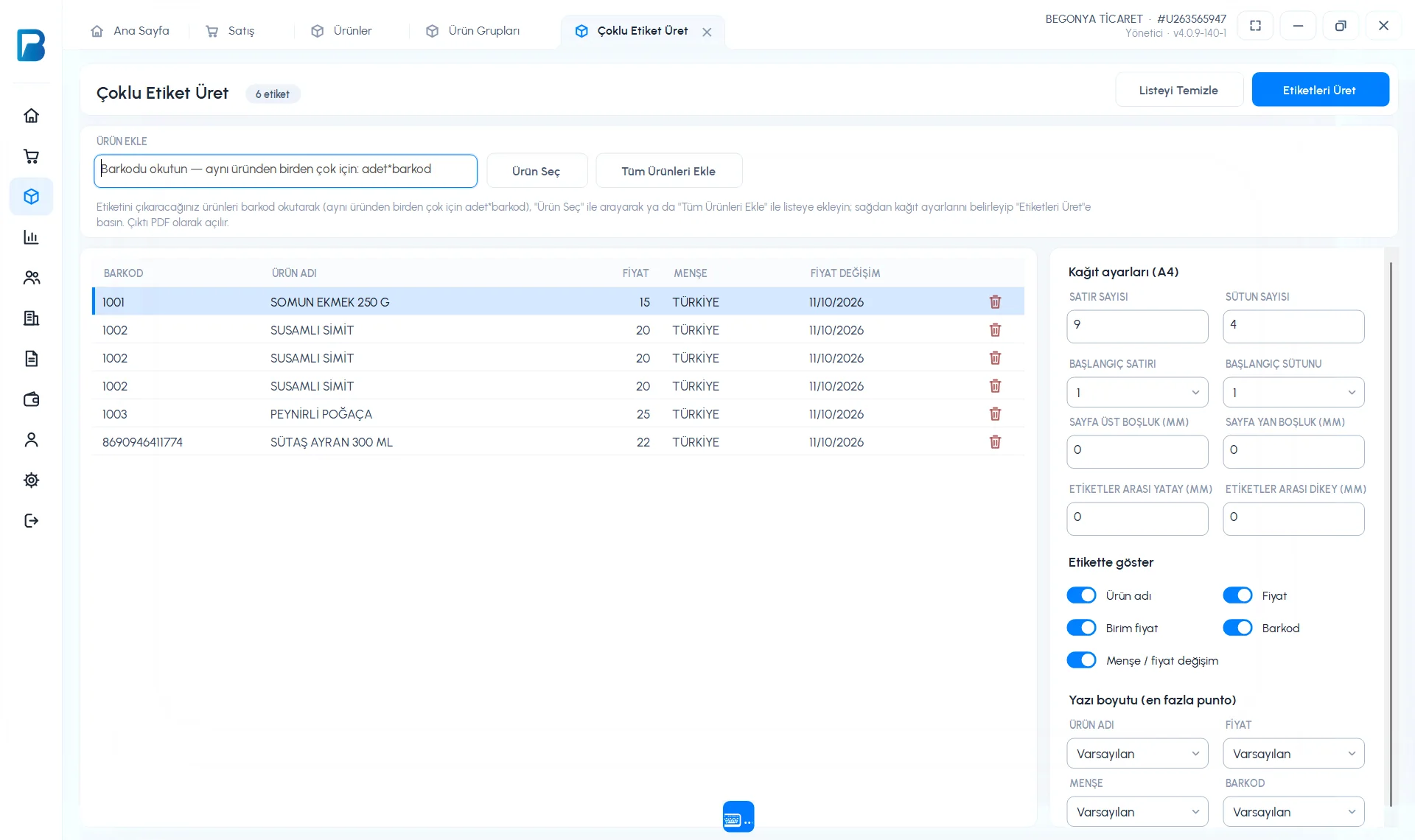
Open Products › Create Multiple Labels.
Add the products
1 Scan the barcode. For several labels of the same product, type
qty*barcode(e.g.3*1002). If you don't know the barcode, use 2 Select Product; for all products, use 3 Add All Products.Set up the paper
4 Paper settings (A4): NUMBER OF ROWS, NUMBER OF COLUMNS, START ROW / COLUMN (to start from an empty label on a partly used sheet), page and label margins. Use Show on label to turn the product name, price, unit price, barcode and origin/price change date on or off.
Generate
Press 5 Generate Labels. Print the PDF that opens at actual size (100%).
 12345
12345
Single label (roll label printer)
Add the products
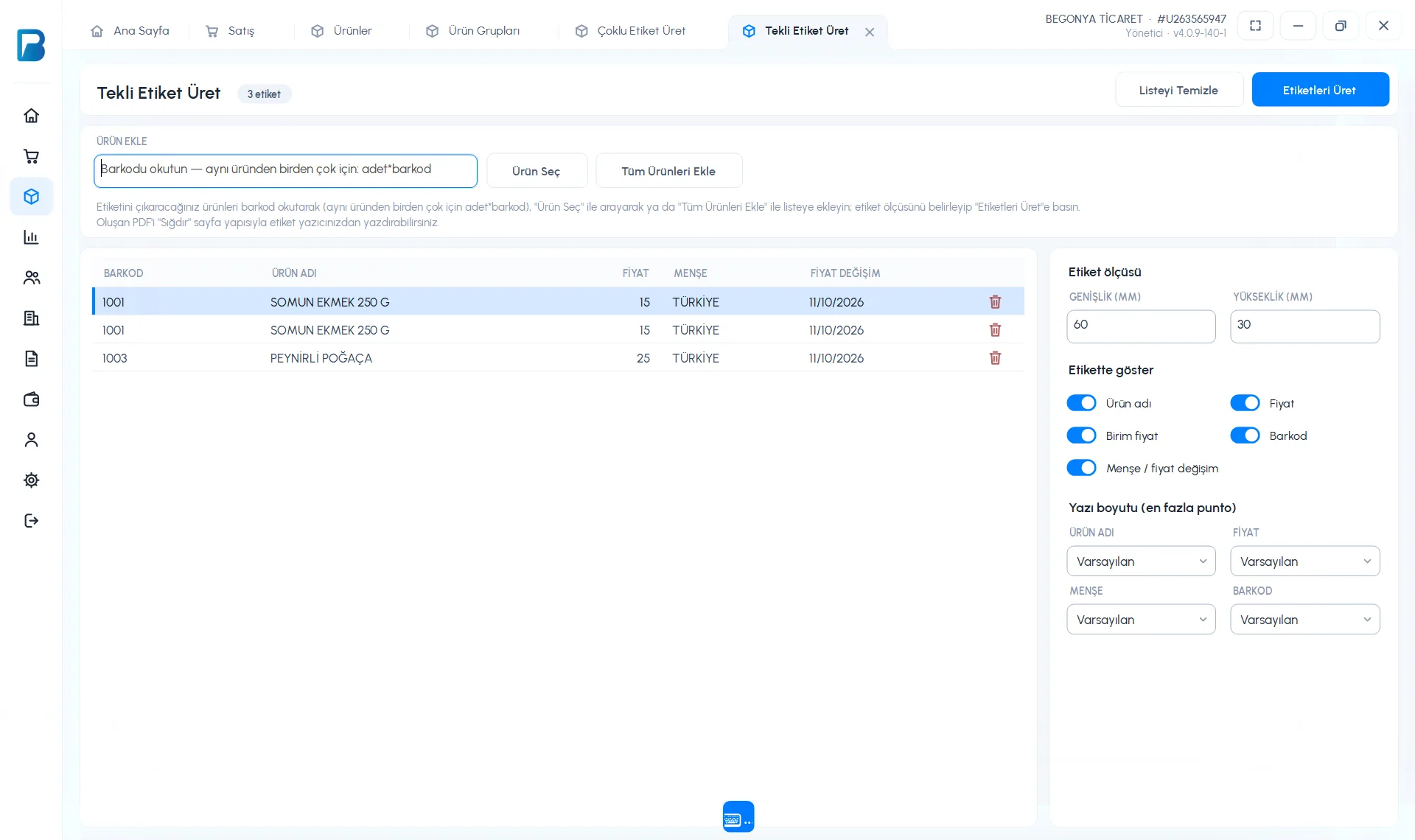
In Products › Create Single Label, 1 add the products the same way as for multiple labels.
Choose the size and printer
In 2 Label size, enter your label's WIDTH and HEIGHT in millimetres. Choose your label printer from the PRINTER list below it. These settings are stored on the computer and are ready the next time you open the screen.
Print a test label
The first time, press Test label. A label with a frame around the edges and dashed lines in the middle is printed. If the frame isn't centred on the label, change the SHIFT RIGHT (MM) and SHIFT DOWN (MM) values and print the test label again. To shift left or up, enter a negative value (e.g.
-1.5).Print
Press 3 Print Labels; the labels go straight to the printer without opening a PDF. If you want to see them before printing, use Preview.
 123
123
If Open as PDF is selected under PRINTER, the labels open as a PDF. When printing the PDF, choose Actual size and set the paper size in the printer properties to your label size; Fit shrinks the label and makes the print blurry.
If there is no PRINTER field on the screen, update your desktop app.
You can also print a single product's label right away with the Print Labels button on the product card. This button uses the printer and size you chose in Create Single Label.
Labels on mobile
With the Print label icon on the product card, you can print the product's barcode label on a Bluetooth label/receipt printer. For bulk shelf labels on A4 label sheets, use the web panel.