




First setup: getting BenimPOS ready to use
A step-by-step first setup checklist for business details, receipt settings, uploading products, quick lists, staff and till hardware.
Before you start using BenimPOS, you only need to do the steps below once. They are all done in the web panel; the desktop and mobile apps pick up these settings from your account automatically.
Checklist
1. Enter your business details
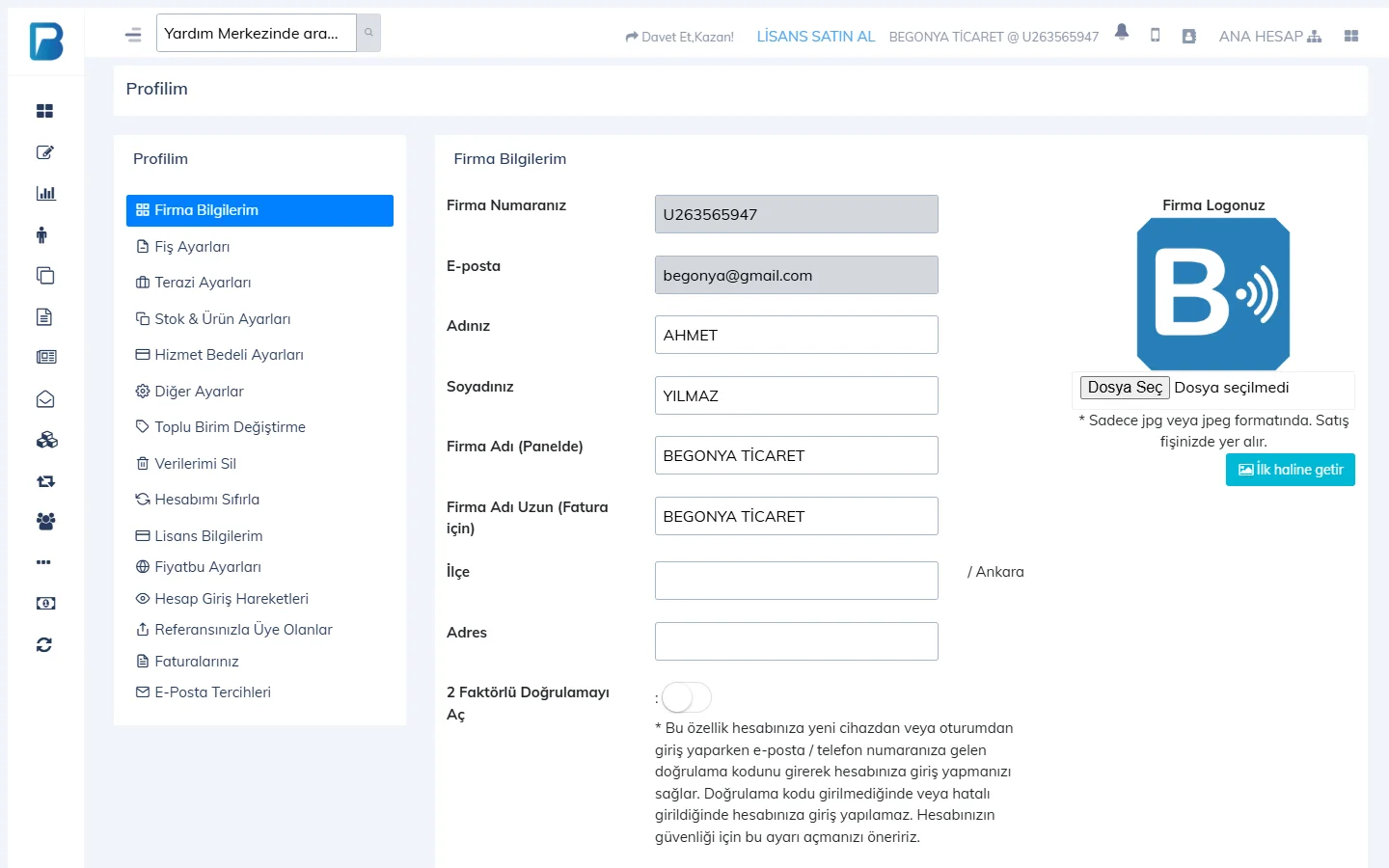
Open the My Profile page from the user menu at the top right. On the My Business Info tab, fill in the business name, the Full Business Name (for invoices) field shown on the receipt, the district and the address, then press Update & Save. To show your logo on receipts, upload a .jpg logo on the same page.
 1234
1234Details: Business details and logo
If your business is outside Turkey or you will use the panel in another language, choose the language, country, currency, VAT rate and time zone on the Basic settings tab: Language, country and region settings.
2. Set up your receipts
On the Receipt Settings tab of the same page, enter the width of your receipt roll (58 or 80 mm). Add the text to print at the bottom of the receipt (return policy, phone number, etc.). Receipt printing and templates
3. Upload your products
If you have only a few products, add them one by one by scanning their barcodes on the Products › Add & Update Products page. For many products, upload them in bulk with an Excel file: Bulk product upload with Excel.
BenimPOS's product database has more than 3.2 million ready-made barcoded products. If Automatic product creation in Stock & Product Settings is on, scanning a ready-made product that isn't in your account during a sale creates its product card automatically.
4. Arrange your quick product lists
Put products without barcodes, such as bread, simit and fresh produce, in the quick lists on the right of the sales screen. Quick product lists
5. Add your staff
Create a separate staff code and password for everyone who works at the till, and set their permissions. Adding staff and permissions
6. Set up your till
If you will run the till on a computer, install the desktop app (it keeps selling even when the internet is down). Installing the desktop app. To sell on a phone or tablet, download the mobile app. Connect the barcode scanner and receipt printer; if you have a fiscal cash register (ÖKC), set up the fiscal cash register integration.
7. Make your first sale
Make a test sale following the steps in How do I make a sale? You can void wrong sales from the sale details.
If you are moving from an old program, you can import your customer balances with Excel and add your suppliers on the Suppliers page.
 1234
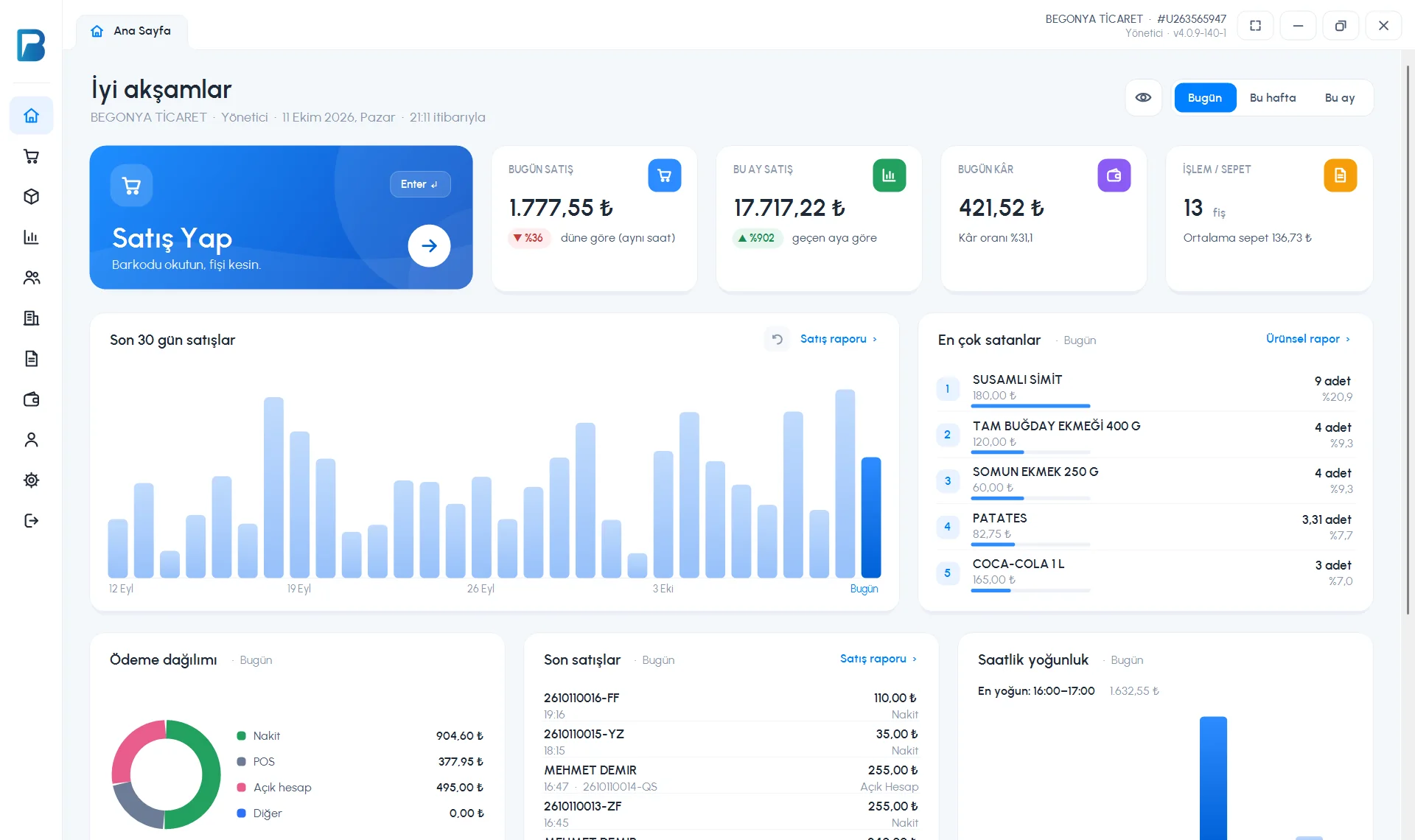
1234First settings in the desktop app
After you log in, the desktop app automatically downloads the settings and products you set up in the web panel. A few settings that are specific to the computer are made in the app:
- On the Receipt and sales card of the Settings › Profile settings page, choose the receipt width (RECEIPT WIDTH) and the PRINT PREFERENCE.
- Make your receipt printer the default printer in Windows; the app sends receipts to the default printer.
- If you use a scale, fill in the Scale card on the same page: Selling with a scale.
- If you use a touchscreen, turn on the Virtual keyboard: Virtual keyboard.
Some settings, such as bulk product upload with Excel, branches, payment types and staff permissions, are only available in the web panel. Your changes reach the desktop app through sync.
First settings in the mobile app
The mobile app needs no separate setup; just log in with your account. On the Menu › Profile page, you can edit your business details, quick list and price names, and the receipt width.
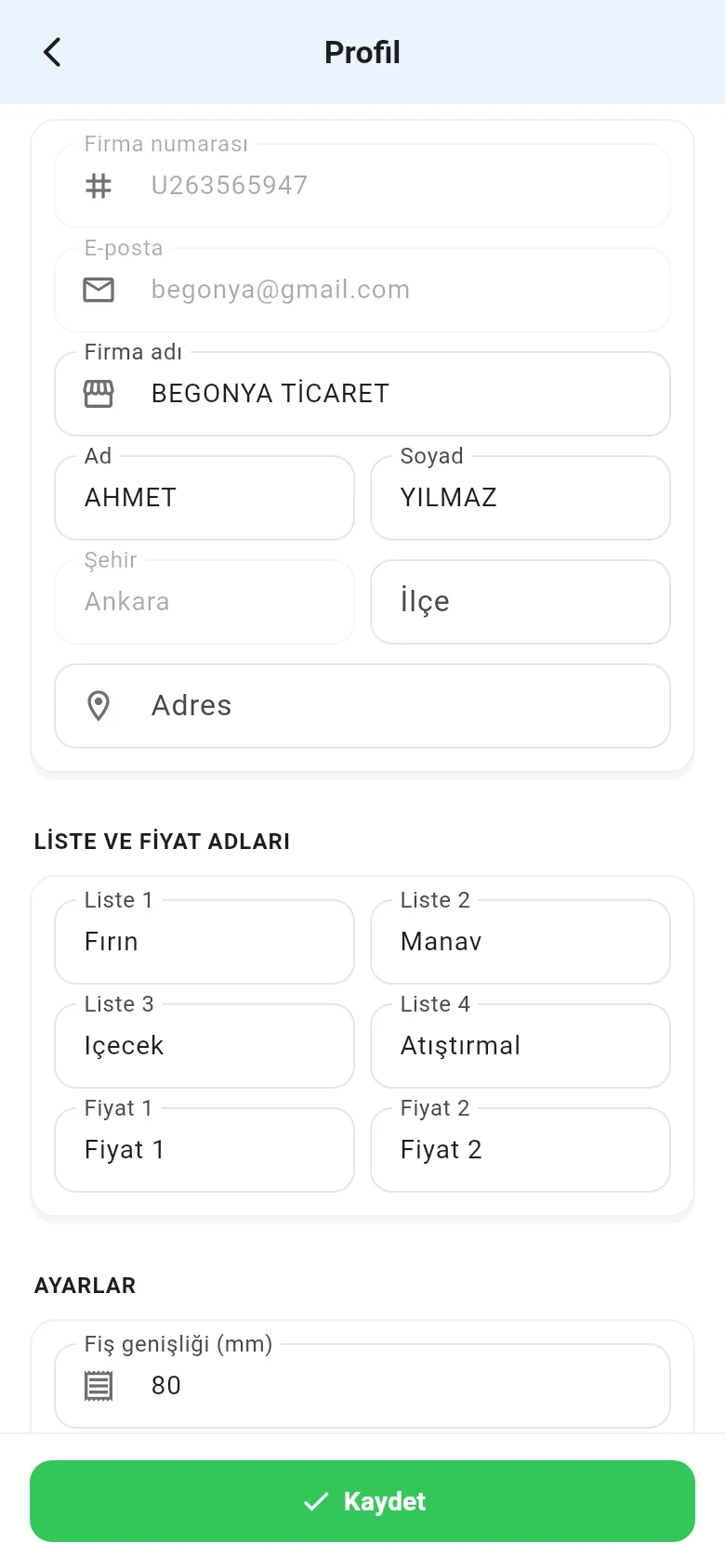
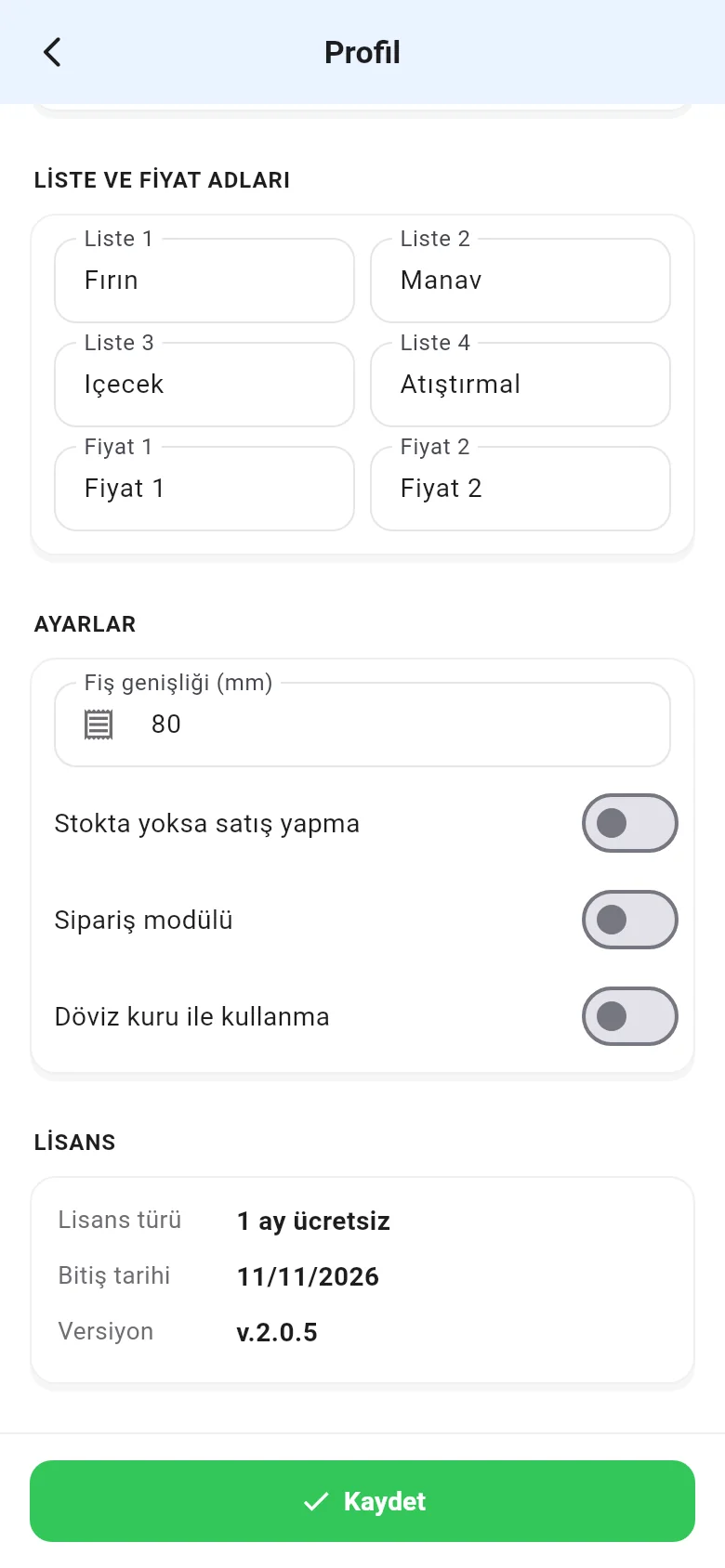
Bulk upload with Excel, the logo, payment types and adding branches aren't available on mobile; do these in the web panel.