




Adding income and expenses, expense types
Record expenses such as rent, bills and salaries and income other than sales; set up types, enter expenses in installments and edit records.
Record money movements other than sales as income and expenses: expenses such as rent, electricity, salaries and shipping, and income other than sales. These records show up in the Expenses, Income and Cash Register Report sections of the reports, so the money in the till matches the report.
Adding an expense
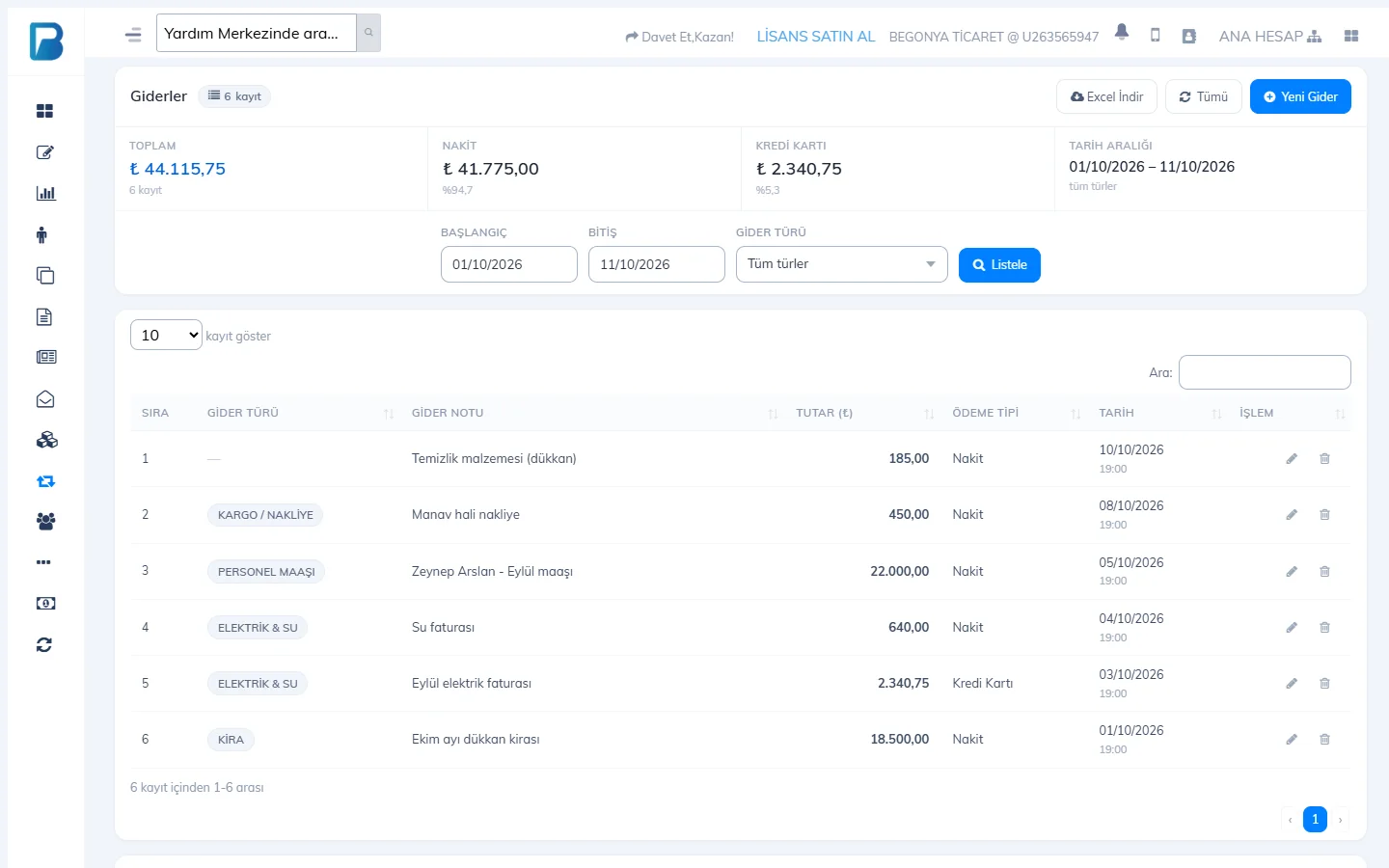
Open the Expenses page
Open Income / Expense › Expenses in the left menu and press 1 New Expense.
 123
123Fill in the rows
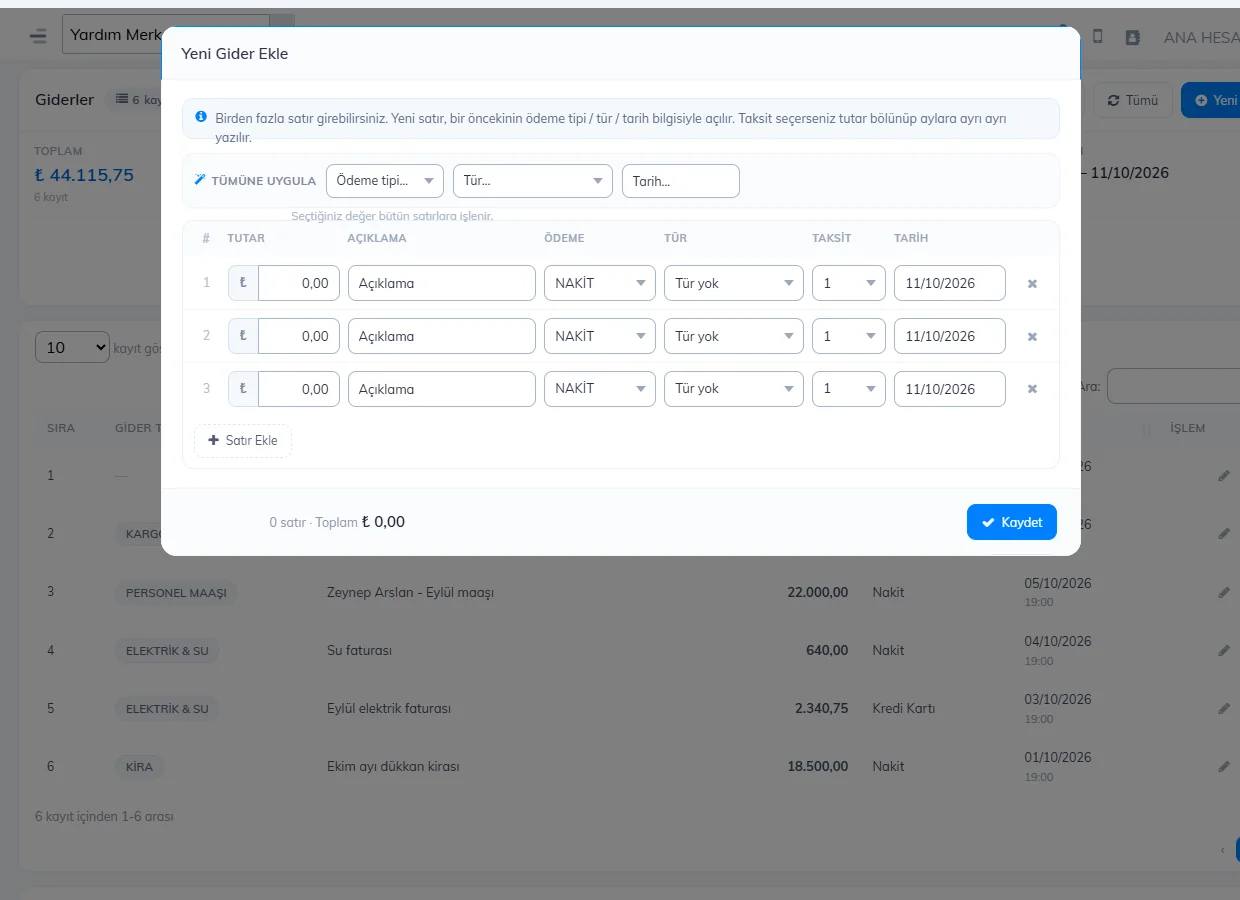
On each row, enter the Amount, Description, Payment (Cash / Credit Card), Type, the number of Installments if needed, and the Date. To enter several expenses at once use Add Row; to give all rows the same payment type, type or date, use the Apply to all fields at the top.
Save
Press Save. If you entered a number of installments, the amount is split into installments and a separate record is created for each month.
Adding income
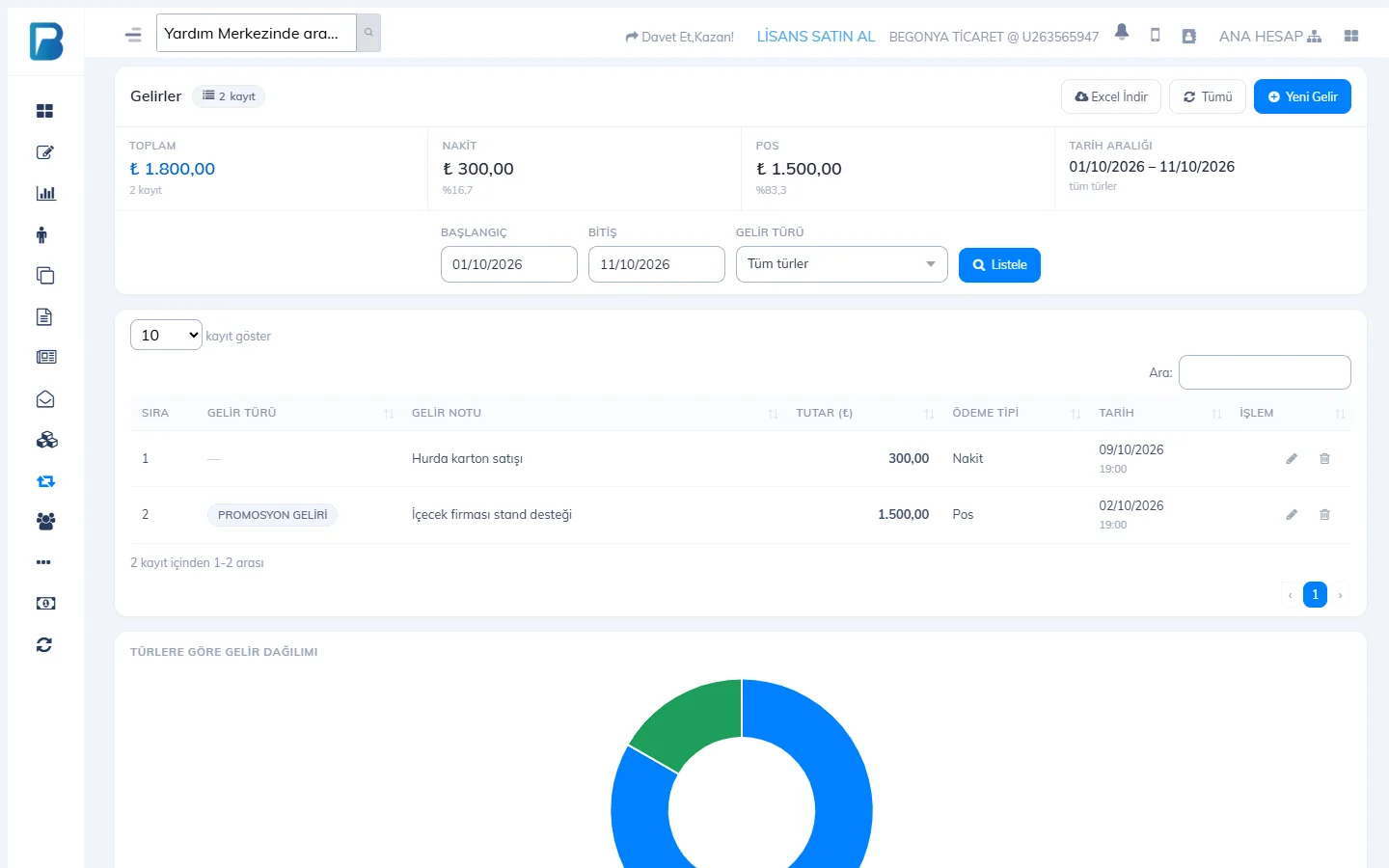
On the Income / Expense › Income page, add income the same way with New Income (payment type Cash / POS).
Income / expense types
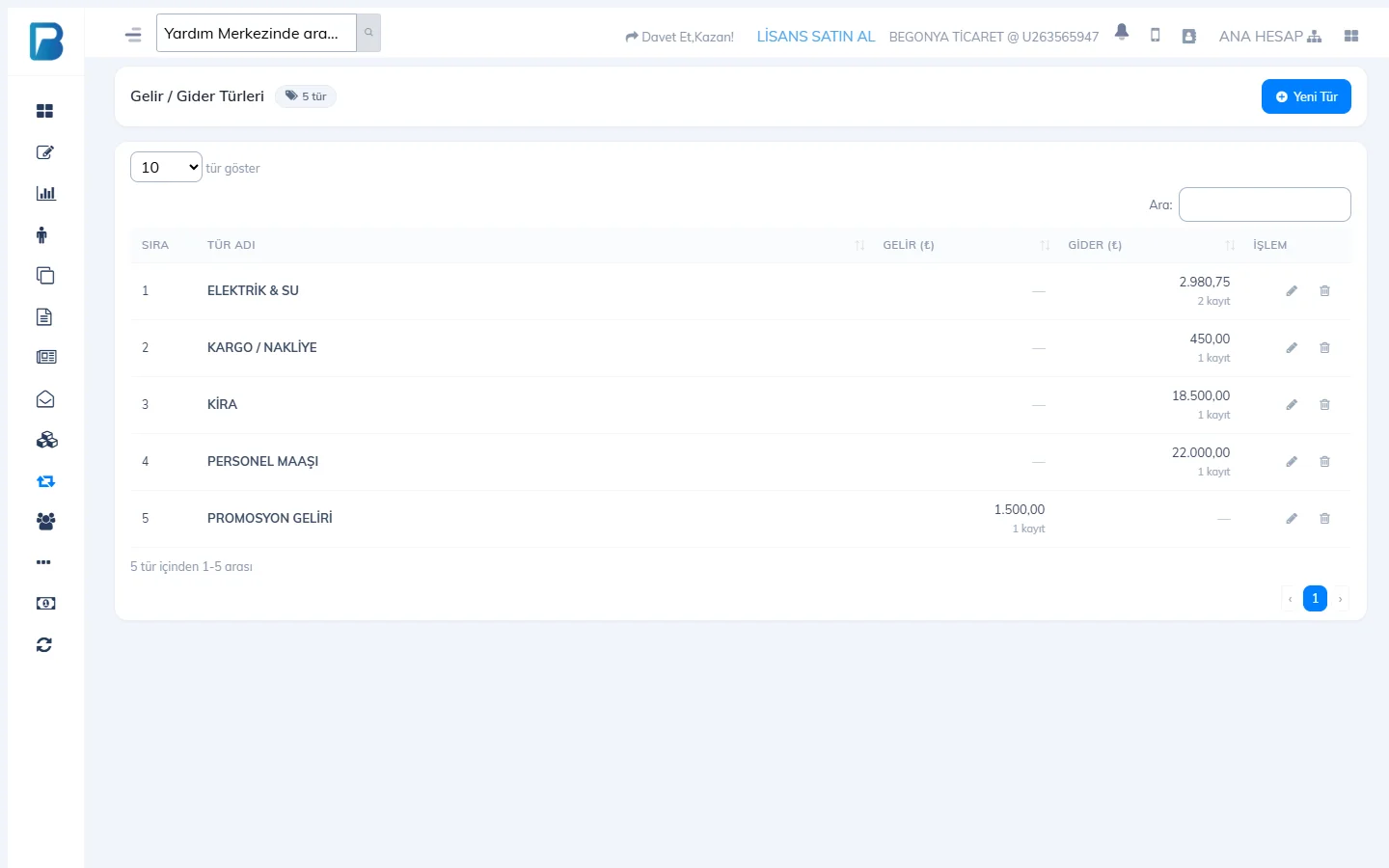
To group your expenses, add types on the Income / Expense › Income / Expense Types page with 1 New Type (Rent, Electricity, Staff salary…). This page also shows the total income and expense amount for each type; you can filter the lists by type.
 1
1Editing and deleting
Use the pencil icon at the end of a record in the list to change the amount, payment type, type and note; delete it with the bin icon. You can select several records and change their payment type or type in bulk. Export the list with Download Excel.
Enter payments to suppliers as a payment on the supplier card, not as an expense; purchase invoices paid in cash/by credit card are also deducted from earnings without a separate expense. Supplier payments
Adding an expense
Open the Expenses page
Open Income / Expense › Expenses. The top shows the total expenses, the breakdown by payment type and this month's total. Press 1 + Add Expense.
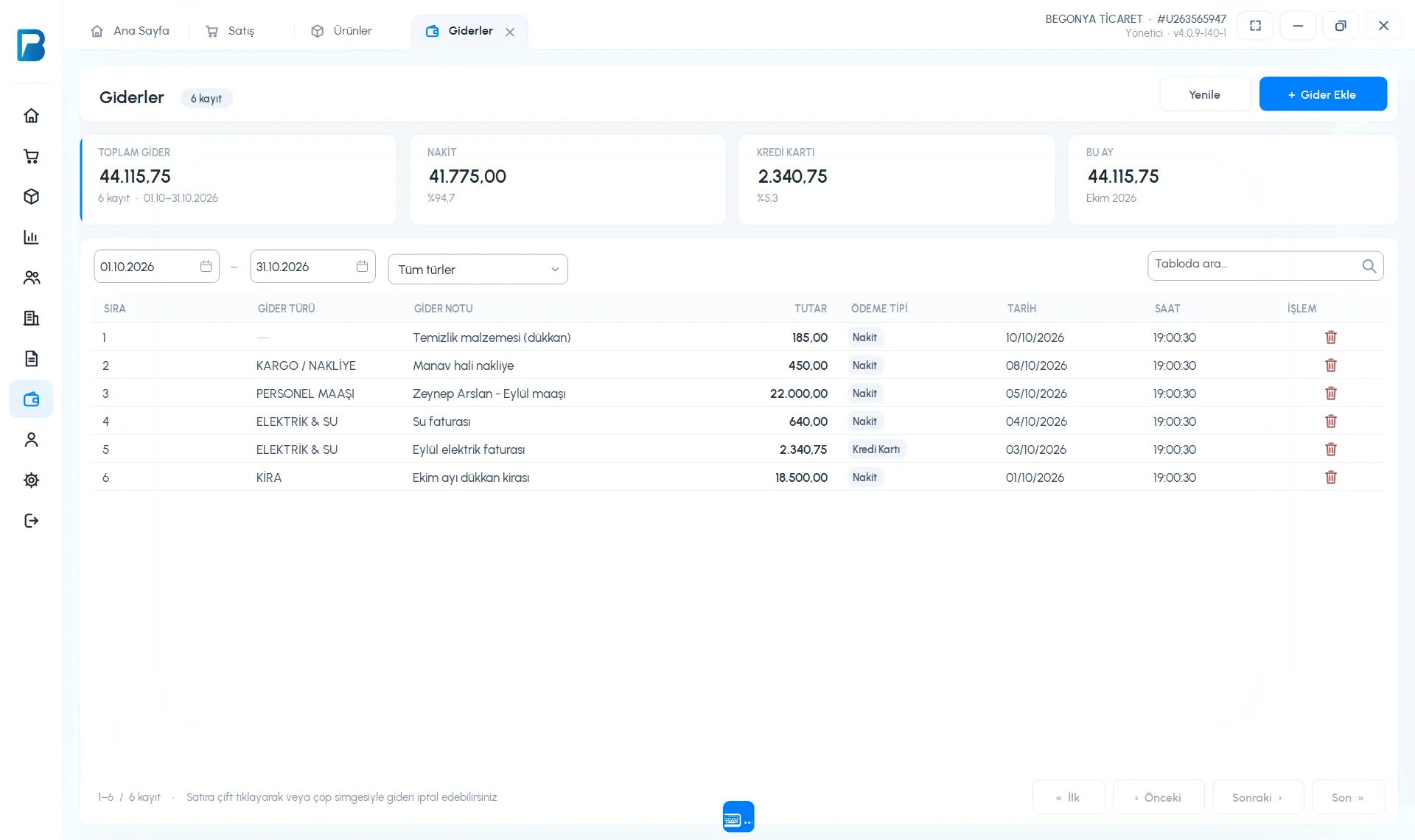 1
1Fill in the rows
On the Add multiple expenses screen, 2 enter AMOUNT, PAYMENT TYPE, EXPENSE TYPE, DATE and DESCRIPTION on each row. To give all rows the same payment type, type and date, use the 1 Apply to all rows options. To add a row, use 3 + Add Row (Enter in the description also opens a new row).
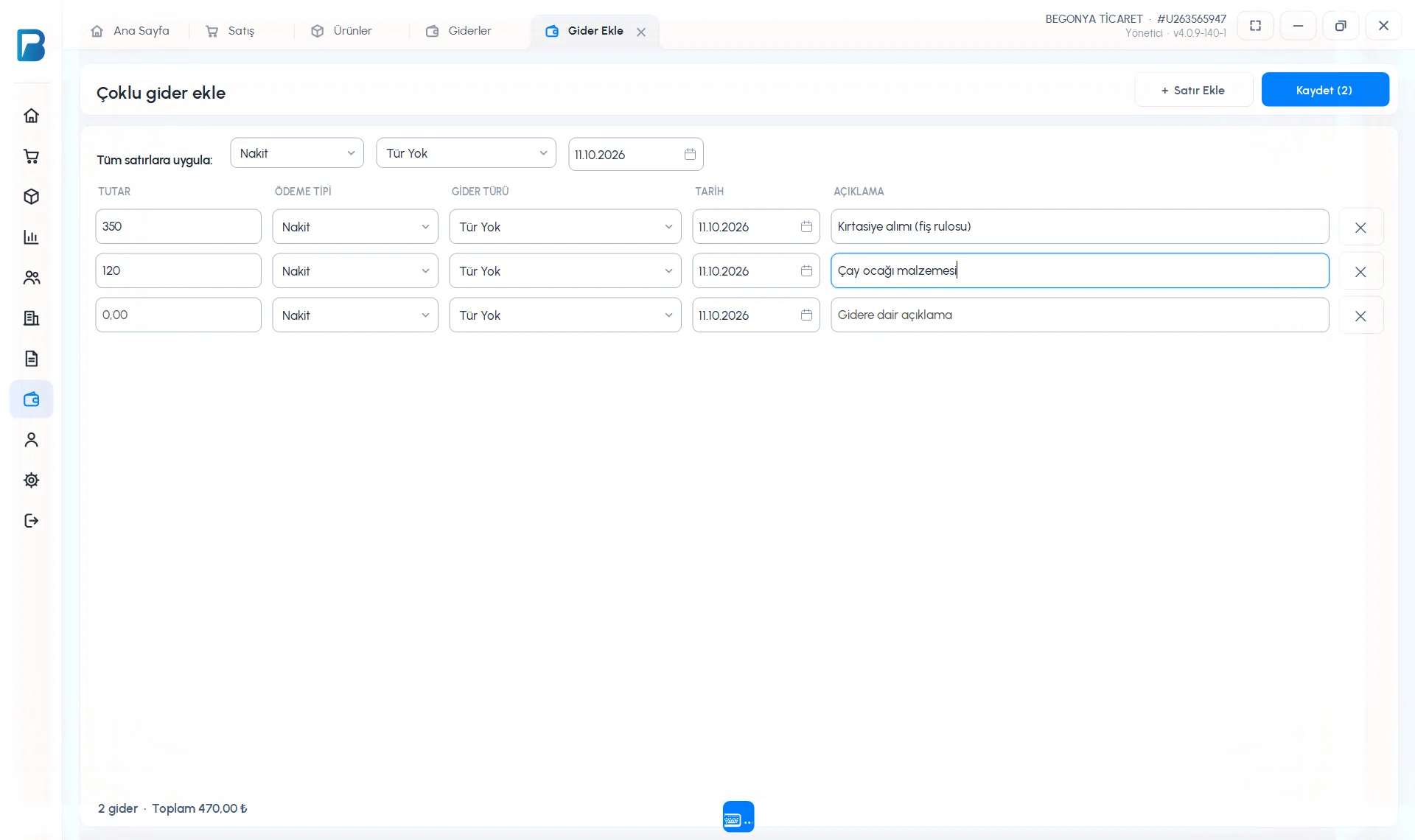 1234
1234Save
Press 4 Save (N); the number in brackets is the number of rows to be saved.
Adding income
In Income / Expense › Income, enter several income records the same way with + Add Income.
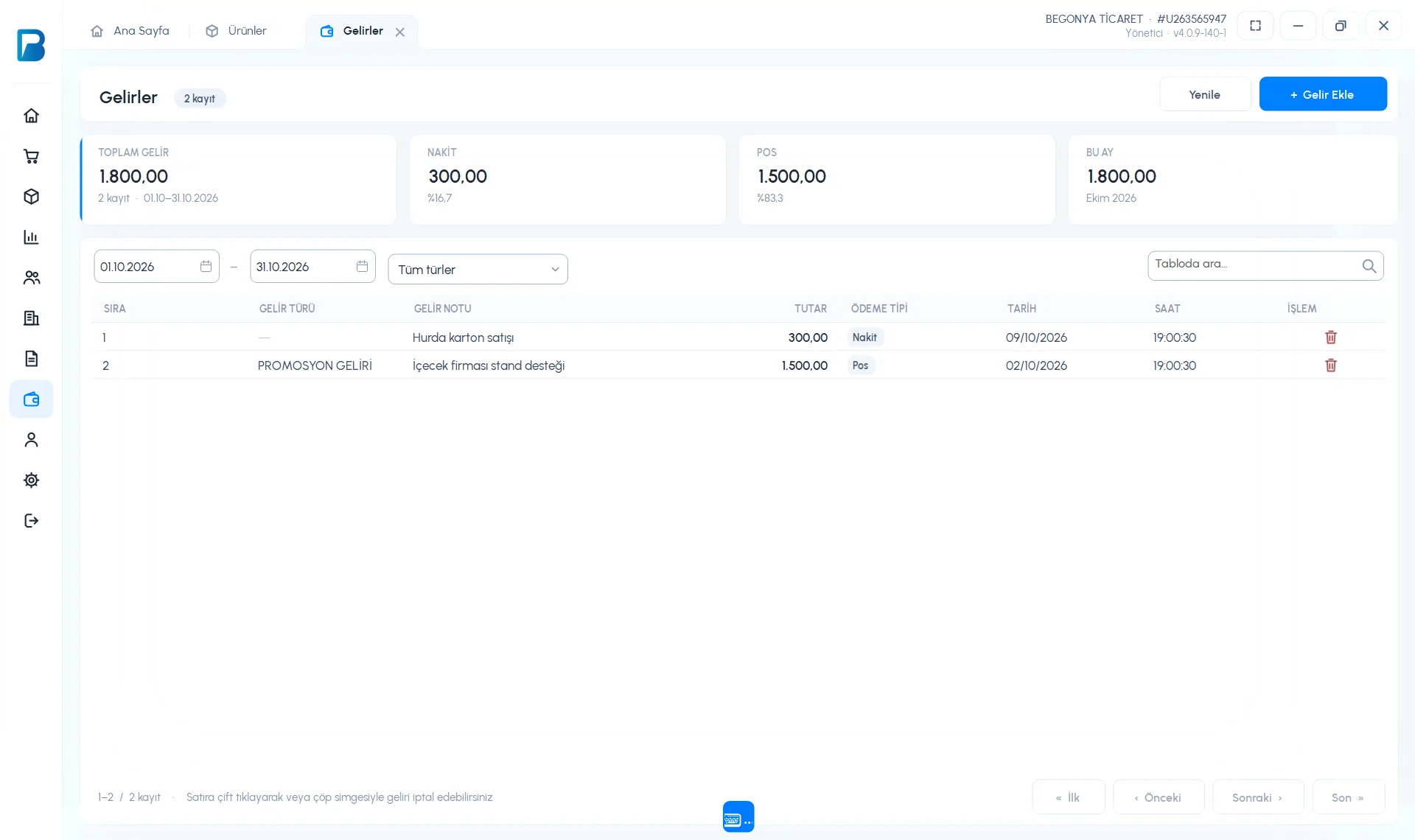
- Filter the list by date range and type.
- To cancel a record, double-click the row or press the bin icon.
- Income / expense types can't be set up in the desktop app; add them in the web panel and they arrive by sync.
Adding income / expenses
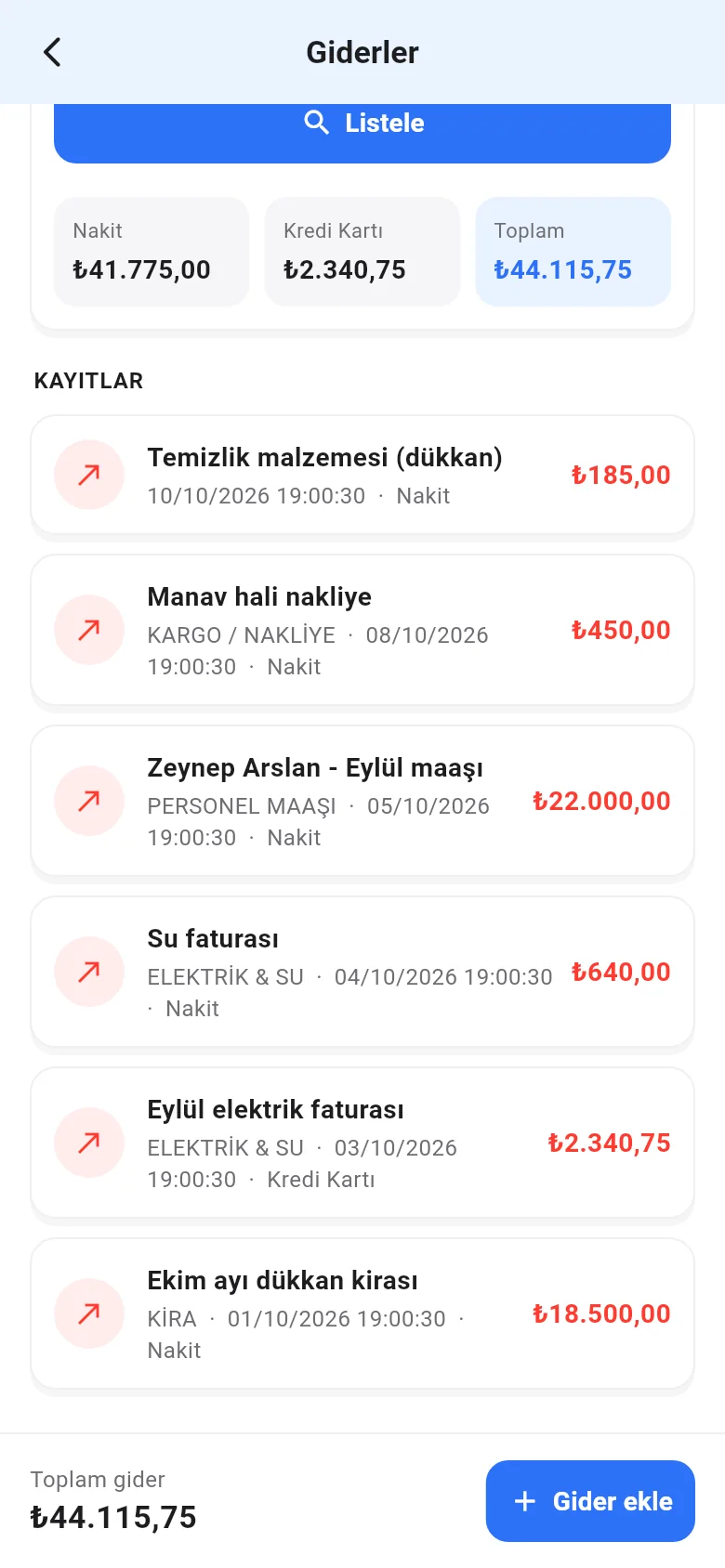
On the Menu › Expenses (or Income) page, select a date and tap List. For a new record, tap Add expense at the bottom; enter the Expense amount, Expense note, Payment type, Installments, Expense type and Expense date, then tap Add expense.
 1
1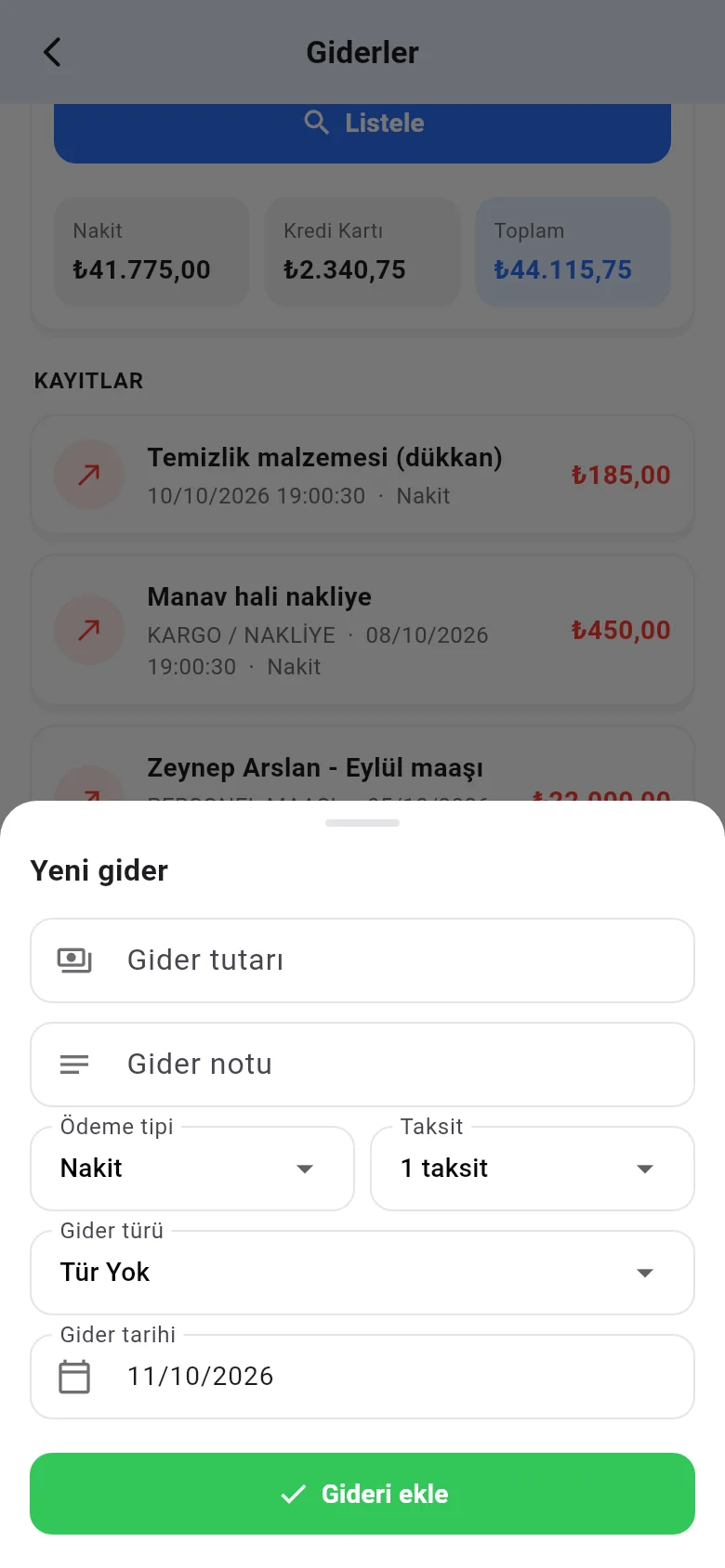
To delete, tap the record and confirm.