




Exchange rates and foreign-currency prices
Enter product prices in a foreign currency, set your own exchange rate, and manage the app currency and bulk currency changes.
You can enter the price of products you buy or sell in a foreign currency in that currency; in the sale, the price is converted to your app currency (e.g. Turkish lira) at the current rate. You can use the system rates or enter your own rate for any currency you want.
Currencies
54 currencies are available on the product card, in supplier bank accounts and when choosing the app currency. Amounts are shown with each currency's own number of decimal places: JPY, IQD and IRR have no decimals, while KWD, BHD, OMR, JOD, TND and LYD are written with three. You change the app currency under My Profile › Basic settings; details: Language, country and region settings.
Turning on foreign-currency prices
Turn on the setting
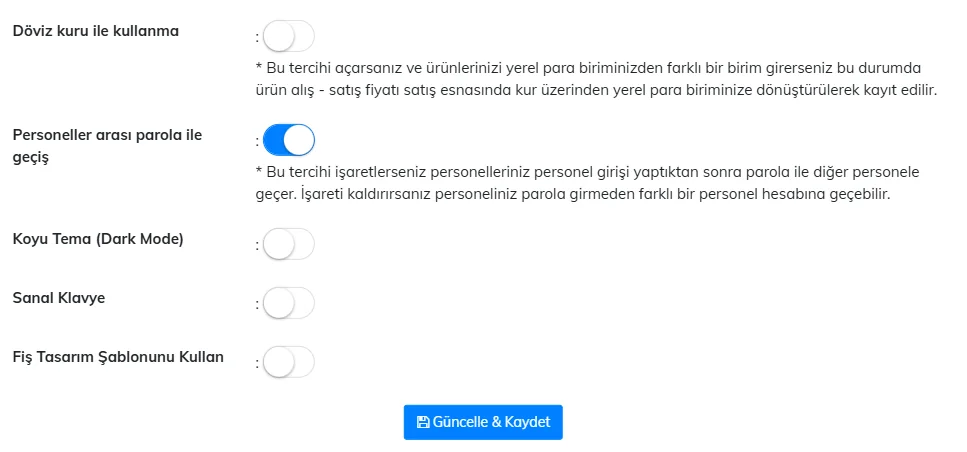
On the My Profile › Other Settings tab, turn on 1 Use exchange rates and press Update & Save.
 123456
Choose the product's currency
On the product card, click the currency list next to the price fields. You can search by typing the code or name in the box that opens ("usd", "dollar", "kzt", "tenge"). Choose the currency and enter the price in that currency.
Make a sale
In the sale, the product comes onto the receipt converted to the app currency at the current rate.
Entering your own rate
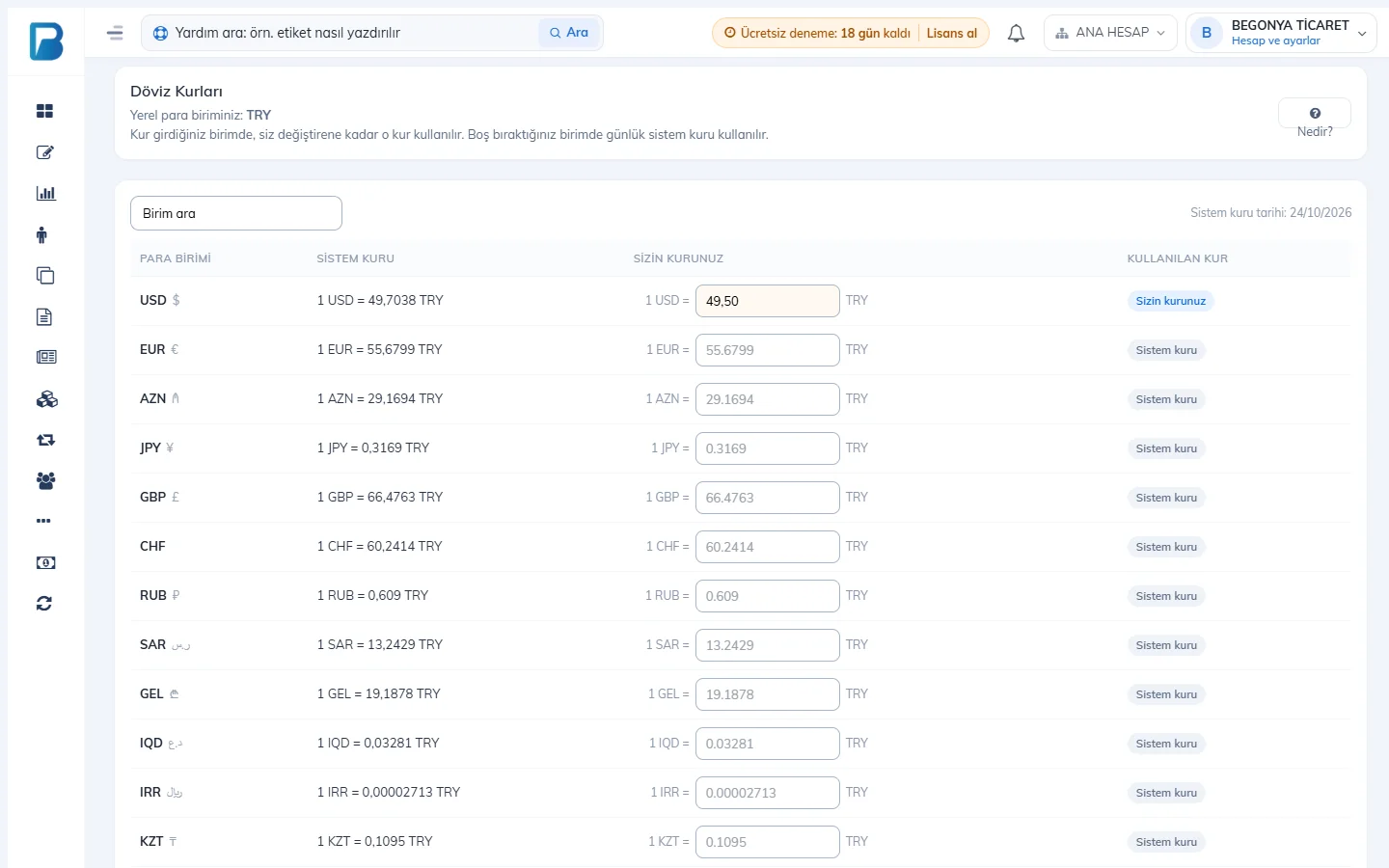
Open Exchange Rates from the user menu. The Exchange Rates page shows the system rate, your rate and the rate in use for each currency.
 123
123- Type it in the 2 Your rate field of the currency you want to use your own rate for, and press Save at the bottom of the list. The 3 Rate in use column shows which rate applies for that currency. The rate you enter stays in effect until you change it; you don't need to enter it again every day.
- For currencies you leave blank, the system rate, updated daily, is used. If you delete your own rate and save, that currency goes back to the system rate.
- In the long list, find the currency with the 1 Search currency box.
- In the Rate history section at the bottom of the page, you can see which rate was entered when, and from which app (web, desktop, mobile).
- My Profile › Bulk Currency Change: changes the currency of Price 1, Price 2 or the purchase price of all products at once.
Exchange Rates screen
Open the Exchange Rates screen with Settings › Exchange rates. The Rates tab shows the system rate and the rate in use for each currency. Type your rate in the Your rate cell of the currency you want to use your own rate for and press Save Rates; the rate stays in effect until you change it. For a currency you leave blank, the system rate is used. You can see the changes on the Rate history tab.
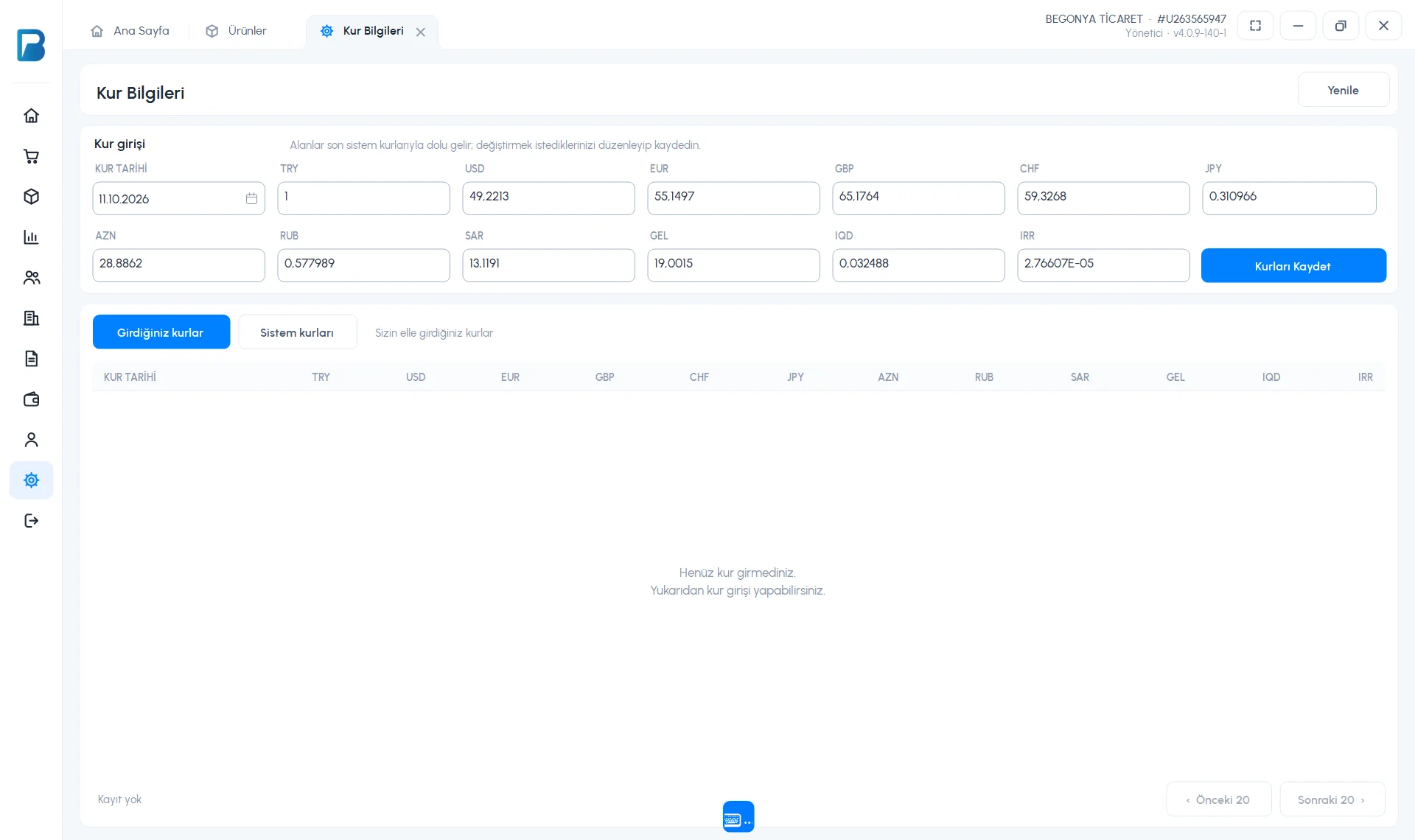
- A rate you enter while offline takes effect immediately and is shown as "Waiting to be sent"; when the connection is back, it is sent to web and mobile too.
- On the product card, click the currency box next to each price or press F4; in the window that opens, find the currency by typing its code or name.
- When Use with exchange rate is on under Profile settings › Receipt and sales, the rate you entered is used in sales; if there is none, the system rate is used.
- App currency: CURRENCY on the same card. If a rate has been entered, the $ and € equivalent of the total is also shown on the sales screen.
On the Menu › Exchange Rates page you can see the rate in use for each currency. Tap a currency to enter your own rate, or go back to the system rate with Use system rate. Turn on foreign-currency prices with Menu › Profile › Settings › Use exchange rates. On the product card, tap the Currency field next to the price; find the currency by typing a code or name in the search box at the top of the list that opens.