




Staff login and switching staff at the till
How staff log in with their own code on the web, desktop and mobile apps, how to switch staff at the till and how to record a sale under a staff member's name.
Staff log in with their own staff code and password; their sales are recorded under their name and they only see the actions they have permission for. For adding staff and setting permissions: Adding staff and permissions.
Staff login
Login page
On the benimpos.com login page, tick the Staff login option.
Enter the details
Enter the staff code in the Email / Staff code field, the password in the password field and your Business ID (the number starting with "U" on the admin's Profile page), then log in.
Switching staff at the till
When logged in with a staff account, a Staff: Name label appears on the top bar of the sales screen. At a shift change, click this label, choose the staff member from the list and enter their password; the sales screen continues with the new staff member. If My Profile › Other Settings › Password required to switch staff is on, a password is asked when switching; if you turn it off, staff can switch without a password.
Choosing staff on the sales screen (admin)
To record a sale under a staff member's name on a till opened as admin, open the 1 details section on the sales screen and choose 7 STAFF.
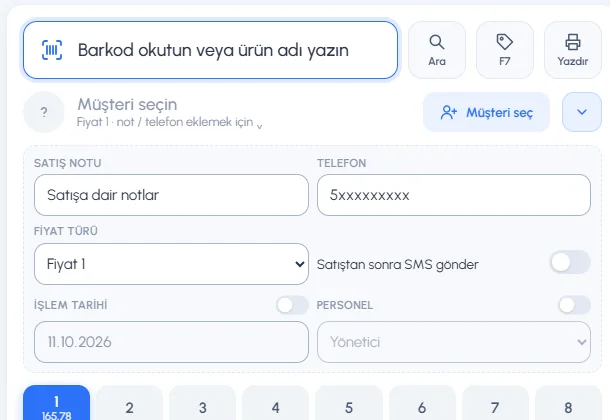 1234567
Give each staff member their own code and password; if a shared account is used, you can't tell who made which sale or see separate staff activity.
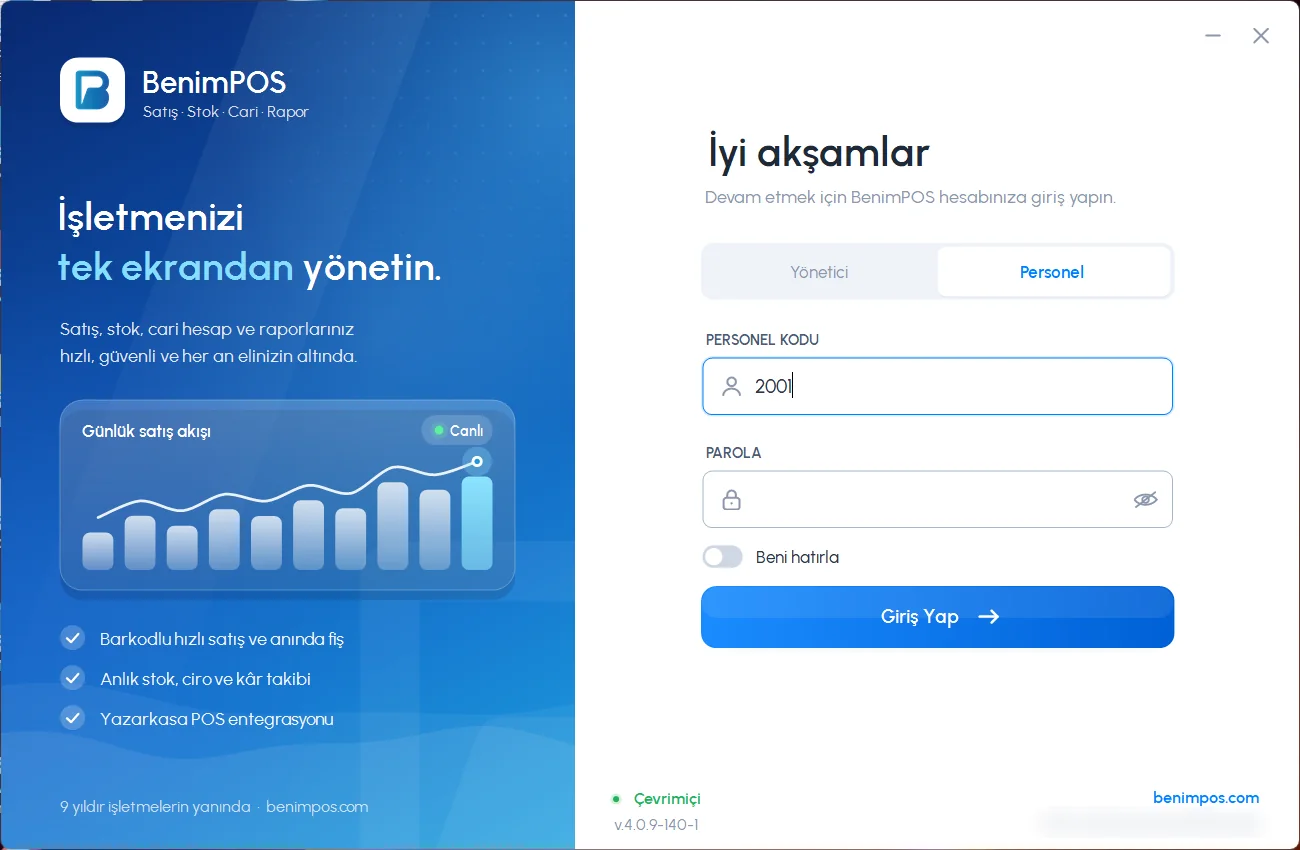 12
12Staff login
On the app's login screen, choose Staff, enter the STAFF CODE and PASSWORD and press Log In. Staff login uses the data on the computer, so no internet is needed; however, a newly added staff member, or one whose password was changed, must already be synced to the computer.
Switching staff at the till
Click the identity area
While logged in as staff, click the staff name on the right of the top bar (Switch staff).
Choose the staff member
Choose the staff member to switch to from the ACTIVE STAFF list, type their password and press Switch to staff. The app reopens with that staff member.
- When logged in as admin, there is no shortcut to switch staff: log out with Sign Out and Exit and log in as the staff member.
- To record a sale under another staff member's name (admin only): Devices and options › TRANSACTION DATE AND STAFF › Staff.
Staff login
On the login screen, tap the Staff tab; enter Your staff code, Your password and the Business ID, then tap Log in. A "Staff" label appears on the home screen and the menu only shows the sections the staff member has permission for.
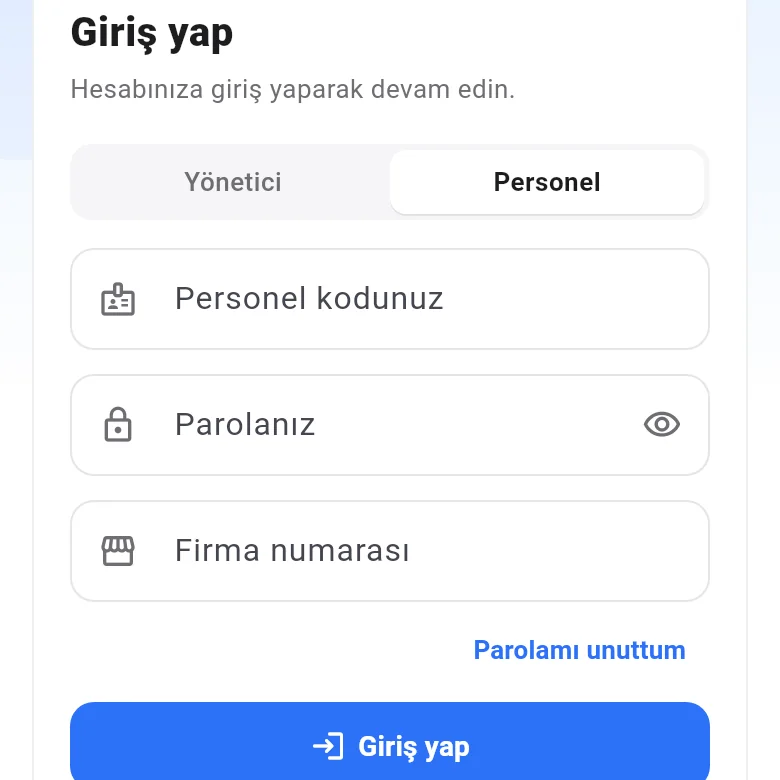 123
123There is no quick staff switch on mobile; log out and log in with the other staff member.