




Product report and group report
See how much you sold of each product and each group, with amounts and profit, filtered by staff, customer and supplier.
The Product Report shows how much of each product you sold, with the amount and profit; the Group Report shows the same information totalled by product group.
Product report
Open the report and choose the dates
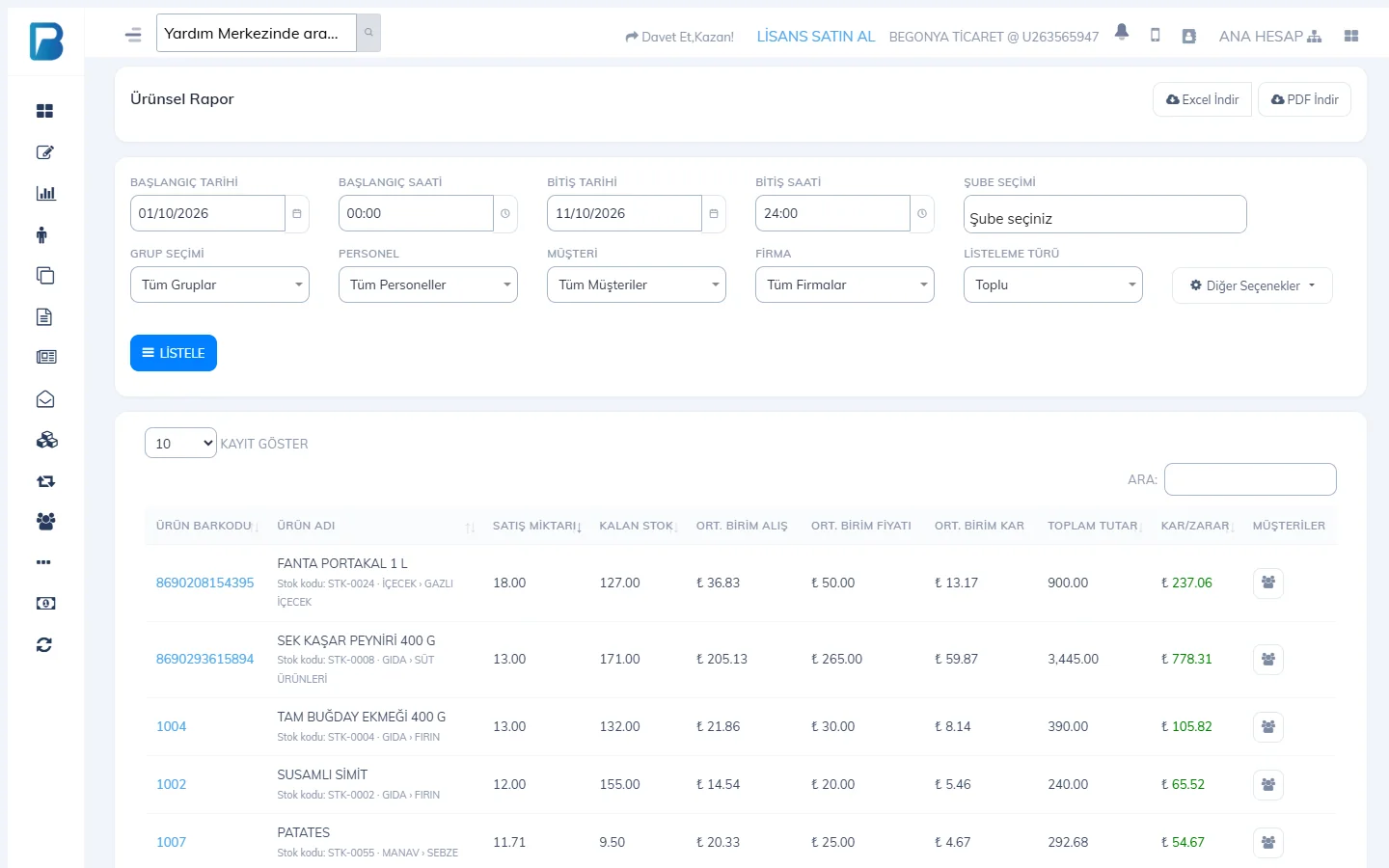
In Reports › Product Report, enter the start and end date/time.
 1234
1234Filter
Use 1 GROUP SELECTION to see one group's products, STAFF to see what a staff member sold, 2 CUSTOMER to see what a customer bought, and SUPPLIER to see sales of products you bought from a supplier. 3 LIST TYPE: Combined or Day by Day.
What to include
In 4 More Options, you can choose Non-revenue sales, Miscellaneous sales and Include returns. Press LIST.
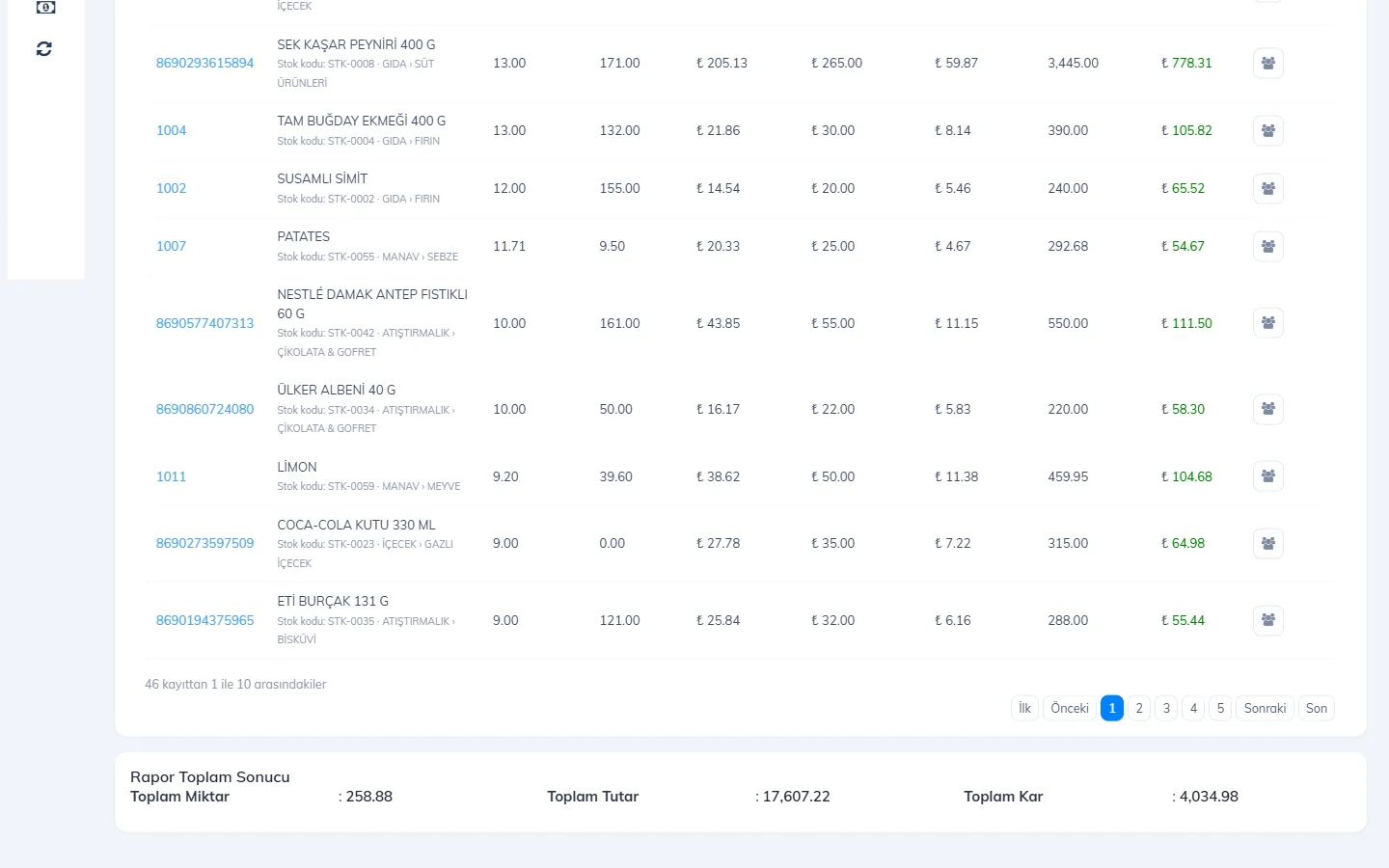
The results table shows each product's quantity sold, remaining stock, average purchase and sale price, total amount and profit, with the Report Totals at the bottom. Export it with Download Excel and Download PDF.
Group report
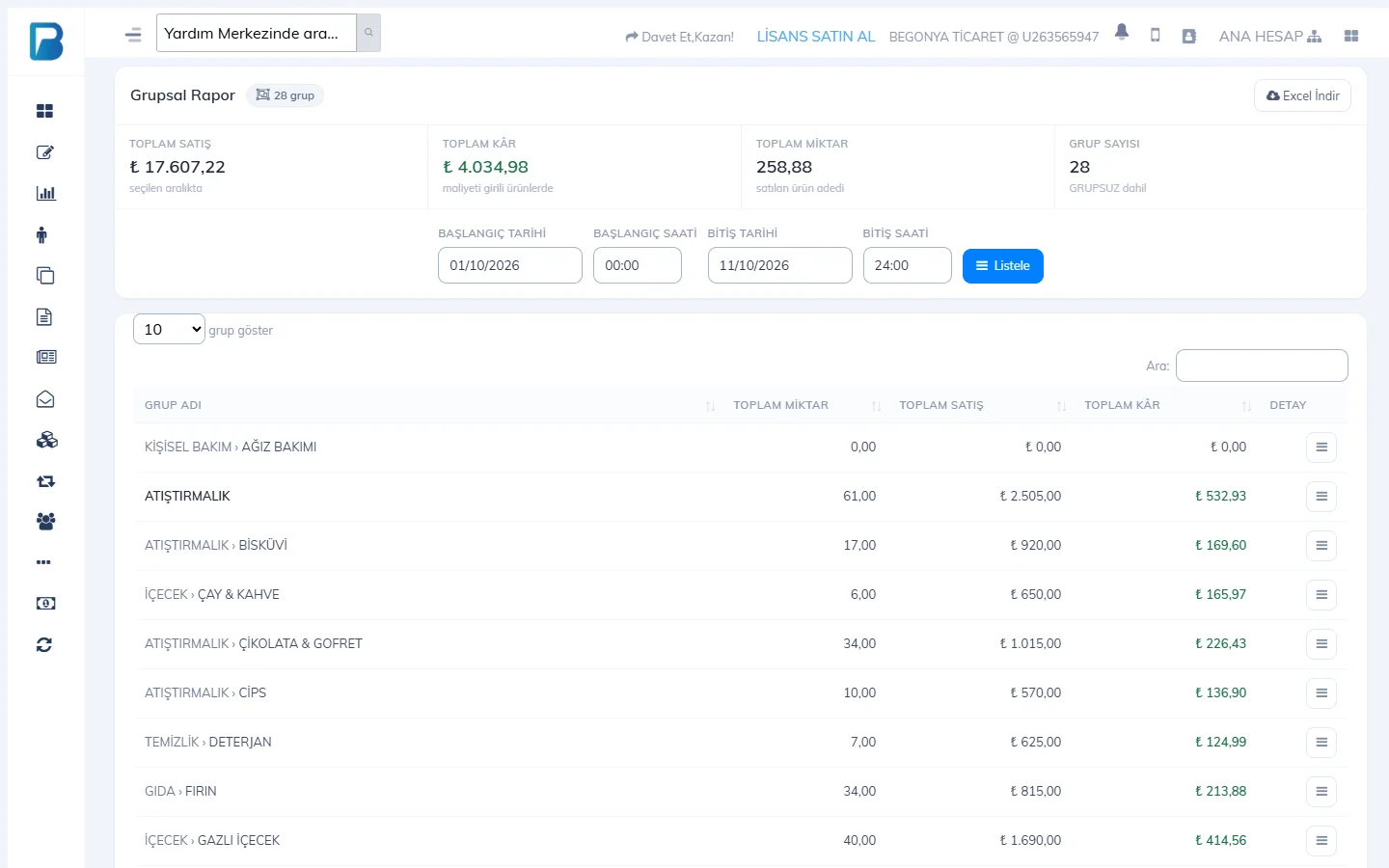
In Reports › Group Report, choose the date range and press List. Each group's total quantity, sales and profit are listed; use DETAILS to see the group's products.
Product report
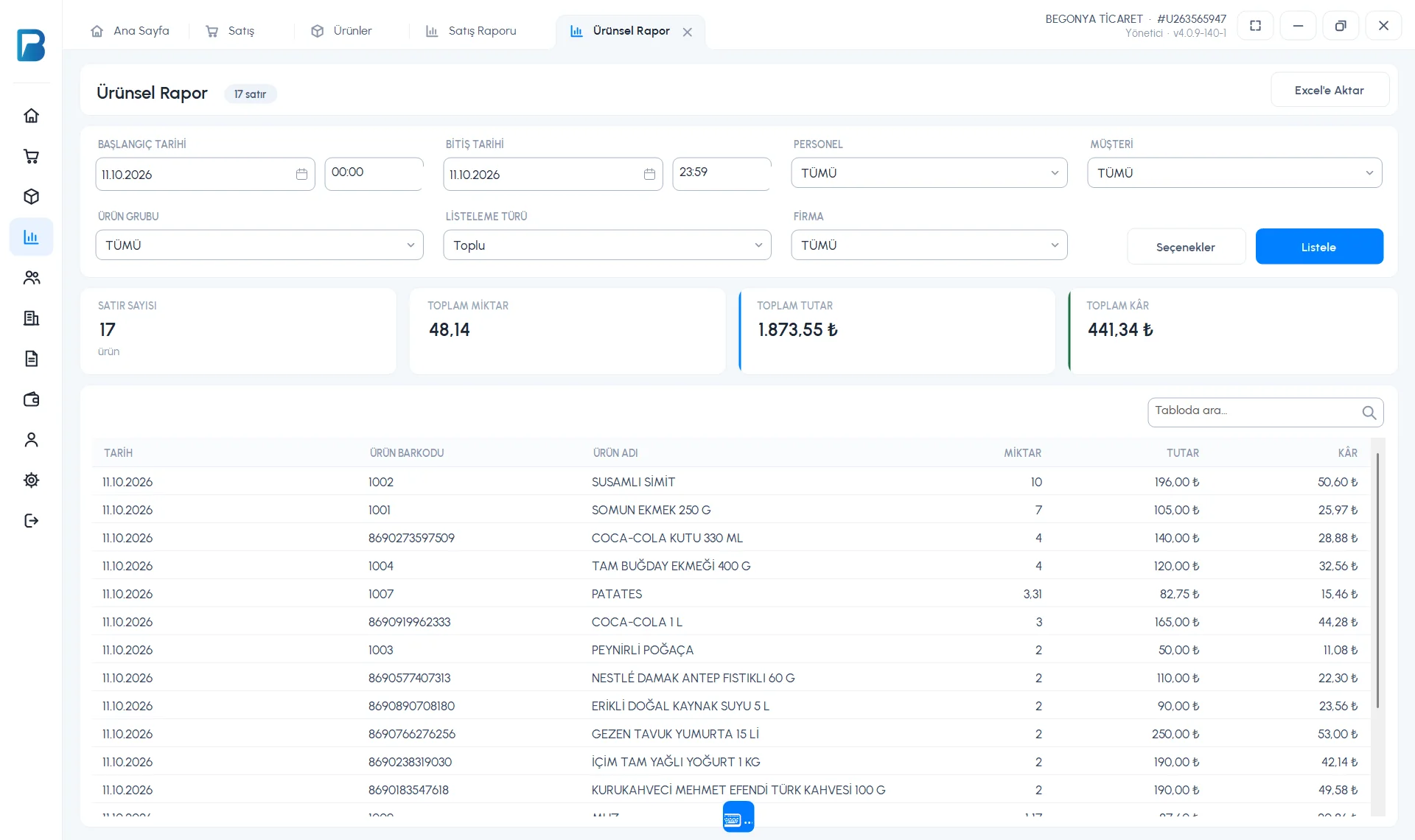
Open Reports › Product Report. Choose 1 the date / time range and, if you like, STAFF, CUSTOMER, PRODUCT GROUP, LIST TYPE (Combined or Day by Day) and SUPPLIER. 2 In Options, you can include returns, miscellaneous and non-revenue sales in the report. Press 3 List.
 1234
1234The list shows the QTY, AMOUNT and PROFIT for each product sold, with totals at the top. You can export it with 4 Export to Excel.
Group report
Reports › Group Report (Product Group Report) lists the total quantity, sales and profit of each product group between two dates. Double-click a row to see the group's products.
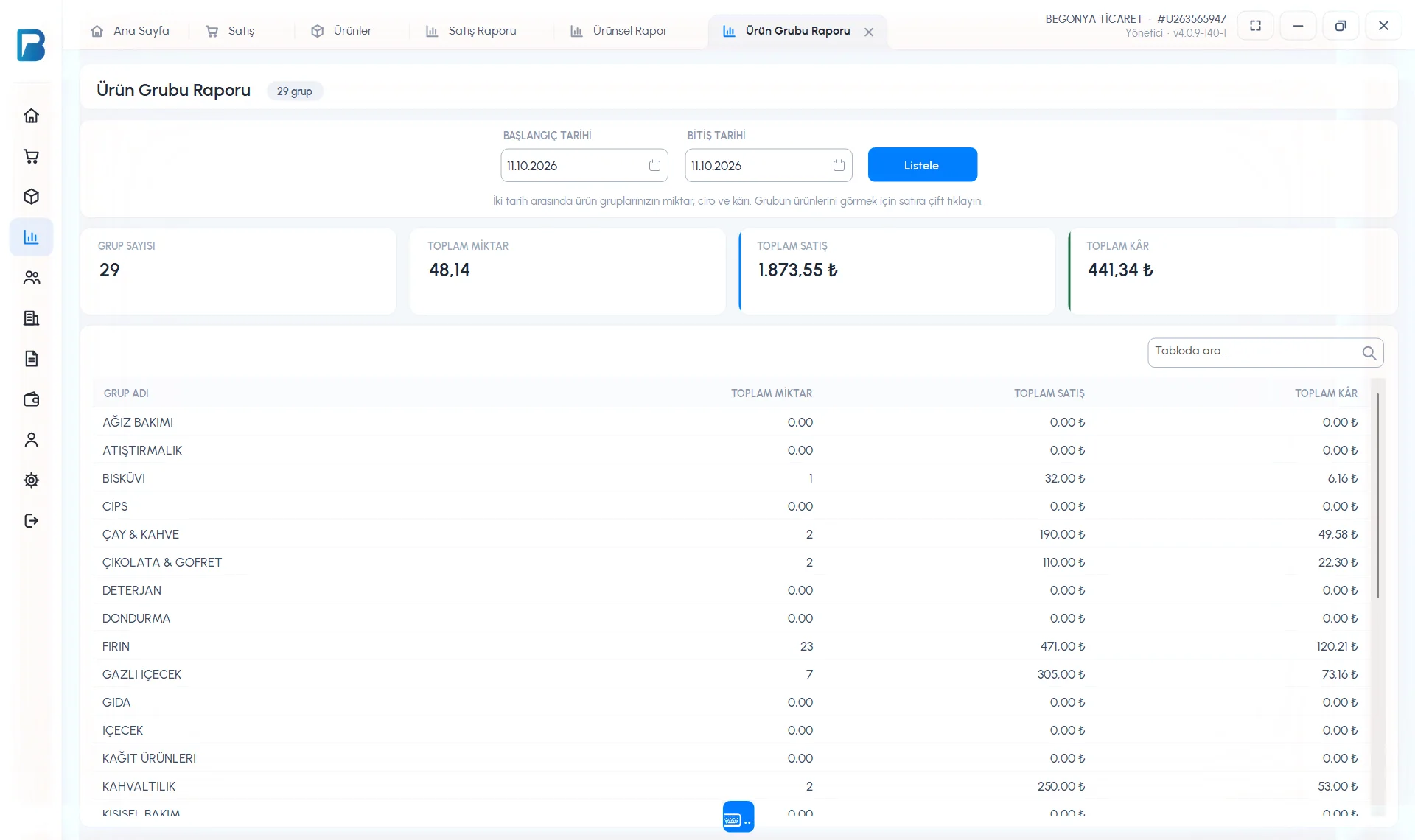
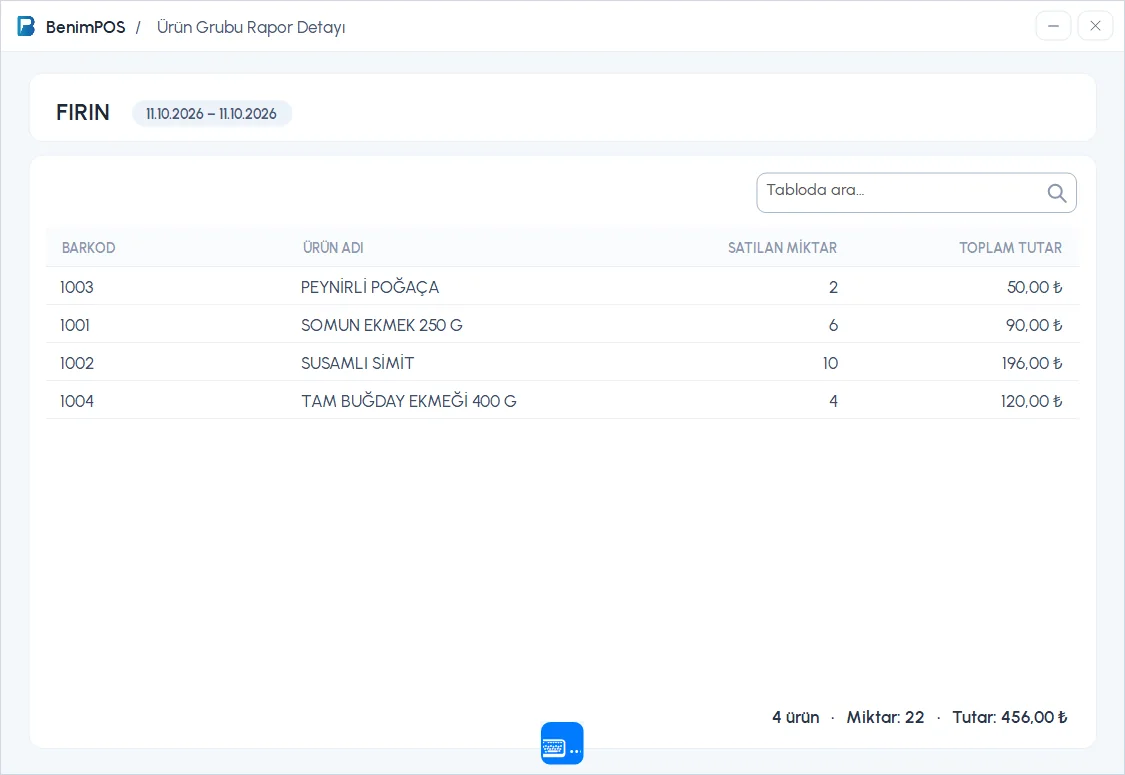
In the limited free version, the Product and Group reports are PRO features.
Product and group reports
Open Menu › Product Report or Group Report, choose the date and tap List. More options has group, staff, customer, supplier, list type (Combined / Day by day), sorting and which sales to include.
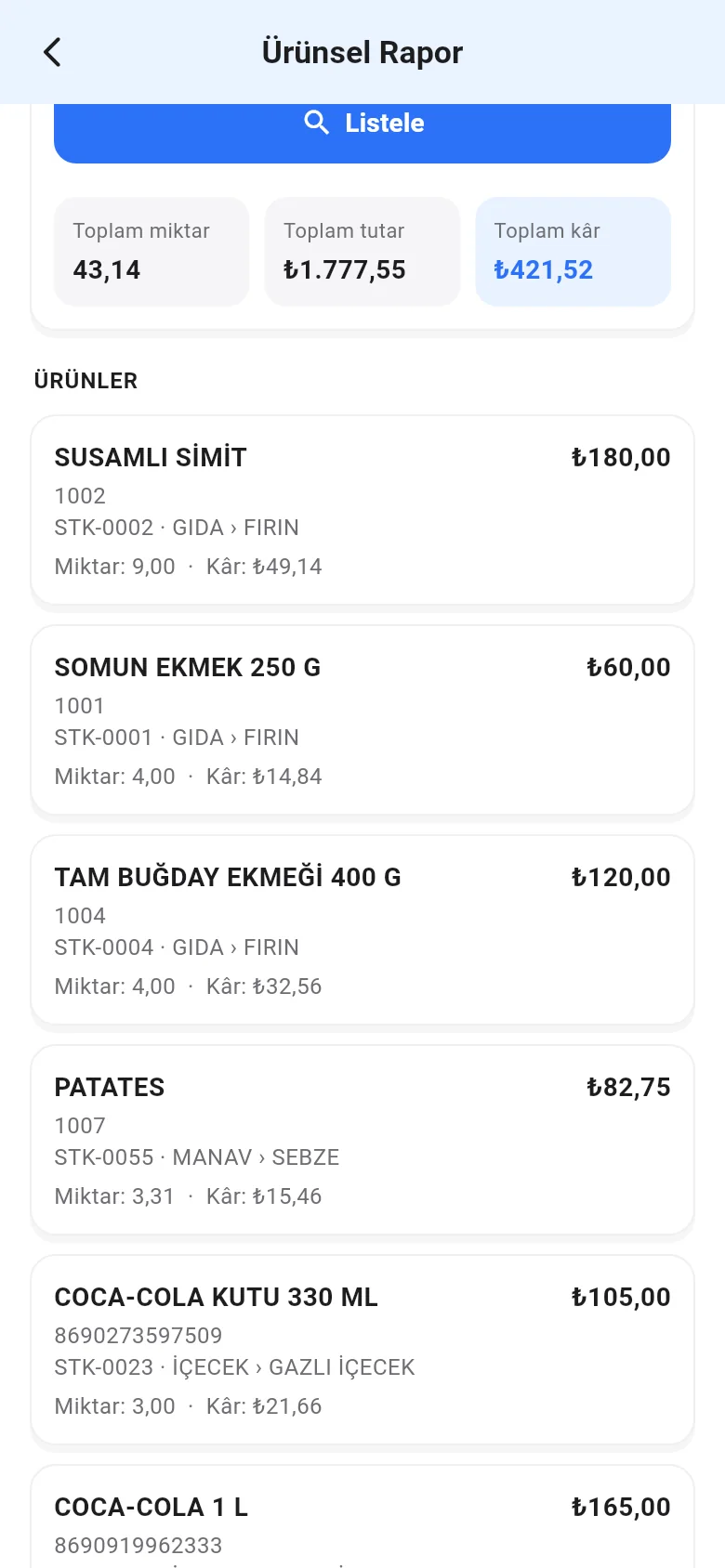
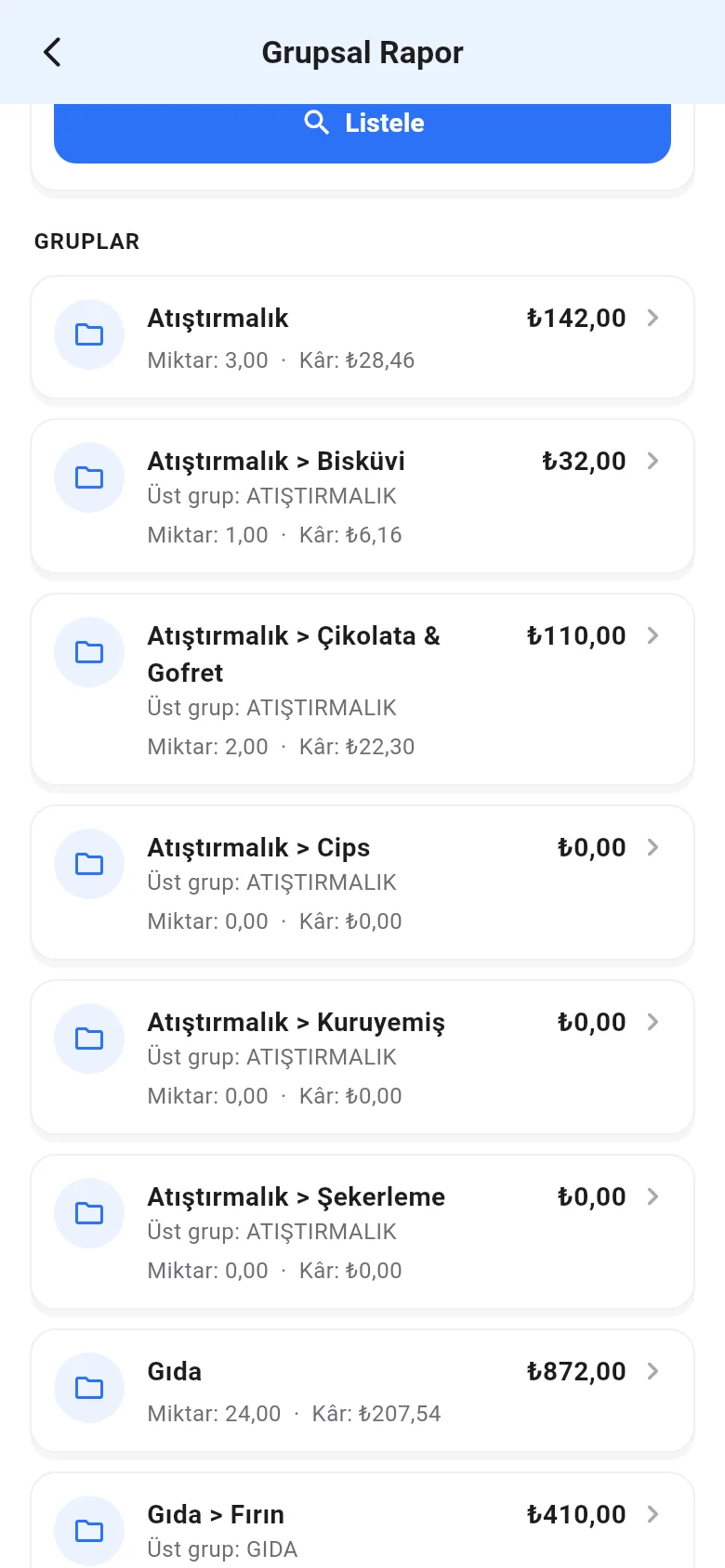
In the group report, tap a group to see the products sold in it.