




Integrations page: turning on modules, settings and extending the term
Turn on, set up and extend e-invoice, fiscal cash register, API, marketplace, SMS and online payment collection modules from the Integrations page.
The Integrations page is where you connect BenimPOS to services such as e-invoicing, fiscal cash registers / POS devices, SMS, marketplaces and online payment collection. The page opens only on the main account or for staff with administrator permission.
How the page is laid out
- The table at the top: the integrations set up on your account, the info field, the assigned device and the end date. The pencil icon opens the integration's settings (device, API details, etc.); expired ones say “Expired”.
- E-Invoice Integrations: with a single module you can use any private integrator you like (Mysoft, Ödeal, E-Dönüştür, eLogo, EDM) — E-invoice and e-archive.
- Fiscal Register Integrations: Ingenico, inPOS, Beko, Hugin, Ödeal, Pavo, Paygo and Propay devices — Fiscal cash register (ÖKC) integration.
- API Integration: to access your data from your own software.
- Other Integrations: Magenty marketplace, SMS and Bakiyem online payment collection.
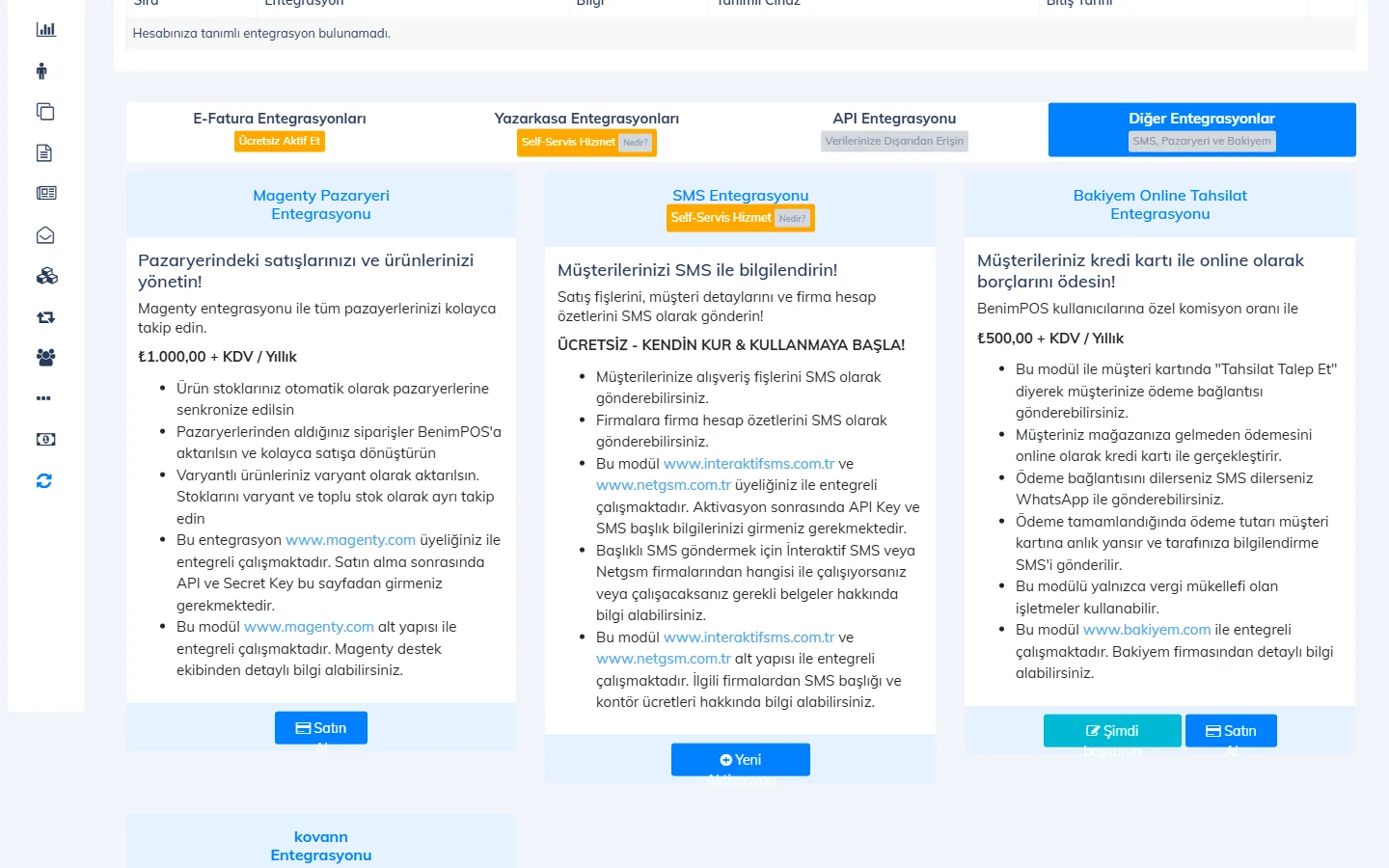 1234
1234Turning on a free (self-service) module
Choose the card
On the relevant tab, press New Activation or Activate Module at the bottom of the card.
Accept the agreement
Scroll to the end of the terms of use that open; only then does the checkbox become available. When you accept, the message “Congratulations. Your new integration has been set up.” appears and the module is set up for 1 year.
Enter the settings
In the table at the top, press the pencil icon on the new row and enter the device / account details.
Paid modules and extending the term
- For paid modules (e.g. Magenty, API, Bakiyem), Buy first opens the “Purchase Pre-approval” window; after you click I accept the terms, you go to the Buy License page.
- For self-service modules, Extend appears in the table 15 days before the end date (or once the term has expired); when you confirm, the term is extended by 1 year. If you try earlier, you get the warning “The term can't be extended because there are more than 15 days left until the integration ends.”
- If you get the warning “You have reached the maximum number of setups for this integration”, contact the support team for an additional setup.