




Business details, logo and two-factor authentication
Update your business name, the registered name shown on receipts, your address and logo, and turn on two-factor authentication.
Your business name, the full name shown on receipts and invoices, your address and your logo are managed on the My Profile page. The details here appear on receipts in the web, desktop and mobile apps.
Business details
Open My Profile
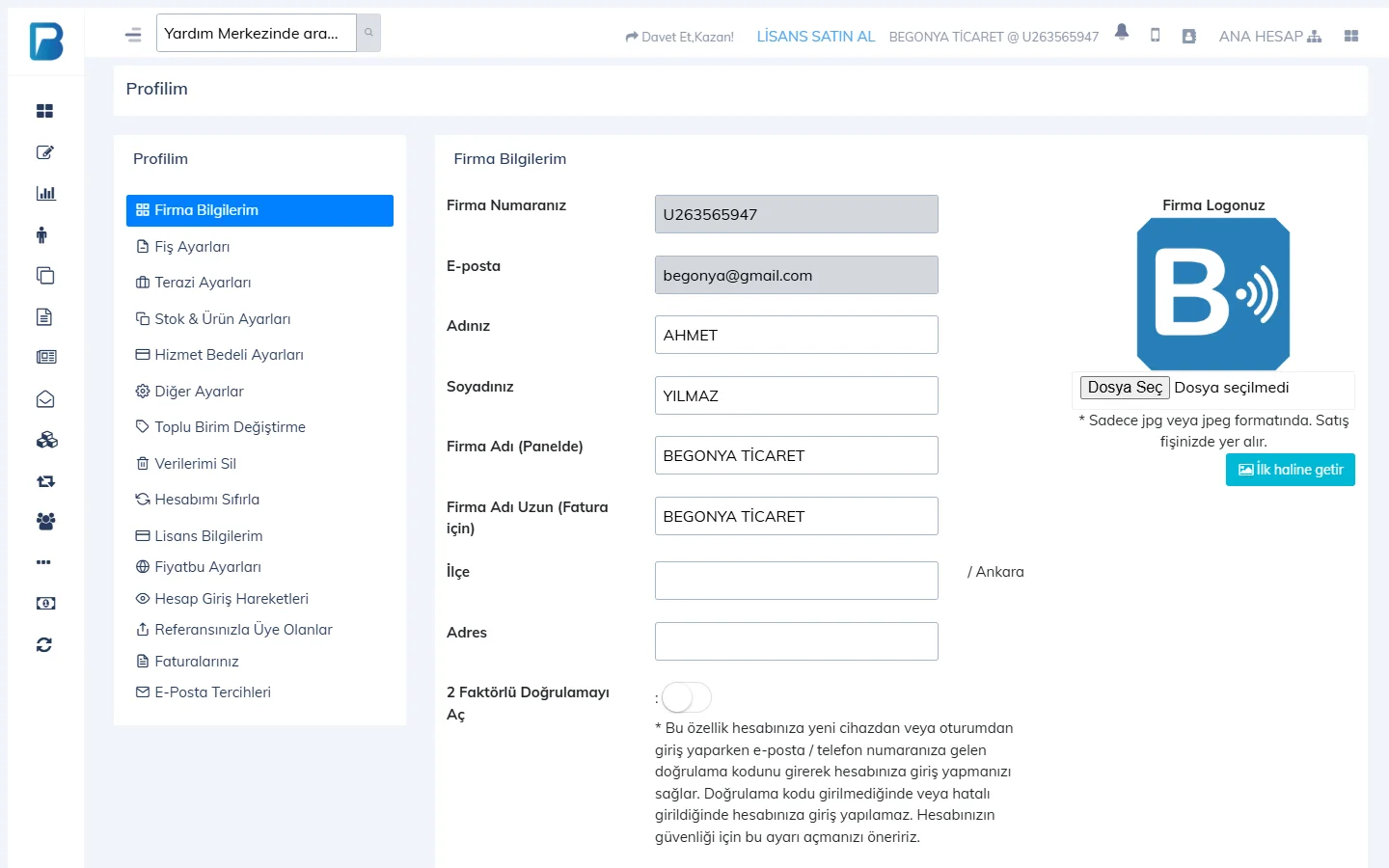
Click My Profile in the user menu at the top right; the 1 My Business Info tab opens.
 1234
1234Edit the details
2 Business Name (in the panel) is the short name shown in menus; 3 Full Business Name (for invoices) is the registered name printed on receipts and invoices. Enter the district and address and press 4 Update & Save.
Upload a logo
Choose your logo in the Your Company Logo area on the right. Only .jpg / .jpeg files are accepted; the logo is printed on sales receipts. Reset to default removes the logo.
Two-factor authentication
Turn on the Enable 2-Factor Authentication switch on the same tab and save. From then on, when you log in from a new device or browser, you need to enter the code sent to your email/phone. We recommend turning it on to keep your account secure.
Your Account Number (starting with "U") is used for staff login and support requests. Your email address isn't changed here but on the Change Email / Password / Mobile Number page.
Business details and logo
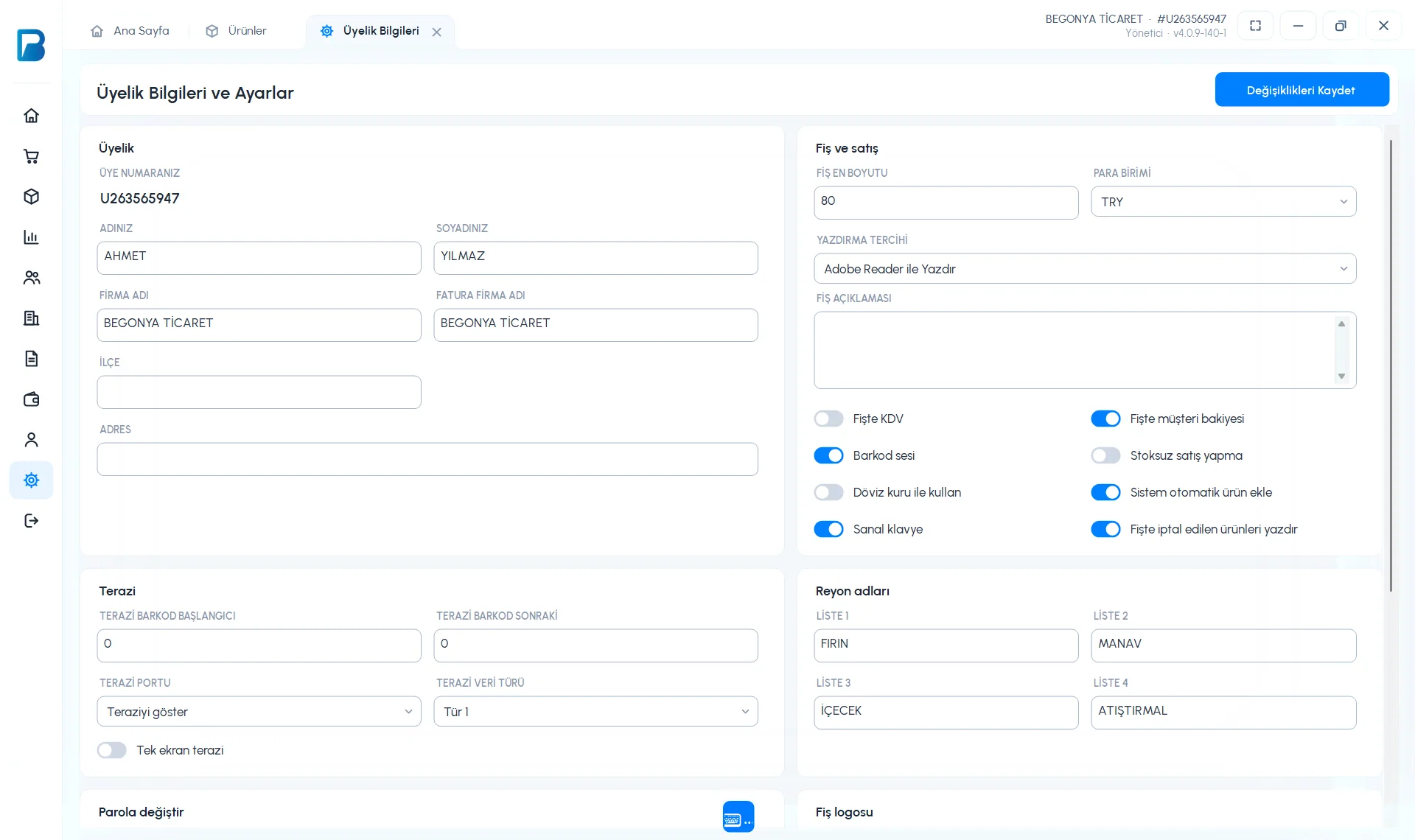
The Membership card on the Settings › Profile settings (Membership Information and Settings) page shows YOUR MEMBER NUMBER; you can edit YOUR NAME, YOUR LAST NAME, BUSINESS NAME, INVOICE BUSINESS NAME, DISTRICT and ADDRESS. Your business name is used in the receipt header.
 123
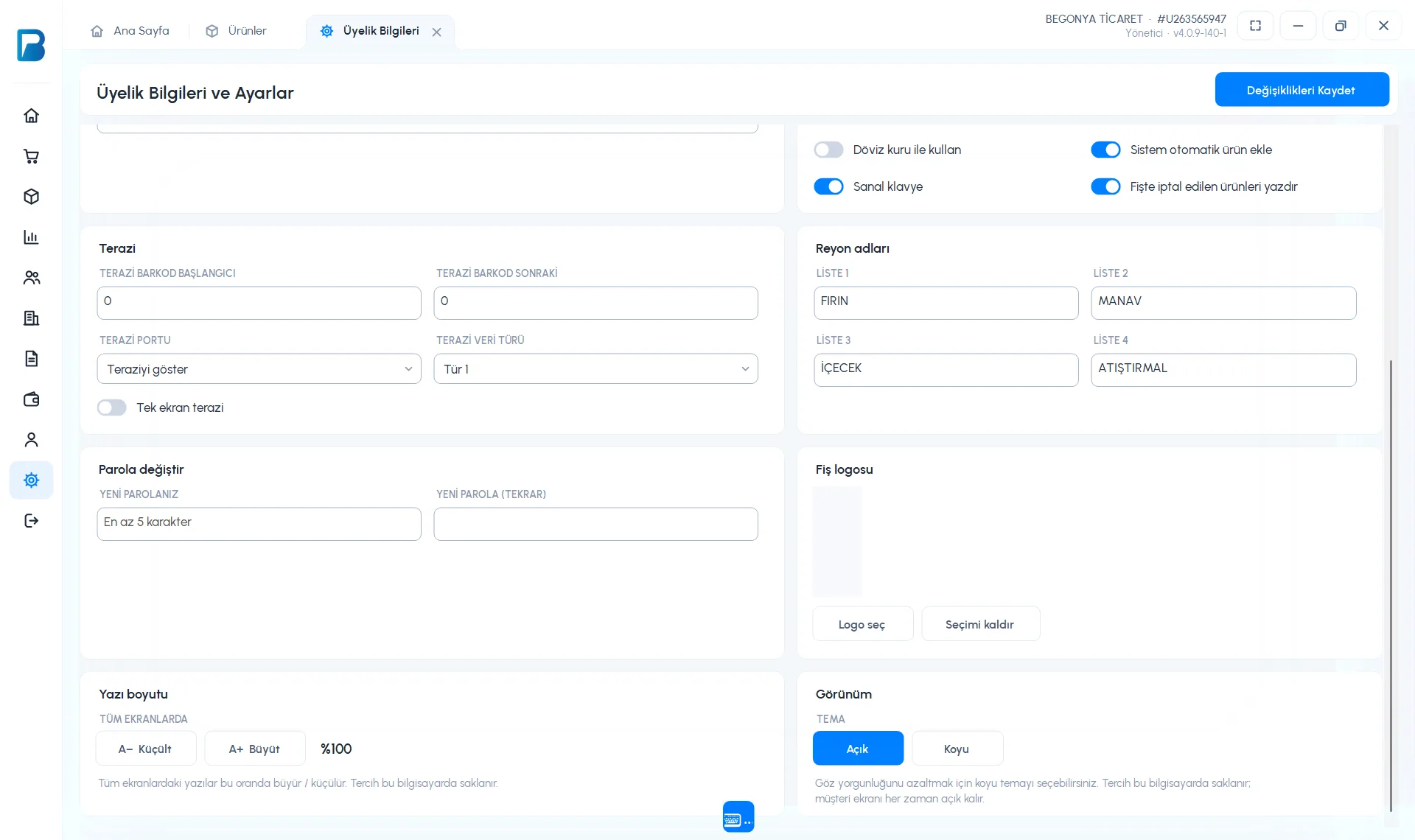
123To add a logo to receipts, press Choose logo on the Receipt logo card on the same page and choose your .jpg file; to remove it, use Remove selection. Then press Save Changes.
 1234
1234Email, phone and two-factor authentication settings aren't available in the desktop app; change them on the profile page in the web panel.
Business details
On the Menu › Profile page, change the Business name, Name, Last name, District and Address, then tap Save. The account number, email and city are view-only.
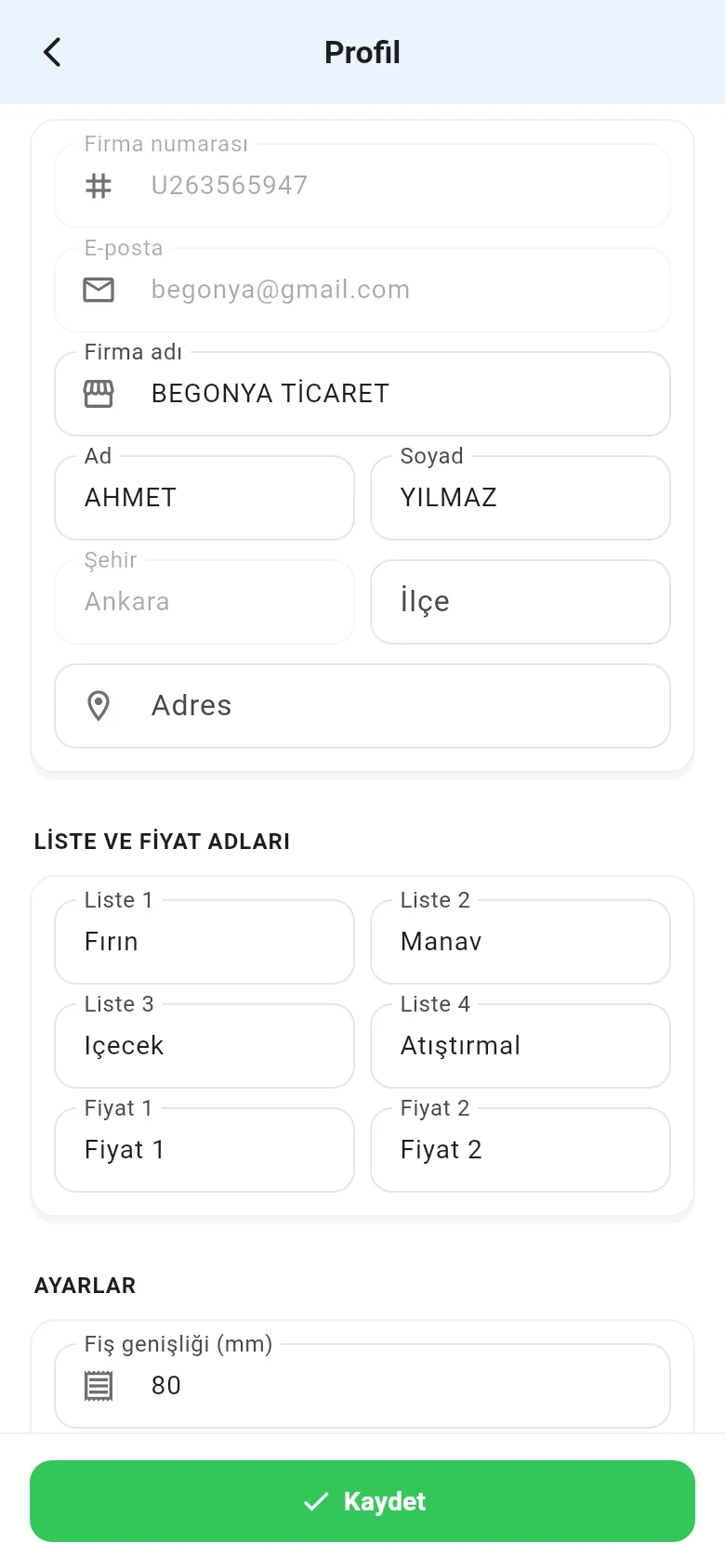
Uploading a logo and two-factor authentication aren't available on mobile; do these in the web panel.