Product groups and bulk price increases by group
Create product groups and subgroups, assign products to groups and change the price of all products in a group at once.
Product groups (categories) organise your products: you see sales and profit by group in reports, you can raise the price of all products in a group at once, and you can show groups as tabs on the sales screen. Groups can have two levels, parent group › subgroup (e.g. Drinks › Soft Drinks).
New group
Open the Product Groups page
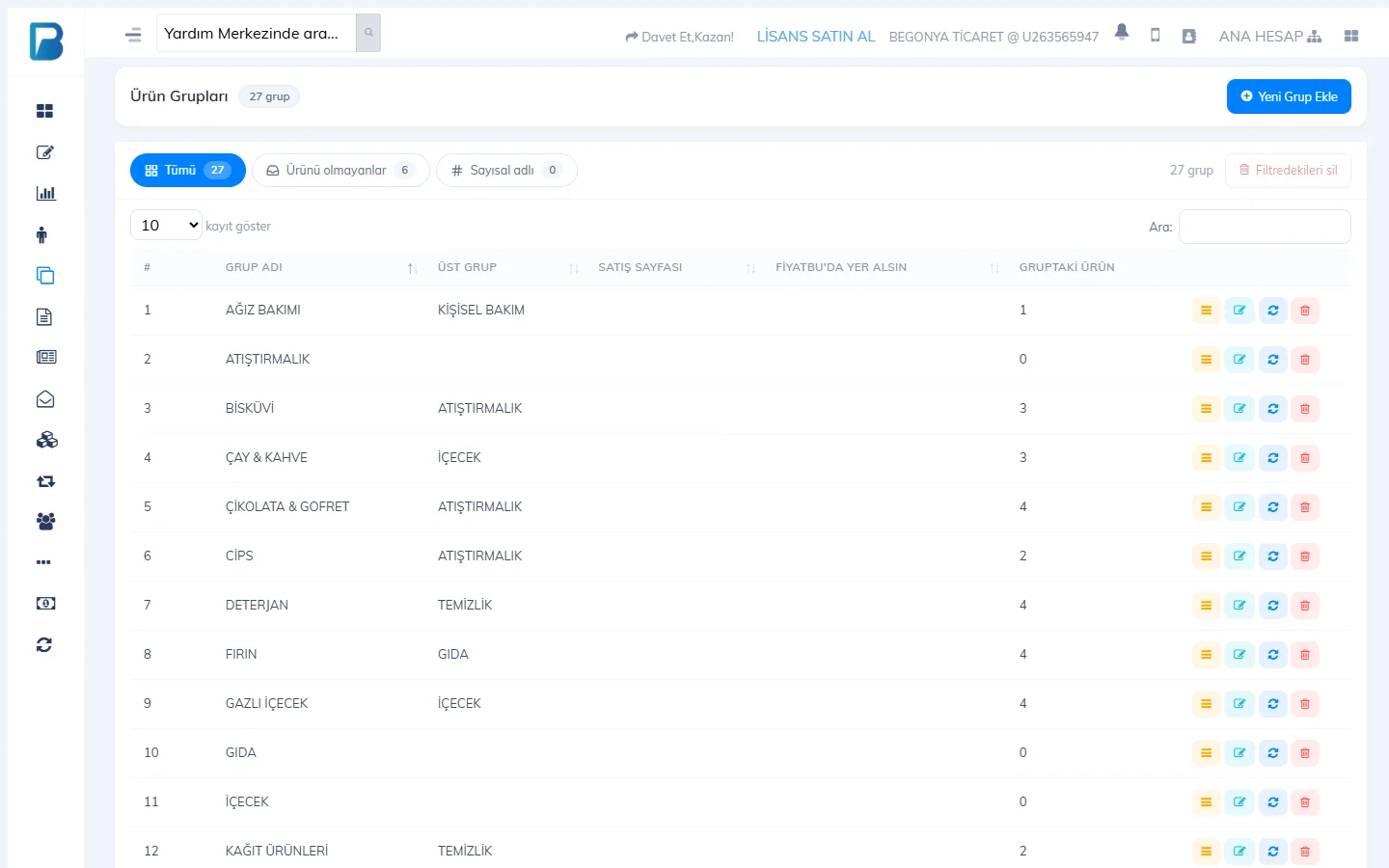
On the Products › Product Groups page, press 1 Add New Group.
 1
1Set up the group
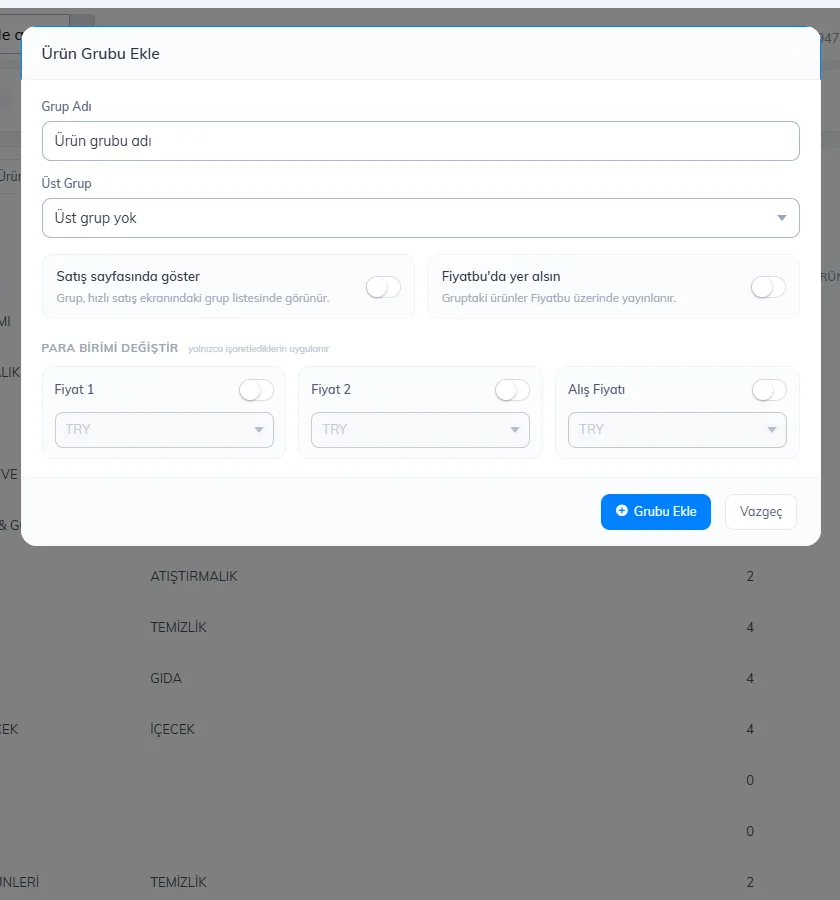
Enter the Group Name. If you are creating a subgroup, choose the Parent Group. If you want a tab on the sales screen, turn on Show on sales page. Press Add Group.
Assigning products to a group
- One product: choose it in the Product group field on the product card and save.
- In bulk: in the Products list, tick the boxes on the left of the products, choose the group on the bar that appears at the top and press Assign to group.
- With Excel: fill in the Parent product group and Product group columns and import; groups that don't exist are created automatically.
Bulk price increase / discount for products in a group
Open bulk update
Press the Bulk update products icon on the group's row.
Choose the change
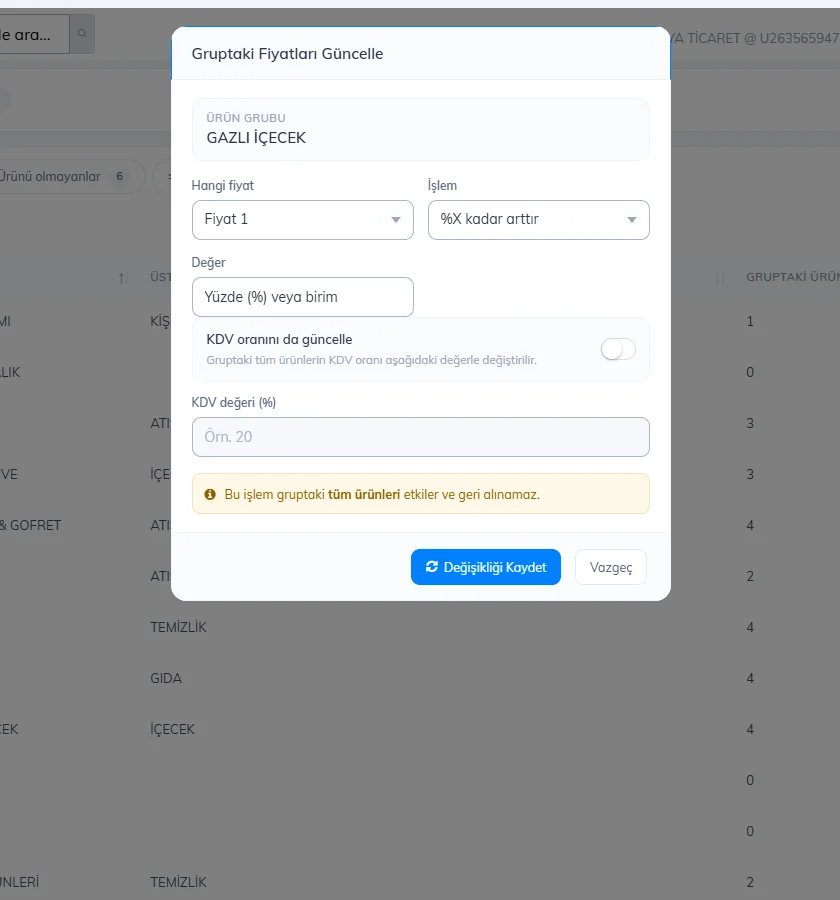
Enter Which price (Price 1, Price 2, Purchase price), the Actions (increase / decrease by X%, increase / decrease by X units) and the Value. If you like, change the VAT of all products in the group with Also update VAT rate.
Save
Press Save Changes. This affects all products in the group and can't be undone.
Editing and deleting a group
Use Edit on the row to change the name, parent group and sales page setting; use Delete to delete the group. Products in a deleted group are left without a group, and its subgroups become top-level groups. You can find groups without products with the Without products filter at the top of the list and delete them in bulk.
Product groups
Open Products › Product Groups. The top shows the total number of groups, top-level groups and groups shown on the sales page.
Add a new group
In the New group form, enter the 1 GROUP NAME. If you are creating a subgroup, choose the 2 PARENT GROUP (e.g. FOOD › ICE CREAM). If you want the group to appear as a tab on the sales screen, turn on 3 Show on sales page. Press 4 Save Group.
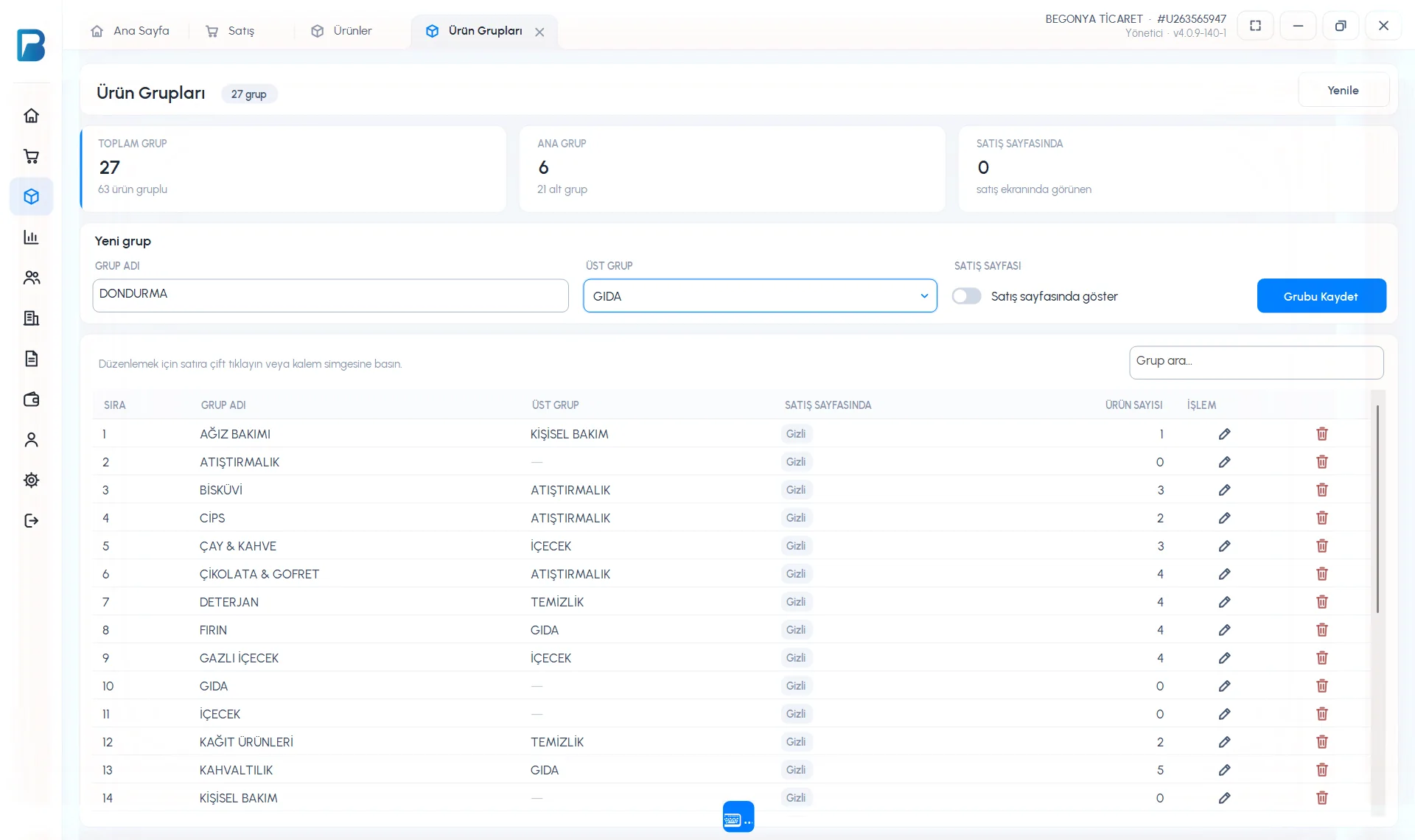 1234
1234Edit or delete a group
Double-click the group in the list or press the 1 pencil icon; the form switches to Edit group mode. Make your changes and press 3 Save Group, or delete it with 2 Delete Group.
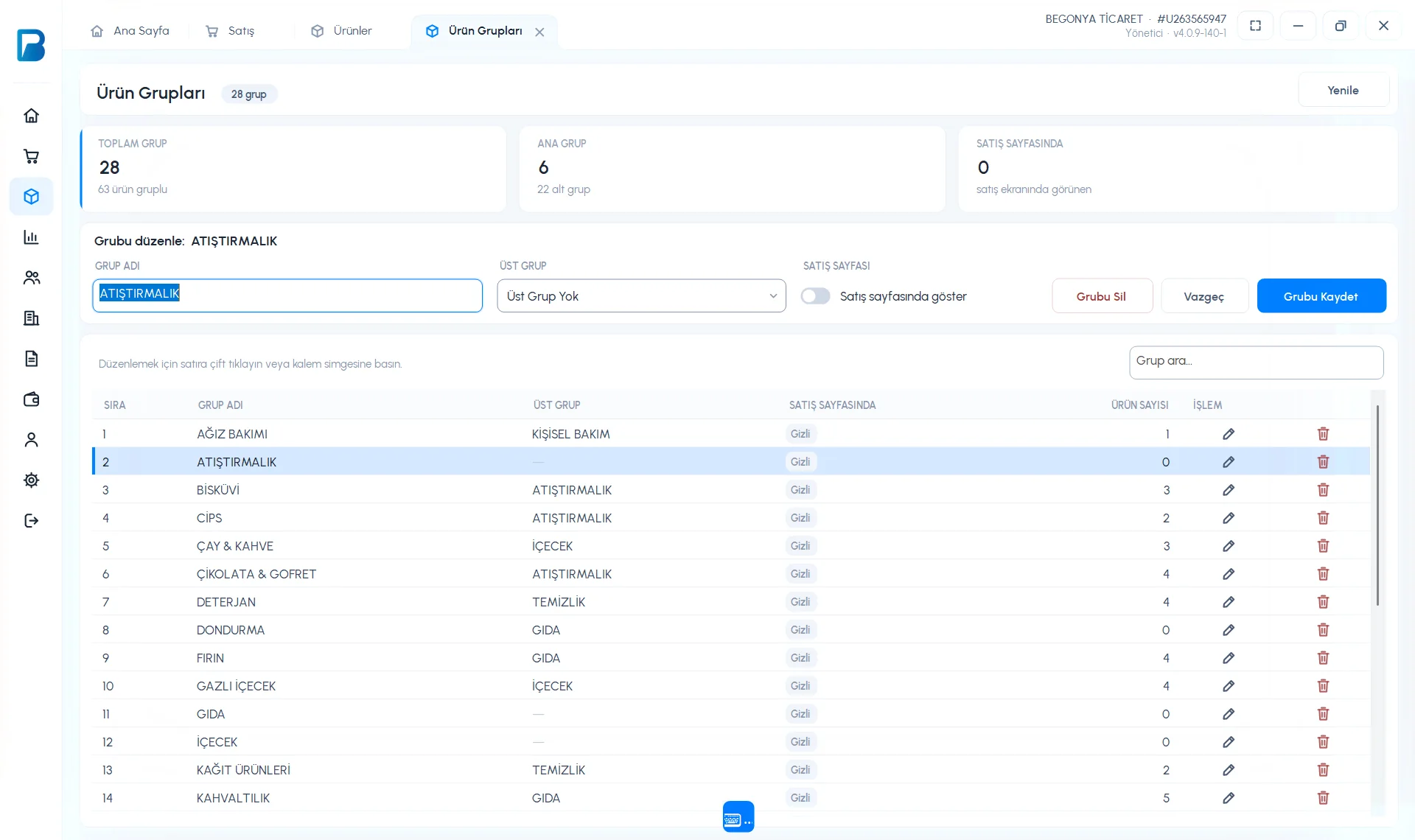 123
123
To assign a product to a group, choose the group from the PRODUCT GROUP list on the product card and save.
Bulk price increases / discounts for products in a group and bulk group assignment with Excel aren't available in the desktop app; do them in the web panel and they reach the desktop app through sync. In the limited free version, Product Groups is a PRO feature.
Product groups
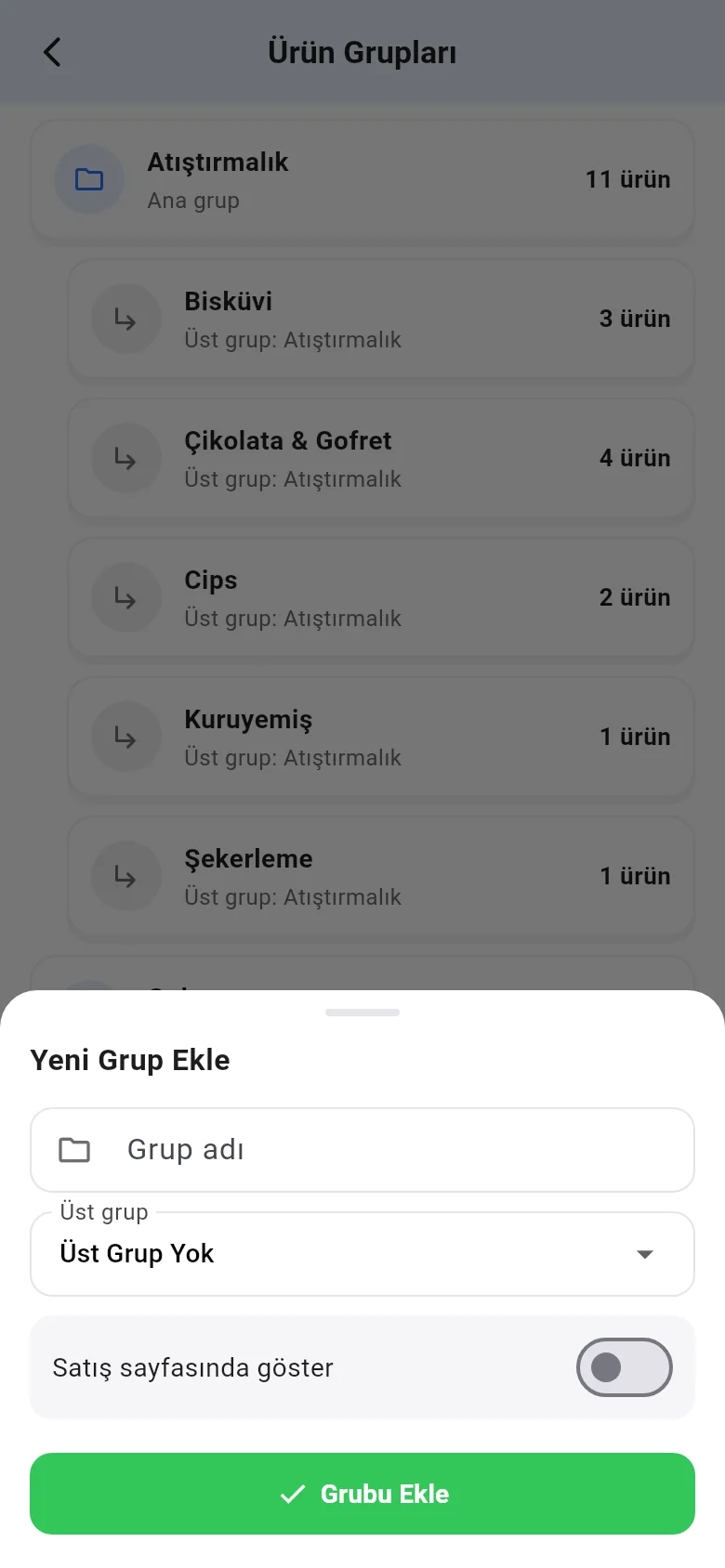
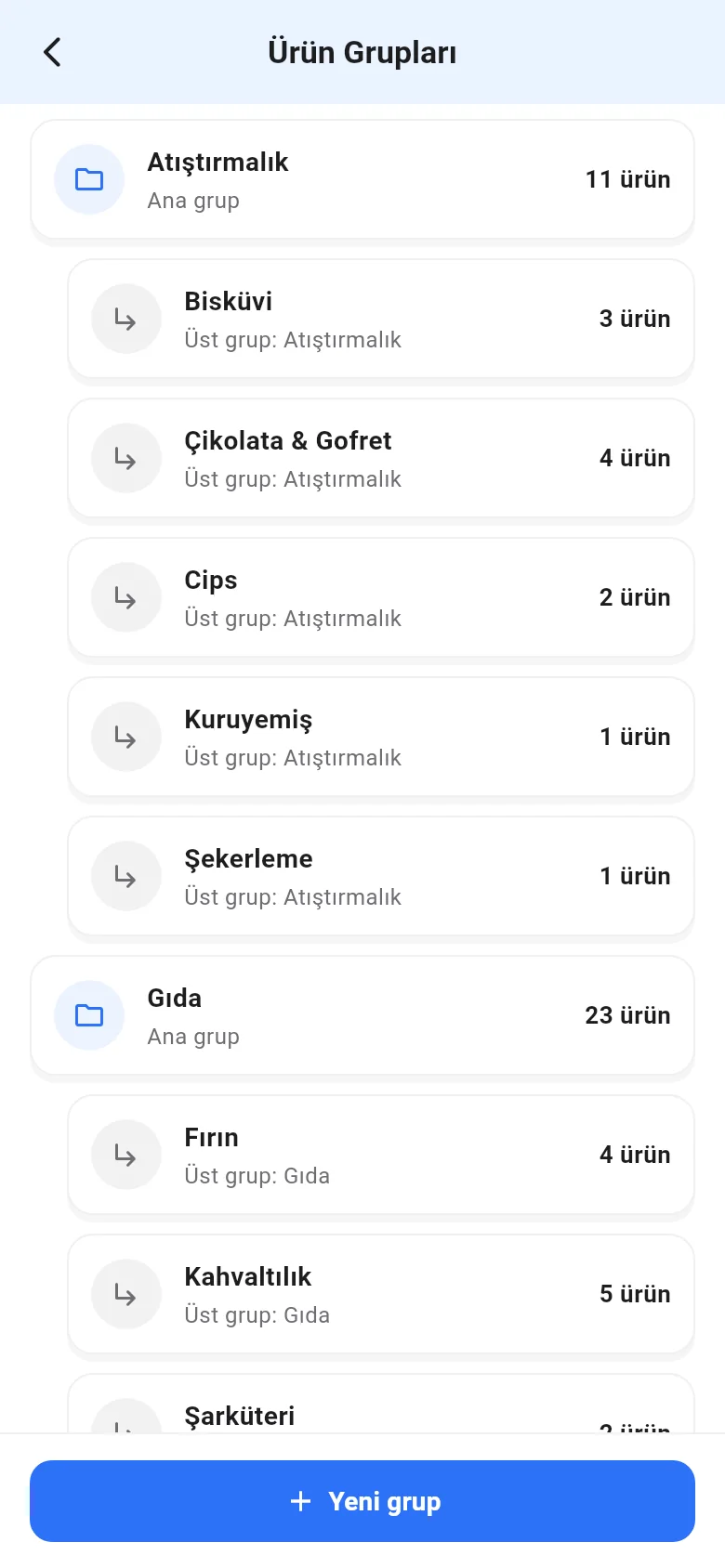
On the Menu › Product Groups page, tap New group at the bottom; set the Group name, Parent group and Show on sales page, then tap Add Group. To edit or delete a group, tap it.
 1
1