




Adding, editing and deleting customers
Create a new customer card, set the payment term, credit limit, discount and price level, and edit or delete customer details.
You create a customer card to sell on account (on credit), apply a customer-specific discount or price, and track purchase history. The customer name on the customer card is the name shown on the sales screen and in lists; a second customer with the same name cannot be created.
New customer
Open the Customers page
Click Customers in the left menu and press 3 New Customer.
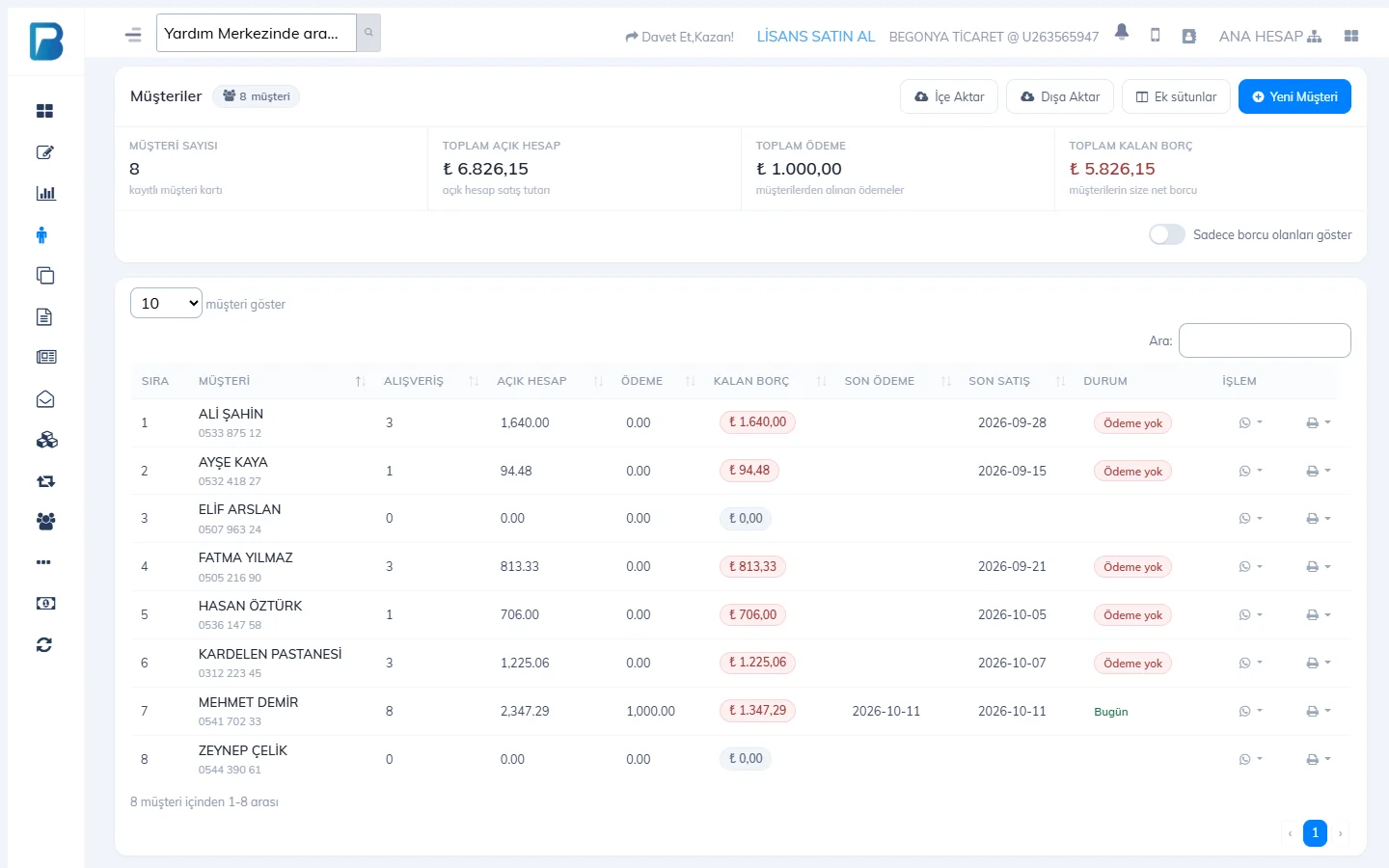 123
123Enter the details
Customer name is required. If you want, add the Payment term (days), Credit limit, phone, tax office, tax number, address and a note; press Create.
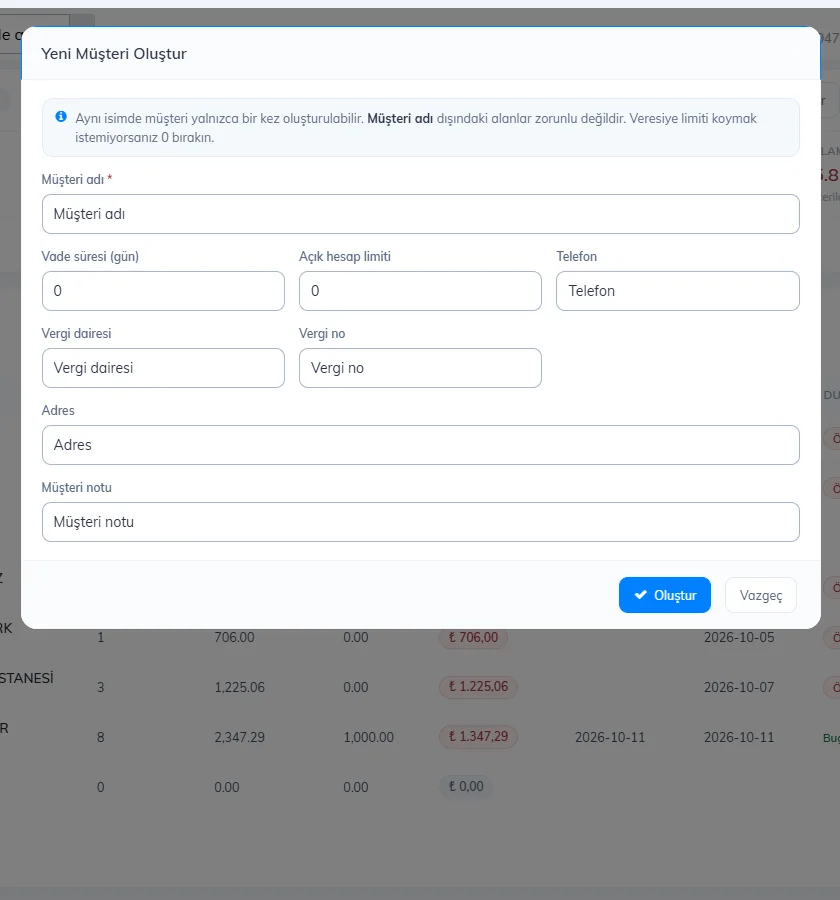 1
11 The Phone field opens with the phone country code from My Profile › Basic settings. For a number from another country, click the 1 flag, 2 search for the country by name or dialling code in the list that opens, select it and type the number. If you type the number starting with + (e.g. +994 50 123 45 67), the country is selected automatically. Turkish numbers are saved in the 0532… format as before.
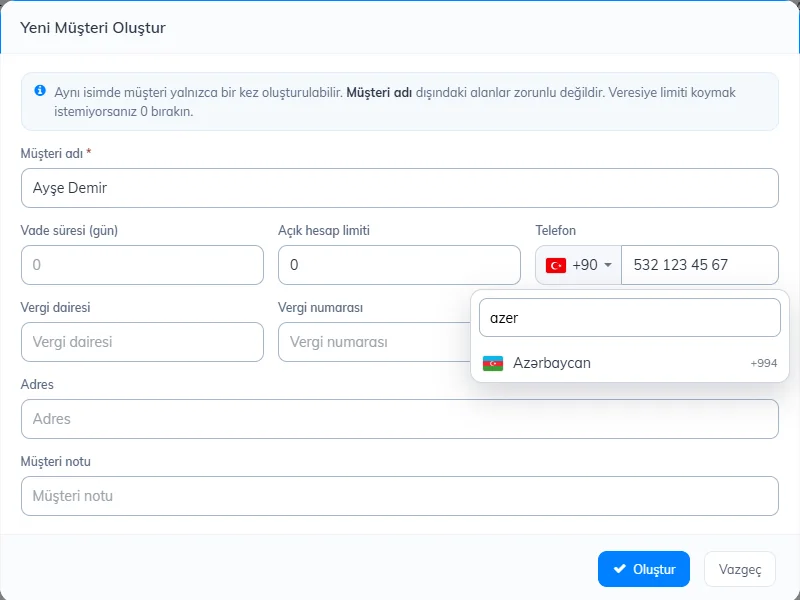 12
12
You can also quickly create a customer by typing a name that is not saved in the Select customer window on the sales screen.
Editing customer details
Click the customer's name in the list to open the customer card and press Edit. In the Customer Information window you can also set:
- Customer Type (individual/business), first name, last name, title, tax office, address, email, phone. On accounts outside Turkey, the tax fields are named according to the country (e.g. VÖEN in Azerbaijan, ИНН in Russia).
- Payment Term (days): customers with an upcoming due date are listed on the home page.
- Credit Limit: if the customer's debt would exceed this amount, a sale on account is not allowed (0 = unlimited).
- Discount: applied to the receipt as a percentage when the customer is selected on a sale.
- Price Level: to sell to the customer at Price 2. Price levels
To change the name shown in the list, use Other › Change customer name (it is different from the first and last name fields).
Deleting a customer
On the customer card, Other › Delete customer. A customer whose balance is not zero cannot be deleted; settle the account first. A deleted customer cannot be restored; their past sales remain without a customer.
New customer
Open the Customers page
Click Customers in the left menu. At the top you see the number of customers, total debt, total payments and the balance still owed to you. Press 1 + New Customer.
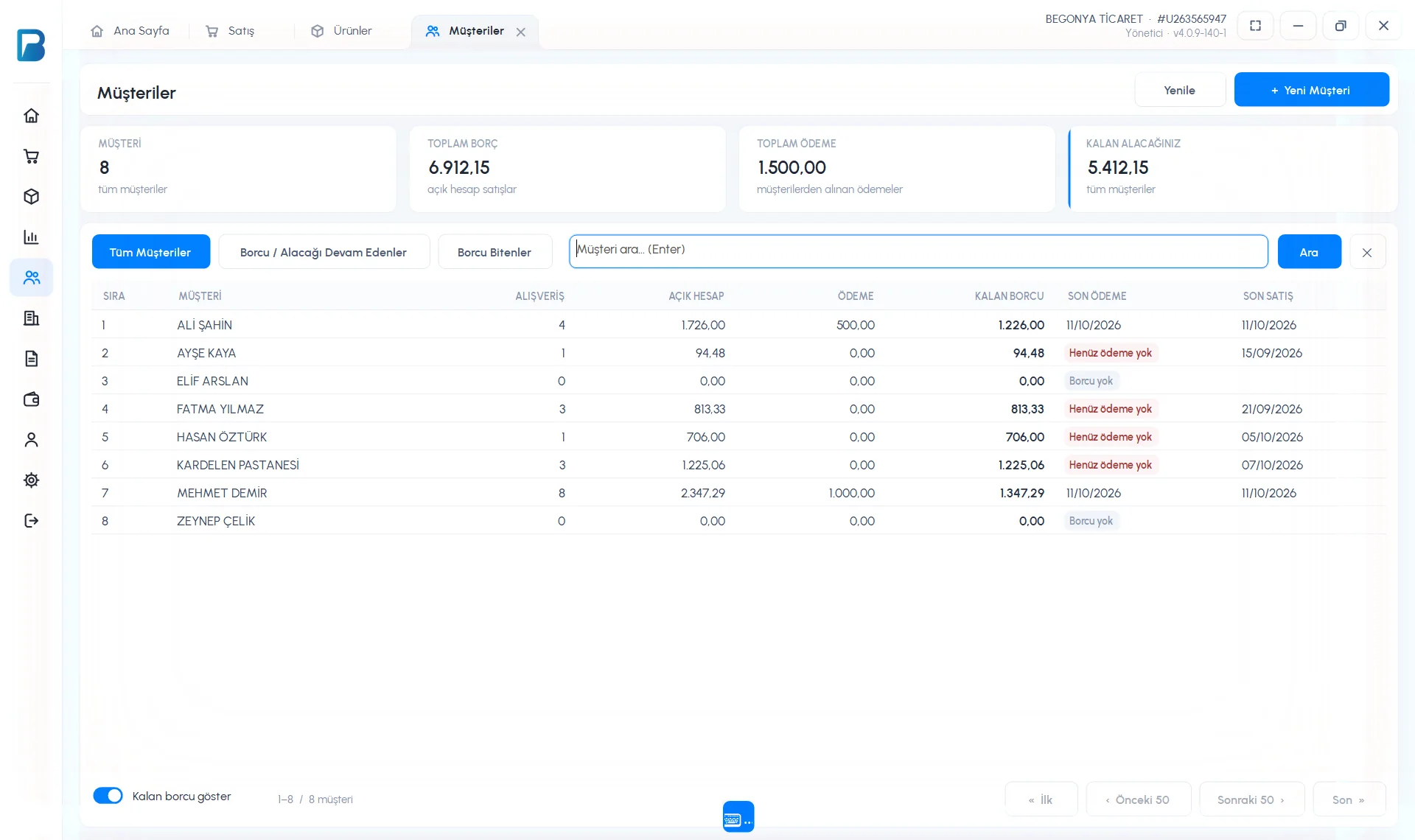 123
123Enter the details
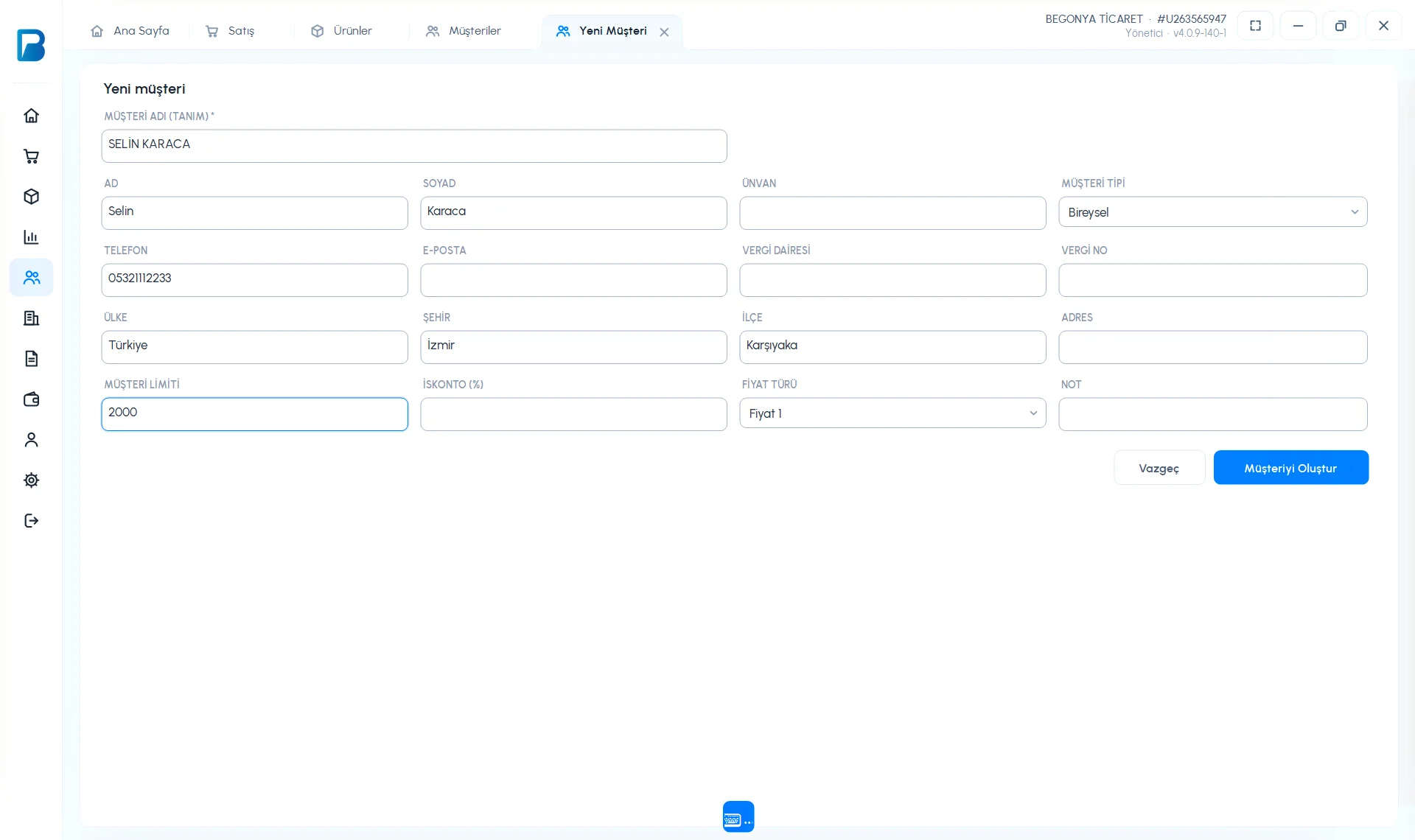
1 CUSTOMER NAME (LABEL) is required; this name is shown on sales and in lists. The other fields are optional: FIRST NAME, LAST NAME, TITLE, CUSTOMER TYPE (Individual / Business), 2 PHONE, EMAIL, TAX OFFICE, TAX NUMBER, address details, 3 CUSTOMER LIMIT (maximum balance on account), DISCOUNT (%) (automatic discount on every sale) and PRICE LEVEL (Price 1 / Price 2).
 1234
1234Save
4 Press Create Customer; the customer card opens.
If you type a customer name that is not saved on the sales screen and make a sale, the customer is created automatically. You can also add one quickly with + New customer in the Select customer window on the sales screen.
Editing and deleting customer details
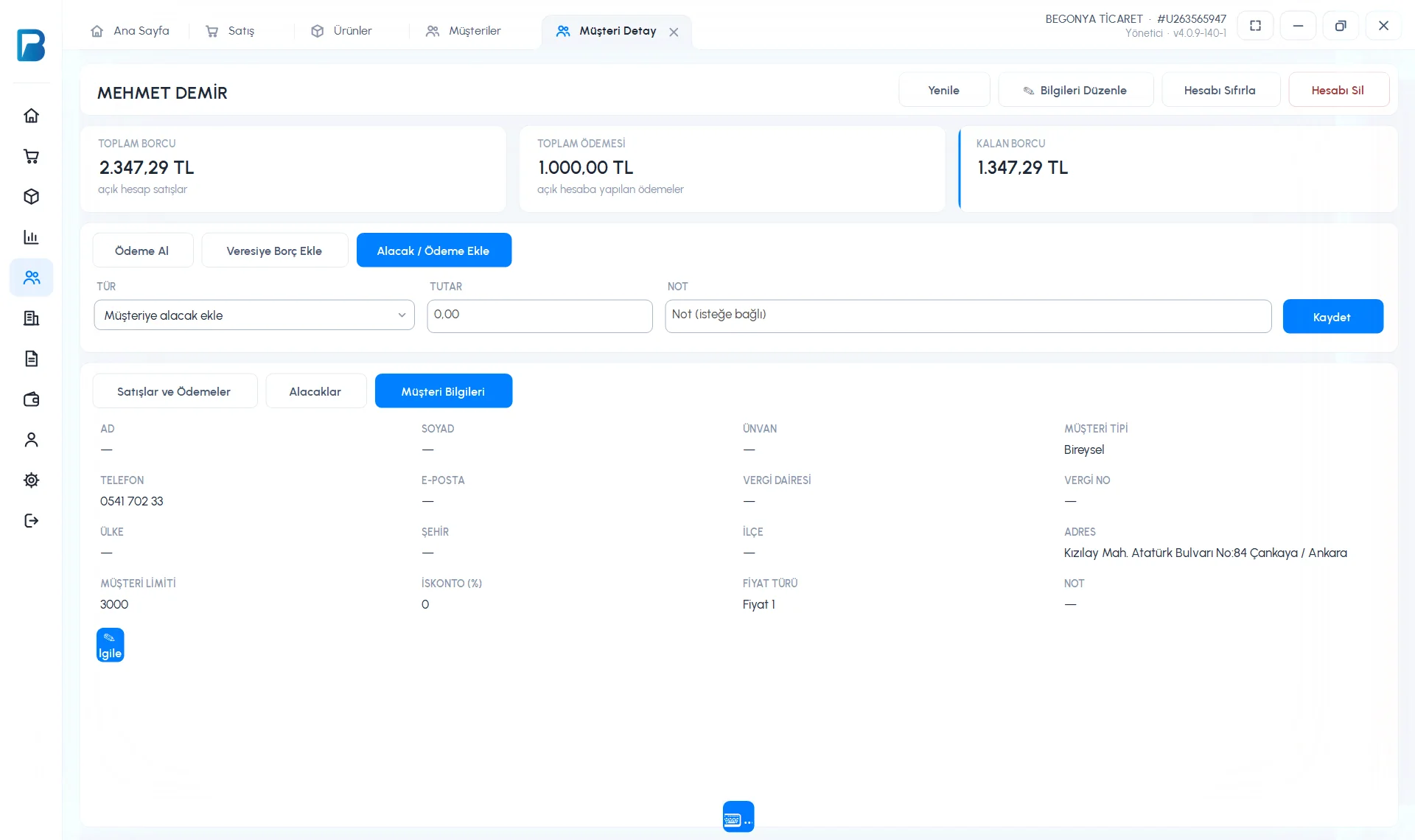
Double-click the customer in the list. On the card, the 1 Customer Information tab shows the saved details; to change them, press 2 Edit Details, make your changes and press Save. For a phone number from another country, click the country button to the left of the PHONE field and search for the country, or type the number starting with +. To delete the customer, use Delete Account at the top right of the card.
 12
12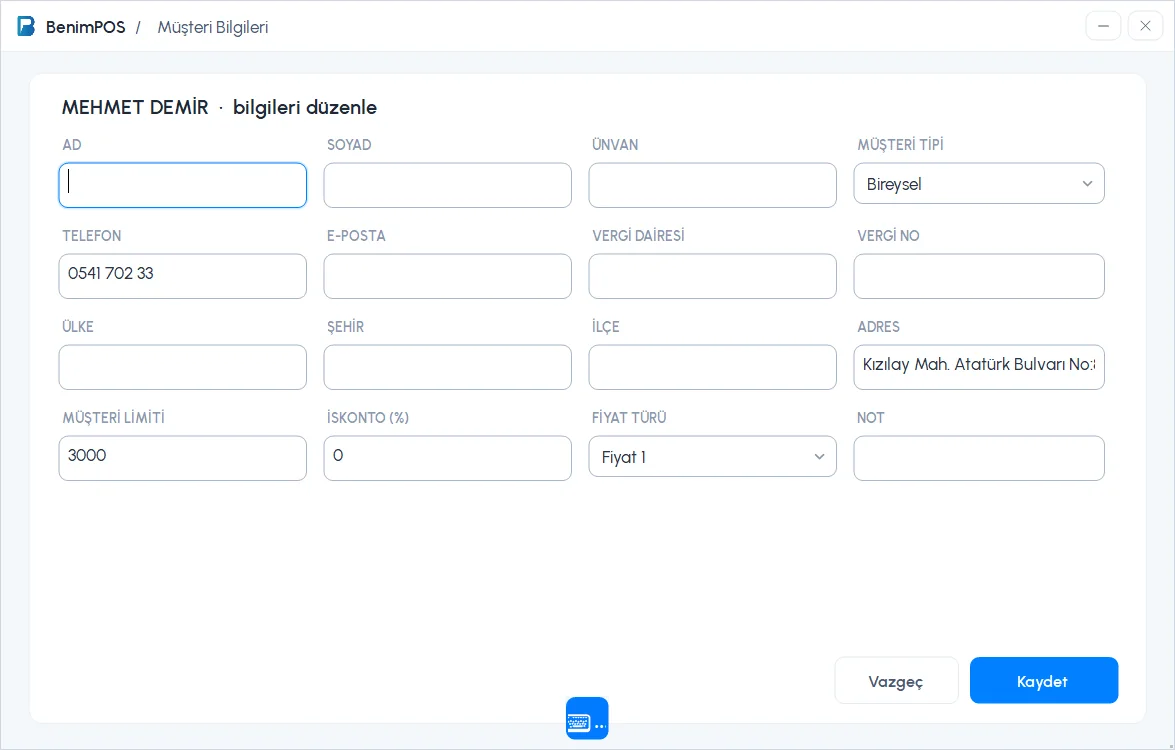
Customer search and filters
On the Customers page, type the name in the 3 search box and press Search. 2 With Outstanding Balance lists only customers with a balance, Settled lists those whose balance is cleared.
New customer
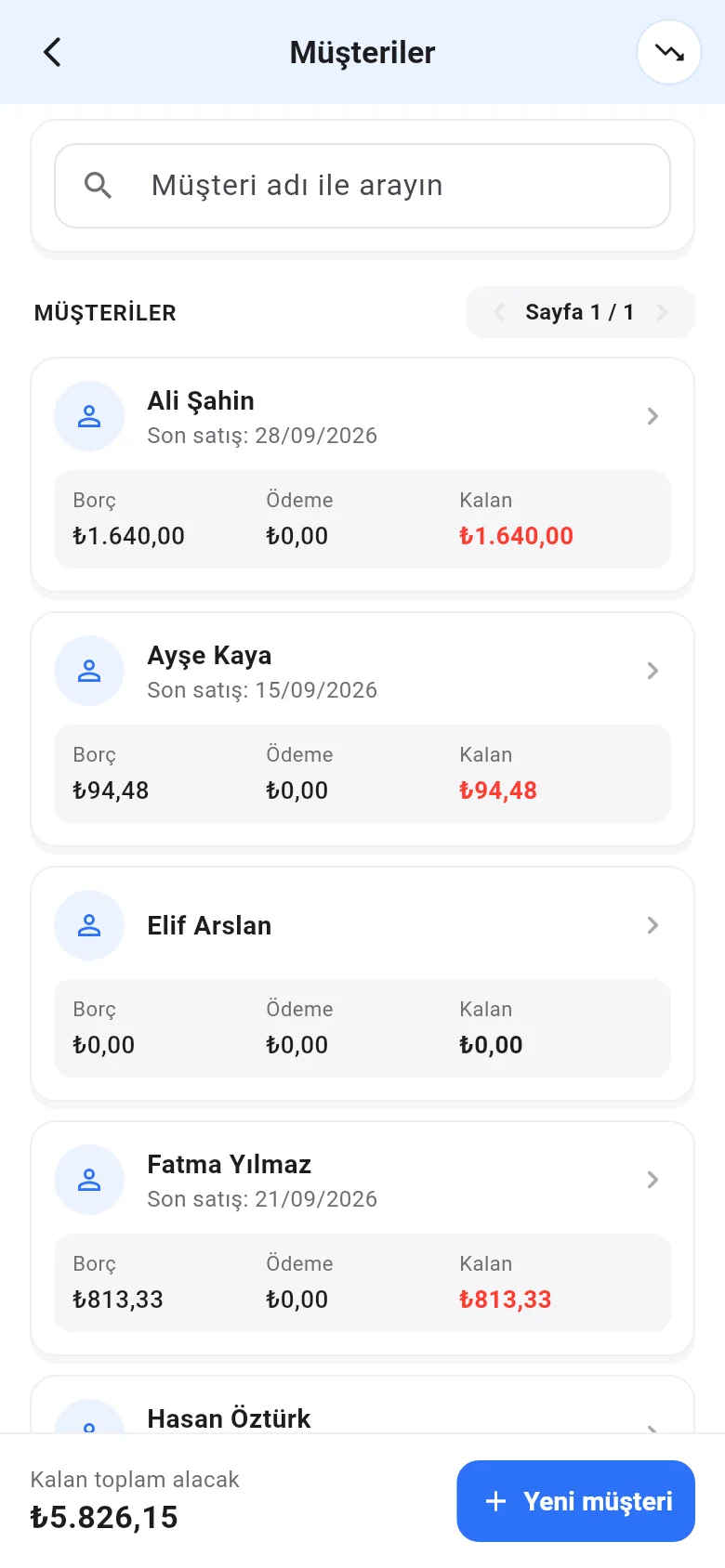
On the Menu › Customers page, tap New customer at the bottom, type the Customer name and tap Create customer. You can also create one with the add person icon next to the customer line on the sales screen.
 13
13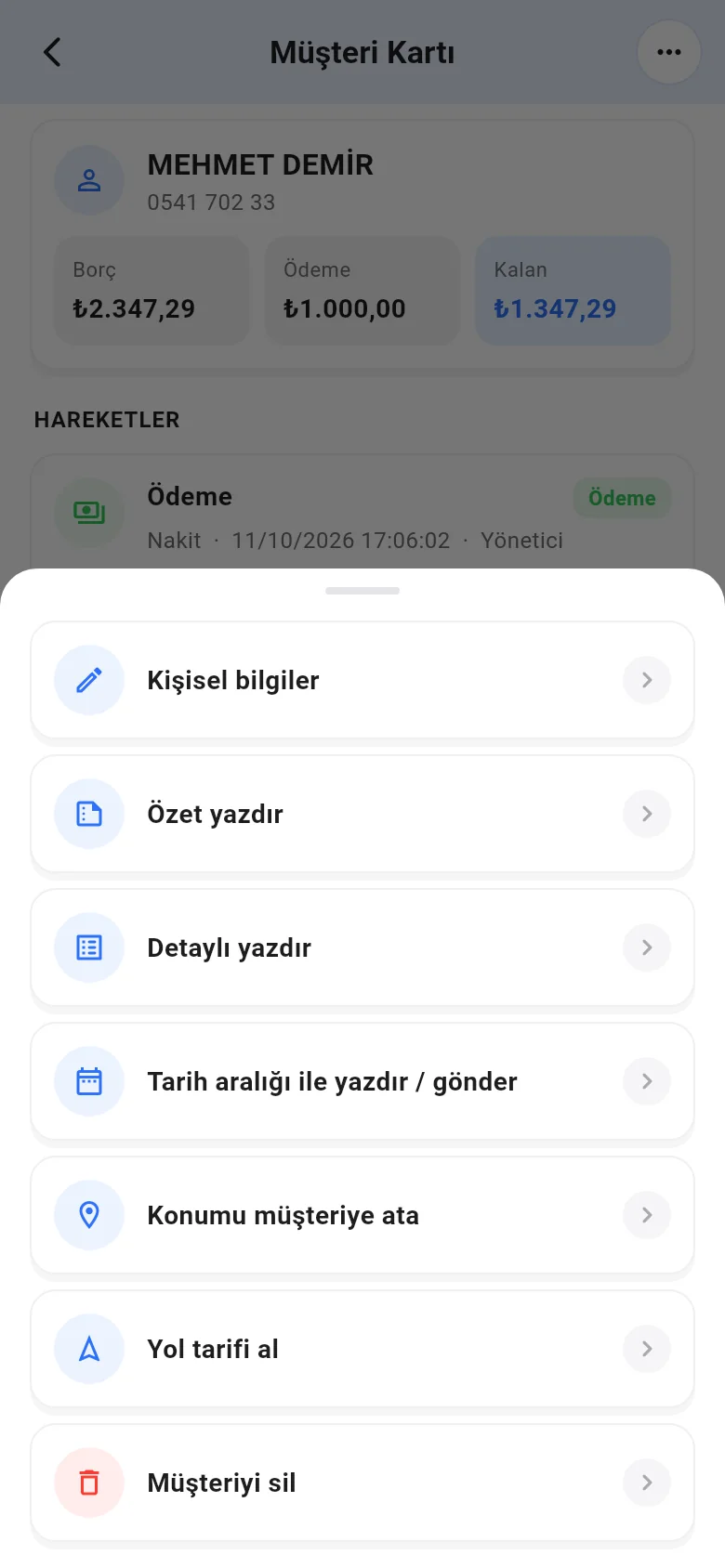
For more details, on the customer card tap Actions › Personal information at the top right: individual/business, name, tax details, address, phone, Credit limit, Discount, Price and note. For a phone number from another country, tap the flag to the left of the phone number and search for the country, or type the number starting with +. To delete, use Actions › Delete customer.