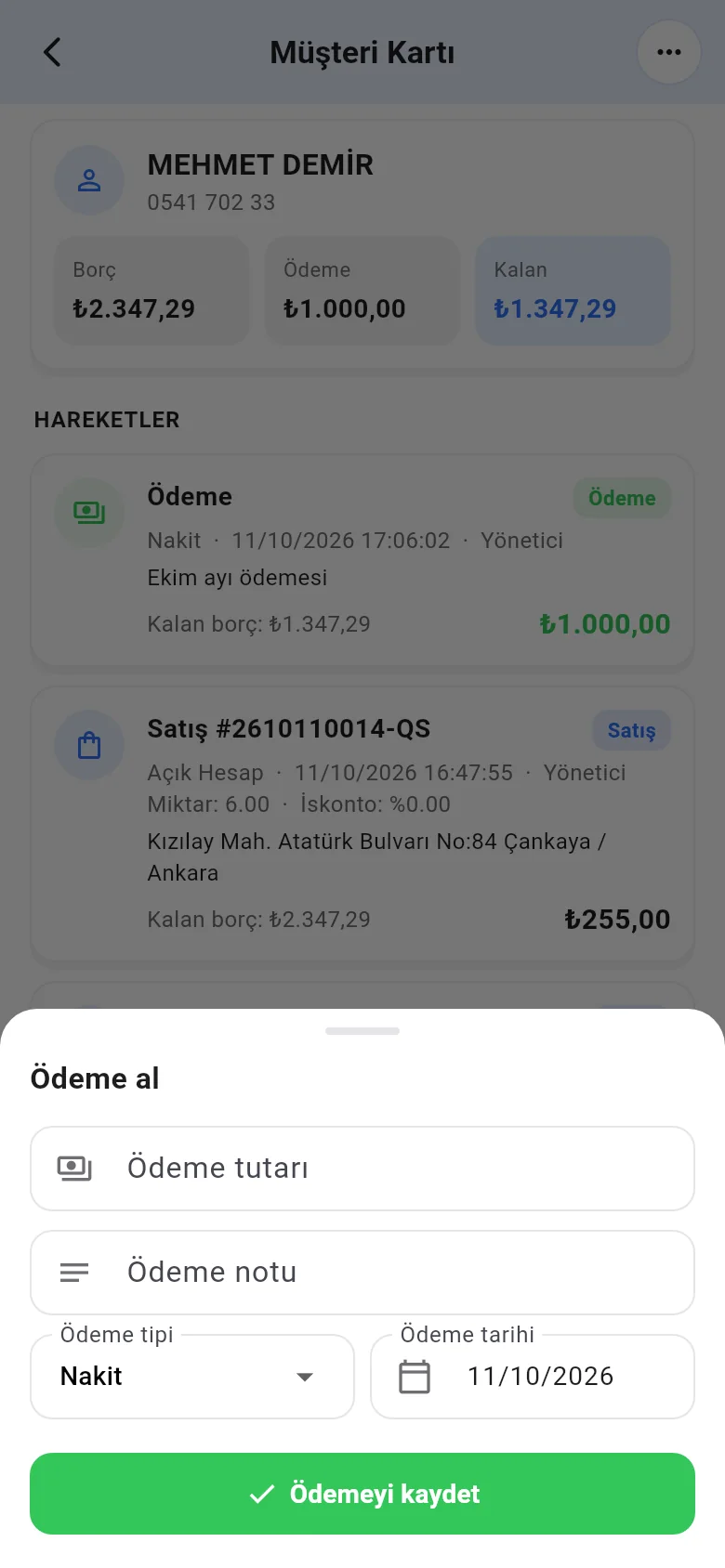
Selling on account (credit) and adding customer payments
Select a customer and sell on account, manage the customer limit, add customer payments and track the balance due.
On account (selling on credit) lets you put a customer's purchase on their account so they can pay later. A customer must be selected on the sale for this. When the customer pays, you record it on their account with Add Payment; the balance due updates automatically.
Selling on account
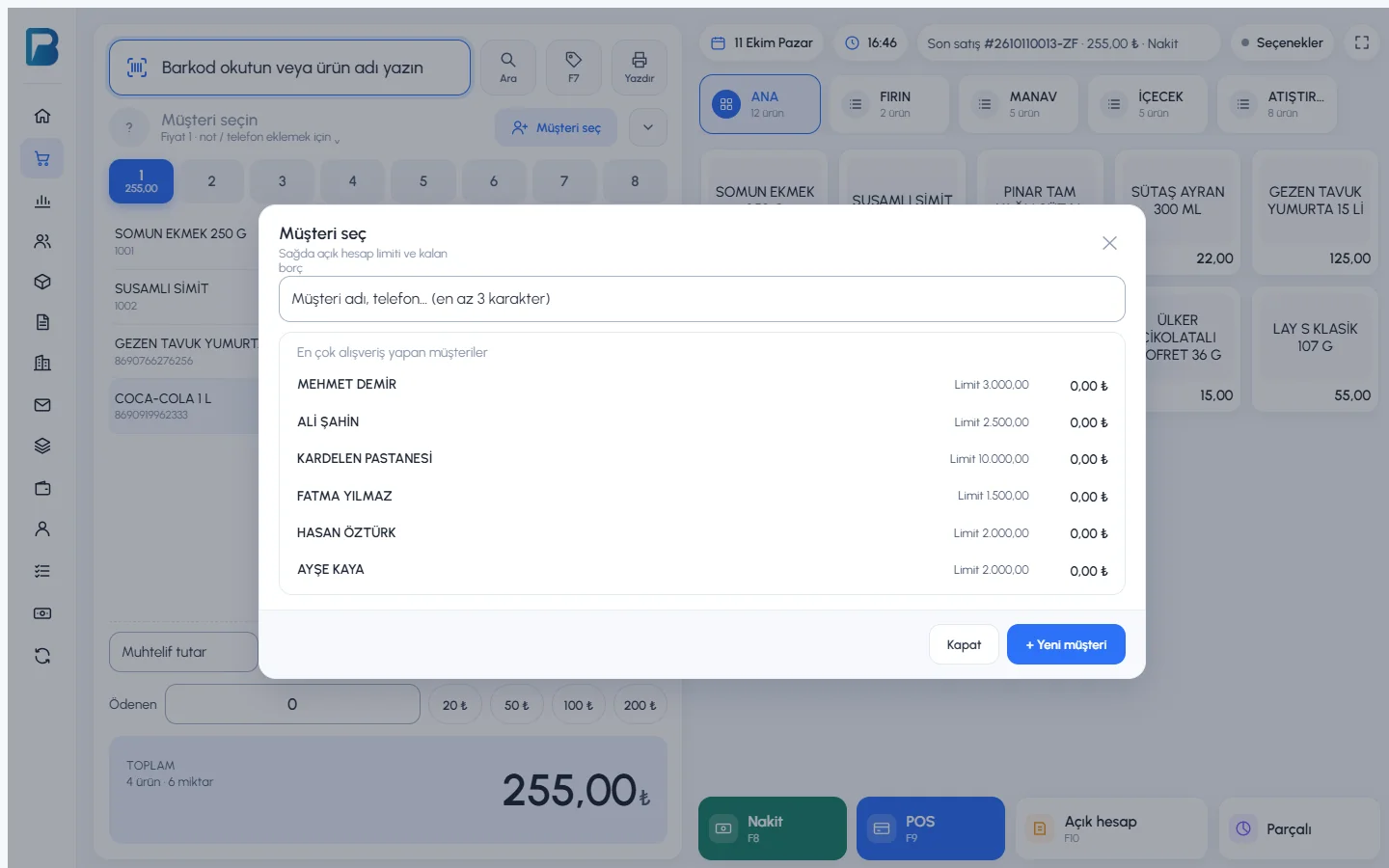
Select the customer
On the sales screen, press Select customer. In the 1 box, type the customer's name or at least 3 characters of their phone number. 2 The list shows each customer's credit limit and balance due. If it's a new customer, save them right away with + New customer; you can also enter the phone number in the window that opens, and for a number from another country, choose the country from the flag.
 12
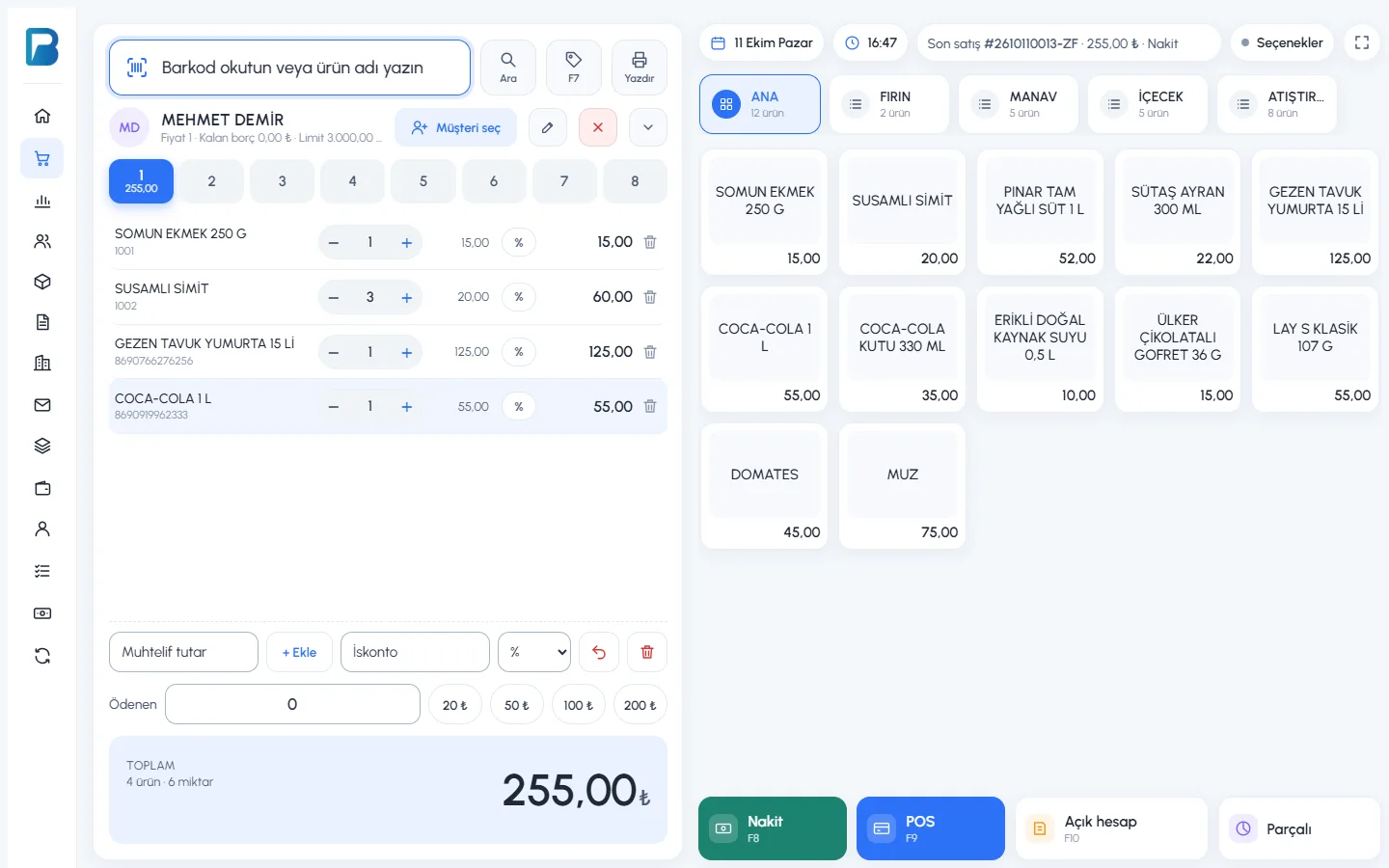
12Add the products and put them on account
Once the customer is selected, their name, balance due and limit appear at the top of the receipt. Add the products and press the 1 On account (F10) button. If you take part of the amount in cash, split the payment with 2 Split; the rest goes on the account.
 12
12
If you set a limit on the customer card, you get a warning when the limit is exceeded, and if the amount to put on account goes over the limit, the sale on account isn't allowed. Customers with a limit of 0 have no limit.
Adding a payment to a customer
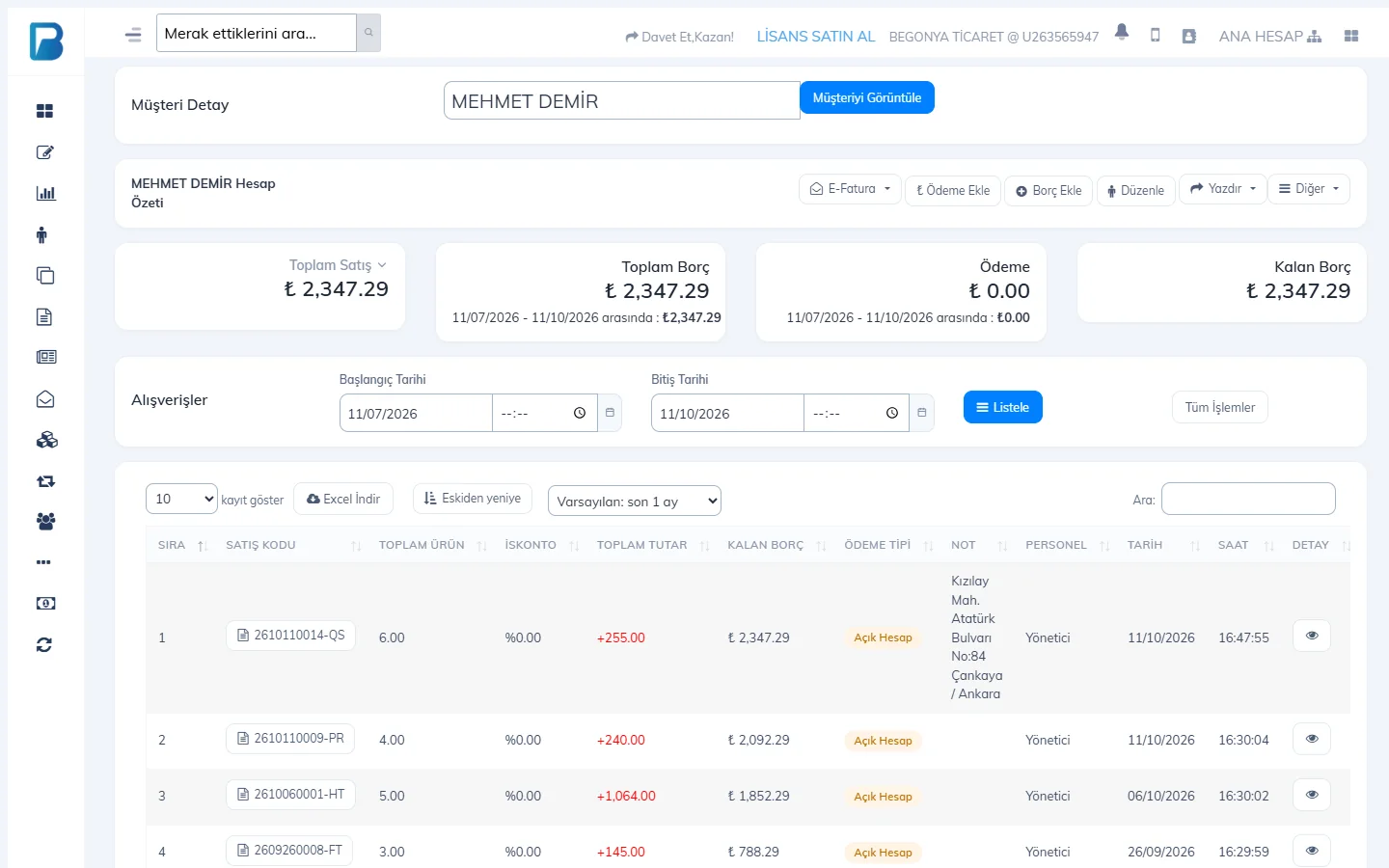
Open the customer's account
Select the customer on the Customers › Customer Details page. Total debt, payments received and balance due are at the top; all purchases and payments are listed below.
 1
1Press Add Payment
Press the 1 Add Payment button.
Enter the payment
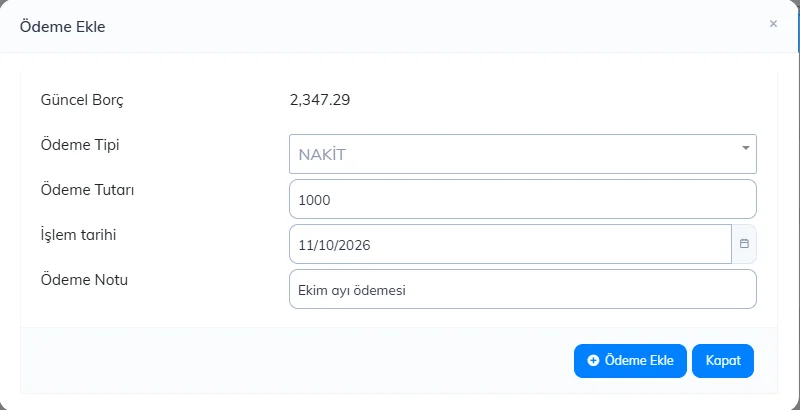
1 Choose the payment type (Cash / Card), 2 enter the amount. 3 The transaction date is today; change it if you are recording an earlier payment. 4 Add a note if you like and press 5 Add Payment.
 12345
12345Check the balance due
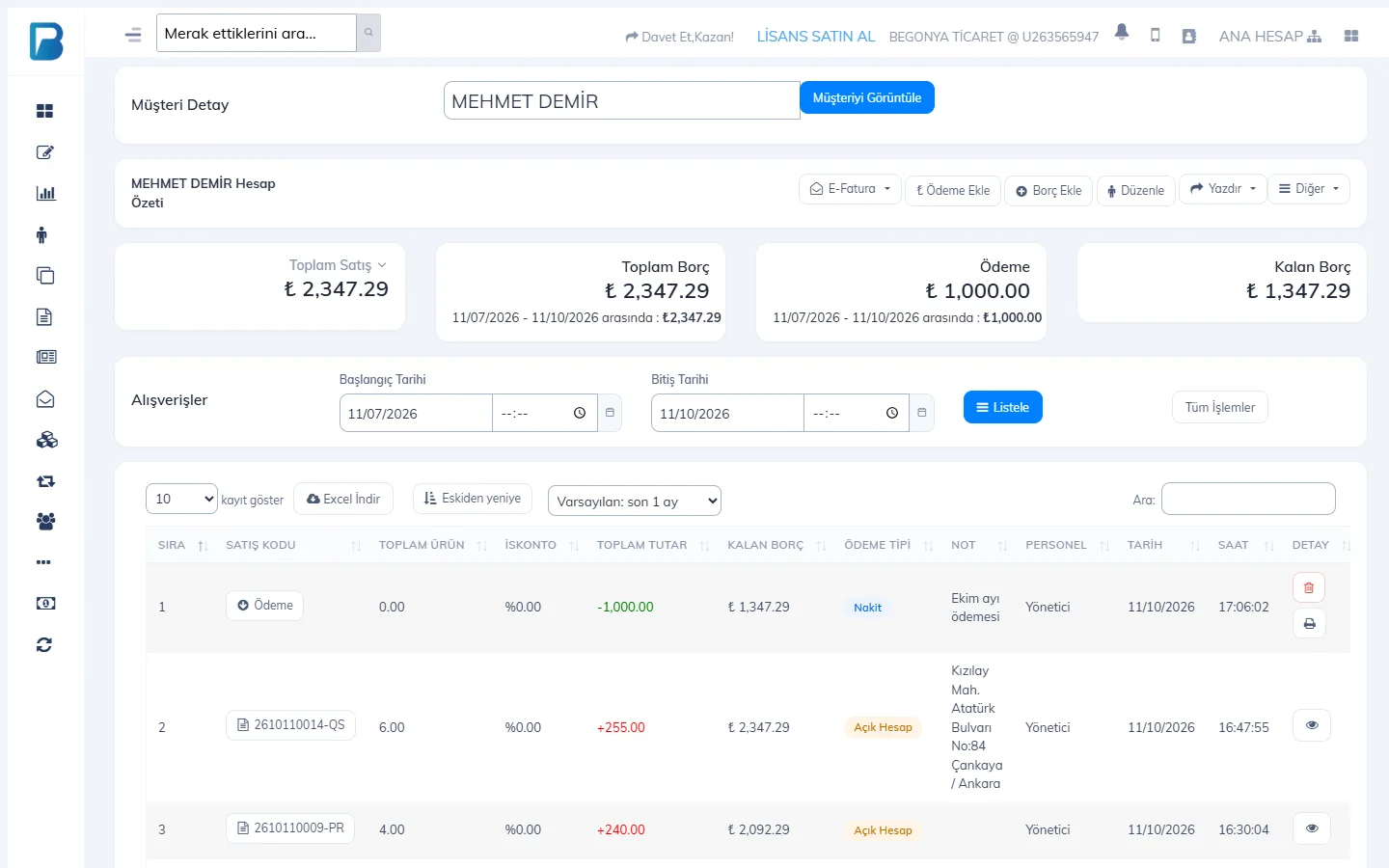
The payment appears in the list 1 as a negative amount and the Balance Due is updated.
 1
1
BALANCE RESET in the payment types is for clearing a customer's debt without taking a payment (for example, to write off small differences of a few cents). If you need to add debt by hand, use Add Debt; to give the customer an account statement, use Print.
Selling on account (credit)
Select the customer
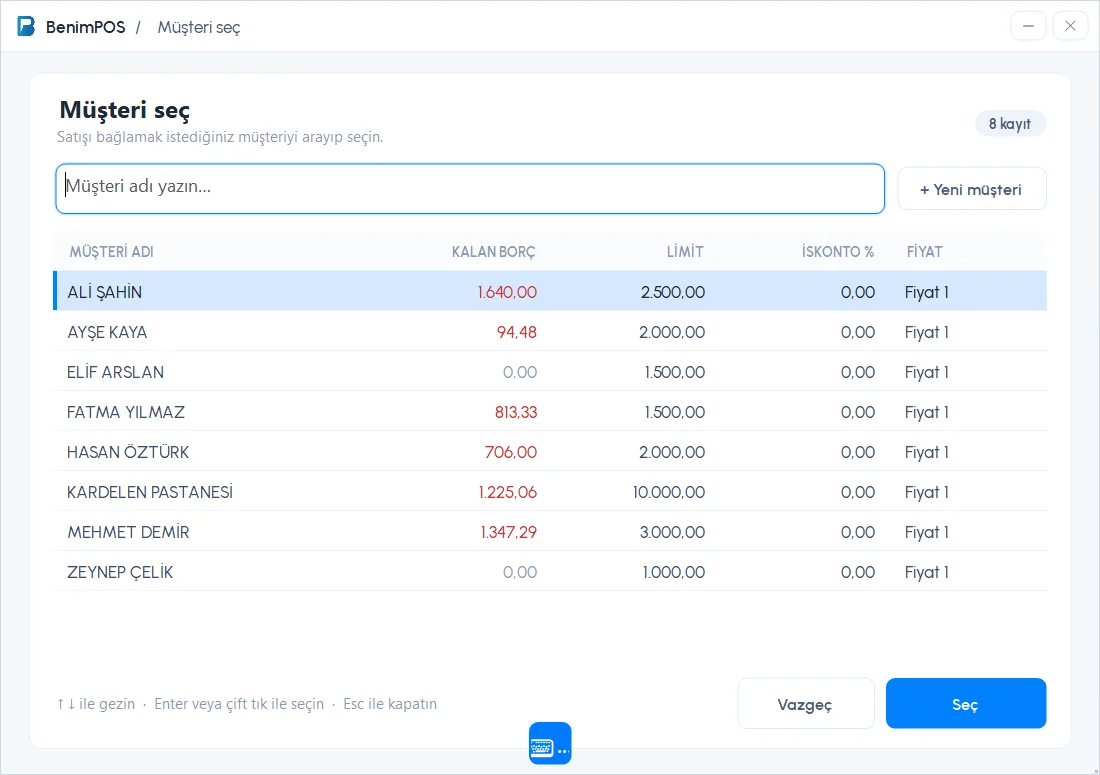
On the sales screen, press Select customer. In the window that opens, 1 type the customer's name, 2 choose the customer from the list and press 3 Select (or double-click). The list shows the customer's BALANCE DUE, LIMIT, DISCOUNT % and PRICE type. If the customer isn't saved, add them right away with 4 + New customer; you can optionally enter the phone number in the confirmation window, and for a number from another country, choose the country with the country button.
 1234
1234Save it on account
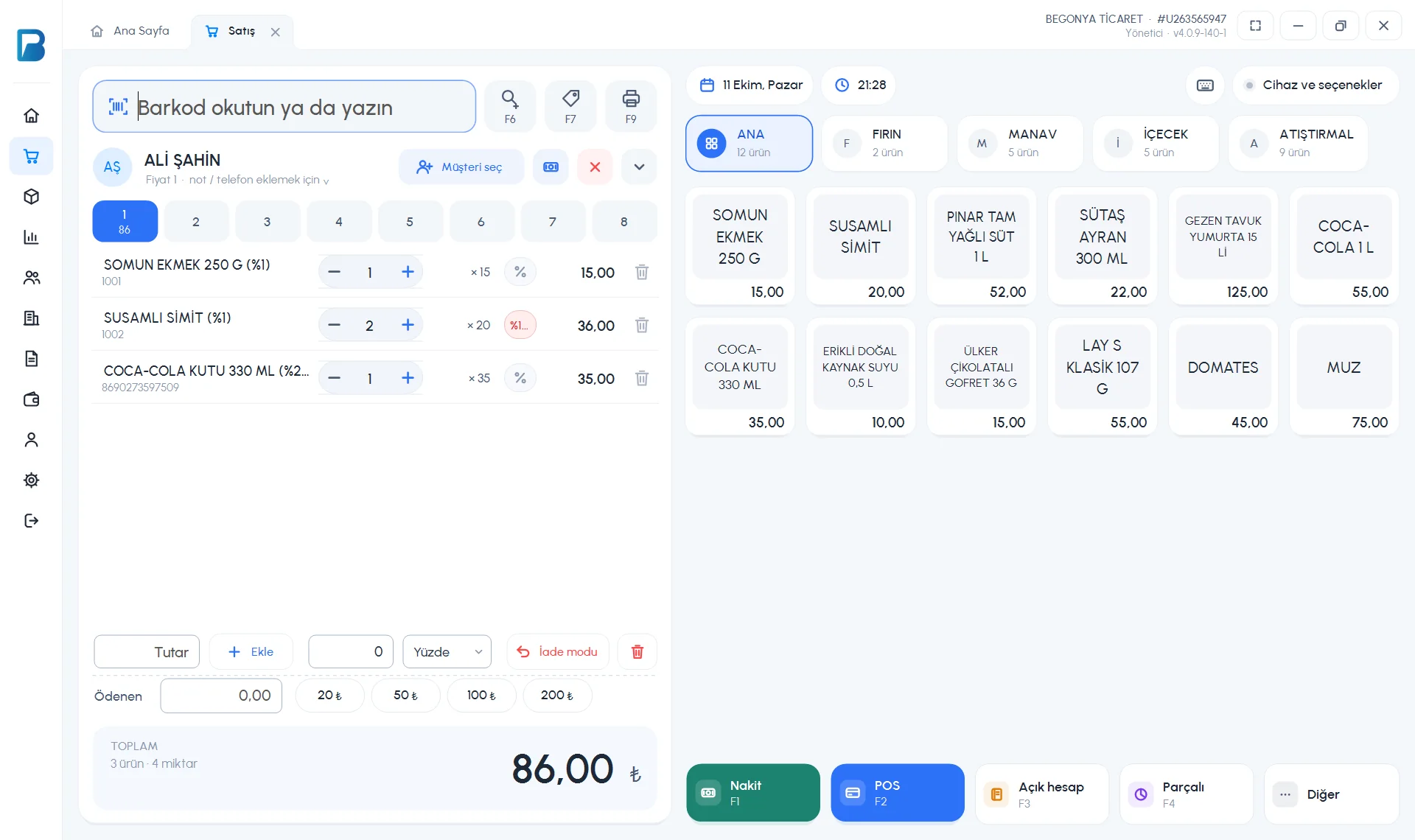
The customer's name appears 1 at the top of the receipt. Add the products and press the 2 On account (F3) button. The amount is added to the customer's debt.
 12
12
If the customer has a limit and the sale goes over it, you get a warning. The limit and discount are set on the customer card.
Adding a payment to a customer
When a customer pays their debt, you can record it in two ways:
From the sales screen
On the sales screen, open Devices and options at the top right and press Add payment to customer. 1 Select the customer on the left; 2 enter the AMOUNT PAID and choose the PAYMENT TYPE. The balance due after the payment is shown below. Press 3 Save payment.
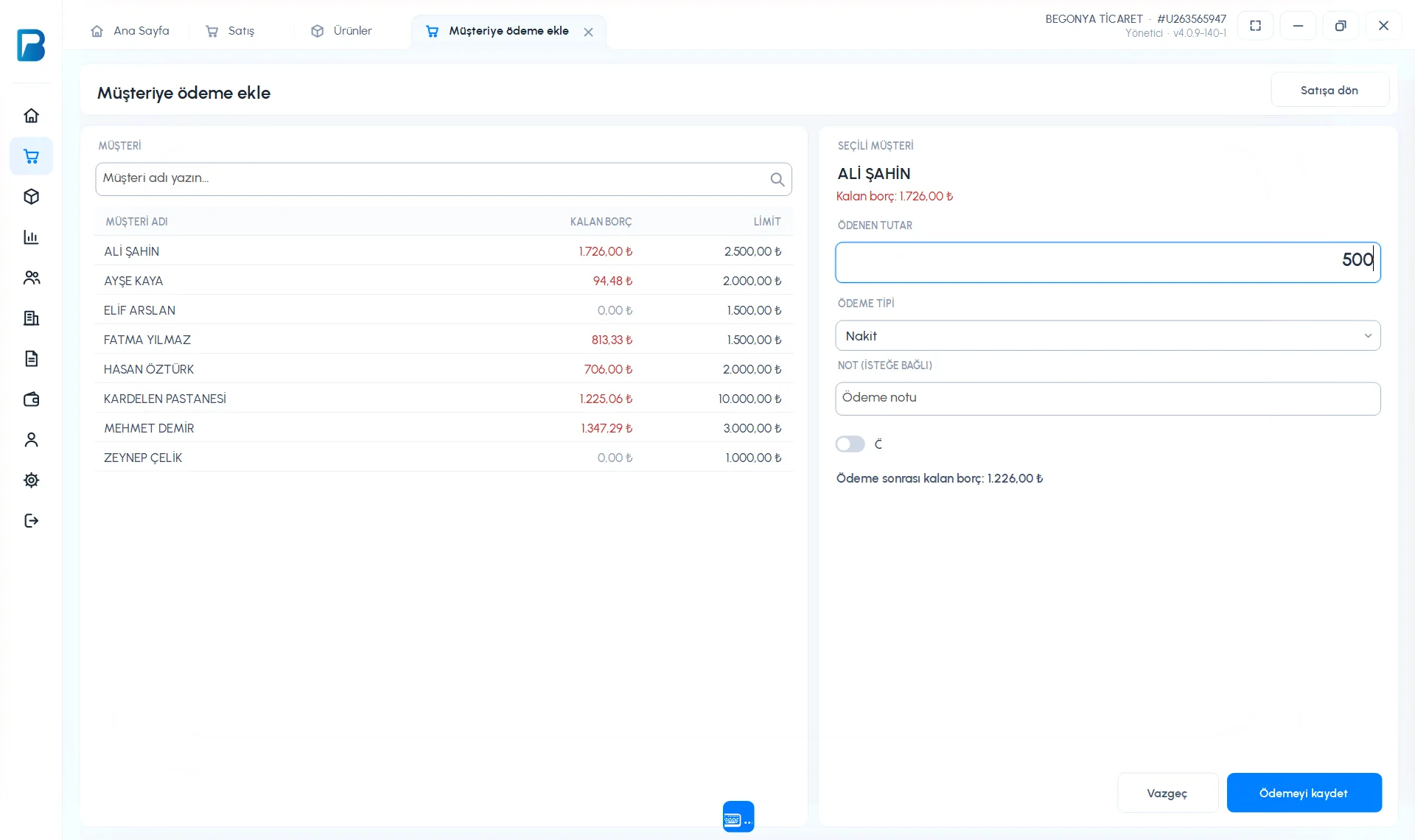 123
123From the customer card
Double-click the customer in the Customers list. On the 2 Take Payment tab of the card, enter the payment type and amount and press 5 Save Payment. The payment appears 6 in the Sales and Payments list with a green Payment label.
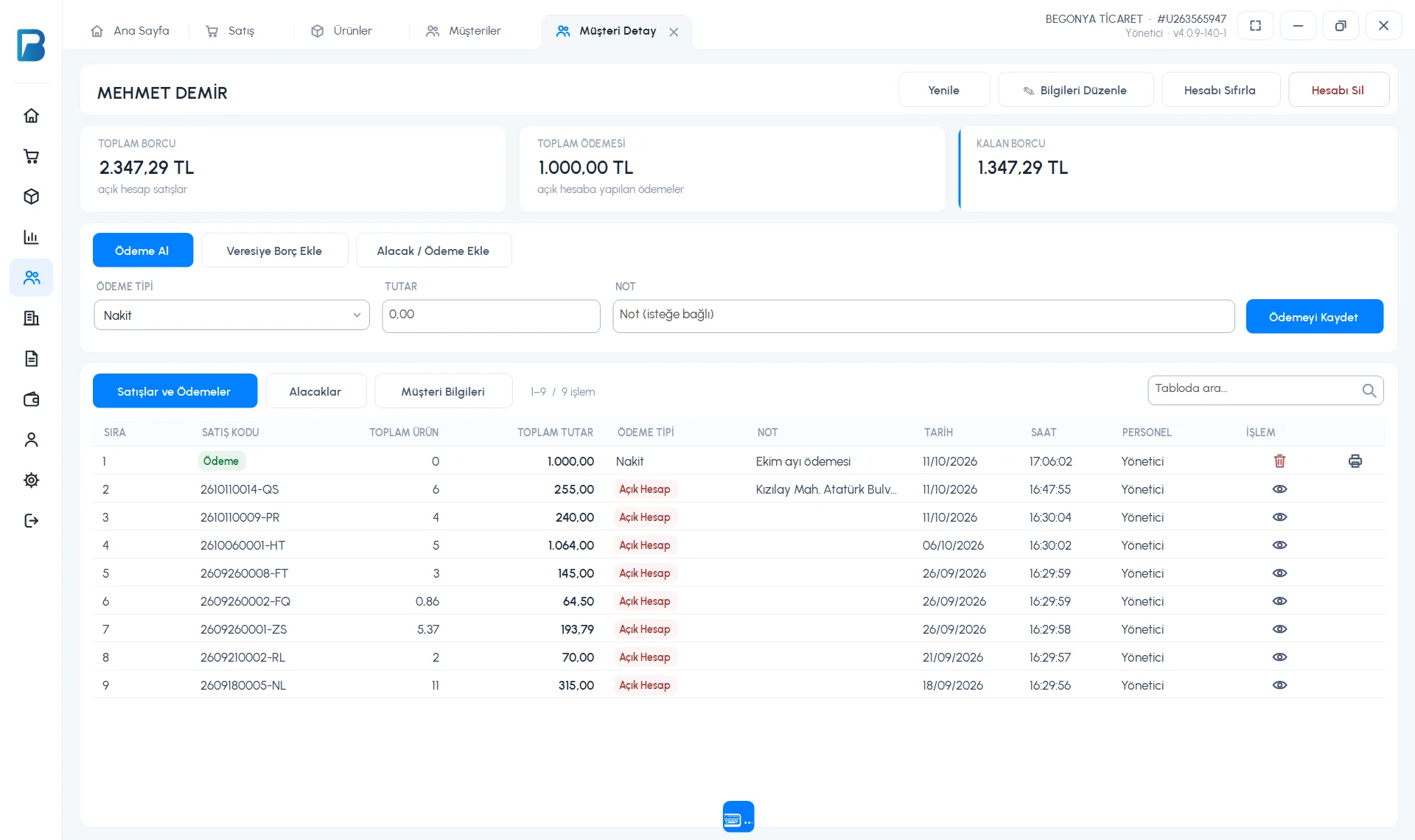 123456
Selling on account on mobile
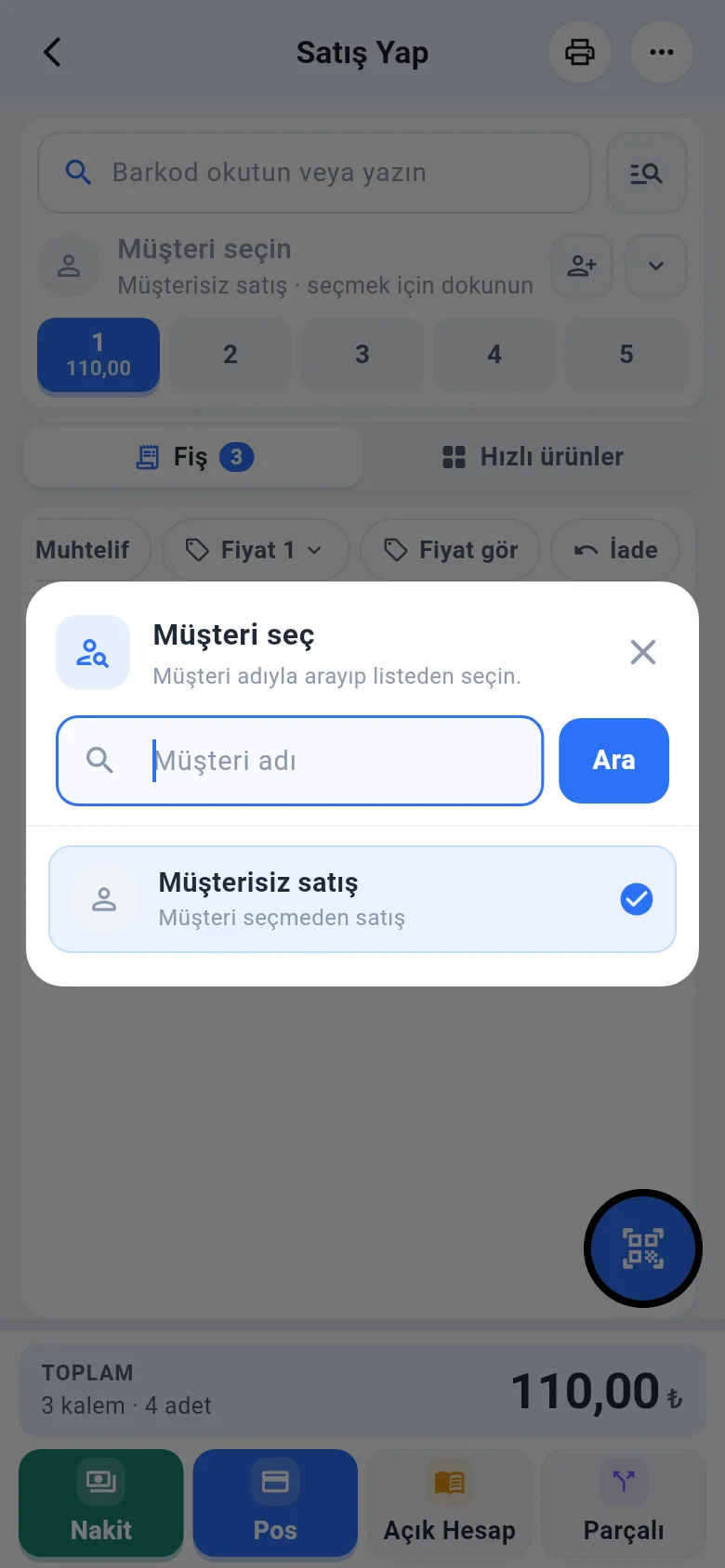
On the sales screen, tap Select customer, search for the customer and select them; the customer's debt and limit are shown on the row. Add the products and tap On account.
Adding a payment on mobile
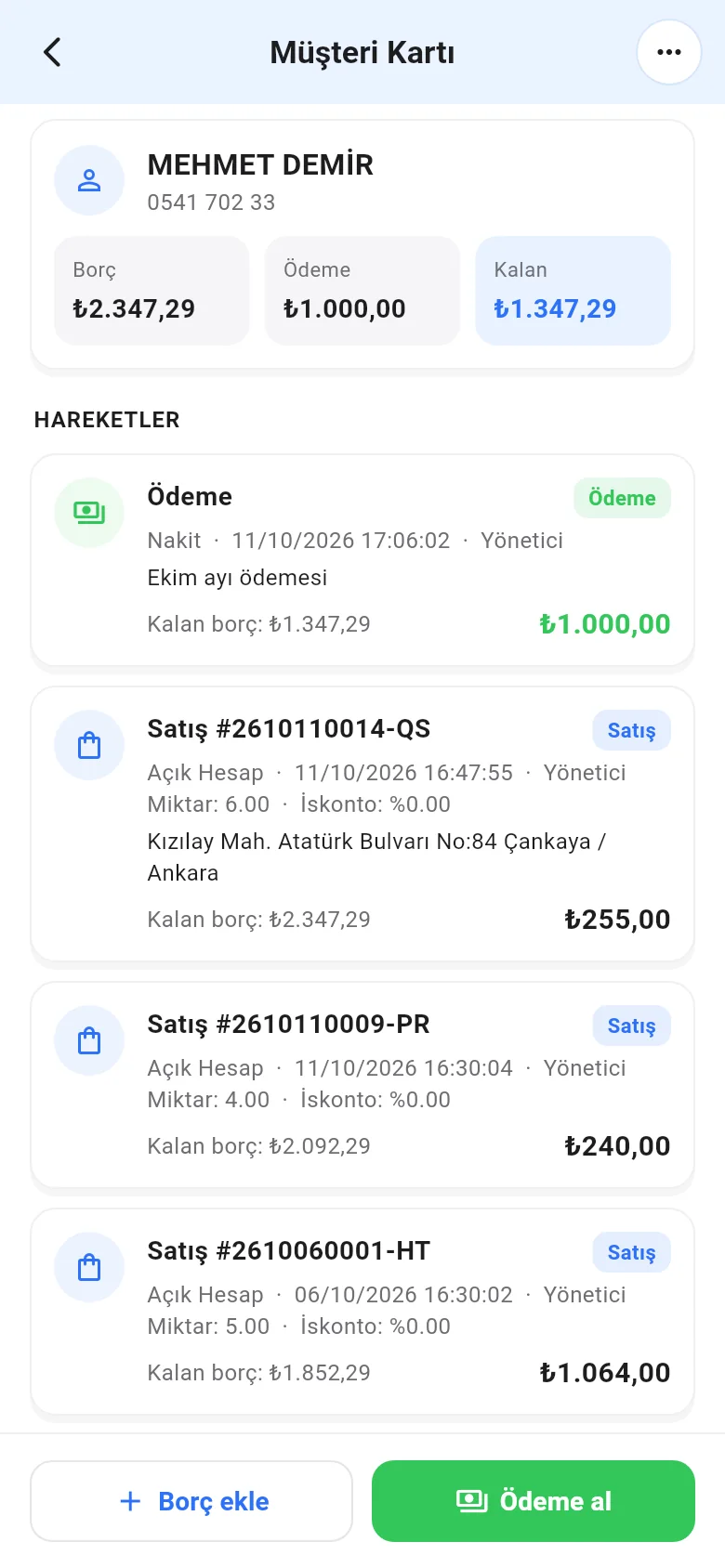
Open the customer from Menu › Customers and tap Receive payment at the bottom. Enter the Payment amount, a note and the Payment type, then tap Save payment; the payment received and the balance due are shown.
 123
123