




Creating purchase invoices and returning goods to suppliers
Enter goods received from a supplier with a purchase invoice; update stock, purchase prices and the supplier balance, and create a return invoice.
When you enter goods bought from a supplier as purchase invoices, the products' stock goes up, purchase prices are updated and the invoice amount is recorded on the supplier's account according to the payment type you choose. This also keeps your profit figures correct.
Creating a purchase invoice
Open the page
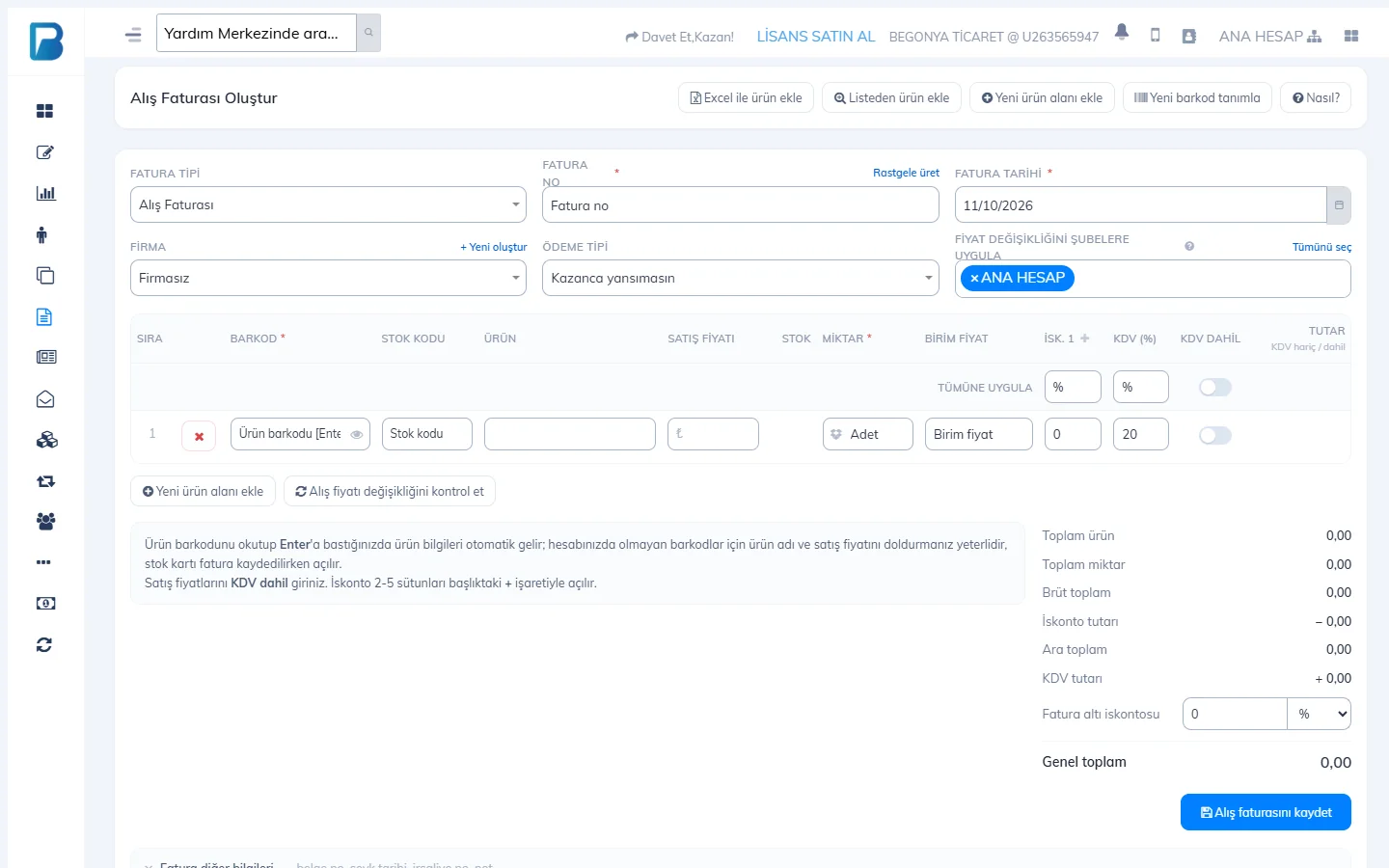
Open Purchase Invoices › Create Purchase Invoice.
Enter the invoice details
Select the INVOICE TYPE (Purchase Invoice / Return Invoice), INVOICE NO (if there is none, Generate random), INVOICE DATE and SUPPLIER.
Choose the payment type
The PAYMENT TYPE determines how the invoice affects the till:
Payment type Result On account The amount is recorded as your debt to the supplier; add payments from the supplier card as you pay. Cash / Card The amount counts as paid to the supplier and is deducted from earnings as an expense in reports; you don't need to enter a separate expense. Do not affect earnings Only stock and purchase prices are updated; the till and the supplier account are not affected. Add the products
Scan the product's barcode in the barcode row; the product name and sale price appear. Enter the QUANTITY and the UNIT PRICE including/excluding VAT, and adjust the line discount (DISC. 1…) and VAT if needed. For a new row use Add product line; to select a product by name use Add products from list; to import the supplier's list in bulk use Add products from Excel.
Discount and totals
If there is a discount on the whole invoice, enter the invoice discount as a percentage or amount. The summary on the right shows the gross amount, discount, VAT and grand total.
Save
Save the invoice. The products' stock goes up; if you changed the sale price on a row, it is also written to the product card.
If you scan a barcode on the invoice that isn't in your account, you can quickly create a product card from the row. If you have branches, use APPLY PRICE CHANGE TO BRANCHES to send the new prices to the branches you select.
Products delivered in cases
When you scan a case barcode on the invoice, there are two possibilities:
- If the case is set up as an additional barcode of the product, the row is converted to single units automatically (quantity × units per case, unit price ÷ units per case). Additional barcode
- If the case is tracked with its own product card, a choice of Add to stock as cases / Add to stock as units appears under the product name. Tracking case / pack stock separately
In both cases the invoice amount does not change. Product codes coming from an e-fatura (Turkish e-invoice) that aren't in your account can be linked to an existing product with the 🔗 button on the row; they are recognized automatically on later invoices. Linking a product from an e-invoice
Viewing and editing invoices
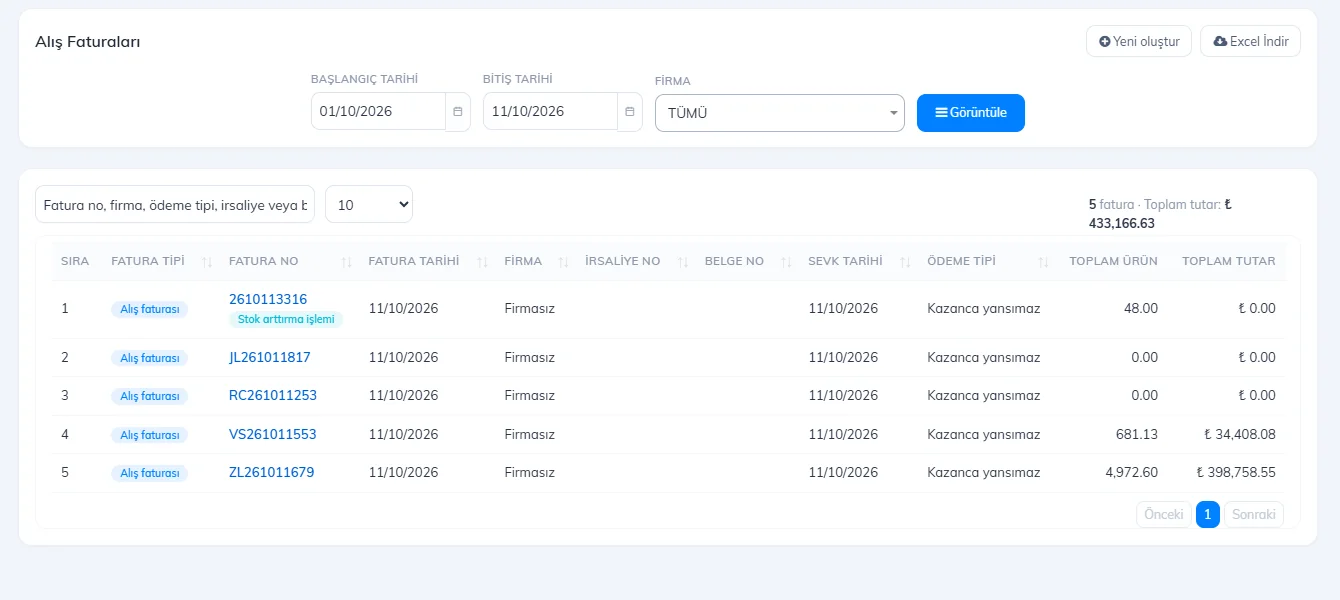
On the Purchase Invoices page, select the date range and 2 SUPPLIER and press View. Open an invoice to add products, edit rows, return products or delete the invoice; export the list with Download Excel.
 12
12Returning goods to a supplier (return invoice)
When returning goods to a supplier, create a new invoice, set the INVOICE TYPE to Return Invoice and enter the returned products. The return invoice reduces stock and is recorded as a return on the supplier balance.
How the purchase price is updated is set by My Profile › Other Settings › Update purchase price from last invoice: if it's on, the product's purchase price becomes the price on the last invoice; if it's off, it is averaged with the old price.
Creating a purchase invoice
Open a new invoice
Open Purchase Invoices › Create purchase invoice, or press + New Purchase Invoice in the Purchase Invoices list.
Enter the invoice details
1 INVOICE NO and INVOICE DATE are required. Select the SUPPLIER, INVOICE TYPE (Purchase invoice / Return invoice) and PAYMENT TYPE (Cash, Credit card, On account, Do not affect earnings…); DISPATCH DATE, DELIVERY NOTE NO, DOCUMENT NO and INVOICE NOTE are optional.
Add the products
2 Scan the barcode or type the product name and press Enter; type the quantity in the box next to it and press + Add (
24*barcodealso works). To pick a product from the list, use Select from List. 3 In the table, edit the SALE PRICE, QTY, PURCHASE PRICE and discounts; when Multiple discounts is on, the DISC. 2–5 columns appear too. The gross total, discount, VAT and grand total are calculated on the right.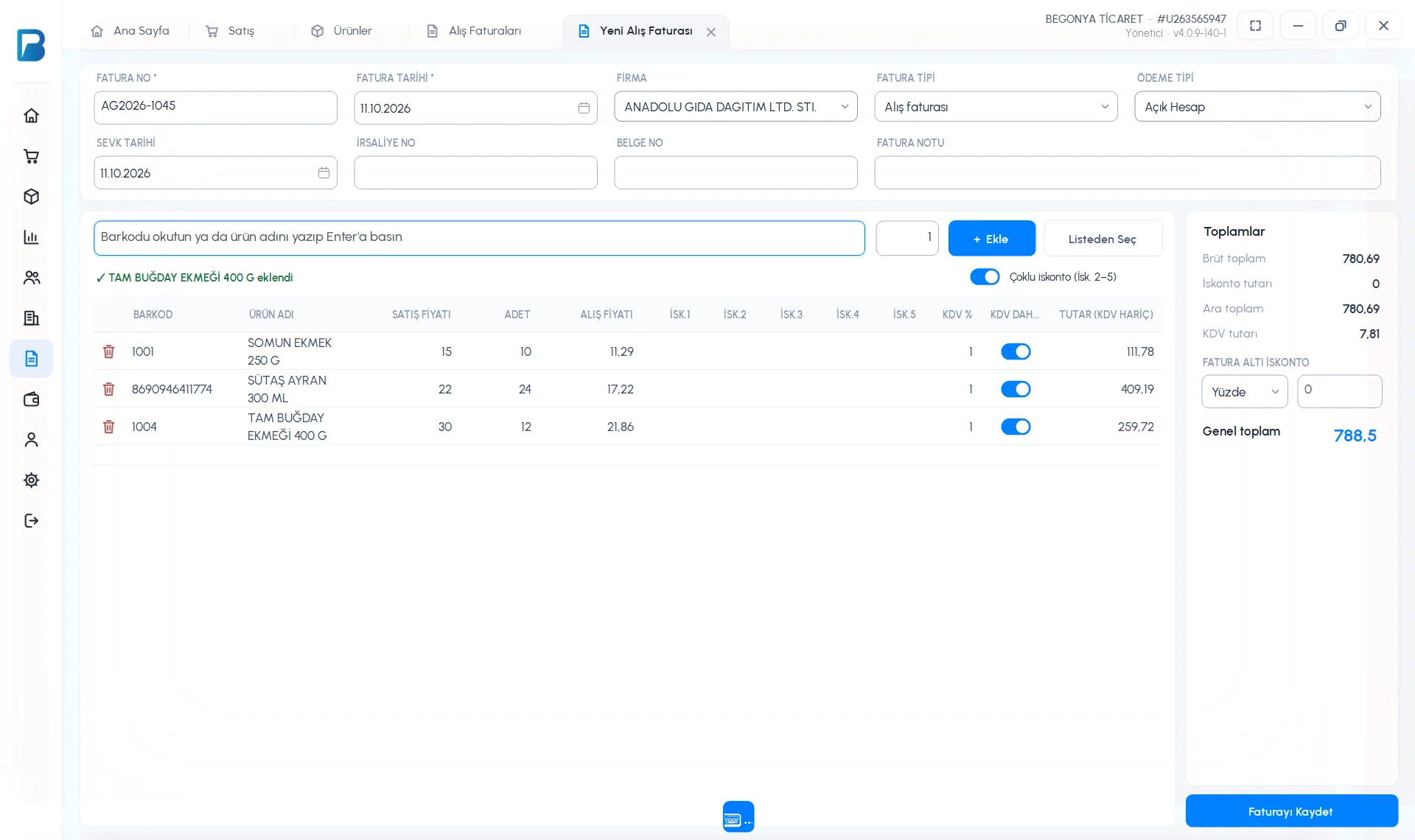 1234
1234Save
If needed, enter the INVOICE DISCOUNT (percentage or amount), press 4 Save Invoice and confirm. The products' stock goes up; if you chose on account, the amount is recorded as debt to the supplier.
Saved invoices
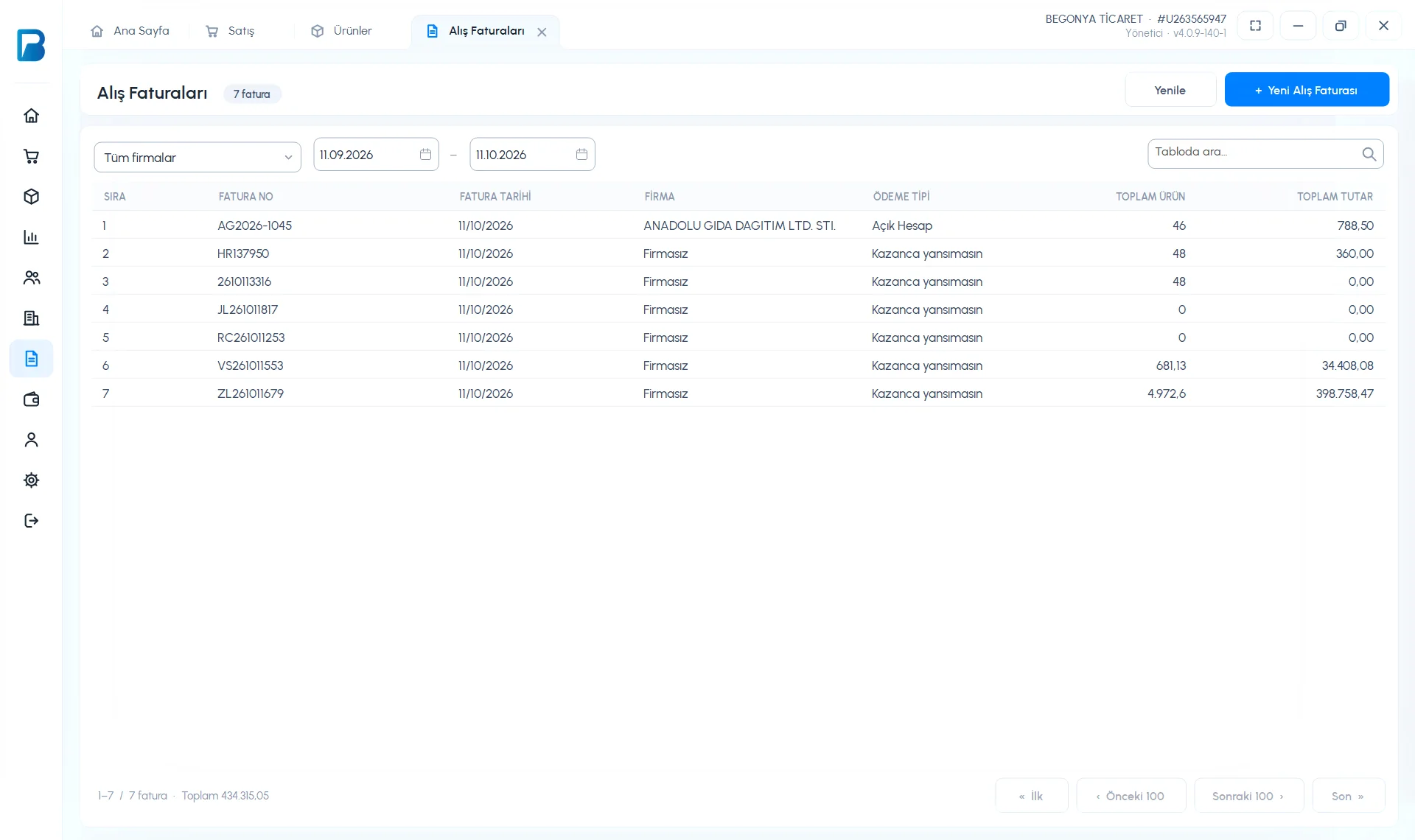
In Purchase Invoices › Your purchase invoices, filter by supplier and date range and double-click an invoice.
 1
1The invoice screen has 1 Edit Invoice Details (supplier, type, payment type, note, invoice discount), 2 + Add Product and 3 Delete Invoice. Click a product row to process returns for that product, edit the row or remove it from the invoice; returns appear in the Returned products list at the bottom.
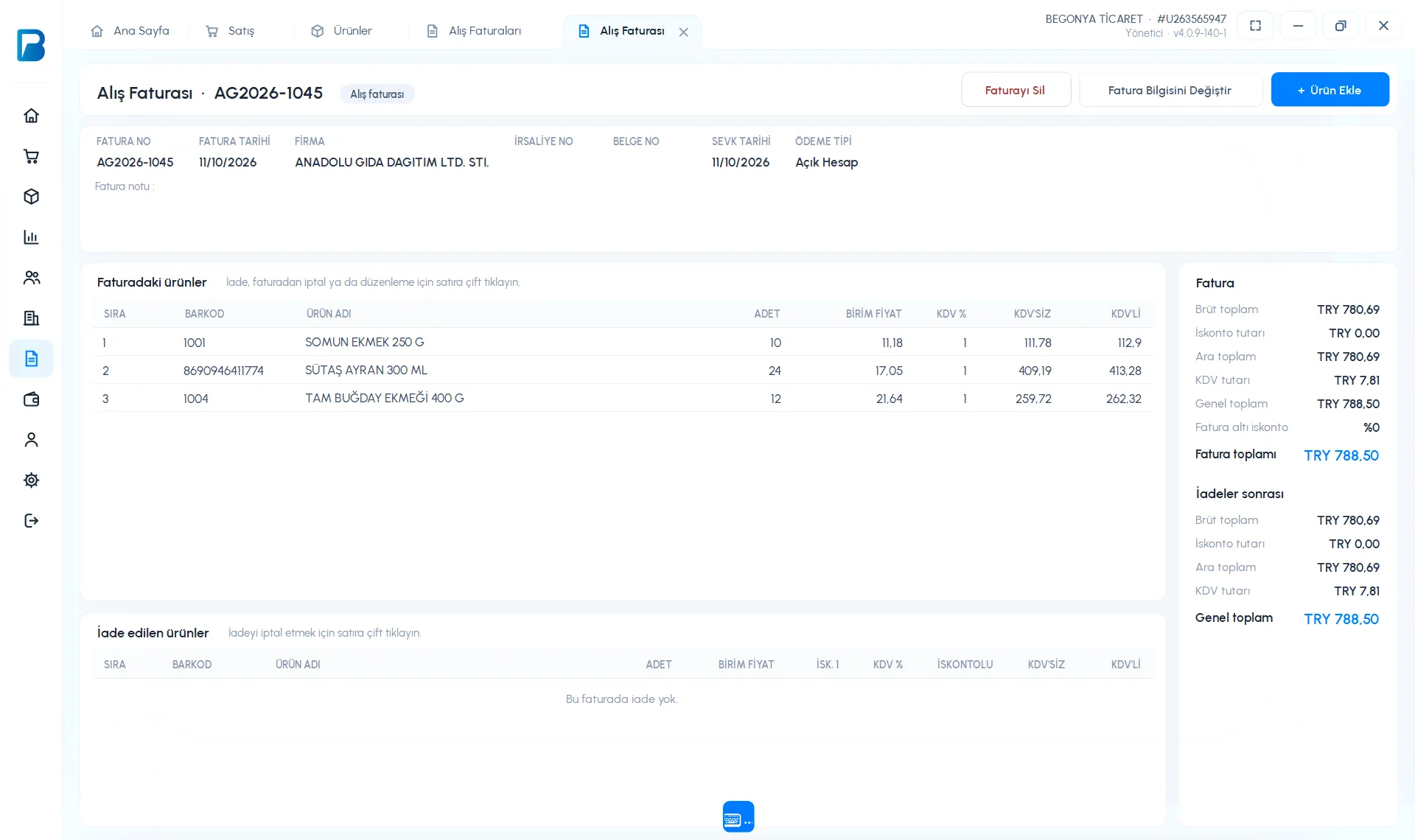 123
123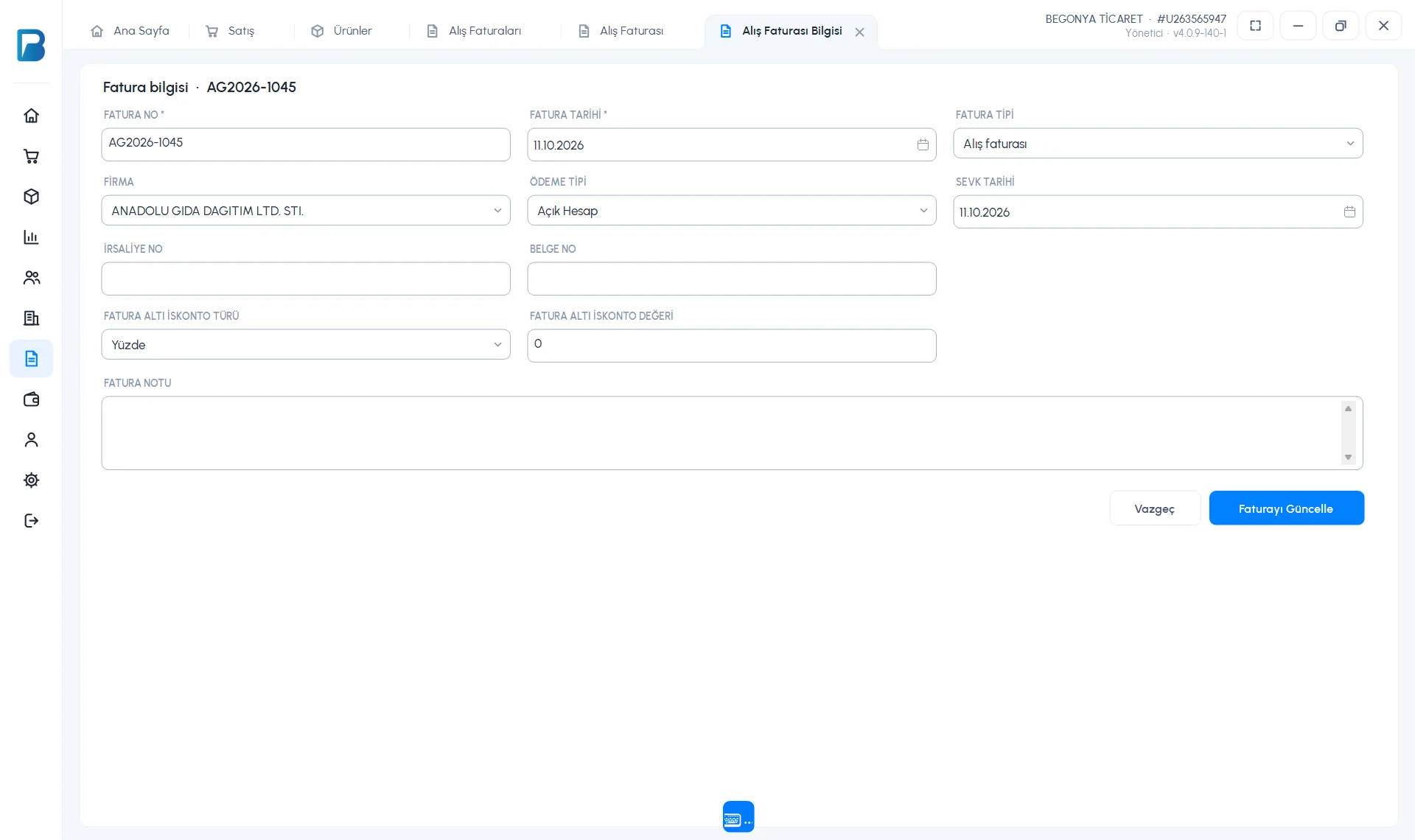
In the free limited version, Purchase Invoices is a PRO feature. Staff need the Purchase Invoices permissions for invoice actions.
Creating a purchase invoice
On the Menu › Purchase Invoices page, tap New purchase invoice. Select the 1 Invoice number, date, 2 Supplier, Payment type and Billing type. 3 Add products with Search products, Scan or New product; tap a row to edit the quantity, price, VAT and discount. 4 Tap Save Invoice and confirm.
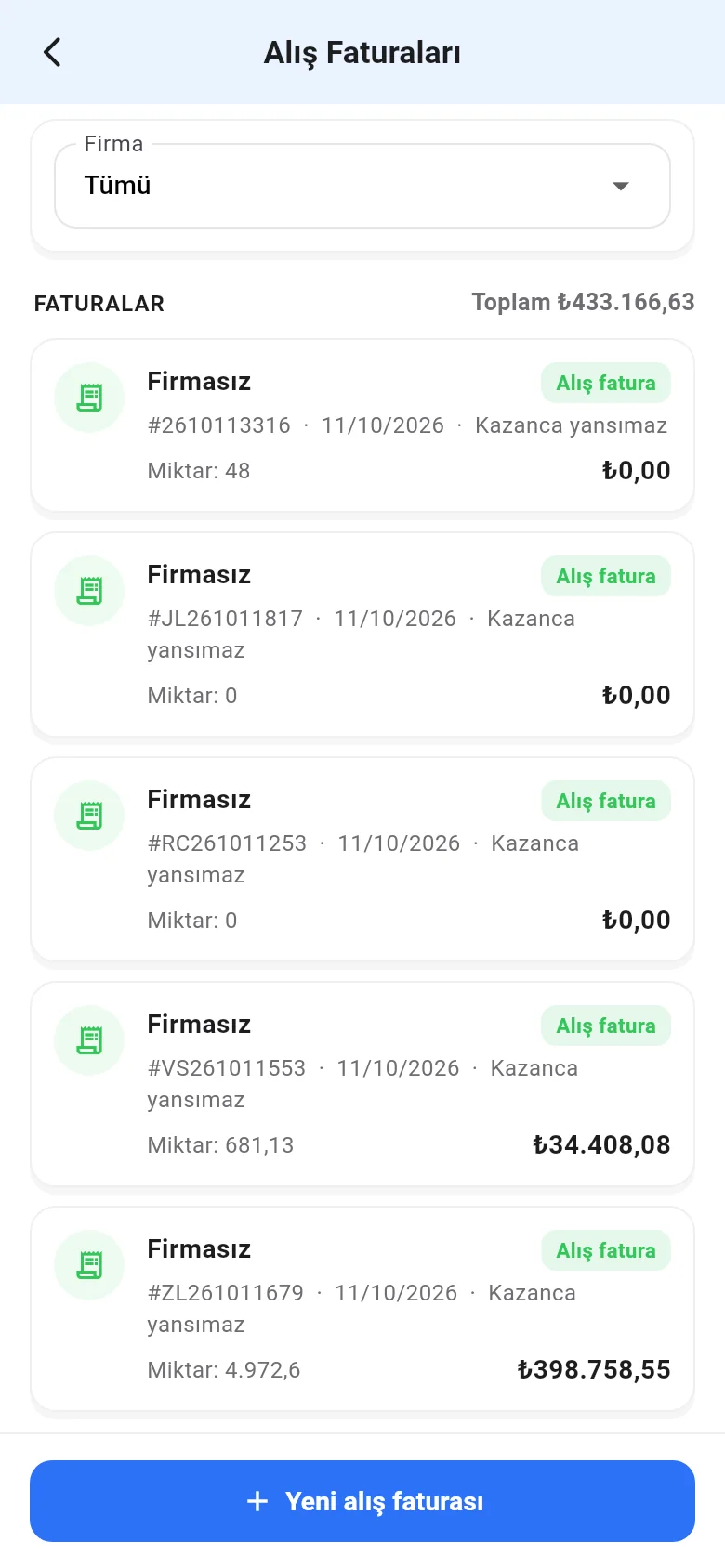 1
1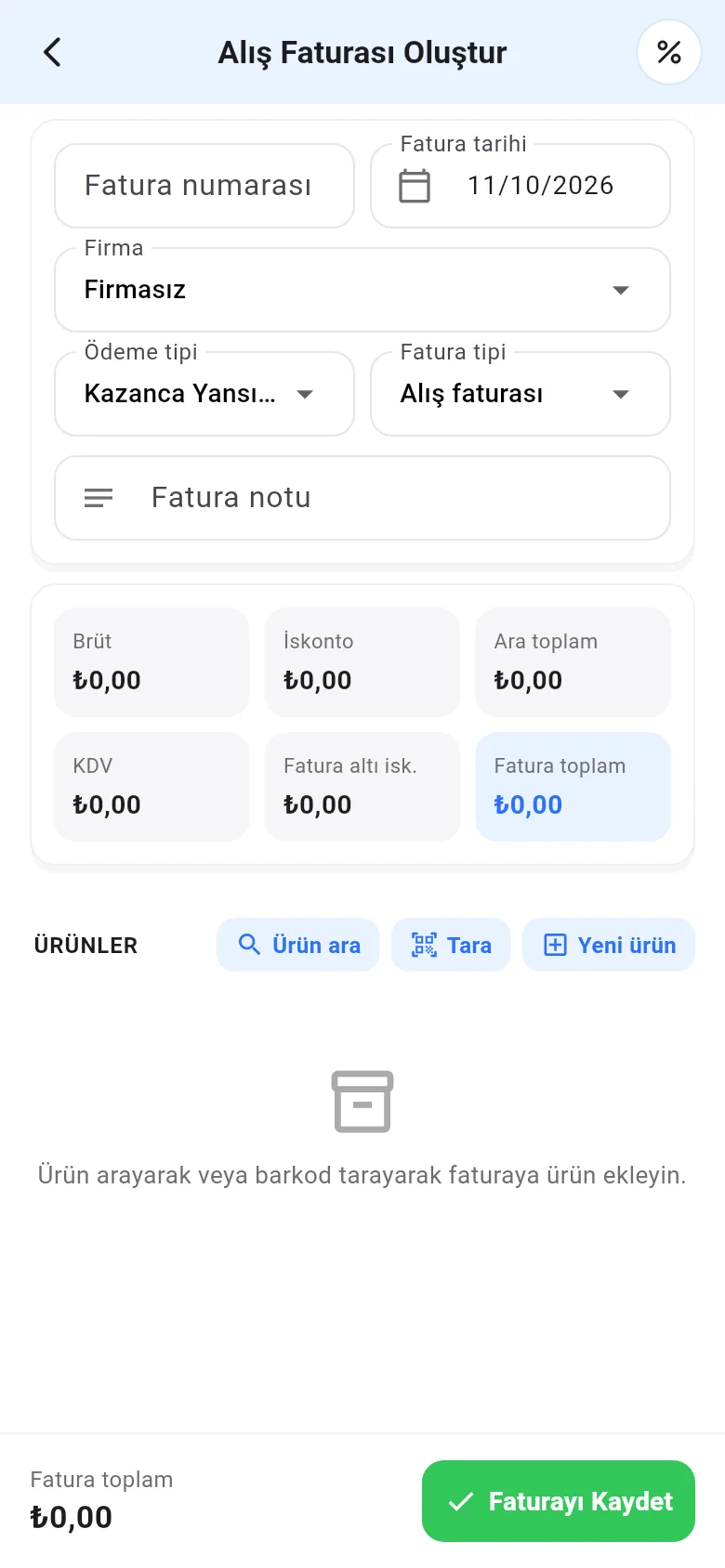 1234
1234For an invoice discount, tap the % icon in the top bar. To delete an invoice, use Actions › Delete invoice in the invoice details.