




Data isn't syncing / "Sale could not be saved"
What to do if sales made on desktop don't show on the web, syncing gives an error, or you see the "Sale could not be saved" warning.
In BenimPOS, the web and mobile apps write data to the cloud instantly. The Desktop app, however, saves to the computer first, sends it to the cloud when there is internet and downloads changes from the cloud (syncing / integration). If a sale made on one device doesn't show on another, check the steps below in order.
 1234
1234Checklist
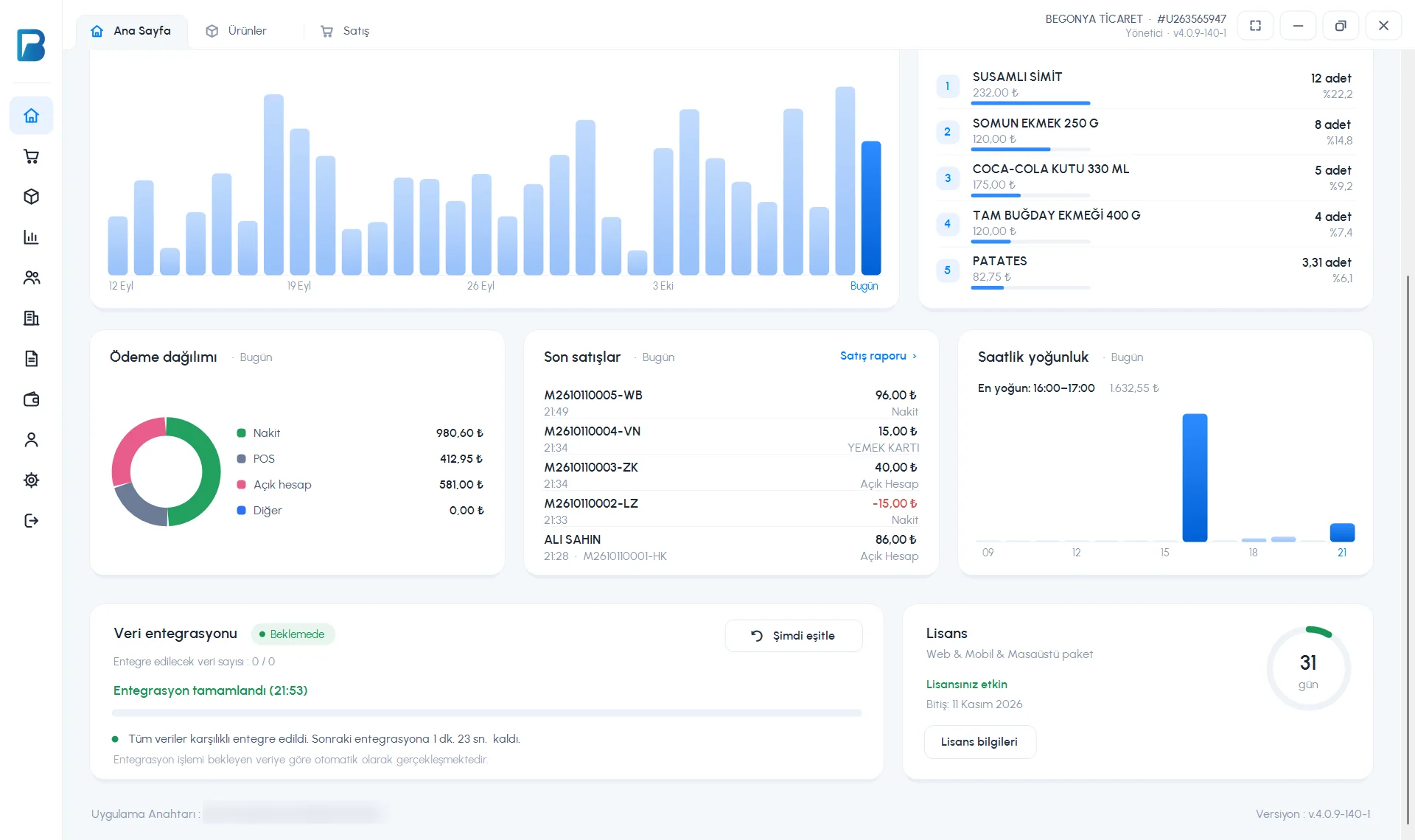
Look at the Data integration card
On the Data integration card on the desktop home page, check the status and the Number of records to sync. If records are waiting, press Sync now and wait until it says "Integration complete".
Internet connection
If the card says "Could not connect to the internet" or "Connection timed out", check your connection; the app tries again by itself when the connection is back. You can keep selling in the meantime; the records wait on the computer.
The computer's date and time
If the computer's clock is more than 5 minutes off, the app shows a "Computer clock is wrong!" warning. If the clock is wrong, sales are saved on the wrong date and don't appear on the day you look for in the report. Set the Windows date/time to "automatic"; for sales saved on the wrong date, list that date in the Sales Report and correct them in the sale details.
License and device rights
If INTEGRATION SUPPORT under Settings › Your license details is "None", your license has expired; the desktop app works but doesn't sync with web and mobile. If you see "Your additional desktop device license has expired", send your App Key to our WhatsApp support line; there is currently no charge for additional computers.
The right account and branch
Make sure you are logged in with the same account (and the same branch) on desktop and on the web. On accounts with branches, check the branch selection in the top bar on the web.
The "Sale could not be saved" warning
This warning means the sale couldn't be written to the database on the computer; nothing is saved and your basket isn't cleared. Wait a few seconds and press the payment button again. If it keeps happening, close and reopen the app; if it still happens, restart the computer. The "database did not respond in time" warning in reports can also appear while syncing is running in the background; try again in a few seconds.
If the desktop and web data don't match, don't start a new integration from desktop or from the My Desktop Devices page on the web; records that haven't been sent may be deleted. Contact our support team with your app key.
If data doesn't show on the web
- Branch: Check in the top bar that you are in the right branch (or in MAIN ACCOUNT).
- Date filter: Check the date and time range in the report; the end time should be 24:00.
- Filters: Set the staff and sale type filters to "All"; cancelled sales don't appear in the default list.
- Sales from desktop: Check that syncing has finished on desktop (see the Desktop tab).
- Staff login: If a staff member has the "Can only see own sales" permission, they see only their own sales.
You can see when each desktop device last sent data in the Last Activity column on the My Desktop Devices page.
On mobile
The mobile app doesn't work offline; every action is sent to the server immediately. If the connection drops during a sale, the warning "Connection error. The sale may have been saved; check the sales list before trying again." appears. To avoid saving the same sale twice, first check in Menu › Sales Report whether the sale was created.
- If the summary screen isn't up to date, pull the screen down to refresh it.
- On accounts with branches, check under Menu › Branches that you are in the right branch.
- If you see "Check your internet connection and try again", check your Wi-Fi / mobile data.