What is the loyalty program and how do you set it up?
Let your customers earn points and stamps with their mobile number: points rate, group-specific rates, stamp card and free product, payment types, gift points, validity and limits.
With the Loyalty program, your customers earn points or stamps on every purchase using their mobile number, and use them as a discount on later purchases. Points are valid only in your stores; points another business gave your customer cannot be used with you.
- Money points: 1 point = 1 ₺ discount. For example, points worth 2% of the purchase are loaded.
- Stamp card: like in cafés and bakeries: when 10 stamps are collected, one product is free or there is a fixed discount.
- The customer does not carry a card or download an app. It is enough to give their number at the till. They see their points at benimpos.com/rewards.
The loyalty program is available on licensed accounts. The settings are changed by the main account manager or by staff with the Can change loyalty settings permission; settings apply to all branches.
Loyalty settings are made only in the web panel. The desktop and mobile apps use the same settings at the till; when you change a setting, it applies everywhere from the next sales on.
Loyalty member vs. customer card
Loyalty membership is kept separately from the customer cards in your Customers list. A member is identified by their mobile number; a customer card is only a record in your business. So:
- If you have branches, the customer earns and spends points with the same number in all your branches (if Shared across branches at the bottom of the settings is on).
- Points can be used only in the business where they were earned and its branches; they cannot be used in another BenimPOS business.
- With one number, the customer sees their cards from all BenimPOS businesses they shop at, each separately, on benimpos.com/rewards; they do not need a separate account for each.
- Someone without a customer card can be a member; someone with a customer card does not have to be a member.
When you select a customer on a sale and the customer card has a mobile number, that number is added to the receipt as the loyalty card automatically. This does not turn the customer card into a loyalty membership; the points for that sale go only to that number. You can remove the card from the receipt or enter another number if you want. If the customer card has no number or has a landline, no number is added; before completing the sale, check that the number shows on the Loyalty button.
Member name and details
Only the members themselves can change their first name, last name, email and birthday, on benimpos.com/rewards after verifying their number. Members who have not entered a name appear as Unnamed member in the list; the business cannot change these details. This way, the same person has one correct record across all businesses.
Points are kept on the server. For sales made in the desktop app, points are written when the sale syncs to the central server; using points and rewards is reserved on the server instantly at the till. This way all tills on web, desktop and mobile see the same balance.
Open the settings page
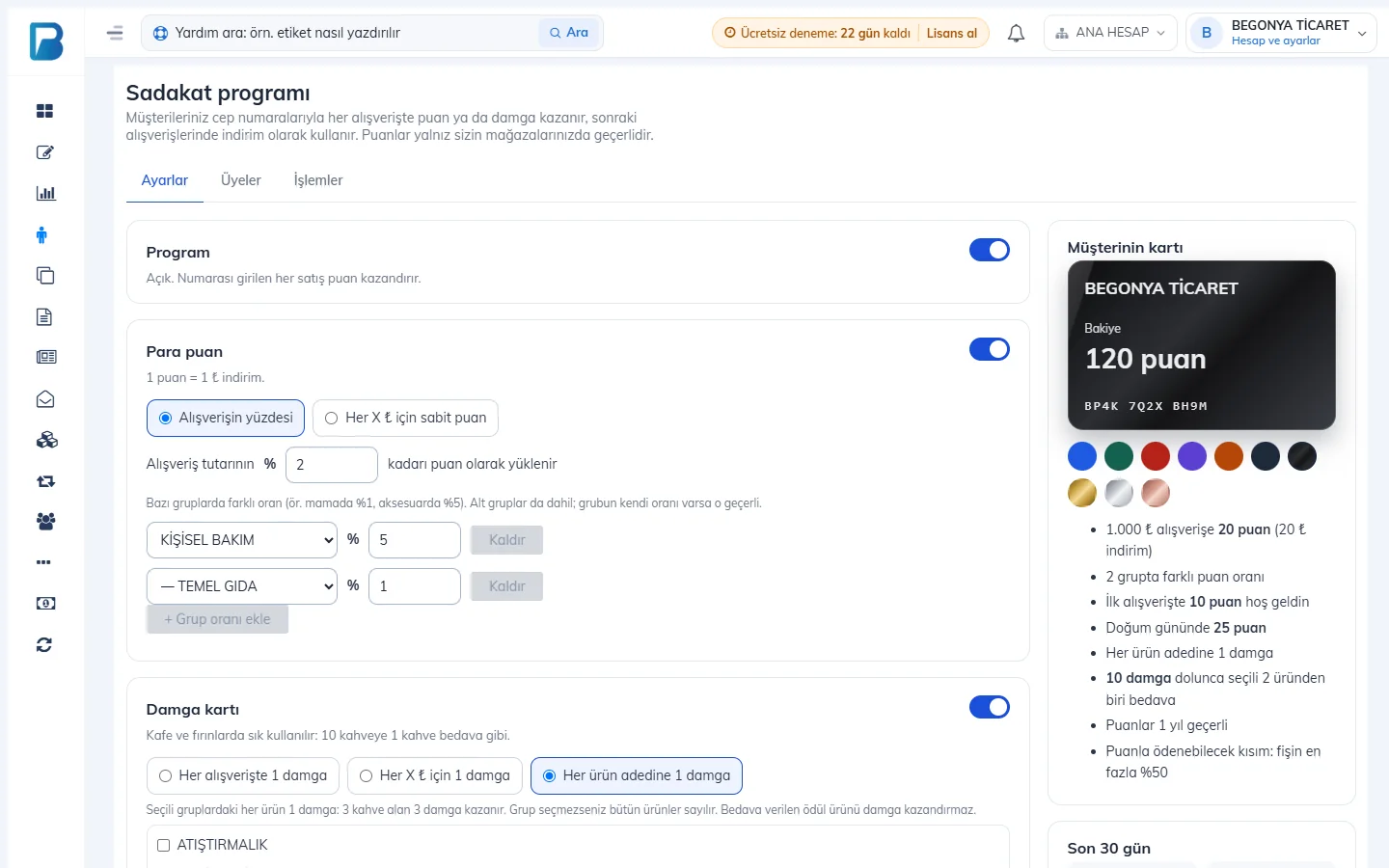
In the left menu, open the Customers › Loyalty Program page. At the top of the page there are the 1 Settings, Members and Actions tabs. In the 7 Customer's card section on the right, you see how the card will look to the customer and a short summary of your settings; you can choose the card color with the color buttons.
 1234567
Turn on the program
Turn on the 2 Program switch. While it is on, every sale with a number entered earns points; when you turn it off, earning stops and customers' balances are not deleted. When you turn the program on for the first time, the Loyalty Program Agreement opens; the program turns on once you read the text to the end and accept it. Acceptance is taken once on behalf of your business.
Choose the money points rate
Choose one of the options 3 Percentage of the purchase (e.g. 2%: 20 points for a 1.000 ₺ purchase) or Fixed points per X ₺ (e.g. 3 points for every 100 ₺). 4 Enter the rate.
Set a group-specific rate if you want
If you want a different rate for some product groups (e.g. 5% for personal care, 1% for basic groceries), press 6 + Add group rate, 5 select the group and enter the rate. Subgroups are included in this rate; if a subgroup has its own rate, that one applies. If the receipt has products from different groups, each product is calculated with its own rate.
Group-specific rates are shown only while Percentage of the purchase is selected. If "Fixed points per X ₺" is selected, this section is hidden.
Stamp card
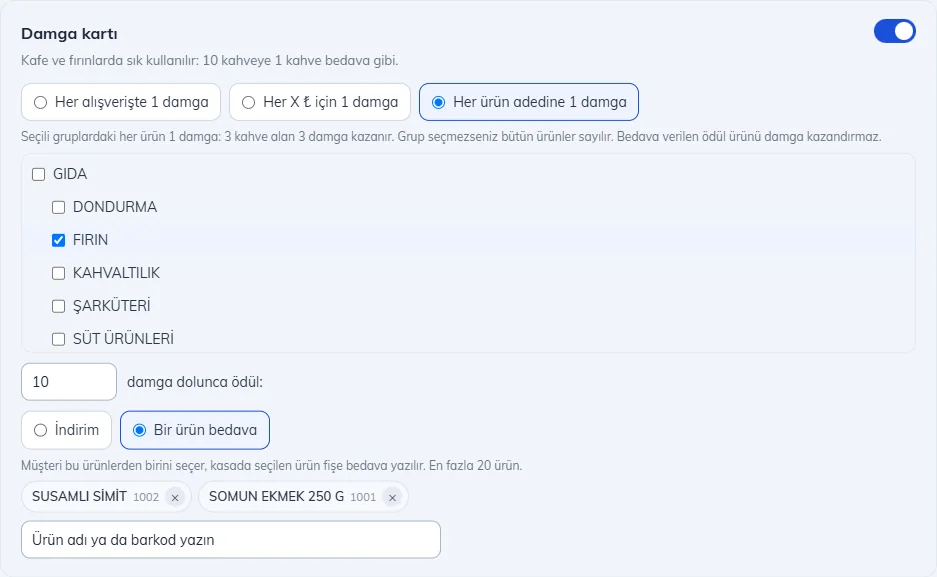
Turn on the 1 Stamp card switch and 2 choose how stamps are given:
- 1 stamp per purchase: you can enter a minimum amount if you want (e.g. purchases of 50 ₺ and over).
- 1 stamp per X ₺: e.g. 1 stamp for every 100 ₺.
- 1 stamp per item: 3 each item in the groups you select earns 1 stamp; someone who buys 3 coffees earns 3 stamps. If you do not select a group, all products count.
4 Enter how many stamps earn the reward. 5 The reward can be a Discount (fixed amount) or One free product. If you choose a free product, type the product name or barcode in the 7 search box and select it from the list; 6 the products you selected appear here (up to 20 products, remove with ×). At the till the customer picks one of these products, and it is added to the receipt for free.
 1234567
Which payments earn points
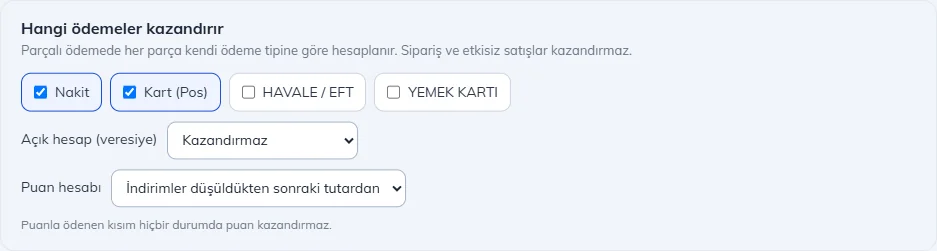
1 Tick the payment types that earn points (Cash, Card and the payment types you set up yourself). 2 Choose whether On account (credit) sales earn points. 3 With Points calculated on, set whether points are calculated on the amount after receipt discounts or before them.
 123
123- With split payment, each part is calculated according to its own payment type.
- Orders and the part paid with points do not earn points.
Gift points
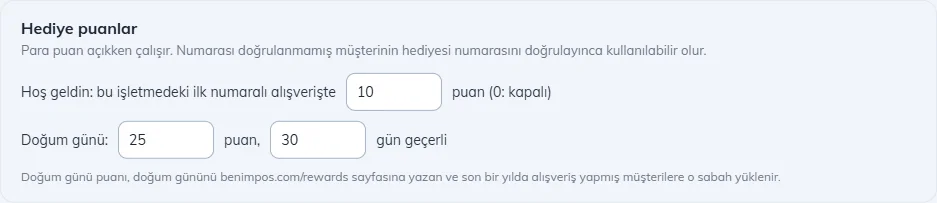
1 Welcome points are loaded once, on the customer's first purchase with a number at your business. 2 Birthday points are loaded that morning for customers who entered their birthday on benimpos.com/rewards and shopped in the last year; you enter how many days they stay valid in the box next to it. Entering 0 turns it off.
 12
12Which products earn points
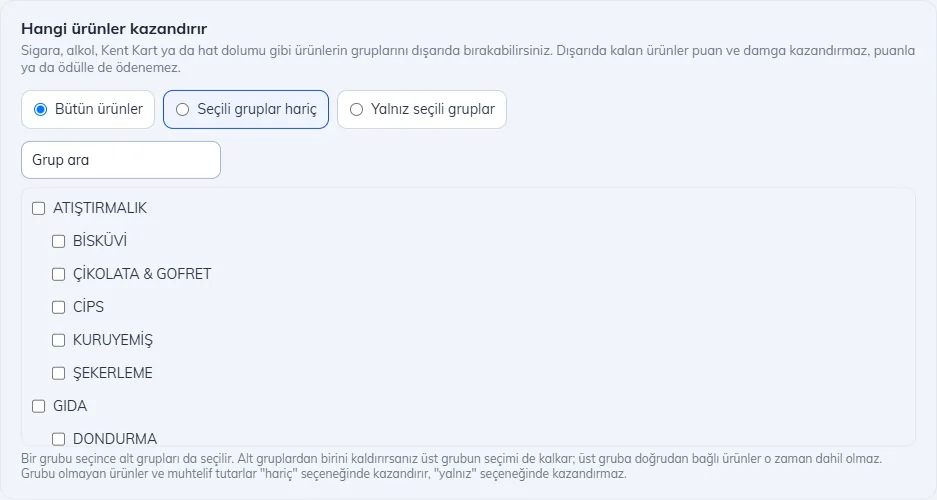
You can exclude low-margin products such as cigarettes, alcohol, Kent Kart (transport card) or phone top-ups. 1 Choose All except selected groups or Selected groups only, and 2 tick the groups in the list. Selecting a group also selects its subgroups. Excluded products do not earn points or stamps, and cannot be paid for with points or rewards.
 12
12Using points and validity
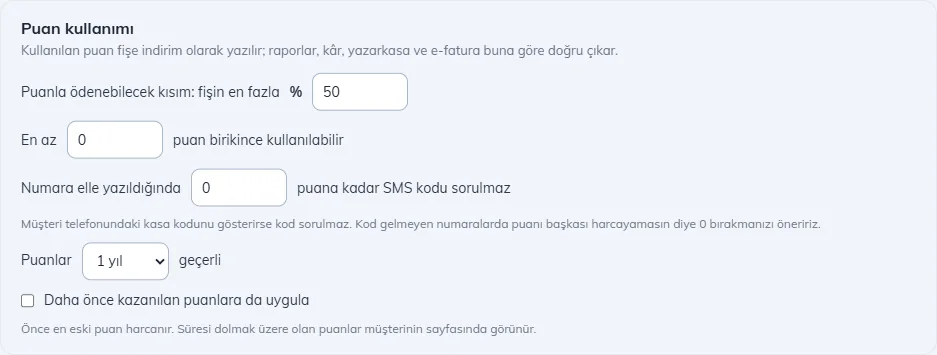
- 1 Part payable with points: the maximum percentage of a receipt that can be paid with points (e.g. 50%). If you enter 100%, the whole receipt can be paid with points.
- 2 Can be used once at least ... points are collected: e.g. if you enter 50, the customer can start using points after passing 50.
- 3 When the number is typed manually, no checkout code is asked up to ... points: we recommend leaving this at 0, so that no one but the customer can spend their points. Above the limit, the customer is asked for the checkout code on their phone (no SMS is sent). If the customer was found with the checkout code in the first place, the code is not asked again.
- 4 Points are valid for ...: 3 months, 6 months, 1 year, 2 years or unlimited. The oldest points are spent first.
- 5 When you extend the period, the Apply to previously earned points too box appears. If you tick it, older points that have not expired are extended to the new period; if you do not, the new period applies only to points earned from now on. If you shorten the period, older points keep the period they were given with.
 12345
12345Protection against misuse
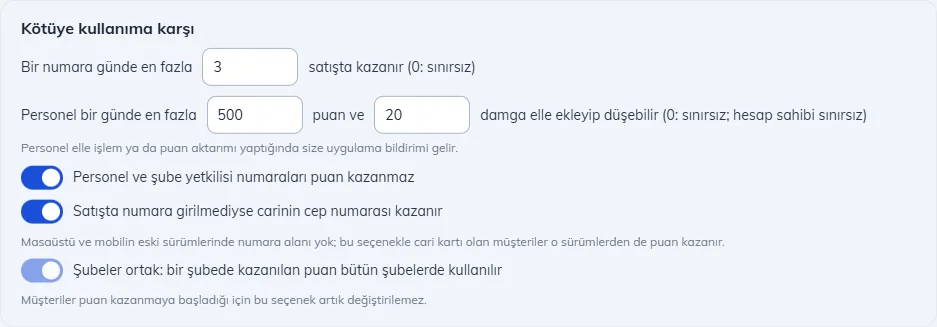
- 1 The maximum number of sales per day on which one number can earn points (e.g. 3). This stops cashiers from entering their own number on receipts of customers who are not members.
- 2 The maximum points and stamps staff can add or deduct manually in one day. There is no limit for the account owner.
- 3 Staff and branch manager numbers do not earn points.
- 4 If no number is entered on the sale, the customer account's mobile number earns: when you make a sale with a customer selected, the mobile number on the customer account card is used. Older versions of the desktop and mobile apps have no number field, so with this option points are earned from those versions too.
 1234
1234When staff make a manual points entry or a points transfer, you get an app notification. If Shared across branches is on, points earned in one branch can be used in all branches; this option cannot be changed once customers start earning points.
Save
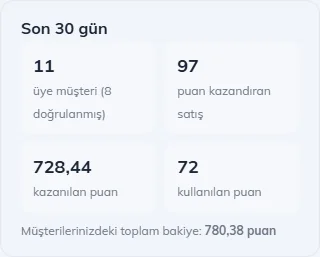
Press Save at the bottom of the page. The change applies from the next sales on. In the Last 30 days box on the right, you see the number of members, sales that earned points, points earned and used, and the total balance held by your customers.