




Installing the mobile app and logging in
Download the BenimPOS mobile app, log in as admin or staff, get to know the menu and switch between accounts.
With the BenimPOS mobile app you can make sales, add products, take customer payments and see your reports from a phone or tablet. The app is free on Android and iOS; in the stores it is called BenimPOS Pro.
Logging in
Download the app
Search for "BenimPOS" on Google Play or the App Store and install the BenimPOS Pro app.
Choose the login type
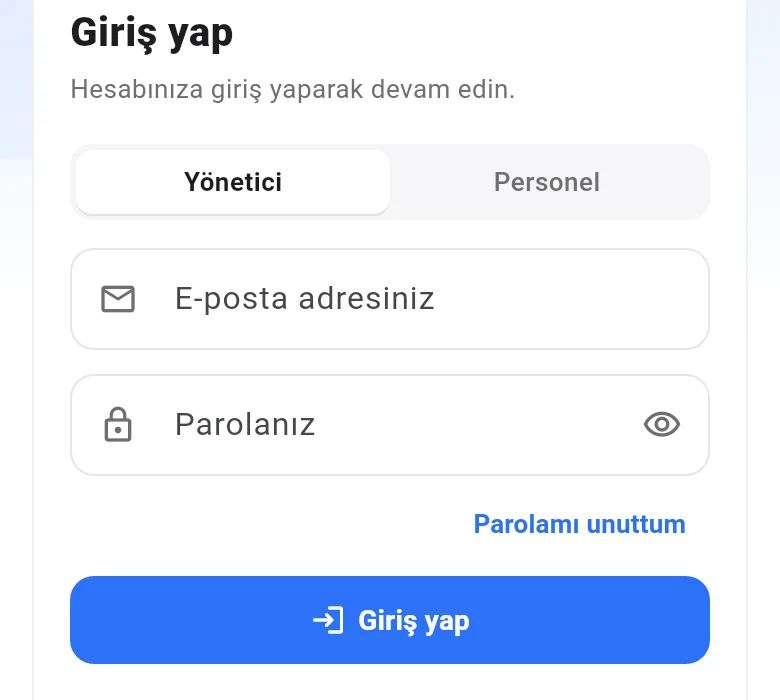
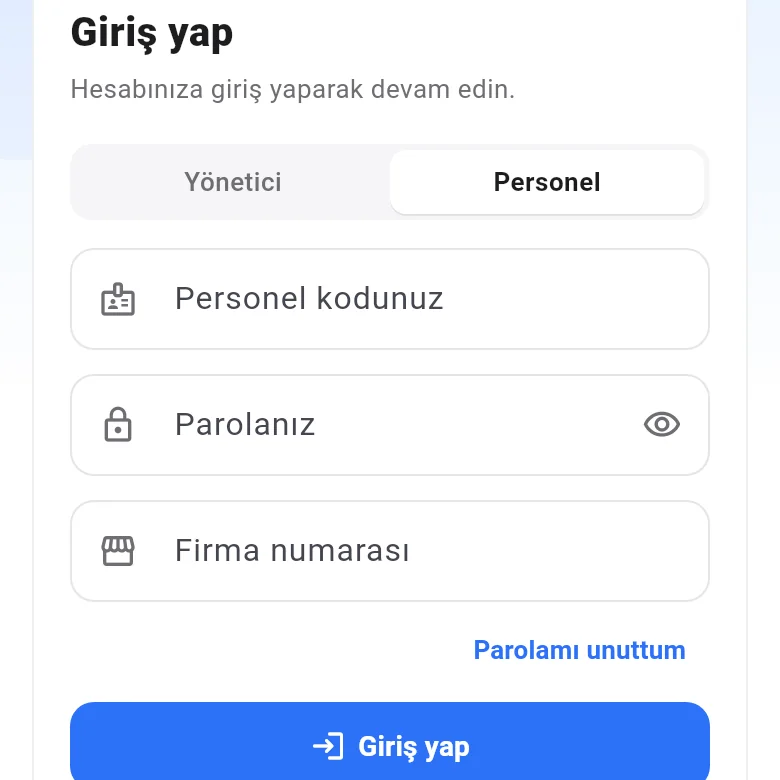
On the login screen, select Admin or Staff.
 123
123Enter your details
Admin: Your email address and Your password.
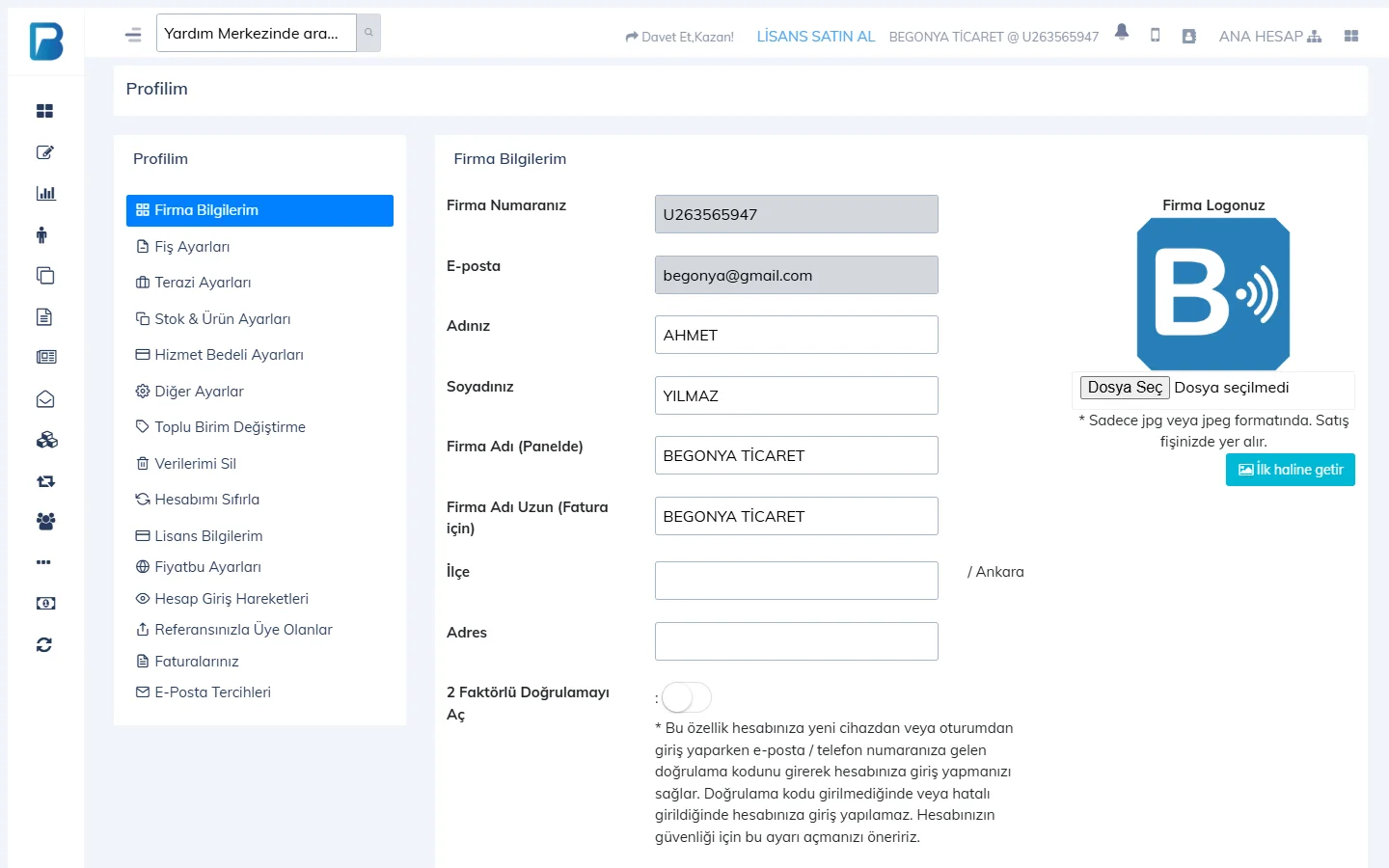
Staff: 1 Your staff code, 2 Your password and 3 Business ID. The business ID is your account number starting with "U"; the admin can see it on their Profile page.Verification code
If two-step verification is on, enter the 6-digit code sent by email or SMS and tap Verify.
Home screen and menu
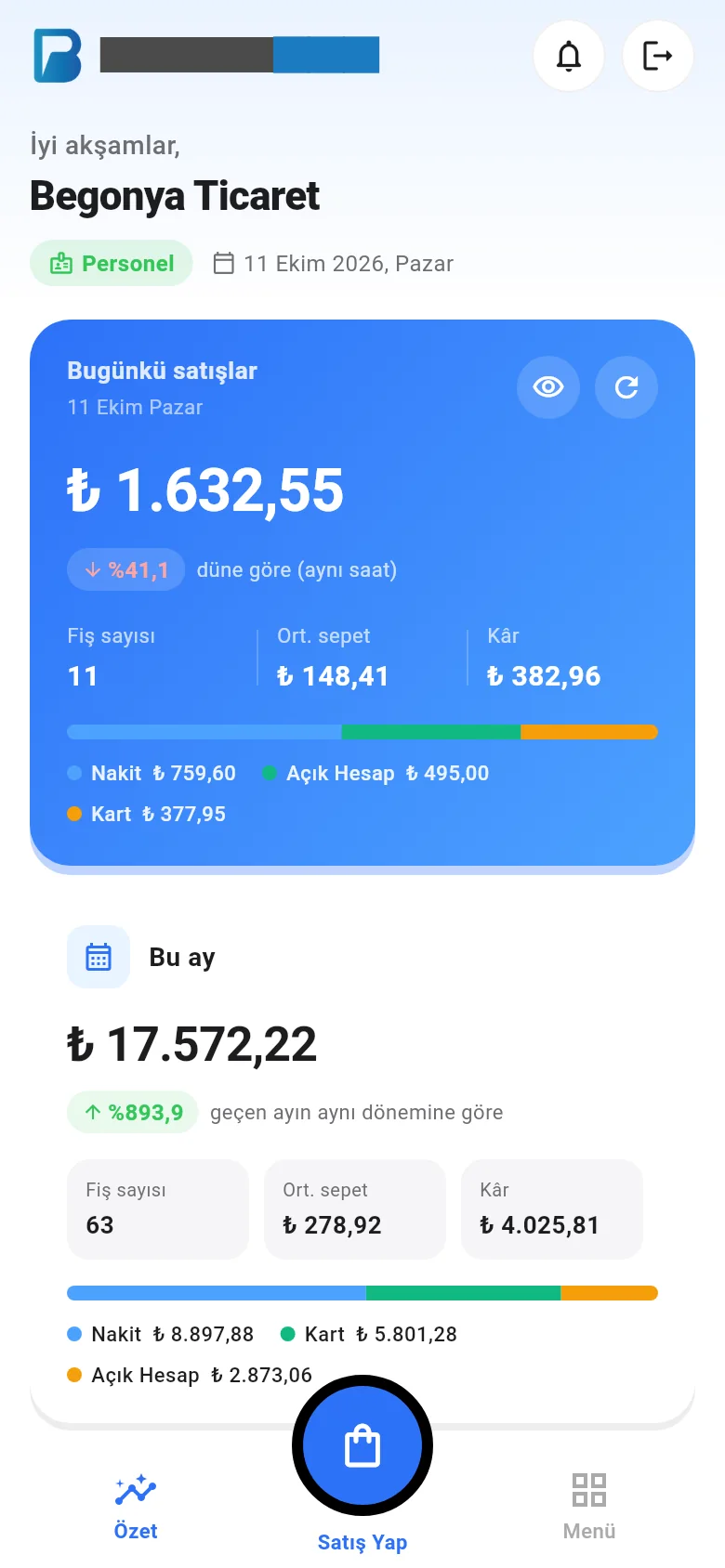
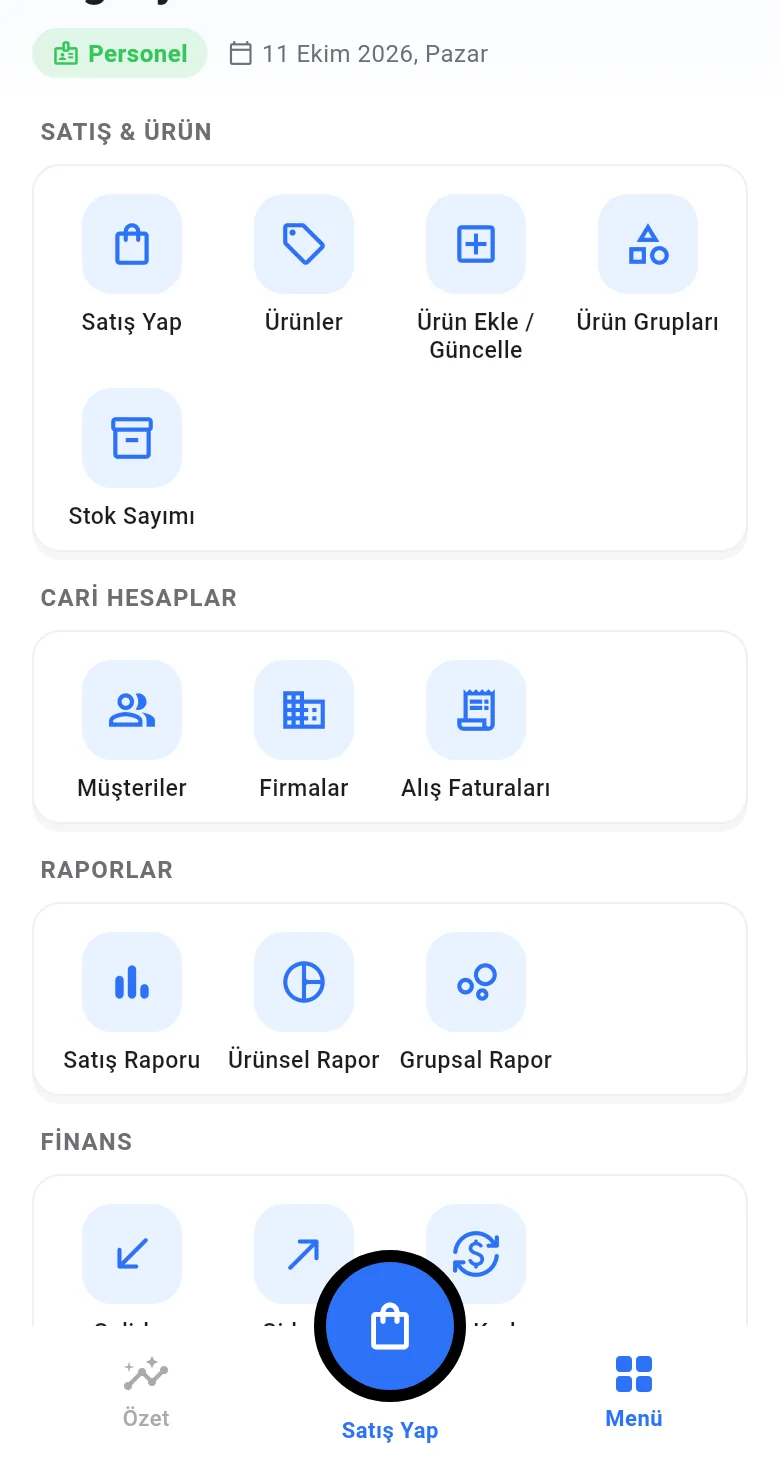
The bottom bar has Summary, the large New Sale button in the middle, and Menu. In the menu, actions are grouped into sections: Sales & Products, Accounts, Reports, Finance and Management. When logged in as staff, only the sections they have permission for are shown.
Multiple accounts
When logged in as admin, tap the person icon in the top header and add another account with Add new account. Tap an account in the list to switch between accounts. If you have branches, you can change branch with Menu › Branches.
The mobile app needs internet; sales are not saved when there is no connection. For tills without a reliable internet connection, use the desktop app. If the connection drops during a sale, the app shows the warning "The sale may have been saved"; check the Sales Report before trying again.
To log out, tap the logout icon in the top header. If you forgot your password, use the Forgot password link on the login screen.
Staff logging in on mobile
For staff to log in to the mobile app, a staff code and password must be set up on the Staff page in the web panel. Staff also enter your business ID on the login screen; you can find it in the Your Account Number field in My Profile › My Business Info.
 1234
1234This can't be done in the desktop app. Download the mobile app to your phone or tablet from Google Play / the App Store.