




Virtual keyboard on touch screens
Turn on and use the on-screen keyboard in the desktop app.
For tills with touch screens, the desktop app has an on-screen keyboard so you can type barcodes, amounts and product names without a physical keyboard.
Turning on the virtual keyboard
Turn on the setting
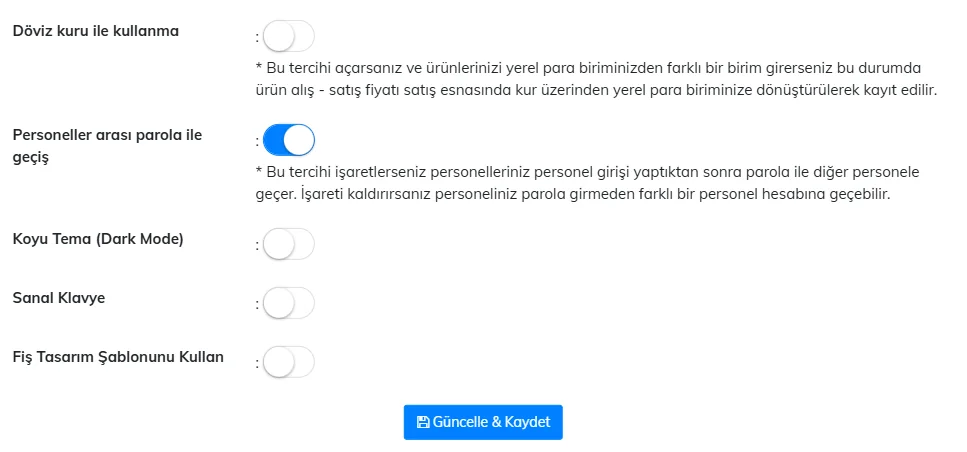
In Settings › Profile settings › Receipt and sales card, turn on Virtual keyboard and press Save Changes.
Use it
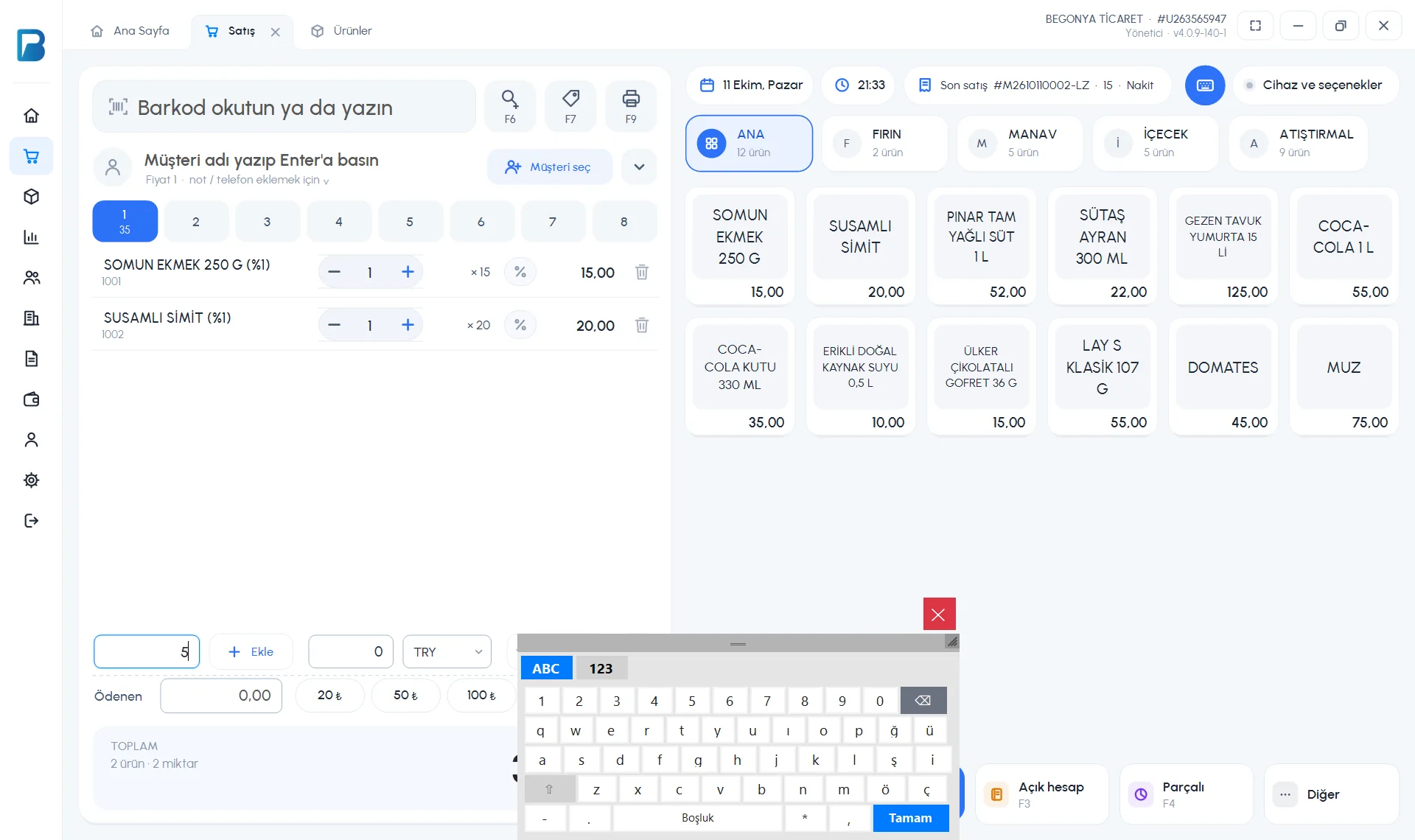
When the setting is on, tapping a text field opens the 1 on-screen keyboard. ABC is the letter layout and 123 the number layout; OK or the red × closes the keyboard. You can also open and close it with the 2 keyboard button in the top bar of the sales screen; other windows have a small keyboard button at the bottom.
 12
12
You can move the keyboard window by dragging its top edge. If you use a physical keyboard, turn off the setting so the keyboard doesn't open when you click fields.
Virtual keyboard in the web panel
On the My Profile › Other Settings tab, turn on 4 Virtual Keyboard and press 6 Update & Save. When it's on, the on-screen keyboard can be used in text fields on touch screens.
 123456
The mobile app uses the phone's own keyboard; no separate setting is needed.