




My desktop devices and additional device rights
See the computers you use the desktop app on, give them nicknames, and check their activation status and sync details.
The My Desktop Devices page lists the computers you've logged in to with the desktop app. By default you can use the desktop app on 1 computer; there is currently no extra charge for additional computers (write to our support line to have a device registered).
 123
123- App Key: a code generated for each computer; it's also shown at the bottom of the desktop app's home page.
- Nickname: give the device a name so you can recognise it (e.g. "Ground Floor Till 1") and press Save Changes.
- Last Activity: the date the device last sent data.
- Activation Status: an Active device can send and receive data. For a device shown as expired, write to our WhatsApp support line with its App Key; there is currently no charge for additional computers.
- The blue button on a row shows the device's integration details (how many records were synced in each data group); the red button deletes the device from the list.
- The Download button downloads the desktop app installer.
The Start / Start a new sync for all data buttons on the integration details page send a data group to the desktop app again from scratch. If the desktop app has records not yet sent to the web, this can cause data loss; don't use these buttons without talking to our support team.
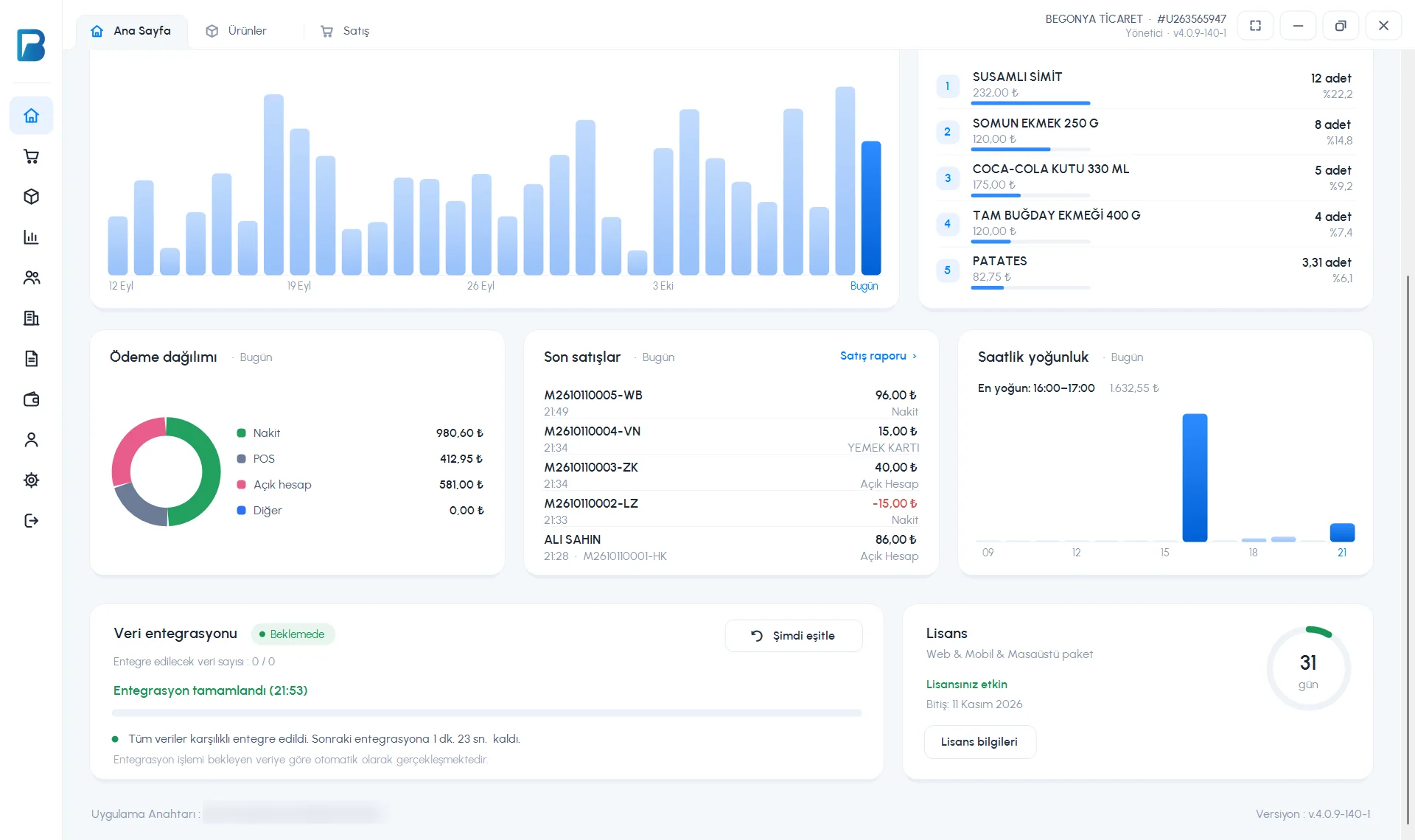 1234
1234You can see your computer's App Key at the bottom of the desktop home page (App Key : …). If the additional device right expires, the warning "Your additional desktop device license for this device has expired" appears during sync; send your App Key to our WhatsApp support line and the device will be registered free of charge.
This can't be done in the mobile app. Manage your desktop devices from the My Desktop Devices page in the web panel.